WebTop’s new content transfer mechanism

Yesterday I saw Webtop 6.8.2 was released, and as this was great news because this version was supposed to remove Java applets once and for all. While most of us though that removing applets would imply moving to HTML5, EMC has decided to implement an intermediate solution 😦

Webtop 6.8.2 will prompt users to install a browser extension first time you log in:

webtop-warning

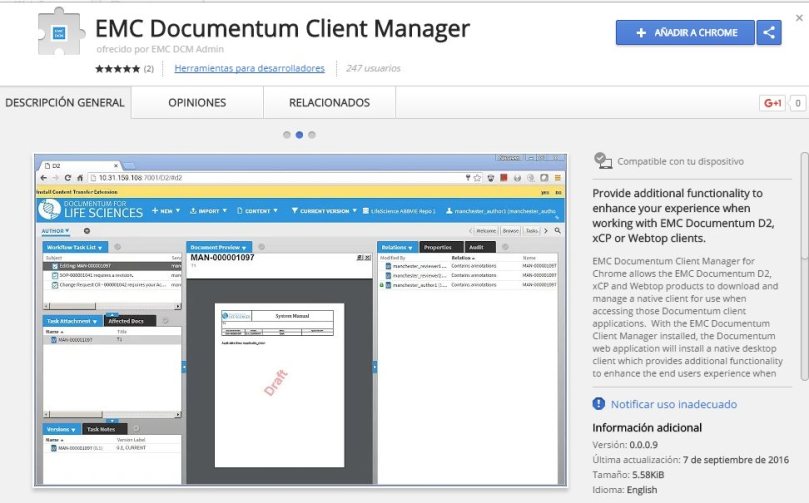
In Firefox the extension will be installed, and in Chrome user will be redirected to the Chrome Web Store:

webtop-chrome-extension

After installing the extension, the first time users try to download something they’ll be prompted to install a local application that will handle the transfers (WebSockets I presume).

Good news: Now you don’t need to fight with Java/browser combination

Bad news: Users have to perform operations. Not the cleanest solution (IMHO).

Bonus: Now importing files is really not-user friendly:

  1. File -> import
  2. Ugly Java window will pop-up over the import container asking for files to import
  3. Select files/folders, press ok and… nothing happens. You are kept in a blank container window with “Next” and “Finish” buttons and no indication whatsoever if the files are been/have been uploaded or what is going on.

(Unofficial) D7.2 Developer Docker edition (II)

In this post I’ll explain how to move from the full environment in a single image/container described in the previous post ((Unofficial) D7.2 Developer Docker edition (I)) to a multi-image/container environment. As I said in the previous post, if you want to set up a complete environment you better check the existing guides (GitHub – jppop/dctm-docker: Documentum running in containers, dctm/docker at master · andreybpanfilov/dctm · GitHub) instead of this one

Database:

This is the easiest part, as the Dockerfile is exactly the same we used previously to set up the database:

FROM centos
RUN echo root:root | chpasswd

RUN yum install -y passwd sudo tail vi libaio bc initscripts net-tools libXp.x86_64 libXp.i686 libXi.i686 libXtst.i686 libXt.i686 glibc.i686 libgcc.i686 libstdc++.i686 libaio.i686; \
yum clean all

RUN mkdir -p /run/lock/subsys

ADD db/oracle-xe-11.2.0-1.0.x86_64.rpm /tmp/
RUN yum localinstall -y /tmp/oracle-xe-11.2.0-1.0.x86_64.rpm; \
rm -rf /tmp/oracle-xe-11.2.0-1.0.x86_64.rpm

ADD db/config/xe.rsp db/config/init.ora db/config/initXETemp.ora /u01/app/oracle/product/11.2.0/xe/config/scripts/
RUN chown oracle:dba /u01/app/oracle/product/11.2.0/xe/config/scripts/*.ora \
/u01/app/oracle/product/11.2.0/xe/config/scripts/xe.rsp
RUN chmod 755 /u01/app/oracle/product/11.2.0/xe/config/scripts/*.ora \
/u01/app/oracle/product/11.2.0/xe/config/scripts/xe.rsp
ENV ORACLE_HOME /u01/app/oracle/product/11.2.0/xe
ENV ORACLE_SID XE
ENV PATH $ORACLE_HOME/bin:$PATH

RUN /etc/init.d/oracle-xe configure responseFile=/u01/app/oracle/product/11.2.0/xe/config/scripts/xe.rsp

RUN echo oracle:oracle | chpasswd

RUN mkdir /u01/app/oracle/product/11.2.0/xe/lib32; \
chown oracle:dba /u01/app/oracle/product/11.2.0/xe/lib32

ADD db/instantclient_11_2/lib* /u01/app/oracle/product/11.2.0/xe/lib32/

RUN ln -s /u01/app/oracle/product/11.2.0/xe/lib32/libclntsh.so.11.1 /u01/app/oracle/product/11.2.0/xe/lib32/libclntsh.so; \
ln -s /u01/app/oracle/product/11.2.0/xe/lib32/libocci.so.11.1 /u01/app/oracle/product/11.2.0/xe/lib32/libocci.so; \
chown -h oracle:dba /u01/app/oracle/product/11.2.0/xe/lib32/*; \
chown -h oracle:dba /u01/app/oracle/product/11.2.0/xe/lib32/libclntsh.so; \
chown -h oracle:dba /u01/app/oracle/product/11.2.0/xe/lib32/libocci.so

ADD db/config/startdb.sh /

EXPOSE 1521

CMD /startdb.sh ; bash

Then build the image:

docker build -t database .

Now we can run the image by running:

docker run -dit -p 1521:1521 db

which will run the container as a daemon publishing the port 1521 so we can connect from another container.

Content Server / Repository:

This needs extra work from the previous setup. First, we need to install the oracle client:

FROM centos

RUN echo root:root | chpasswd

RUN yum install -y libaio sudo tail vi openssh-server; \
yum clean all; \
sed -i ‘s/PermitRootLogin without-password/PermitRootLogin yes/’ /etc/ssh/sshd_config; \
sed ‘s@session\s*required\s*pam_loginuid.so@session optional pam_loginuid.so@g’ -i /etc/pam.d/sshd

ADD db/install/oracle-instantclient11.2-sqlplus-11.2.0.3.0-1.x86_64.rpm /tmp/oracle-instantclient11.2-sqlplus-11.2.0.3.0-1.x86_64.rpm
ADD db/install/oracle-instantclient11.2-basic-11.2.0.3.0-1.x86_64.rpm /tmp/oracle-instantclient11.2-basic-11.2.0.3.0-1.x86_64.rpm

RUN rpm -ivh /tmp/oracle-instantclient11.2-sqlplus-11.2.0.3.0-1.x86_64.rpm /tmp/oracle-instantclient11.2-basic-11.2.0.3.0-1.x86_64.rpm; \
rm /tmp/oracle-instantclient11.2-sqlplus-11.2.0.3.0-1.x86_64.rpm; \
rm /tmp/oracle-instantclient11.2-basic-11.2.0.3.0-1.x86_64.rpm

Now, let’s install CS:

Create the dmadmin user:

RUN useradd dmadmin; \
passwd -f -u dmadmin; \
mkdir -p /home/dmadmin/.ssh; chown dmadmin /home/dmadmin/.ssh; chmod 700 /home/dmadmin/.ssh; \
echo “dmadmin ALL=(ALL) ALL” >> /etc/sudoers.d/dmadmin; \
sed -i -e ‘s/Defaults requiretty.*/ #Defaults requiretty/g’ /etc/sudoers

Create folder structure:

RUN mkdir /opt/documentum; \
mkdir /opt/documentum/product; \
mkdir /opt/documentum/product/7.2; \
mkdir /opt/documentum/install; \
mkdir /opt/documentum/db; \
chown -R dmadmin:dmadmin /opt/documentum

Copy files, including a new config.properties containing the setup of an additional docbroker (we need this to do the IP translation so external machines can connect to the repository):

ADD cs/install/* /opt/documentum/install/
ADD cs/config/installProperties.properties /opt/documentum/install/
ADD cs/config/configProperties.properties /opt/documentum/install/
ADD cs/config/configPropertiesDoc.properties /opt/documentum/install/

Preinstallation checks:

RUN echo “#dctm services” >> /etc/services ; \
echo “dctm72 49001/tcp # 7.2 Repository native connection” >> /etc/services ; \
echo “dctm72_s 49002/tcp # 7.2 Repository secure connection” >> /etc/services ; \
ln /usr/lib64/libsasl2.so.3 /usr/lib64/libsasl2.so.2; \
ln -s /usr/lib/oracle/11.2/client64/lib/libclntsh.so.11.1 /usr/lib/oracle/11.2/client64/lib/libclntsh.so; \
ln -s /usr/lib/oracle/11.2/client64/lib/libocci.so.11.1 /usr/lib/oracle/11.2/client64/lib/libocci.so; \
chown -R dmadmin:dmadmin /opt/documentum/install; \
chmod u+x /opt/documentum/install/serverSetup.bin

ENV DOCUMENTUM /opt/documentum
ENV DM_HOME $DOCUMENTUM/product/7.2
ENV LC_ALL C
ENV JAVA_HOME /opt/documentum/java64/1.7.0_72
ENV ORACLE_HOME /usr/lib/oracle/11.2/client64
ENV ORACLE_SID XE
ENV PATH $ORACLE_HOME/bin:$DM_HOME/bin:$PATH
ENV NLS_LANG AMERICAN_AMERICA.AL32UTF8
ENV LD_LIBRARY_PATH=/usr/lib/oracle/11.2/client64/lib:$DM_HOME/bin/FIPS/:$JAVA_HOME/jre/lib/amd64/server:$DM_HOME/bin:$LD_LIBRARY_PATH
ENV PATH=/usr/lib/oracle/11.2/client64/bin:$PATH
ENV TNS_ADMIN=/opt/documentum/db

And run the silent install:

RUN $DOCUMENTUM/install/serverSetup.bin -f installProperties.properties

Now that the content server is installed, we need to create a repository. We’ll need to use a tnsnames.ora pointing to our running database container. In this case I’m hadrdcoding the docker virtual machine IP for the installation, however, fix_tnsnames.sh takes an environment variable (defined in the docker run command) and updates the file so the container can connect to the database if the IP changes:

ENV DBHOST 192.168.99.100
ADD db/config/tnsnames.ora /opt/documentum/db/
ADD db/config/fix_tnsnames.sh /opt/documentum/

The dmdbtest “patch”:

RUN /opt/documentum/fix_tnsnames.sh; \
mv $DM_HOME/bin/dmdbtest $DM_HOME/bin/dmdbtest.bak; \
echo “exit 0” >> $DM_HOME/bin/dmdbtest; \
chmod u+x $DM_HOME/bin/dmdbtest

And run the docbrokers/repository configuration:

RUN sed -i “/SERVER.PROJECTED_DOCBROKER_HOST/cSERVER.PROJECTED_DOCBROKER_HOST=$HOSTNAME” /opt/documentum/install/configProperties.properties; \
sed -i “/SERVER.SMTP_SERVER_NAME/cSERVER.SMTP_SERVER_NAME=$HOSTNAME” /opt/documentum/install/configProperties.properties; \
sed -i “/SERVER.FQDN/cSERVER.FQDN=$HOSTNAME” /opt/documentum/install/configProperties.properties; \
/opt/documentum/product/7.2/install/dm_launch_server_config_program.sh -f /opt/documentum/install/configPropertiesDoc.properties; \
/opt/documentum/product/7.2/install/dm_launch_server_config_program.sh -f /opt/documentum/install/configProperties.properties

Final touches:

EXPOSE 22 1489 1492 49001 49002
ADD cs/config/startup-dctm.sh /opt/documentum/startup-dctm.sh
CMD /opt/documentum/fix_tnsnames.sh; /opt/documentum/startup-dctm.sh ; bash

startup-dctm.sh should:

  • Update server.ini host and projection target 1 for the additional docbroker.
  • Update dfc.properties with the right hostname
  • Delete dfc.keystore
  • Run dm_crypto_boot
  • Add the IP translation section to DocbrokerExt.ini
  • Update dfc.properties with both dockbrokers
  • Launch docbroker services (using -init_file for our additional docbroker)
  • Run JMS
  • Start repository.

Now we just have to build the image:

docker build -t dctm72 .

and run it:

docker run -dit -p 1489:1489 -p 1492:1492 -p 49001:49001 -p 49002:49002 –env DBHOST=192.168.99.100 dctm

Application Server

Finally, let’s build the application server image (quite self-explanatory):

FROM centos
ADD install/apache-tomcat-8.0.14.tar.gz /opt/

RUN mv /opt/apache-tomcat-8.0.14 /opt/tomcat

RUN yum install -y unzip; \
yum clean all

ADD install/da.war /opt/tomcat/webapps/
RUN unzip /opt/tomcat/webapps/da.war -d /opt/tomcat/webapps/da; \
sed -i “/<compression_filter_enabled>true</compression_filter_enabled>/c<compression_filter_enabled>false</compression_filter_enabled>” /opt/tomcat/webapps/da/wdk/app.xml; \
rm /opt/tomcat/webapps/da.war
ADD config/catalina.properties /opt/tomcat/conf/
ADD config/context.xml /opt/tomcat/conf/
ADD config/server.xml /opt/tomcat/conf/
ADD config/web.xml /opt/tomcat/conf/
ADD config/catalina.sh /opt/tomcat/bin/
ADD config/starttomcat.sh /opt/tomcat/bin/

ADD install/jdk-8u91-linux-x64.tar.gz /opt/
EXPOSE 8080
CMD /opt/tomcat/bin/starttomcat.sh ; bash

starttomcat.sh will simply update da/WEB-INF/classes/dfc.properties with the right CS host/port

So let’s build the image:

docker build -t appserver .

And run it with:

docker run -dit -p 8080:8080 –env CSHOST=192.168.99.100 –env CSPORT=1492 tomcat

And if everything worked fine, you’ll have 3 containers running the same Documentum environment we had previously running in a single container.

(Unofficial) D7.2 Developer Docker edition (I)

I was playing around with Docker (well, with Docker toolbox for Windows…) and decided to give this a go. The following post contains instructions on how to build a single image hosting a similar environment to the previously posted (Unofficial) D7.2 Developer Edition.

This is not the cleanest, nor more elegant solution, so I wouldn’t use this for anything else than testing/learning purposes. If you want something more “professional” you should check the existing guides/scripts to build a documentum environment using docker: xCP dockerized environment (GitHub – jppop/dctm-docker: Documentum running in containers) and docker-dctm (dctm/docker at master · andreybpanfilov/dctm · GitHub) by PanfilovAB

So here we go:

Step 1: Install docker-toolbox

Well, simply run the installer, next, next, next, Finish. Just be sure to check the option to install the NDIS5 driver. The docker toolbox for Windows installs Oracle VirtualBox and has a headless vbox running a base *nix image (boot2docker) designed to run containers (there’s is a beta docker for Windows 10 enterprise that works directaly against MS HyperV without an intermediate virtualization software).

Step 2: Get a “more suitable” default docker machine

Default docker vm has 1gb ram, so we’ll delete it:

docker-machine rm default

And create a new one with 4g RAM and using 2 cpus

docker-machine create -d virtualbox –virtualbox-memory 4096 –virtualbox-cpu-count 2 –engine-storage-driver overlay default

Step 3: Fix swap space for Oracle XE

thanks to GitHub – madhead/docker-oracle-xe: CentOS 7 Docker image with Oracle XE 11.2.0 onboard:

The steps are same as for usual build, but you need to configure swap space in boot2docker / Docker Machine prior the build:

Log into boot2docker / Docker Machine: boot2docker ssh or docker-machine ssh default (replace default if needed).

Create a file named bootlocal.sh in /var/lib/boot2docker/ with the following content:

#!/bin/sh
SWAPFILE=/mnt/sda1/swapfile
dd if=/dev/zero of=$SWAPFILE bs=1024 count=2097152
mkswap $SWAPFILE && chmod 600 $SWAPFILE && swapon $SWAPFILE
Make this file executable: chmod u+x /var/lib/boot2docker/bootlocal.sh

After restarting boot2docker / Docker Machine, it will have increased swap size. Just follow the steps above to build this image.

Step 4: Get the installers ready

You should have a folder structure similar to this one:

cs\config\configProperties.properties -&gt; repository install script
cs\config\installProperties.properties -&gt; cs install script
cs\config\startup-dctm.sh -&gt; dctm startup script
cs\install\appServer.jar
cs\install\bocs-ws.ear
cs\install\composer.jar
cs\install\dfcUnix.zip
cs\install\dms.ear
cs\install\docApps.jar
cs\install\Documentum_DFC_Environment.iam.zip
cs\install\jboss711.zip
cs\install\ServerApps.ear
cs\install\serverSetup.bin
cs\install\Server_linux_ora.zip
cs\install\serviceWrapperManager.jar
cs\install\tanukisoftware.zip
cs\install\tcf.zip
cs\install\XhiveConnector.ear
db\oracle-xe-11.2.0-1.0.x86_64.rpm
db\config\init.ora -&gt; oracle xe config
db\config\initXETemp.ora -&gt; oracle xe config
db\config\startdb.sh -&gt; oracle xe startup script
db\config\xe.rsp -&gt; oracle xe config
db\instantclient_11_2\adrci
db\instantclient_11_2\BASIC_README
db\instantclient_11_2\genezi
db\instantclient_11_2\libclntsh.so.11.1
db\instantclient_11_2\libnnz11.so
db\instantclient_11_2\libocci.so.11.1
db\instantclient_11_2\libociei.so
db\instantclient_11_2\libocijdbc11.so
db\instantclient_11_2\ojdbc5.jar
db\instantclient_11_2\ojdbc6.jar
db\instantclient_11_2\uidrvci
db\instantclient_11_2\xstreams.jar
tomcat\config\catalina.properties -&gt; tomcat updated config files
tomcat\config\catalina.sh -&gt; tomcat modified startup script
tomcat\config\context.xml -&gt; tomcat updated config files
tomcat\config\server.xml -&gt; tomcat updated config files
tomcat\config\web.xml -&gt; tomcat updated config files
tomcat\install\apache-tomcat-8.0.14.tar.gz
tomcat\install\da.war

Step 5: Get latest centos as base OS

Open docker terminal and run:

docker pull centos:latest

From now on, we’ll be editing the Dockerfile that we’ll use to create the image

Step 6: Installing Oracle XE

We’ll be building and image based on the centos we’ve just pulled, so we start our Dockerfile with:

FROM centos

Now we need to setup user accounts:

RUN echo root:root | chpasswd
RUN useradd dmadmin
RUN passwd -f -u dmadmin

RUN echo “dmadmin ALL=(ALL) ALL” >> /etc/sudoers.d/dmadmin
RUN sed -i -e ‘s/Defaults requiretty.*/ #Defaults requiretty/g’ /etc/sudoers

Install required libraries:

RUN yum install -y passwd sudo tail libaio bc initscripts net-tools libXp.x86_64 libXp.i686 libXi.i686 libXtst.i686 libXt.i686 glibc.i686 libgcc.i686 libstdc++.i686 libaio.i686; \
yum clean all

And run the Oracle installation:

RUN mkdir -p /run/lock/subsys

ADD db/oracle-xe-11.2.0-1.0.x86_64.rpm /tmp/
RUN yum localinstall -y /tmp/oracle-xe-11.2.0-1.0.x86_64.rpm; \
rm -rf /tmp/oracle-xe-11.2.0-1.0.x86_64.rpm

ADD db/config/xe.rsp db/config/init.ora db/config/initXETemp.ora /u01/app/oracle/product/11.2.0/xe/config/scripts/
RUN chown oracle:dba /u01/app/oracle/product/11.2.0/xe/config/scripts/*.ora \
/u01/app/oracle/product/11.2.0/xe/config/scripts/xe.rsp
RUN chmod 755 /u01/app/oracle/product/11.2.0/xe/config/scripts/*.ora \
/u01/app/oracle/product/11.2.0/xe/config/scripts/xe.rsp

ENV ORACLE_HOME /u01/app/oracle/product/11.2.0/xe
ENV ORACLE_SID XE
ENV PATH $ORACLE_HOME/bin:$PATH
RUN /etc/init.d/oracle-xe configure responseFile=/u01/app/oracle/product/11.2.0/xe/config/scripts/xe.rsp

RUN echo oracle:oracle | chpasswd

those scripts have the Oracle configuration and you can get them from GitHub – madhead/docker-oracle-xe: CentOS 7 Docker image with Oracle XE 11.2.0 onboard

Configure instantclient:

RUN mkdir /u01/app/oracle/product/11.2.0/xe/lib32; \
chown oracle:dba /u01/app/oracle/product/11.2.0/xe/lib32

ADD db/instantclient_11_2/lib* /u01/app/oracle/product/11.2.0/xe/lib32/

RUN ln -s /u01/app/oracle/product/11.2.0/xe/lib32/libclntsh.so.11.1 /u01/app/oracle/product/11.2.0/xe/lib32/libclntsh.so; \
ln -s /u01/app/oracle/product/11.2.0/xe/lib32/libocci.so.11.1 /u01/app/oracle/product/11.2.0/xe/lib32/libocci.so; \
chown -h oracle:dba /u01/app/oracle/product/11.2.0/xe/lib32/*; \
chown -h oracle:dba /u01/app/oracle/product/11.2.0/xe/lib32/libclntsh.so; \
chown -h oracle:dba /u01/app/oracle/product/11.2.0/xe/lib32/libocci.so

And copy the db startup script to the image:

ADD db/config/startdb.sh /

Step 7: Installing Documentum 7.2

You need to get a copy of the silent install scripts, you can get them by running the dctm installers with “-r <path to file>” or by checking support.emc.com for a SN with an attached copy.

Just be sure to fill in the usual required fields and the AEK password option or the installer will fail (you can avoid using lockbox though)

Avoid problems with the Oracle client:

RUN usermod -a -G dba dmadmin

Create the folder structure and copy the installers and the configuration scripts:

RUN mkdir /opt/documentum; \
mkdir /opt/documentum/product; \
mkdir /opt/documentum/product/7.2; \
mkdir /opt/documentum/install; \
chown -R dmadmin:dmadmin /opt/documentum

ADD cs/install/* /opt/documentum/install/
ADD cs/config/installProperties.properties /opt/documentum/install/installProperties.properties
ADD cs/config/configProperties.properties /opt/documentum/install/configProperties.properties

Additional configurations before running the installer:

USER root
RUN echo “#dctm services” >> /etc/services ; \
echo “dctm72 49001/tcp # 7.2 Repository native connection” >> /etc/services ; \
echo “dctm72_s 49002/tcp # 7.2 Repository secure connection” >> /etc/services

RUN ln /usr/lib64/libsasl2.so.3 /usr/lib64/libsasl2.so.2

RUN chown -R dmadmin:dmadmin /opt/documentum/install; \
chmod u+x /opt/documentum/install/serverSetup.bin

USER dmadmin
WORKDIR $DOCUMENTUM

ENV DOCUMENTUM /opt/documentum
ENV DM_HOME $DOCUMENTUM/product/7.2
ENV ORACLE_HOME /u01/app/oracle/product/11.2.0/xe
ENV ORACLE_SID XE
ENV NLS_LANG AMERICAN_AMERICA.AL32UTF8
ENV PATH $ORACLE_HOME/bin:$DM_HOME/bin:$PATH
ENV LC_ALL C
ENV JAVA_HOME /opt/documentum/java64/1.7.0_72
ENV PATH $JAVA_HOME/bin:$ORACLE_HOME/bin:$DM_HOME/bin:$PATH
ENV LD_LIBRARY_PATH=$ORACLE_HOME/lib32:$DM_HOME/bin/FIPS/:$JAVA_HOME/jre/lib/amd64/server:$DM_HOME/bin:$LD_LIBRARY_PATH

And run CS install:

RUN $DOCUMENTUM/install/serverSetup.bin -f installProperties.properties

Let’s configure the repository. First, “fix” dmdbtest (bad, dirty fix)

RUN mv $DM_HOME/bin/dmdbtest $DM_HOME/bin/dmdbtest.bak; \
echo “exit 0” >> $DM_HOME/bin/dmdbtest; \
chmod u+x $DM_HOME/bin/dmdbtest

While building an image, docker generates intermediate containers. These containers are like individual VMs with their own configuration, so starting the DB and the installer in different docker commands makes the DB run in a different container than the installation, so the installer won’t be able to connect to Oracle. In order to avoid this problem we need to run everything in the same run command (dirty workaround). Also, update hostnames with the current container hostname:

RUN sed -i “/SERVER.PROJECTED_DOCBROKER_HOST/cSERVER.PROJECTED_DOCBROKER_HOST=$HOSTNAME” /opt/documentum/install/configProperties.properties; \
sed -i “/SERVER.SMTP_SERVER_NAME/cSERVER.SMTP_SERVER_NAME=$HOSTNAME” /opt/documentum/install/configProperties.properties; \
sed -i “/SERVER.FQDN/cSERVER.FQDN=$HOSTNAME” /opt/documentum/install/configProperties.properties; \
sudo -E /startdb.sh; \
/opt/documentum/product/7.2/install/dm_launch_server_config_program.sh -f /opt/documentum/install/configProperties.properties

Step 8: Installing Tomcat / DA 7.2

The configuration files are the same used in the (Unofficial) D7.2 Developer Edition, I simply copied those to avoid further manual modifications:

ADD tomcat/install/apache-tomcat-8.0.14.tar.gz /opt/

RUN mv /opt/apache-tomcat-8.0.14 /opt/tomcat; \
chown -R dmadmin:dmadmin /opt/tomcat

ADD tomcat/install/da.war /opt/tomcat/webapps/
RUN unzip /opt/tomcat/webapps/da.war -d /opt/tomcat/webapps/da; \
sed -i “/<compression_filter_enabled>true</compression_filter_enabled>/c<compression_filter_enabled>false</compression_filter_enabled>” /opt/tomcat/webapps/da/wdk/app.xml; \
rm /opt/tomcat/webapps/da.war
ADD tomcat/config/catalina.properties /opt/tomcat/conf/
ADD tomcat/config/context.xml /opt/tomcat/conf/
ADD tomcat/config/server.xml /opt/tomcat/conf/
ADD tomcat/config/web.xml /opt/tomcat/conf/
ADD tomcat/config/catalina.sh /opt/tomcat/bin/

Step 9: Exposing ports and configuring default command to be run:

EXPOSE 8080 1521

CMD /opt/documentum/startup-dctm.sh ; bash

Save and get ready to build the image!

Step 10: building the image

docker build -t dctm72 .

And wait 40-60 minutes

Step 11: Running the image

Now that everything is setup, just run the image:

docker run -it -p 8080:8080 dctm72

the startup-dctm.sh command will start the database listening to the container’s IP, update server.ini, dfc.properties with the new hostname, remove dfc.keystore (just to be sure), load the aek passphrase and start docbroker, repository, jms and tomcat.

You can run idql from the container to check that you can connect to the repository. Now point your host browser to the docker-machine ip (you can see the ip on the docker terminal or by running “docker-machine ip”) through the 8080 port and try to open DA and login using the usual dmadmin/dmadmin.

Everything should be (kind of) working, Congrats!

In the next post I’ll explain how to “split” this image in three different images (db, cs and tomcat)

(Unofficial) D2 4.6 Developer Edition

I had time to install the latest D2, and as usual, it wasn’t just “next, next, next, finish” so I took the chance to do a quick post

Environment

Required software

  • emc-dfs-sdk-7.2.zip
  • D2_4.6.0_P03.zip

D2 Installation

Installation

  • Stop Tomcat, JMS, Content Server and docbroker
  • Create the following folder structure:
    • $DOCUMENTUM/d2
    • $DOCUMENTUM/d2/install
    • $DOCUMENTUM/d2/dfs72
    • $DOCUMENTUM/d2/dar
    • $DOCUMENTUM/d2/d2-api
    • $DOCUMENTUM/d2/lockbox
  • Copy to the $DOCUMENTUM/d2/dfs72 the contents of emc-dfs-sdk-7.2.zip
  • Modify sdk’s dfc.properties to use the existing content server dfc.properties file

[dmadmin@vm-dctm72 d2]$ vi dfs72/etc/dfc.properties
#include /opt/documentum/config/dfc.properties

  • Copy to $DOCUMENTUM/d2/install the contents of D2_4.6.0_P03.zip

And let’s install D2:

[dmadmin@vm-dctm72 install]$ java -jar D2-Installer-4.6.0.jar

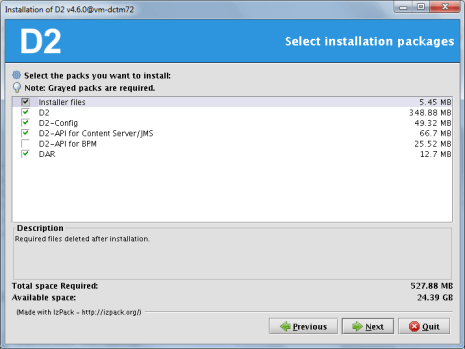
Next screens are just “next, next, next”. Despite what the screens says, the installer won’t configure Lockbox anyway, but it will install the required files.

Also, the installer will most likely fail when installing the DAR files, pointing to a non-existing log file. Just ignore it, as it looks like the installer is unable to install the dar files, so we’ll be manually installing those later.

PostInstall Configuration

  • Set environment variables:

D2=$DOCUMENTUM/d2
export D2
D2_API=$D2/d2-api
export D2_API
D2_LOCKBOX=$D2/lockbox
export D2_LOCKBOX
PATH=$HOME/.local/bin:$HOME/bin:$JAVA_HOME/bin:$ORACLE_HOME/bin:$DM_HOME/bin:$D2_LOCKBOX/linux_gcc64_ia64:$PATH
export PATH
CLASSPATH=$D2_API/C6-Common.jar:$D2_API/LB.jar:$D2_API/LBJNI.jar
export CLASSPATH
LD_LIBRARY_PATH=$ORACLE_HOME/lib32:$DM_HOME/bin/FIPS/:$JAVA_HOME/jre/lib/amd64/server:$DM_HOME/bin:$D2_LOCKBOX/linux_gcc34_x64
export LD_LIBRARY_PATH

  • Create lockbox file:

[dmadmin@vm-dctm72 d2]$ java com.emc.common.java.crypto.SetLockboxProperty $D2 D2Method.passphrase <your passphrase>

  • Copy D2.lockbox to the JMS:

[dmadmin@vm-dctm72 d2]$ cp D2.lockbox /opt/documentum/jboss7.1.1/server/DctmServer_MethodServer/deployments/ServerApps.ear/APP-INF/classes/

  • Create the following folder:

[dmadmin@vm-dctm72 d2]$ mkdir -p /opt/documentum/jboss7.1.1/modules/emc/d2/lockbox/main

  • Copy LB.jar and LBJNI.jar to that folder:

[dmadmin@vm-dctm72 d2]$ cp LB* /opt/documentum/jboss7.1.1/modules/emc/d2/lockbox/main/

  •  Create a module.xml file with the following content:

[dmadmin@vm-dctm72 d2]$ vi /opt/documentum/jboss7.1.1/modules/emc/d2/lockbox/main/module.xml
<module xmlns=”urn:jboss:module:1.1″ name=”emc.d2.lockbox”>
<resources>
<resource-root path=”LB.jar” />
<resource-root path=”LBJNI.jar” />
</resources>
</module>

  • Edit jboss-deployment-structure.xml and add the following section inside the deployments node:

[dmadmin@vm-dctm72 d2]$ vi /opt/documentum/jboss7.1.1//server/DctmServer_MethodServer/deployments/ServerApps.ear/META-INF/jboss-deployment-structure.xml
<dependencies>
<module name=”emc.d2.lockbox”/>
</dependencies>

  •  And the following to the exclusions section:

<module name=”org.slf4j” />
<module name=”org.slf4j.impl” />
<module name=”org.hibernate” />

  • Copy LB.jar and LBJNI.jar to tomcat’s lib folder:

[dmadmin@vm-dctm72 d2]$ cp LB* /opt/tomcat8/lib/

  •  Edit lockboxPath property from D2-Config/WEB-INF/classes/D2-Config.properties and D2/WEB-INF/classes/D2FS.properties to point to $D2 (use the actual path):

lockboxPath=/opt/documentum/d2

Dar Installation

  • Install the following DARs:

D2-DAR.dar

[dmadmin@vm-dctm72 dar]$ java -Ddar=$D2/dar/D2-DAR.dar -Dlogpath=$D2/dar/D2-DAR.log -Ddocbase=dctm72 -Duser=dmadmin -Ddomain= -Dpassword=dmadmin -cp $DM_HOME/install/composer/ComposerHeadless/startup.jar org.eclipse.core.launcher.Main -data $DM_HOME/install/composer/workspace -application org.eclipse.ant.core.antRunner -buildfile $DM_HOME/install/composer/deploy.xml

D2Widget-DAR.dar

[dmadmin@vm-dctm72 dar]$ java -Ddar=$D2/dar/D2Widget-DAR.dar -Dlogpath=$D2/dar/D2Widget-DAR.log -Ddocbase=dctm72 -Duser=dmadmin -Ddomain= -Dpassword=dmadmin -cp $DM_HOME/install/composer/ComposerHeadless/startup.jar org.eclipse.core.launcher.Main -data $DM_HOME/install/composer/workspace -application org.eclipse.ant.core.antRunner -buildfile $DM_HOME/install/composer/deploy.xml

Collaboration_Services.dar

[dmadmin@vm-dctm72 dar]$ java -Ddar=$D2/dar/Collaboration_Services.dar -Dlogpath=$D2/dar/Collaboration_Services.log -Ddocbase=dctm72 -Duser=dmadmin -Ddomain= -Dpassword=dmadmin -cp $DM_HOME/install/composer/ComposerHeadless/startup.jar org.eclipse.core.launcher.Main -data $DM_HOME/install/composer/workspace -application org.eclipse.ant.core.antRunner -buildfile $DM_HOME/install/composer/deploy.xml

  • Start docbroker, Content, JMS, Tomcat and (hopefully) everything should start fine (check JMS’ log as we’ve been messing with its configuration and anything out of place will cause it to fail)

MMTM 2016

Now that Momentum/EMC World is almost done, time for a quick recap. Announcements in the ECD’s keynote have covered Leap (Project Horizon), Documentum 7.3 and InfoArchive 4.0.

If you want to get detailed information on these, you can check the usual sources:

And don’t forget about the “Ask the expert” session about Leap

Thoughts after reading the news and watching the streamings and webcasts:

Good:

  • Leap looks nice. Integration with existing Documentum installations is good. Free for existing customers is the best way to push it (check the spark blog link for more info on licensing and TGS blog for initial prices)
  • Documentum for CentOs+PostgreSQL (finally!!!) and support for docker (cool!) to reduce TCO
  • Removal of UCF/Java from Webtop/D2 (THANK GOD) and support for Chrome/Edge (about time…)

Not so good:

  • Leap integration with DCTM is done through CMIS, but it seems like apps are not quite there yet. I suspect we won’t be able to use Leap against CS until 7.3 is released (or maybe later). I also don’t like CMIS too much, because even though is a standard, it’s missing a lot of specific features (for every vendor), so we’ll have too see how that works.
  • Docker is cool, but I still don’t have a clear picture of how it will work with Documentum. We’ll have to wait and see what EMC provides. Besides, if you want to reduce cost of upgrades, you should provide detailed information of what has changed (wdk classes, api reference, etc.) as most of the time that takes to perform an upgrade is lost in tracing changes in applications and why feature x stopped working (same with patch releases)
  • I still would love if EMC would remove once and for all dmbasic scripts from the installation process and methods, although that looks like a lost battle
  • No word about ECD’s future, it was something to expect but still disappointing

Bad:

  • DCTM 7.3 would be available first in EMC’s cloud environment to “debug” it with customers. I’m quite sure that knowing the history of bugs of Documentum (and the pace at what those are resolved) this will most likely backfire on them. If you want to deliver a solid-rock product, then what you should do is fixing reported bugs fast (instead of having to report same bug several times without luck or wasting time with support), not have (paying) customers beta-testing the product for months

My Documentum Wishlist for 2016

The top items in my list probably are:

  • What is going to happen with Dell/EMC/ECD?
  • Documentum postgresql production ready
  • Greater focus on dctm clients and browser support (In 2016 any product that just supports firefox and ie doesn’t look serious)
  • Improve Java/UCF support between java/browser versions (or even dropping it, considering only ie11 will support java by the end of the year)
  • Public (or easily available to partners/customers), clear roadmap (I’m still hearing EMC sales reps saying Webtop is dead… I think I’ve already lived this situation with WebPublisher…)

By the way, what’s going on with “project horizon”?, it could be great or it could be another centerstage, who knows… (not us, sadly)

ESAPI vs character codification

Webtop Patch notes state that problems with esapi have been fixed:

WEBTOP-32460
Opening a document with accent in name using http mode with Webtop 6.8 using IE11 results in a security exception and the contents of the file are not displayed.

Well, if you check HttpTransportManager.class you can check the “fix” by yourself:

Prepatch:

    try{
       contentDisposition.append(SECURITY.validator().getValidHeader("HttpTransportManager", makeSafeHeaderValue(strCleanFileName), "Header Manipulation"));
    }catch (UnsupportedEncodingException e){
        throw new WrapperRuntimeException(e);
    }

Patch “fix”:

    try{
         ClientInfo localClientInfo = ClientInfoService.getInfo();
         if ((localClientInfo.isPlatform(ClientInfo.WIN)) && (localClientInfo.isBrowser(ClientInfo.MSIE))) {
            contentDisposition.append(makeSafeHeaderValue(str));
          } else {
            contentDisposition.append(SECURITY.validator().getValidHeader("HttpTransportManager", makeSafeHeaderValue(str), "Header Manipulation"));
          }
    }catch (UnsupportedEncodingException localUnsupportedEncodingException){
          throw new WrapperRuntimeException(localUnsupportedEncodingException);
    }

This is obviously a lazy way to “fix” it, as the problem is in the ESAPI library and skipping the security check is not really a way to fix it.

There are basically 3 problems with the character enconding in wdk:

  1. The way WDK handles characters: This is a minor problem, as even if WDK does weird things such as converting back and forth the charecters, it “works”
  2. ESAPI is not character encoding aware, this makes useless adding your “special” characters to the ESAPI.properties validators, as this would be read incorrectly by ESAPI (more info here: Virtuallinks vs character encoding vs ESAPI)
  3. Inconsistencies when WDK calls ESAPI security validators as it sends the string to validate in different encodings (escaped/non-escaped, UTF-8 “native”, UTF-8 “converted”, etc.).

So, in order to fix this problems we need to fix the ESAPI library to be aware of the character encoding:

1. Get ESAPI 2.1.0 sources (Downloads – owasp-esapi-java – OWASP Enterprise Security API (Java Edition) – Google Project Hosting)

2. Add the following entries to webtop/WEB-INF/ESAPI.properties:

Validator.InputEncoding=UTF-8 //App server encoding
Validator.OutputEncoding=ISO-8859-1 //Locale encoding

3. Modify Validator.HTTPHeaderValue, Validator.FileName and Validator.DirectoryName with your special characters:

Validator.HTTPHeaderValue=^[a-zA-Z0-9<strong>áéíóúÁÉÍÓÚñÑ</strong>()\\-=\\*\\.\\?;,+\\/:&amp;_ ]*$
Validator.FileName=^[a-zA-Z0-9<strong>áéíóúÁÉÍÓÚñÑ</strong>!@#$%^&amp;{}\\[\\]()_+\\-=,.~'` ]{1,255}$
Validator.DirectoryName=^[a-zA-Z0-9<strong>áéíóúÁÉÍÓÚñÑ</strong>:/\\\\!@#$%^&amp;{}\\[\\]()_+\\-=,.~'` ]{1,255}$

4. Modify Validator.WDKHTTPURI adding a blank (because EMC assumes that nobody uses blanks when naming a folder):

Validator.WDKHTTPURI=^/([a-zA-Z0-9. \\-_]*/?)$

5. Add the following lines to org.owasp.esapi.reference.DefaultSecurityConfiguration

    private String inputEncoding = null;
    private String outputEncoding = null;  

    public String getInputEncoding() {
        return getESAPIProperty(INPUT_ENCODING, "UTF-8"); //UTF-8 is the default value returned if Validator.InputEncoding is not found
    }  

    public String getOutputEncoding() {
        return getESAPIProperty(OUTPUT_ENCODING, "ISO-8859-1"); //ISO-8859-1 is the default value returned if Validator.OutputEncoding is not found
    }  

    private String getEncodedESAPIProperty(String key){
        try {
            if (inputEncoding!=null && outputEncoding!=null){
                return new String(((String)properties.get(key)).getBytes(outputEncoding), inputEncoding);
            }else{
                return (String)properties.get(key);
            }
        } catch (UnsupportedEncodingException e) {
            e.printStackTrace();
        }
        return key;
    }

6. Modify DefaultSecurityConfiguration(), getESAPIProperty(String key, String def) and getESAPIProperty(String key, boolean def) methods:

    public DefaultSecurityConfiguration() {
        // load security configuration
        try {
            loadConfiguration();
            this.setCipherXProperties();  

            //deal with encoding
            inputEncoding=getInputEncoding();
            outputEncoding=getOutputEncoding();  

        } catch( IOException e ) {
          logSpecial("Failed to load security configuration", e );
          throw new ConfigurationException("Failed to load security configuration", e);
        }
    }  

    protected String getESAPIProperty( String key, String def ) {
        //String value = properties.getProperty(key);
        String value=getEncodedESAPIProperty(key);
        if ( value == null ) {
              logSpecial( "SecurityConfiguration for " + key + " not found in ESAPI.properties. Using default: " + def, null );
              return def;
        }
        return value;
    }  

    protected boolean getESAPIProperty( String key, boolean def ) {
        //String property = properties.getProperty(key);
        String property=getEncodedESAPIProperty(key);
        if ( property == null ) {
              logSpecial( "SecurityConfiguration for " + key + " not found in ESAPI.properties. Using default: " + def, null );
              return def;
        }
        if ( property.equalsIgnoreCase("true") || property.equalsIgnoreCase("yes" ) ) {
            return true;
        }
        if ( property.equalsIgnoreCase("false") || property.equalsIgnoreCase( "no" ) ) {
            return false;
        }
        logSpecial( "SecurityConfiguration for " + key + " not either \"true\" or \"false\" in ESAPI.properties. Using default: " + def, null );
        return def;
    }

7. Now that you are modifying this class, you can comment the logSpecial calls from loadPropertiesFromStream,loadConfiguration and getResourceFile and skip the messages thrown by ESAPI when loading the libraries (Best Practices – Review before releasing)

8. Modify org.owasp.esapi.reference.validation.StringValidationRule:

private String checkWhitelist(String context, String input, String orig) throws ValidationException{
  // check whitelist patterns
  //deal with encoding
  DefaultSecurityConfiguration sec=(DefaultSecurityConfiguration)DefaultSecurityConfiguration.getInstance();  

  Charset inputcharset = Charset.forName(sec.getInputEncoding());
  Charset outputcharset = Charset.forName(sec.getOutputEncoding());  

  ByteBuffer inputBuffer=null;
  try {
      inputBuffer = ByteBuffer.wrap(URLDecoder.decode(input,sec.getOutputEncoding()).getBytes());
  } catch (UnsupportedEncodingException e) {
      e.printStackTrace();
  }  

  CharBuffer data = inputcharset.decode(inputBuffer);  

  ByteBuffer outputBuffer = outputcharset.encode(data);
  byte[] outputData = outputBuffer.array();
  input=new String(outputData);  

    for (Pattern p : whitelistPatterns) {
        if ( !p.matcher(input).matches() ) {
            throw new ValidationException( context + ": Invalid input. Please conform to regex " + p.pattern() + ( maxLength == Integer.MAX_VALUE ? "" : " with a maximum length of " + maxLength ), "Invalid input: context=" + context + ", type(" + getTypeName() + ")=" + p.pattern() + ", input=" + input + (NullSafe.equals(orig,input) ? "" : ", orig=" + orig), context );
        }
    }  

    return input;
}

9. Generate jar file or replace the classes in the bundled esapi.jar.

This changes will work for virtual links and http transfer, however you may need to modify additional methods/validators depending on your customizations or case uses, but you get the idea.

This “patch” works with webtop 6.8 latest patch in every browser I’ve tested (ie, firefox, chrome, opera).