DCTMMobile application

Finally I got to re-do my android application (almost) from scratch. I’ve used (again) AndroidStudio, but this time instead of using GSON to parse the responses I decided to use the sample client provided by EMC (Documentum REST Java Client Code Sample) I wanted to use the already-done read/write functionality, but things weren’t so simple. Sure, the client works fine as a Java standalone but I’ve found that the Spring RestTemplate doesn’t play well with Android when using Jackson/Jaxb (meaning I was unable to make it work :P), so I end up using the DQL query service to modify/update attributes as I did before.

Of course, executing an updated DQL is not an OOTB function, as the REST Services doesn’t allow write queries, but you can easily modify this behaviour (Customizing/Extending REST services). If you use the OOTB REST Services you’ll get notifications indicating that only read queries are supported when performing an update operation.

I’ve tested the application with 2.3, 3.2, 4.0 and 4.4 android emulators, and it seems that works just fine (except downloading files in <4.x), so feel free to test it

DCTMMobile at GooglePlay: DCTMMobile – Android Apps on Google Play

More info about the app development in previous posts:

Android app using REST services
Android app using REST services (II)

UCF troubleshooting v2

Here is an updated version from previous post (UCF troubleshooting) with some more/new tips:

UCF installation paths:

  • Windows XP: C:\Document and Settings\[user]\Documentum
  • Windows Vista/7/8: C:\Users\[user]\Documentum
  • Linux: ${home}/Documentum

Timeout/browser/jre problems:

  • Check the supported environment tables in webtop/da release notes. Most JRE versions will work even when aren’t supported, but you’d better check if the supported version works.
  • If not needed, disable ACS and BOCS.
  • If using a proxy, add host’s IP and hostname to the proxy exceptions
  • Add Webtop url to the browser’s pop-up blocker exceptions.
  • In case the UCF aplet cannot be installed, try disabling DEP protection
  • Delete the local UCF installation and try a clean installation
  • [Firefox] Check Java plugin is enabled. Mozilla automatically disables outdated JRE plugins.
  • [IE] Check Sun/Oracle JRE is the default JRE, disable ActiveX filtering, and check Java plugins are enabled in the Manage Addons window.
  • [IE/Firefox] If you are working with a 64 bit SO, check you’re using a 32bit browser with 32bit JRE. 64 bit browser/JRE with UCF is probably a bad idea.
  • [IE] Check Java integration with browsers is enabled.
  • [Java control panel] Delete JRE cache
  • [Java control panel] Disable the next generation Java plug-in.
  • [Java control panel] Disable verification of mixed code security.
  • [Java control panel] Check “Direct Connection” is selected in Network Settings (vishnu.music)
  • [UCF configuration] If UCF keeps throwing a timeout, disable the IPv6 compatibility by changing the following line in ucf.installs.config.xml (located in ${Documentum_UCF}/ucf/config)

<option value=”-Djava.net.preferIPv6Addresses=true“/> to <option value=”-Djava.net.preferIPv6Addresses=false“/>

JRE 7u51+ workaround:

In Java control panel check that:

  • Security is set to medium
  • Your application server url is listed under the exception site list

You should also check the thread The specified discussion was not found. by PanfilovAB if you’re having issues with multiple Java versions

Manual installation:

  • You can install the UCF applet in the client computer manually, just run the folowing bat script:
set DIRNAME=%~dp0%lib\
set URLDIR=%DIRNAME:\=/%
java -cp %DIRNAME%ucfinit.jar com.documentum.ucf.client.install.TestInstall "file:///%URLDIR%" "ucf.installer.config.xml"

This is the structure/files you need for this script to work (you can find these files in /wdk/contentXfer/):

UCFTestInstall.bat
\lib
\lib\ExJNIAPI.dll
\lib\ExJNIAPIGateway.jar
\lib\jacob.dll
\lib\jacob.jar
\lib\ucf-ca-office-auto.jar
\lib\ucf-client-installer.zip
\lib\ucf.installer.config.xml
\lib\ucfinit.jar
\lib\UCFWin32JNI.dl

And don’t forget to check UCF logs if you’re still having problems

Monitoring Documentum with Nagios and dctmpy plugin

This is a step-by-step guide to install Nagios and configure dctmpy plugin for monitoring a Documentum environment. Nagios installation is pretty easy as we’ll be doing everything using yum. Then we’ll setup a standard configuration for the plugin.

Environment

Host:
Windows 7 x64 8GB RAM
VMWare Player 6.0.1

Guest:
CentOS 6.5 x64 40GB HD 4GB RAM

PanfilovAB’s dctmpy plugin (Nagios plugin for Documentum)

VM Creation and OS Configuration

Check these steps on (Unofficial) D7.1 Developer Edition

EPEL Repository setup

[root@vm-nagios nagios]# wget http : // epel.mirror.net.in/epel/6/i386/epel-release-6-8.noarch.rpm
[root@vm-nagios nagios]# rpm -Uvh epel-release-6-8.noarch.rpm

Apache

  • Install httpd
[root@vm-nagios nagios]# yum install httpd
  • Start the service
[root@vm-nagios nagios]# service httpd start

MySQL

  • Install MySQL
[root@vm-nagios nagios]# yum install mysql mysql-server
  • Start MySQL service
[root@vm-nagios nagios]# service mysqld start
  • Configure MySQL’s root user
[root@vm-nagios nagios]# mysql_secure_installation

PHP

  • Install PHP module
[root@vm-nagios nagios]# yum install php
  • Check everything is working by creating the following php page:
[root@vm-nagios nagios]# vi /var/www/html/infophp.php
  • Restart the httpd service and check the previously create page
[root@vm-nagios nagios]# service httpd restart
  • Finally, install MySQL module for PHP
[root@vm-nagios nagios]# yum install php-mysql

phpMyAdmin

  • Install the module:
[root@vm-nagios nagios]# yum install phpmyadmin
  • Edit phpMyAdmin.conf and comment the entry:
[root@vm-nagios nagios]# vi /etc/httpd/conf.d/phpMyAdmin.conf
  Alias /phpMyAdmin /usr/share/phpMyAdmin
  Alias /phpmyadmin /usr/share/phpMyAdmin
  #
  #
  # # Apache 2.4
  #
  # Require ip 127.0.0.1
  # Require ip ::1
  #
  #
  #
  # # Apache 2.2
  # Order Deny,Allow
  # Deny from All
  # Allow from 127.0.0.1
  # Allow from ::1
  #
  #
  • Make a copy of the default configuration:
[root@vm-nagios nagios]# cp /usr/share/phpMyAdmin/config.sample.inc.php /usr/share/phpMyAdmin/config.inc.php
  • Change auth mode to “http”
[root@vm-nagios nagios]# vi /usr/share/phpMyAdmin/config.inc.php
  /* Authentication type */
  #$cfg['Servers'][$i]['auth_type'] = 'cookie';
  $cfg['Servers'][$i]['auth_type'] = 'http';
  • Restart httpd service
[root@vm-nagios nagios]# service httpd restart

Development tools

  • You’ll need to install the usual development packages:
[root@vm-nagios nagios]# yum install gd gd-devel gcc glibc glibc-common

Nagios

  • Install all modules
[root@vm-nagios nagios]# yum install nagios*
  • Set a password for the user “nagiosadmin”
[root@vm-nagios nagios]# htpasswd /etc/nagios/passwd nagiosadmin
  • Start Nagios service
[root@vm-nagios nagios]# service nagios start

You should be able to access Nagios browsing localhost/nagios

dctmpy

  • Install Pyhton tools
[root@vm-nagios nagios]# yum install python-setuptools python-setuptools-devel
  • Install dctmpy
[root@vm-nagios nagios]# easy_install argparse nagiosplugin dctmpy
  • Check plugin is working
[root@vm-nagios nagios]# nagios_check_docbroker -H 172.24.3.128 -p 1489
[root@vm-nagios nagios]# nagios_check_docbase -H 172.24.3.128 -p 47625 -l dmadmin -a dmadmin -m login
  • Configure commands.cfg:
[root@vm-nagios nagios]# vi /etc/nagios/objects/commands.cfg
  define command{
  command_name nagios_check_docbroker
  command_line /usr/bin/nagios_check_docbroker -H $HOSTADDRESS$ -p $ARG1$
  }

  #'nagios_check_docbase' commands definition
  define command{
  command_name nagios_check_docbase
  command_line /usr/bin/nagios_check_docbase -H $HOSTADDRESS$ -p $ARG1$ -i $ARG2$ -l $ARG3$ -a $ARG4$ -m $ARG5$
  }
  • In this case we’re going to monitor a Windows machine, so edit nagios.cfg and uncomment the windows.cfg section
[root@vm-nagios nagios]# vi /etc/nagios/nagios.cfg
  # Definitions for monitoring a Windows machine
  cfg_file=/etc/nagios/objects/windows.cfg
  • Edit windows.cfg file and add the services
[root@vm-nagios nagios]# vi /etc/nagios/objects/windows.cfg
  define host{
  use windows-server ; Inherit default values from a template
  host_name WINDOWS_HOST ; The name we're giving to this host
  alias WINDOWS_HOST ; A longer name associated with the host
  address 172.24.3.128 ; IP address of the host
  }
  
  define service{
  use generic-service
  host_name WINDOWS_HOST
  service_description docbroker
  check_command nagios_check_docbroker!1489
  }

  define service{
  use generic-service
  host_name WINDOWS_HOST
  service_description docbase login
  check_command nagios_check_docbase!47625!1000001!dmadmin!dmadmin!login
  }

  define service{
  use generic-service
  host_name WINDOWS_HOST
  service_description docbase sessions
  check_command nagios_check_docbase!47625!1000001!dmadmin!dmadmin!sessioncount -w 70 -c 80
  }

  define service{
  use generic-service
  host_name WINDOWS_HOST
  service_description docbase projection targets
  check_command nagios_check_docbase!47625!1000001!dmadmin!dmadmin!targets
  }

  define service{
  use generic-service
  host_name WINDOWS_HOST
  service_description docbase jms status
  check_command nagios_check_docbase!47625!1000001!dmadmin!dmadmin!jmsstatus
  }

  define service{
  use generic-service
  host_name WINDOWS_HOST
  service_description docbase failed tasks
  check_command nagios_check_docbase!47625!1000001!dmadmin!dmadmin!failedtasks
  }

  define service{
  use generic-service
  host_name WINDOWS_HOST
  service_description docbase job scheduling
  check_command nagios_check_docbase!47625!1000001!dmadmin!dmadmin!jobs -j "dm_DMFilescan,dm_LogPurge" -n system_cleanup_jobs
  }

  define service{
  use generic-service
  host_name WINDOWS_HOST
  service_description cts status
  check_command nagios_check_docbase!47625!1000001!dmadmin!dmadmin!ctsstatus
  }

  define service{
  use generic-service
  host_name WINDOWS_HOST
  service_description cts queue
  check_command nagios_check_docbase!47625!1000001!dmadmin!dmadmin!ctsqueue -w 100 -c 1000
  }
  • Restart Nagios service and you should see the new host with the new services reporting status.

xCP and D2 developer edition announced in EMC World

EMC has announced the future availabily of two new developer edition VMs and hopefully someone will read this wishlist

  • xCP developer edition (June 30th)
    • Confirmed: A working CTS in Linux (wondering how/if office files transformation works).
    • CIS 7.1
    • Now that you guys have installed everything in Linux, take those installation/configuration scripts that you had to modify because were made in windows and bundle them with the linux installers, so we don’t have to run dos2unix for every script file.
    • “Modular” xCP / remove the need to install every component (at least in development environments). (I don’t expect to see this “working” in this developer edition, but hopefully they’ll consider it for the next xCP release…)
  • D2 developer edition (May 30th)
    • I have doubts about this, is this also an open-source VM? If D2-Config is still an activeX you’ll need a windows machine to configure D2.

And hopefully, we’ll see a production-supported PostgreSQL content in a future version (7.1 SP1? Bedrock?) or at least an official statement about this…


Repoint/Older clients compatibility with certificate-based SSL mode

None. (At least officialy)

While configuring a full 7.1/D2 4.2/xCP2.1 environment using this new mode recommended by EMC, I faced the problem of trying to connect to the repository with composer/repoint/older clients.

The first problem came while installing CIS, which is still v7.0. Solution? Just overwrite bundled DFC jars with the ones from 7.1 and you’re good to go (completely unsupported, of course)

  • Composer/repoint (I’m refering to “Composer/repoint” as I’m configuring a composer 6.6 with repoint included -> Composer/Repoint plugins/guides, if you use a “simple” composer, you’d better go and download composer 7.1)
    • Go to Composer\plugins\com.emc.ide.external.dfc_1.0.0\documentum.config and update dfc.properties including the keystore info
    • launch composer -> error (expected)
    • Overwrite everything in Composer\plugins\com.documentum.dfc_1.0.0\lib with 7.1 jars
    • Same with Composer\plugins\com.emc.ide.external.dfc_1.0.0\lib
    • Update Composer\plugins\com.documentum.dfc_1.0.0\config\config.jar with correct dfc.properties
    • launch composer -> success

There most likely be some issues with this way of configuring composer/repoint, however it seems to work (at least you should be able to query the repository)

This works fine for repoint, however, other clients such as Samson or DQL Tester will be useless with 7.1 certificate-based security as those still use the old DMCL.

  • Note about wdk applications (depends on the existing customizations):

By now you should probably imagine what can you do. Overwriting WEB-INF/lib with the lib from a 7.1 WDK app and updating dfc.properties should get you going if you need to connect from an older app to a new repository.


Certificate-based SSL Documentum 7.1 with xCP 2.1

I’ve just finished configuring an environment using the new certificate-based ssl mode included in documentum 7.1 and the full xCP 2.1 stack of products (well, truth is I couldn’t install everything using ssl: xms agent with https?)

After spending (a lot) time configuring this I can say:

  1. SSL mode works fine. Not (noticeable) performance impact.
  2. Almost every component can be configured to use this connection mode except CIS (check esg120422) and the xms agent
  3. Configuration is quite straightforward (Once you’ve done it for the first time)

Now, this was the first time I’ve installed the whole xCP stack and instead of using internal documentation of previous installations, I decided to follow EMC’s instructions:

  1. Surprisingly, most of the installation instructions were accurate!! Most of the components were installed just by following the instructions. Note that this was a development environment, quite simple, without “weird” stuff. Still, my impression about this is that the quality has improved from previous documentation.
  2. The new SSL mode. Nothing here that hasn’t been said before (Ask the Expert: What’s New in EMC Documentum 7.1?). Documentation about this is lacking, confusing and wrong. Either (fix and) include the ssl white paper in the content server installation guide or release a new white paper with accurate instructions to configure this. You can’t get to imagine the amount of time and frustation wasted in the process. Very bad move by EMC.
  3. The “new” (I think this started with 7.0) documentation distribution. Please EMC, either put ALL documentation in the zip file, or make another zip file for the xCP docs. It doesn’t make sense that the xCP deployment guide covers the installation of some components, while others are completely omitted and the documentation is left to be found somewhere else.
  4. Test the installation for every supported environment. It looks really bad when you unzip (-a) a zip file (or a tar one…) in linux and when you try to run a script you get the “error ^M blablabla”. And this has happened to me in every single compressed file. Having to dos2unix every file is not fun.


(Unofficial) D2 4.2 Developer Edition

As a continuation from the (Unofficial) D7.1 Developer Edition, now let’s install D2 (hopefully 3rd part will be installing xCP 2.1, when EMC publishes it)

As I did with the first part, I’ve used Ingo Zitzmann’s (Unofficial) D2 Developer Edition *Draft* as reference to this guide.

Also, before installing, you may want to check the following threads:

D2 causing ClassCastException in Logger class in JMS
Error during executing D2LifecycleChangeStateMethod

Environment

Required software

  • emc-dfs-sdk-7.1.tar.gz
  • D2_Premium_4.2.0.zip

D2 Installation

Installation

  • Stop Tomcat, JMS, Content Server and docbroker
  • Unzip DFS package
[dmadmin@vm-dctm71 D2]$ tar xzvf emc-dfs-sdk-7.1.tar.gz</p>
  • Move DFS SDK to $DOCUMENTUM
[dmadmin@vm-dctm71 D2]$ mv emc-dfs-sdk-7.1 $DOCUMENTUM
  • Modify dfc.properties to use the existing content server dfc.properties file
[dmadmin@vm-dctm71 D2]$ vi /opt/documentum/emc-dfs-sdk-7.1/etc/dfc.properties
#include /opt/documentum/config/dfc.properties
  • Unzip sample app (just to have something to check D2 it’s working)
[dmadmin@vm-dctm71 D2]$ unzip HR\ Config\ D2\ 4.2\ -\ Export-Config.zip -d HRConfig
  • Unzip D2 installer
[dmadmin@vm-dctm71 D2]$ unzip D2_Premium_4.2.0.zip
  • And let’s install D2
[dmadmin@vm-dctm71 D2_Premium_4.2.0]$ /opt/documentum/java64/1.7.0_17/bin/java -jar D2-Installer-4.2.0.jar

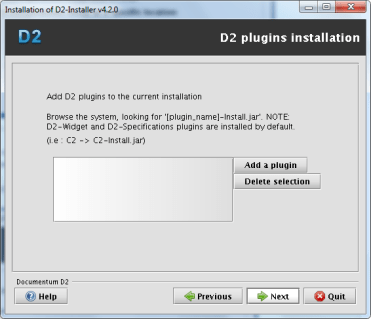
image1.png

image2.png

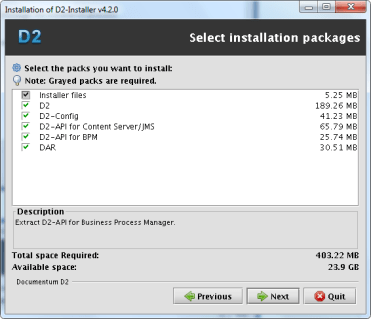
Although the screenshot shows I selected BPM module, I deleted it afterwards (waiting for xCP 2.1…) so I won’t be configuring that module

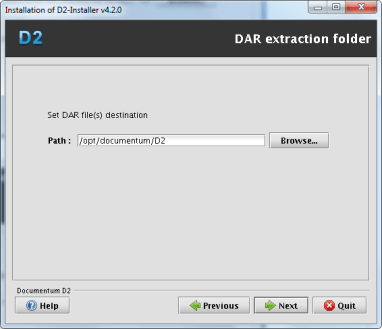
image3.png

image4.png

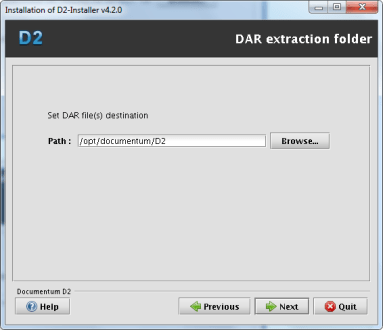
image5.png

image6.png

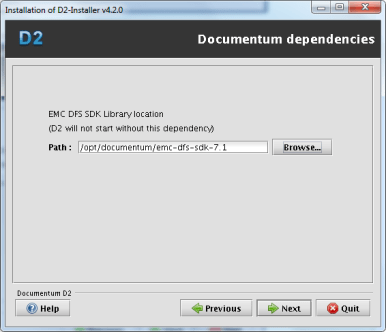
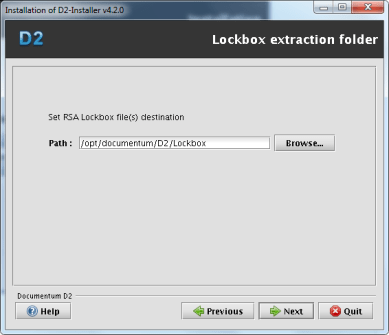
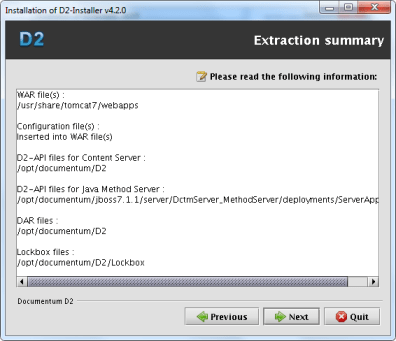
It seems they’ve fixed the JMS paths in this installer…

image7.png

image7.png

image8.png

image9.png

image10.png

PostInstall Configuration

  • Change windows paths in dfc.properties (they haven’t fixed this one):
vi /usr/share/tomcat7/webapps/D2/WEB-INF/classes/dfc.properties
   #include /opt/documentum/config/dfc.properties

Update the following log configuration files removing the windows paths (this one hasn’t been fixed either):

[dmadmin@vm-dctm71 classes]$ vi /usr/share/tomcat7/webapps/D2/WEB-INF/classes/logback.xml
  <file>/usr/share/tomcat7/logs/D2.log</file>
  <fileNamePattern>/usr/share/tomcat7/logs/D2-%d{yyyy-MM-dd}.log.zip</fileNamePattern>
[dmadmin@vm-dctm71 classes]$ vi /usr/share/tomcat7/webapps/D2-Config/WEB-INF/classes/logback.xml
   <file>/usr/share/tomcat7/logs/D2-Config.log</file>
   <fileNamePattern>/usr/share/tomcat7/logs/D2-Config-%d{yyyy-MM-dd}.log.zip</fileNamePattern>
      • Set environment variables:
D2=$DOCUMENTUM/D2
export D2
D2_LOCKBOX=$D2/Lockbox
export D2_LOCKBOX
CLASSPATH=$D2/D2.jar:$D2/LB.jar:$D2/LBJNI.jar
export CLASSPATH
LD_LIBRARY_PATH=$ORACLE_HOME/lib32:$DM_HOME/bin:$DM_HOME/bin/FIPS:/lib:$DOCUMENTUM/java64/1.7.0_17/jre/lib/amd64/server:$D2_LOCKBOX/linux_gcc34_x64
export LD_LIBRARY_PATH
PATH=$ORACLE_HOME/bin:$DM_HOME/bin:$D2_LOCKBOX/linux_gcc64_ia64:$PATH
export PATH
  • Create lockbox file:
[dmadmin@vm-dctm71 D2]$ java com.emc.common.java.crypto.SetLockboxProperty $D2 D2Method.passphrase D0c.umentum
   JVM : 1.7.0_17 (64bits)</p>
   '/opt/documentum/D2/D2.lockbox' file created
   'D2Method.passphrase' property created
  • Copy D2.lockbox to the JMS:
[dmadmin@vm-dctm71 D2]$ cp D2.lockbox /opt/documentum/jboss7.1.1/server/DctmServer_MethodServer/deployments/ServerApps.ear/APP-INF/classes/
  • Create the following path:
[dmadmin@vm-dctm71 D2]$ mkdir -p /opt/documentum/jboss7.1.1/modules/emc/d2/lockbox/main</p>
  • Copy LB.jar y LBJNI.jar to that folder:
[dmadmin@vm-dctm71 D2]$ cp LB* /opt/documentum/jboss7.1.1/modules/emc/d2/lockbox/main/
  • Create a module.xml file with the following content:
[dmadmin@vm-dctm71 D2]$ vi /opt/documentum/jboss7.1.1/modules/emc/d2/lockbox/main/module.xml
  <module xmlns="urn:jboss:module:1.1" name="emc.d2.lockbox">
  <resources>
     <resource-root path="LB.jar" />
     <resource-root path="LBJNI.jar" />
  </resources>
  </module>
  • Edit jboss-deployment-structure.xml and add the following section inside the deployments node:
[dmadmin@vm-dctm71 D2]$ vi /opt/documentum/jboss7.1.1//server/DctmServer_MethodServer/deployments/ServerApps.ear/META-INF/jboss-deployment-structure.xml
        <dependencies>
                <module name="emc.d2.lockbox"/>
        </dependencies>
  • Start docbroker, Content, JMS and (hopefully) everything should start fine (check JMS’ log as we’ve been messing with its configuration and anything out of place will cause it to fail)

Dar Installation

Install the following DARs:

  • D2-DAR.dar
[dmadmin@vm-dctm71 D2]$ java -Ddar=$D2/D2-DAR.dar -Dlogpath=$D2/D2-DAR.log -Ddocbase=dm_sec_test -Duser=dmadmin -Ddomain= -Dpassword=dmadmin -cp $DM_HOME/install/composer/ComposerHeadless/startup.jar org.eclipse.core.launcher.Main -data $DM_HOME/install/composer/workspace -application org.eclipse.ant.core.antRunner -buildfile $DM_HOME/install/composer/deploy.xml
  • D2Widget-DAR.dar
[dmadmin@vm-dctm71 D2]$ java -Ddar=$D2/D2Widget-DAR.dar -Dlogpath=$D2/D2Widget-DAR.log -Ddocbase=dm_sec_test -Duser=dmadmin -Ddomain= -Dpassword=dmadmin -cp $DM_HOME/install/composer/ComposerHeadless/startup.jar org.eclipse.core.launcher.Main -data $DM_HOME/install/composer/workspace -application org.eclipse.ant.core.antRunner -buildfile $DM_HOME/install/composer/deploy.xml
  • Collaboration_Services.dar
[dmadmin@vm-dctm71 D2]$ java -Ddar=$D2/Collaboration_services.dar -Dlogpath=$D2/Collaboration_Services.log -Ddocbase=dm_sec_test -Duser=dmadmin -Ddomain= -Dpassword=dmadmin -cp $DM_HOME/install/composer/ComposerHeadless/startup.jar org.eclipse.core.launcher.Main -data $DM_HOME/install/composer/workspace -application org.eclipse.ant.core.antRunner -buildfile $DM_HOME/install/composer/deploy.xml

Now start tomcat and everthing should be working just fine

PS: “Ideal” setup should use a different tomcat for D2 and configure it following the “Best Practices” section from the D2 Installation Guide. However, as I’ve installed D2 in the same tomcat instance where I previously deployed DA, Webtop and the web services I didn’t want to mess with the configuration.

Adding non-supported LDAP to DA

When you have to connect Documentum with a non-supported LDAP, you usually forget about the configuration UI provided by DA as you have to do most of the work by IAPI/DQL.

However, if you want to add your LDAP to the list of supported servers, you can do so quite easily:

1. Create the necessary DirectoryType class with your custom ldap type (openldap in this case):

public enum DirectoryType{
  OPENLDAP("openldap"), SUN_ONE("netscape"), ACTIVE_DIRECTORY("microsoft"),
  ORACLE_INTERNET_DIRECTORY("oracle"), IBM_TIVOLI("ibm"), NOVELL("novell"),
  MICROSOFT_ADAM("microsoftadam");
//some other stuff you can check in com.documentum.ldap.DirectoryType from the dfLdapConfig.jar
}

2. ldapList component:

ldaplist_component.xml:

<pages>  
     <start>/custom/jsp/customldap/ldaplist.jsp</start>  
</pages>  
<nlsbundle>somepackage.LdapListNlsProp</nlsbundle>  

ldaplist.jsp:

<%@ taglib uri="/WEB-INF/tlds/customldap.tld" prefix="customldap" %>"  
...  
<customldap:customldapdirtypevalueformatter>  
<dmf:label datafield='<%=LdapList.DIR_TYPE_ATTR%>'/>  
</customldap:customldapdirtypevalueformatter>

customldap.tld:

<taglib>  
     <tlibversion>1.0</tlibversion>  
     <jspversion>1.1</jspversion>  
     <shortname>customldap</shortname>  
     <tag>  
          <name>customldapdirtypevalueformatter</name>  
          <tagclass>somepackage.CustomLdapDirTypeValueFormatterTag</tagclass>  
          <bodycontent>jsp</bodycontent>  
          <attribute>  
               <name>name</name>  
               <required>false</required>  
          </attribute>  
     </tag>  
</taglib>

Formatter:

public String format(String strValue){  
     String strDirType = getForm().getString("MSG_UNKNOWN_DIR_TYPE");  
     if ((strValue != null) && (strValue.length() != 0)) {  
          if (strValue.equals("netscape")) {strDirType = getForm().getString("MSG_NETSCAPE");  
          } else if (strValue.equals("microsoft")) {strDirType = getForm().getString("MSG_MICROSOFT");  
          } else if (strValue.equals("oracle")) {strDirType = getForm().getString("MSG_ORACLE");  
          } else if (strValue.equals("microsoftadam")) {strDirType = getForm().getString("MSG_MICROSOFT_ADAM");  
          } else if (strValue.equals("ibm")) {strDirType = getForm().getString("MSG_IBM");  
          } else if (strValue.equals("novell")) {strDirType = getForm().getString("MSG_NOVELL");  
          } else if (strValue.equals("openldap")){strDirType = getForm().getString("MSG_OPENLDAP");  
        }  
     }  
return strDirType;  
}  

3. ldapInfo component

ldapInfo_component.xml:

    <pages>  
         <start>/custom/jsp/customldap/ldapinfo.jsp</start>  
    </pages>      
    <nlsbundle>somepackage.LdapInfoNlsProp</nlsbundle>  

LdapInfo.class:

    public class LdapInfo extends com.documentum.webcomponent.admin.ldap.LdapInfo {  
        public static final String LDAP_DIR_VALUE_OPENLDAP = "openldap";  
    }  

ldapinfo.jsp:

<%@ page import="somepackage.LdapInfo" %>  
    ...  
<dmf:option value='<%=LdapInfo.LDAP_DIR_VALUE_OPENLDAP%>' nlsid='MSG_OPENLDAP'/>  

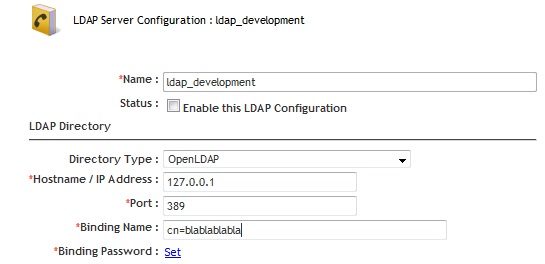
4. Final result:

ldap1

ldap2

Consuming RestFul services with GSON

If you want to consume the RestFul services you can check Wei Zhou’s posts in the documents section of the documentum developer network (Documentum) or check EMC RestFul Services — Clients JAVA by astone to see an example of how to consume the JSON directly from JAVA.

However, while developing the Android app I found that it was way easier to go the old Java-objects way, and you can do this by using GSON (or any other similar library).

First, you’ll need to create the POJOs/Beans for the classes; as we don’t have those (thanks EMC…) you’ll have to code them by yourself from the JSON responses (or use something like http://www.jsonschema2pojo.org/ to autogenerate them).

Once you have those (and the Gson libraries in your project) it is quite straightforward:

Reading a JSON response as an object:

DefaultHttpClient httpClient = new DefaultHttpClient();  
      
//documentum user and password  
String authorizationString = "Basic " + Base64.encodeToString((strUser + ":" + strPass).getBytes(), Base64.NO_WRAP);  
      
//request the page, here we get the main repository page  
HttpGet getRequest = new HttpGet(currentServer +"/repositories");  
//don't forget the credentials  
getRequest.setHeader("Authorization", authorizationString);  
//get the response  
HttpResponse getResponse = httpClient.execute(getRequest);  
HttpEntity getResponseEntity = getResponse.getEntity();  
Reader reader = new InputStreamReader(getResponseEntity.getContent());  
      
//use gson to get the object  
Gson gson=new Gson();  
RepositoryList repoList = (RepositoryList)gson.fromJson(reader, RepositoryList.class);  

Modify some property by sending a POST request:

DefaultHttpClient httpClient = new DefaultHttpClient();  
  
//documentum user and password  
String authorizationString = "Basic " + Base64.encodeToString((strUser + ":" + strPass).getBytes(), Base64.NO_WRAP);  
  
//setting up the POST request  
HttpPost postRequest = new HttpPost(currentServer+"/repositories/"+currentRepo+"/objects/"+strId);  
//don't forget the credentials  
postRequest.setHeader("Authorization",authorizationString);  
  
//Create the object with the property you want to modify  
RepositoryObject ro=new RepositoryObject();  
Attribute props=new Attribute();  
  
props.setSubject("new Subject");  
ro.setProperties(props);  
  
//set the header to the POST request  
postRequest.setHeader("Content-Type", "application/vnd.emc.documentum+json; charset=utf-8");  
//convert the object to json using gson  
Gson gson=new Gson();  
postRequest.setEntity(new StringEntity(gson.toJson(ro)));  
  
//do the POST  
HttpResponse postResponse = httpClient.execute(postRequest);

Note: As you can see, I’m not using service discovery although that would be the right way to do it, however, this was faster and it works as a how-to

Customizing/Extending REST services

In another post (Android app using REST services (II)) I said that by default the REST services only allow to run read queries on the repository. This is obviously a setback when you want to do anything else than querying the repository. So, what can we do about this?

First thing that comes to mind is to decompile the classes and see what’s going on. Basically, there’s a “checker” class that checks if the DQL should be executed or not. You can decompile, modify and replace this class to be able to run write queries on the repository.

However, there’s a cleaner (and I guess not so illegal) way to do this:

Create a new class named com.emc.documentum.rest.utils.DQLChecker containing the following:

package com.emc.documentum.rest.utils;

public class DQLChecker {
  public static boolean isSafeQuery(String dql){
    //do your stuff to check whatever you want to check in the sql string
    return true; //or false if you don't want the query to be run
  }
}

Then put this class in webapps/dctm-rest/WEB-INF/classes/com/emc/documentum/rest/utils (or repackage the war file) and restart the server

What happens here is, whatever class you drop on WEB-INF/classes will take precedence over the same class present in any jar file in the lib folder.

PS: You can use this with any class in the REST services in case you want to modify some behaviour.