Must-have tools for Documentum

After reading Scott Roth‘s blogpost about managing DCMT urls (https://msroth.wordpress.com/2015/03/16/managing-all-those-environment-urls/) I decided to share my must-have tools when developing:

  • SecureCRT/mRemote/mRemoteNG/RoyalTS: For the last couple of years I’ve been using a custom fork from mRemoteNG with some added functionality. Currently I’m testing RoyalTS with the free 1-year EMC Elect license. Any of these is a must-have when working with remote servers and you should take your time to configure the commands to launch ftp/sftp/ssh commands from the connection list.
  • Excel/CSV/sticky Notes/Browser bookmarks: To list every URL you have access to. Usually browser bookmarks/sticky notes work for me.
  • Launchy/executor: Applications launchers. You can set them up to index browser bookmarks and quickly access DA/Webtop/whatever. The same goes for remote sessions.
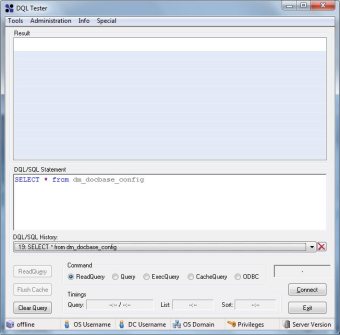
  • DQLTester: small, fast, samson-like utility. Even if it still uses dmcl, it’s probably the best portable tool to have in case of an emergency

dqltester.jpg

  • SquirrelSQL: Free/Open-Source database tool.
  • dmclC: This is a little program I made that works as an application launcher. It allows to quickly change your dmcl.ini to point to a different docbroker. Useful when working in several environments when (still) using old clients and you don’t want to be manually editing dmcl.ini every time you wnat to use a different environment.

dmclc.jpg

  • Cygwin: You are always going to miss linux commands (tail!) when using Windows.
  • dqMan: no comments needed, even if I’m not a huge fan

Feel free to add your favourite tools in the comments


(Unofficial) D7.2 Developer Edition

This is a step-by-step guide to install D7.2 in a Linux environment with Oracle XE 10.2.0.3 (not supported by 7.2). You should be able to have everything running in 3-4 hours (I did it with 1.5GB ram, if you set it to 4gb it should really be way faster)

This time I didn’t take screenshots, however there’s only one new screen (lockbox configuration) in the installer so there’s no need for screenshots

Environment

Host:
Windows 7 x64 4GB RAM
VMWare Player 6.0.3

Guest:
CentOS 7 x64 40GB HD 1.5GB RAM (if your host has more than 4gb give it at least 4gb ram)
Oracle XE 11.0.2 (not officially supported) / InstantClient 11.0.3 (not officially supported)
Documentum 7.2
Tomcat 8.0.14
/mnt/hgfs/dctm72 as a shared folder with host machine

VM Creation

Mount the CentOS 7 DVD image, boot the machine and follow the steps. Not much to explain here. I used minimal package install to save resources, named the machine vm-dctm72, configure the network and set the root password

OS Configuration

  • Install required packages:

[root@vm-dctm72 ~]# yum install net-tools bash-completion
[root@vm-dctm72 ~]# yum group install “Development Tools”
[root@vm-dctm72 ~]# yum update
[root@vm-dctm72 ~]# yum install kernel-devel
[root@vm-dctm72 ~]# yum group install X\ Window\ System

  • If you need to install VMware tools, this is the moment:

[root@vm-dctm72 ~]# mkdir /mnt/cdrom
[root@vm-dctm72 ~]# mount /dev/cdrom /mnt/cdrom
[root@vm-dctm72 ~]# mkdir /tmp/vmtools
[root@vm-dctm72 ~]# cp /mnt/cdrom/VMwareTools-9.6.4-2441333.tar.gz /tmp/vmtools/
[root@vm-dctm72 ~]# cd /tmp/vmtools/
[root@vm-dctm72 vmtools]# tar -xvf VMwareTools-9.6.4-2441333.tar.gz
[root@vm-dctm72 vmtools]# cd vmware-tools-distrib/
[root@vm-dctm72 vmware-tools-distrib]# ./vmware-install.pl

  • Create dmadmin user:

[root@vm-dctm72 /]# useradd dmadmin
[root@vm-dctm72 /]# passwd dmadmin

Oracle XE setup

  • I copied every installer in $DOCUMENTUM/installers, so:

[dmadmin@vm-dctm72 opt]$ sudo mkdir documentum
[dmadmin@vm-dctm72 opt]$ sudo chown dmadmin.dmadmin documentum
[dmadmin@vm-dctm72 documentum]$ mkdir installers
[dmadmin@vm-dctm72 documentum]$ mkdir product
[dmadmin@vm-dctm72 documentum]$ mkdir product/7.2
[dmadmin@vm-dctm72 installers]$ cp /mnt/hgfs/dctm72/oracle-xe-11.2.0-1.0.x86_64.rpm/Disk1/oracle-xe-11.2.0-1.0.x86_64.rpm .

  • Install needed libraries, run installer, run configuration tool (remember to change the default 8080 port to something else to avoid conflicts with tomcat):

[dmadmin@vm-dctm72 installers]$ sudo yum install libaio bc
[dmadmin@vm-dctm72 installers]$ sudo rpm -ivh oracle-xe-11.2.0-1.0.x86_64.rpm
[dmadmin@vm-dctm72 installers]$ sudo /etc/init.d/oracle-xe configure

  • Launch sqlplus to enable remote access and remove the password expiration:

[dmadmin@vm-dctm72 installers]$ . /u01/app/oracle/product/11.2.0/xe/bin/oracle_env.sh

[dmadmin@vm-dctm72 installers]$ /u01/app/oracle/product/11.2.0/xe/bin/sqlplus system
EXEC DBMS_XDB.SETLISTENERLOCALACCESS(FALSE);
ALTER PROFILE DEFAULT LIMIT PASSWORD_LIFE_TIME UNLIMITED;
quit

Oracle client setup

  • Install required libraries:

[dmadmin@vm-dctm72 installers]$ sudo yum install libXp.x86_64
[dmadmin@vm-dctm72 installers]$ sudo yum install libXp.i686 libXi.i686 libXtst.i686 libXt.i686
[dmadmin@vm-dctm72 installers]$ sudo yum install glibc.i686 libgcc.i686 libstdc++.i686 libaio.i686

  • Configure 32bit libraries:

[dmadmin@vm-dctm72 installers]$ cd /u01/app/oracle/product/11.2.0/xe/
[dmadmin@vm-dctm72 xe]$ sudo mkdir lib32
[dmadmin@vm-dctm72 xe]$ sudo chown oracle.dba lib32
[dmadmin@vm-dctm72 xe]$ sudo cp /mnt/hgfs/dctm72/instantclient-basic-linux-11.2.0.3.0/instantclient_11_2/lib* lib32/
[dmadmin@vm-dctm72 xe]$ cd lib32
[dmadmin@vm-dctm72 lib32]$ sudo ln -s libclntsh.so.11.1 libclntsh.so
[dmadmin@vm-dctm72 lib32]$ sudo ln -s libocci.so.11.1 libocci.so
[dmadmin@vm-dctm72 lib32]$ sudo chown -h oracle.dba *
[dmadmin@vm-dctm72 lib32]$ sudo chown -h oracle.dba libclntsh.so
[dmadmin@vm-dctm72 lib32]$ sudo chown -h oracle.dba libocci.so

Content Server 7.2

Preinstall tasks

  • Configure environment variables:

[dmadmin@vm-dctm72 ~]$ vi .bash_profile

DOCUMENTUM=/opt/documentum
export DOCUMENTUM
DM_HOME=$DOCUMENTUM/product/7.2
export DM_HOME
ORACLE_HOME=/u01/app/oracle/product/11.2.0/xe
export ORACLE_HOME
ORACLE_SID=XE
export ORACLE_SID
NLS_LANG=’$ORACLE_HOME/bin/nls_lang.sh’ #be aware of the « special » quotes here
export NLS_LANG
PATH=$ORACLE_HOME/bin:$DM_HOME/bin:$PATH
export PATH
LC_ALL=C
export LC_ALL
LD_LIBRARY_PATH=$LD_LIBRARY_PATH:$ORACLE_HOME/lib32
export LD_LIBRARY_PATH

  • Reserve ports for the repository:

[dmadmin@vm-dctm72 ~]$ sudo vi /etc/services
# dctm services
dctm72 49001/tcp # 7.2 Repository native connection
dctm72_s 49002/tcp # 7.2 Repository secure connection

  • Copy installer, extract files, set permissions:

[dmadmin@vm-dctm72 installers]$ cp /mnt/hgfs/dctm72/Content_Server_7.2_linux64_oracle.tar .
[dmadmin@vm-dctm72 installers]$ tar -xvf Content_Server_7.2_linux64_oracle.tar
[dmadmin@vm-dctm72 installers]$ chmod 777 *
[dmadmin@vm-dctm72 installers]$ chmod +x serverSetup.bin

  • Set display to our client IP to allow the X system to work:

[dmadmin@vm-dctm72 installers]$ export DISPLAY=192.168.88.1:0.0

Content Server installation

  • Run the installer, next, next, … and in the last option choose not to configure the repository now

[dmadmin@vm-dctm72 installers]$ ./serverSetup.bin

We need to “workaround” some issues before configuring the repository:

  • Installer cannot find libsasl2.so.2… umm, ok… :

[dmadmin@vm-dctm72 installers]$ sudo ln /usr/lib64/libsasl2.so.3 /usr/lib64/libsasl2.so.2

  • The database version (11.0.2.3 is not supported, as the minimum required version is 11.0.2.4) so let’s cheat. Make a backup of dmdbtest, create a new dmdbtest file and simply write “exit 0”, save the file and go on:

[dmadmin@vm-dctm72 installers]$ mv ../product/7.2/bin/dmdbtest ../product/7.2/bin/dmdbtest.bak
[dmadmin@vm-dctm72 installers]$ vi ../product/7.2/bin/dmdbtest
exit 0
[dmadmin@vm-dctm72 installers]$ chmod 777 ../product/7.2/bin/dmdbtest

  • Now run the repository configuration, configure docbroker and then configure the repository:

[dmadmin@vm-dctm72 installers]$ cd ../product/7.2/install/
[dmadmin@vm-dctm72 install]$ ./dm_launch_server_config_program.sh

Tomcat 8

  • Copy the installer, unzip, move to destination folder, create a symlink for ease of access, change permissions:

[dmadmin@vm-dctm72 tmp]$ cp /mnt/hgfs/dctm72/apache-tomcat-8.0.14.tar.gz .
[dmadmin@vm-dctm72 tmp]$ tar xavf apache-tomcat-8.0.14.tar.gz
[dmadmin@vm-dctm72 tmp]$ sudo mv apache-tomcat-8.0.14 /opt
[dmadmin@vm-dctm72 tmp]$ sudo chown dmadmin.dmadmin -R /opt/apache-tomcat-8.0.14/
[dmadmin@vm-dctm72 tmp]$ sudo ln -s /opt/apache-tomcat-8.0.14/ /opt/tomcat8
[dmadmin@vm-dctm72 tmp]$ sudo chown -h dmadmin.dmadmin /opt/tomcat8

  • Configure the server:

[dmadmin@vm-dctm72 tmp]$ vi /opt/tomcat8/bin/catalina.sh
JAVA_HOME=/opt/documentum/java64/1.7.0_72/
JAVA_OPTS=”-server -Xms256m -Xmx512m -XX:MaxPermSize=256m -Ddfc.properties.file=/opt/documentum/config/dfc.properties”

  • Change firewall configuration:

[dmadmin@vm-dctm72 tmp]$ sudo firewall-cmd –zone=public –add-port=8080/tcp –permanent
[dmadmin@vm-dctm72 tmp]$ sudo firewall-cmd –reload

  • Start the server, test it is working, then stop it before deploying DA

[dmadmin@vm-dctm72 tmp]$ /opt/tomcat8/bin/startup.sh
[dmadmin@vm-dctm72 tmp]$ /opt/tomcat8/bin/shutdown.sh

DA 7.2

  • Copy da.war to webapps:

[dmadmin@vm-dctm72 tmp]$ cp /mnt/hgfs/dctm72/da.war /opt/tomcat8/webapps/

  • Let’s start the configuration with context.xml:

[dmadmin@vm-dctm72 tmp]$ cd /opt/tomcat8/conf/
[dmadmin@vm-dctm72 conf]$ vi context.xml

<Context useHttpOnly="false">
  • Now, catalina.properties:

[dmadmin@vm-dctm72 conf]$ vi catalina.properties
org.apache.jasper.compiler.Parser.STRICT_WHITESPACE=false
jnlp.com.rsa.cryptoj.fips140loader=true

  • web.xml:

[dmadmin@vm-dctm72 conf]$ vi web.xml

<init-param>
            <param-name>enablePooling</param-name>
            <param-value>false</param-value>
        </init-param>
  • server.xml:

[dmadmin@vm-dctm72 conf]$ vi server.xml

  <Connector port="8080" protocol="HTTP/1.1"                connectionTimeout="20000"                redirectPort="8443"                compression="on"                 compressionMinSize="2048"                 compressableMimeType="text/html,text/xml,application/xml,text/plain,text/css,text/                 javascript,text/json,application/x-javascript,application/                 javascript,application/json"                 useSendfile="false" />
  • We need to modify custom/app.xml to disable compression filter, so extract the file, modify, repack the war and delete the extracted file:

[dmadmin@vm-dctm72 conf]$ cd ..
[dmadmin@vm-dctm72 tomcat8]$ cd webapps/
[dmadmin@vm-dctm72 webapps]$ unzip da.war custom/app.xml
[dmadmin@vm-dctm72 webapps]$ vi custom/app.xml

 <compression_filter_enabled>false</compression_filter_enabled>
      </application>

[dmadmin@vm-dctm72 webapps]$ /opt/documentum/java64/1.7.0_72/bin/jar uf da.war custom/app.xml
[dmadmin@vm-dctm72 webapps]$ rm -fr custom

  • And now let’s see if it works:

[dmadmin@vm-dctm72 webapps]$ cd ../bin
[dmadmin@vm-dctm72 bin]$ ./startup.sh
Documentum Email Notification improvements

Following PanfilovAB‘s post regarding Documentum email notification system and his customization (read it here: blog.documentum.pro/2014/08/04/e-mail-notifications) I decided to improve my own mail customization by adding the Groovy library in order to get advantage of the customization possibilities.

So, what does Documentum provide by default? Let’s see: Depending on the value stored in the mail_method attribute found in dm_server_config, CS will use:

  • dm_event_sender: Notifications will use dm_event_sender method. This method uses dmbasic to run $DM_HOME/bin/dm_event_sender.ebs. This EBS defines a plain-text email template for each of the possible events generated by the CS and sends the email by running the binary mail.exe bundled with the CS.
  • dm_html_event_sender: Same behaviour than dm_event_sender, but the email templates are HTML templates. In order to use it, dm_event_sender must be modified to use the $DM_HOME/bin/dm_html_event_sender.ebs script.
  • [BPM] dm_template_event_sender: When BPM is intalled in the CS, a new servlet (DO_METHOD) is deployed in JMS. mail_method attribute is updated with this placeholder to use the servlet instead of running a method. When an event generates a notification, a POST is send to the do_method servlet and the notification is processed. If the event is a workflow event, the servlet will process it applying (if has been previously defined) a JSP template and sending the email with Java Mail. Otherwise it will forward the notificacion to the dm_event_sender method.
  • mail method: There’s also a method that allows a “direct call” to mail.exe, as long as you provide the necessary parameters.

So, what main problems/limitations do we have?

  • If you have BPM installed, you have 3 different entry points to a new mail:
    • event_sender
    • html_event_sender
    • JSP templates

So if you update one template, you have to update every file to keep consistency

  • When migrating CS, you have to be careful not to overwrite/remove your customized EBS. And if “something” has changed you’ll have to recheck your existing templates. Meaning you’ll have to enjoy the “power” of dmbasic and its great debugging capabilities (yes, that means writing to an output file)

So, when I read Andrey’s solution using Groovy I realized that if you have to modify your email templates “often”, that’s the way to go. So, what do we need?:

Documentum container with two components and a custom method:

  • List templates
  • Edit template
  • Custom mail method

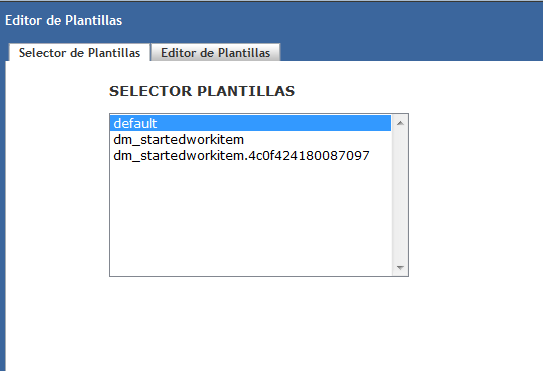
List template will be a listbox showing the documents returned by a query that fetches our custom templates located in a special folder:

Untitled.png

For ease of use, the name of the document indicates the event that uses the template and, if applicable, the r_object_id of the activity that uses the template, allowing further customization.

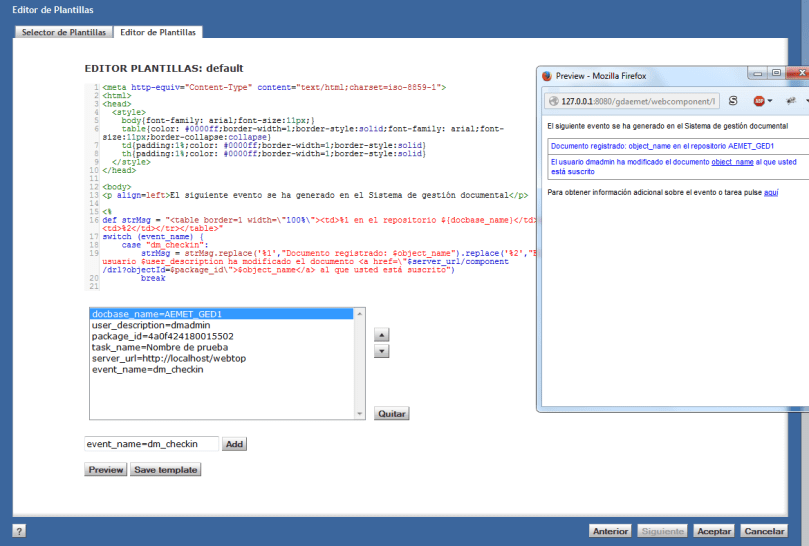
Edit template will be a component that loads the content of the selected template into an editor (codemirror, check Andrey’s updated post to see a “nice” implementation as WDK control), a sortablelistbox that will allow the user to put temporal values to be replaced in the template for preview, and the preview button that will generate the final email applying the submitted values to the template. This component has a <inputvars> element in its definition that defines default values to be already filled (docbase_name, user_description, server_url, etc).

Untitled2.png

Now, I only need to improve my mail designing skills

Finally, a custom Java method that will replace dm_template_event_sender and that will run a java class that generates the email body and sends the email.

What do we get with this customization?

  1. Get rid of dmbasic email notificacions
  2. Unify email notifications (it will only use the defined templates)
  3. Simplify email management (my “default” template now has 200 lines, while my “default” dm_event_sender has 1400)
  4. Easier upgrade process


sortablelistbox bug

I think this is not a very used control, otherwise I guess someone would’ve realized by now that if you do something like:

<dmf:sortablelistbox name="parametersList" id="parametersList" width="400" size="10" multiselect="false"/>

which, according to the WDK guide is correct:

 width (Optional) Width of this control

and then load the page:

org.apache.jasper.JasperException: /custom/jsp/editor/editor.jsp(46,5) No se puede encontrar el método de escritura para el atributo: width

which in english means: Cannot find write method for the attribute width

So, what’s going on? First, we check the control definition in the TLD:

           <attribute>  
             <name>width</name>  
             <required>false</required>  
             <rtexprvalue>true</rtexprvalue>  
             <description>  
                TBD.  
             </description>  
          </attribute>  

Ok, so if the attribute is defined, why doesn’t work?

    com.documentum.web.form.control.sortablelistbox.SortableListBox  
      
      public void setListBoxWidth(String strWidth)  
      {  
        this.m_strWidth = strWidth;  
        getItemsListBoxControl().setWidth(strWidth);  
      }  
      
      public String getListBoxWidth()  
      {  
        return this.m_strWidth;  
      }  

really?

So, you know, either add “listboxwidth” as an attribute in the TLD or recompile the SortableListBox class adding getWidth/setWidth methods.

I’ve checked this happens (at least) on webtop 6.6, 6.7SP2 and 6.7SP2 patch 17.

DCTMMobile application

Finally I got to re-do my android application (almost) from scratch. I’ve used (again) AndroidStudio, but this time instead of using GSON to parse the responses I decided to use the sample client provided by EMC (Documentum REST Java Client Code Sample) I wanted to use the already-done read/write functionality, but things weren’t so simple. Sure, the client works fine as a Java standalone but I’ve found that the Spring RestTemplate doesn’t play well with Android when using Jackson/Jaxb (meaning I was unable to make it work :P), so I end up using the DQL query service to modify/update attributes as I did before.

Of course, executing an updated DQL is not an OOTB function, as the REST Services doesn’t allow write queries, but you can easily modify this behaviour (Customizing/Extending REST services). If you use the OOTB REST Services you’ll get notifications indicating that only read queries are supported when performing an update operation.

I’ve tested the application with 2.3, 3.2, 4.0 and 4.4 android emulators, and it seems that works just fine (except downloading files in <4.x), so feel free to test it

DCTMMobile at GooglePlay: DCTMMobile – Android Apps on Google Play

More info about the app development in previous posts:

Android app using REST services
Android app using REST services (II)

UCF troubleshooting v2

Here is an updated version from previous post (UCF troubleshooting) with some more/new tips:

UCF installation paths:

  • Windows XP: C:\Document and Settings\[user]\Documentum
  • Windows Vista/7/8: C:\Users\[user]\Documentum
  • Linux: ${home}/Documentum

Timeout/browser/jre problems:

  • Check the supported environment tables in webtop/da release notes. Most JRE versions will work even when aren’t supported, but you’d better check if the supported version works.
  • If not needed, disable ACS and BOCS.
  • If using a proxy, add host’s IP and hostname to the proxy exceptions
  • Add Webtop url to the browser’s pop-up blocker exceptions.
  • In case the UCF aplet cannot be installed, try disabling DEP protection
  • Delete the local UCF installation and try a clean installation
  • [Firefox] Check Java plugin is enabled. Mozilla automatically disables outdated JRE plugins.
  • [IE] Check Sun/Oracle JRE is the default JRE, disable ActiveX filtering, and check Java plugins are enabled in the Manage Addons window.
  • [IE/Firefox] If you are working with a 64 bit SO, check you’re using a 32bit browser with 32bit JRE. 64 bit browser/JRE with UCF is probably a bad idea.
  • [IE] Check Java integration with browsers is enabled.
  • [Java control panel] Delete JRE cache
  • [Java control panel] Disable the next generation Java plug-in.
  • [Java control panel] Disable verification of mixed code security.
  • [Java control panel] Check “Direct Connection” is selected in Network Settings (vishnu.music)
  • [UCF configuration] If UCF keeps throwing a timeout, disable the IPv6 compatibility by changing the following line in ucf.installs.config.xml (located in ${Documentum_UCF}/ucf/config)

<option value=”-Djava.net.preferIPv6Addresses=true“/> to <option value=”-Djava.net.preferIPv6Addresses=false“/>

JRE 7u51+ workaround:

In Java control panel check that:

  • Security is set to medium
  • Your application server url is listed under the exception site list

You should also check the thread The specified discussion was not found. by PanfilovAB if you’re having issues with multiple Java versions

Manual installation:

  • You can install the UCF applet in the client computer manually, just run the folowing bat script:
set DIRNAME=%~dp0%lib\
set URLDIR=%DIRNAME:\=/%
java -cp %DIRNAME%ucfinit.jar com.documentum.ucf.client.install.TestInstall "file:///%URLDIR%" "ucf.installer.config.xml"

This is the structure/files you need for this script to work (you can find these files in /wdk/contentXfer/):

UCFTestInstall.bat
\lib
\lib\ExJNIAPI.dll
\lib\ExJNIAPIGateway.jar
\lib\jacob.dll
\lib\jacob.jar
\lib\ucf-ca-office-auto.jar
\lib\ucf-client-installer.zip
\lib\ucf.installer.config.xml
\lib\ucfinit.jar
\lib\UCFWin32JNI.dl

And don’t forget to check UCF logs if you’re still having problems

Monitoring Documentum with Nagios and dctmpy plugin

This is a step-by-step guide to install Nagios and configure dctmpy plugin for monitoring a Documentum environment. Nagios installation is pretty easy as we’ll be doing everything using yum. Then we’ll setup a standard configuration for the plugin.

Environment

Host:
Windows 7 x64 8GB RAM
VMWare Player 6.0.1

Guest:
CentOS 6.5 x64 40GB HD 4GB RAM

PanfilovAB’s dctmpy plugin (Nagios plugin for Documentum)

VM Creation and OS Configuration

Check these steps on (Unofficial) D7.1 Developer Edition

EPEL Repository setup

[root@vm-nagios nagios]# wget http : // epel.mirror.net.in/epel/6/i386/epel-release-6-8.noarch.rpm
[root@vm-nagios nagios]# rpm -Uvh epel-release-6-8.noarch.rpm

Apache

  • Install httpd
[root@vm-nagios nagios]# yum install httpd
  • Start the service
[root@vm-nagios nagios]# service httpd start

MySQL

  • Install MySQL
[root@vm-nagios nagios]# yum install mysql mysql-server
  • Start MySQL service
[root@vm-nagios nagios]# service mysqld start
  • Configure MySQL’s root user
[root@vm-nagios nagios]# mysql_secure_installation

PHP

  • Install PHP module
[root@vm-nagios nagios]# yum install php
  • Check everything is working by creating the following php page:
[root@vm-nagios nagios]# vi /var/www/html/infophp.php
  • Restart the httpd service and check the previously create page
[root@vm-nagios nagios]# service httpd restart
  • Finally, install MySQL module for PHP
[root@vm-nagios nagios]# yum install php-mysql

phpMyAdmin

  • Install the module:
[root@vm-nagios nagios]# yum install phpmyadmin
  • Edit phpMyAdmin.conf and comment the entry:
[root@vm-nagios nagios]# vi /etc/httpd/conf.d/phpMyAdmin.conf
  Alias /phpMyAdmin /usr/share/phpMyAdmin
  Alias /phpmyadmin /usr/share/phpMyAdmin
  #
  #
  # # Apache 2.4
  #
  # Require ip 127.0.0.1
  # Require ip ::1
  #
  #
  #
  # # Apache 2.2
  # Order Deny,Allow
  # Deny from All
  # Allow from 127.0.0.1
  # Allow from ::1
  #
  #
  • Make a copy of the default configuration:
[root@vm-nagios nagios]# cp /usr/share/phpMyAdmin/config.sample.inc.php /usr/share/phpMyAdmin/config.inc.php
  • Change auth mode to “http”
[root@vm-nagios nagios]# vi /usr/share/phpMyAdmin/config.inc.php
  /* Authentication type */
  #$cfg['Servers'][$i]['auth_type'] = 'cookie';
  $cfg['Servers'][$i]['auth_type'] = 'http';
  • Restart httpd service
[root@vm-nagios nagios]# service httpd restart

Development tools

  • You’ll need to install the usual development packages:
[root@vm-nagios nagios]# yum install gd gd-devel gcc glibc glibc-common

Nagios

  • Install all modules
[root@vm-nagios nagios]# yum install nagios*
  • Set a password for the user “nagiosadmin”
[root@vm-nagios nagios]# htpasswd /etc/nagios/passwd nagiosadmin
  • Start Nagios service
[root@vm-nagios nagios]# service nagios start

You should be able to access Nagios browsing localhost/nagios

dctmpy

  • Install Pyhton tools
[root@vm-nagios nagios]# yum install python-setuptools python-setuptools-devel
  • Install dctmpy
[root@vm-nagios nagios]# easy_install argparse nagiosplugin dctmpy
  • Check plugin is working
[root@vm-nagios nagios]# nagios_check_docbroker -H 172.24.3.128 -p 1489
[root@vm-nagios nagios]# nagios_check_docbase -H 172.24.3.128 -p 47625 -l dmadmin -a dmadmin -m login
  • Configure commands.cfg:
[root@vm-nagios nagios]# vi /etc/nagios/objects/commands.cfg
  define command{
  command_name nagios_check_docbroker
  command_line /usr/bin/nagios_check_docbroker -H $HOSTADDRESS$ -p $ARG1$
  }

  #'nagios_check_docbase' commands definition
  define command{
  command_name nagios_check_docbase
  command_line /usr/bin/nagios_check_docbase -H $HOSTADDRESS$ -p $ARG1$ -i $ARG2$ -l $ARG3$ -a $ARG4$ -m $ARG5$
  }
  • In this case we’re going to monitor a Windows machine, so edit nagios.cfg and uncomment the windows.cfg section
[root@vm-nagios nagios]# vi /etc/nagios/nagios.cfg
  # Definitions for monitoring a Windows machine
  cfg_file=/etc/nagios/objects/windows.cfg
  • Edit windows.cfg file and add the services
[root@vm-nagios nagios]# vi /etc/nagios/objects/windows.cfg
  define host{
  use windows-server ; Inherit default values from a template
  host_name WINDOWS_HOST ; The name we're giving to this host
  alias WINDOWS_HOST ; A longer name associated with the host
  address 172.24.3.128 ; IP address of the host
  }
  
  define service{
  use generic-service
  host_name WINDOWS_HOST
  service_description docbroker
  check_command nagios_check_docbroker!1489
  }

  define service{
  use generic-service
  host_name WINDOWS_HOST
  service_description docbase login
  check_command nagios_check_docbase!47625!1000001!dmadmin!dmadmin!login
  }

  define service{
  use generic-service
  host_name WINDOWS_HOST
  service_description docbase sessions
  check_command nagios_check_docbase!47625!1000001!dmadmin!dmadmin!sessioncount -w 70 -c 80
  }

  define service{
  use generic-service
  host_name WINDOWS_HOST
  service_description docbase projection targets
  check_command nagios_check_docbase!47625!1000001!dmadmin!dmadmin!targets
  }

  define service{
  use generic-service
  host_name WINDOWS_HOST
  service_description docbase jms status
  check_command nagios_check_docbase!47625!1000001!dmadmin!dmadmin!jmsstatus
  }

  define service{
  use generic-service
  host_name WINDOWS_HOST
  service_description docbase failed tasks
  check_command nagios_check_docbase!47625!1000001!dmadmin!dmadmin!failedtasks
  }

  define service{
  use generic-service
  host_name WINDOWS_HOST
  service_description docbase job scheduling
  check_command nagios_check_docbase!47625!1000001!dmadmin!dmadmin!jobs -j "dm_DMFilescan,dm_LogPurge" -n system_cleanup_jobs
  }

  define service{
  use generic-service
  host_name WINDOWS_HOST
  service_description cts status
  check_command nagios_check_docbase!47625!1000001!dmadmin!dmadmin!ctsstatus
  }

  define service{
  use generic-service
  host_name WINDOWS_HOST
  service_description cts queue
  check_command nagios_check_docbase!47625!1000001!dmadmin!dmadmin!ctsqueue -w 100 -c 1000
  }
  • Restart Nagios service and you should see the new host with the new services reporting status.

xCP and D2 developer edition announced in EMC World

EMC has announced the future availabily of two new developer edition VMs and hopefully someone will read this wishlist

  • xCP developer edition (June 30th)
    • Confirmed: A working CTS in Linux (wondering how/if office files transformation works).
    • CIS 7.1
    • Now that you guys have installed everything in Linux, take those installation/configuration scripts that you had to modify because were made in windows and bundle them with the linux installers, so we don’t have to run dos2unix for every script file.
    • “Modular” xCP / remove the need to install every component (at least in development environments). (I don’t expect to see this “working” in this developer edition, but hopefully they’ll consider it for the next xCP release…)
  • D2 developer edition (May 30th)
    • I have doubts about this, is this also an open-source VM? If D2-Config is still an activeX you’ll need a windows machine to configure D2.

And hopefully, we’ll see a production-supported PostgreSQL content in a future version (7.1 SP1? Bedrock?) or at least an official statement about this…


Repoint/Older clients compatibility with certificate-based SSL mode

None. (At least officialy)

While configuring a full 7.1/D2 4.2/xCP2.1 environment using this new mode recommended by EMC, I faced the problem of trying to connect to the repository with composer/repoint/older clients.

The first problem came while installing CIS, which is still v7.0. Solution? Just overwrite bundled DFC jars with the ones from 7.1 and you’re good to go (completely unsupported, of course)

  • Composer/repoint (I’m refering to “Composer/repoint” as I’m configuring a composer 6.6 with repoint included -> Composer/Repoint plugins/guides, if you use a “simple” composer, you’d better go and download composer 7.1)
    • Go to Composer\plugins\com.emc.ide.external.dfc_1.0.0\documentum.config and update dfc.properties including the keystore info
    • launch composer -> error (expected)
    • Overwrite everything in Composer\plugins\com.documentum.dfc_1.0.0\lib with 7.1 jars
    • Same with Composer\plugins\com.emc.ide.external.dfc_1.0.0\lib
    • Update Composer\plugins\com.documentum.dfc_1.0.0\config\config.jar with correct dfc.properties
    • launch composer -> success

There most likely be some issues with this way of configuring composer/repoint, however it seems to work (at least you should be able to query the repository)

This works fine for repoint, however, other clients such as Samson or DQL Tester will be useless with 7.1 certificate-based security as those still use the old DMCL.

  • Note about wdk applications (depends on the existing customizations):

By now you should probably imagine what can you do. Overwriting WEB-INF/lib with the lib from a 7.1 WDK app and updating dfc.properties should get you going if you need to connect from an older app to a new repository.


Certificate-based SSL Documentum 7.1 with xCP 2.1

I’ve just finished configuring an environment using the new certificate-based ssl mode included in documentum 7.1 and the full xCP 2.1 stack of products (well, truth is I couldn’t install everything using ssl: xms agent with https?)

After spending (a lot) time configuring this I can say:

  1. SSL mode works fine. Not (noticeable) performance impact.
  2. Almost every component can be configured to use this connection mode except CIS (check esg120422) and the xms agent
  3. Configuration is quite straightforward (Once you’ve done it for the first time)

Now, this was the first time I’ve installed the whole xCP stack and instead of using internal documentation of previous installations, I decided to follow EMC’s instructions:

  1. Surprisingly, most of the installation instructions were accurate!! Most of the components were installed just by following the instructions. Note that this was a development environment, quite simple, without “weird” stuff. Still, my impression about this is that the quality has improved from previous documentation.
  2. The new SSL mode. Nothing here that hasn’t been said before (Ask the Expert: What’s New in EMC Documentum 7.1?). Documentation about this is lacking, confusing and wrong. Either (fix and) include the ssl white paper in the content server installation guide or release a new white paper with accurate instructions to configure this. You can’t get to imagine the amount of time and frustation wasted in the process. Very bad move by EMC.
  3. The “new” (I think this started with 7.0) documentation distribution. Please EMC, either put ALL documentation in the zip file, or make another zip file for the xCP docs. It doesn’t make sense that the xCP deployment guide covers the installation of some components, while others are completely omitted and the documentation is left to be found somewhere else.
  4. Test the installation for every supported environment. It looks really bad when you unzip (-a) a zip file (or a tar one…) in linux and when you try to run a script you get the “error ^M blablabla”. And this has happened to me in every single compressed file. Having to dos2unix every file is not fun.