This is a step-by-step guide to install Documentum 16.4 in a Linux environment with PostgreSQL 9.6 (as we don’t have/I haven’t found the compatibility matrix, I’ve used the same version bundled in the docker image).
Environment
Host:
Windows 10 x64 8GB RAM
VMware Workstation Player 12
Guest:
CentOS 7 x64 25GB HD 4GB RAM 2 cores
PostgreSQL 9.6
Documentum 16.4
VM Creation
Mount the CentOS 7 DVD image, boot the machine and follow the steps. You can choose to let EasyInstall do the work for you. I used minimal package install to save resources, named the machine vm-dctm16.4, configured the network and set the root password as well as a “dmadmin” user.
OS Configuration
- Install required packages:
[dmadmin@vm-dctm164 ~]$ sudo yum install bash-completion kernel-devel rng-tools.x86_64
[dmadmin@vm-dctm164 ~]$ sudo yum install bash-completion kernel-devel rng-tools.x86_64 policycoreutils policycoreutils-python selinux-policy selinux-policy-targeted libselinux-utils setroubleshoot-server setools setools-console mcstrans expect tcl
[dmadmin@vm-dctm164 ~]$ sudo yum group install X\ Window\ System “Development Tools”
[root@vm-dctm164 vmtools]# yum install open-vm-tools.x86_64
- Stop and disable the firewalld service:
[dmadmin@vm-dctm164 ~]$ sudo systemctl disable firewalld
Removed symlink /etc/systemd/system/multi-user.target.wants/firewalld.service.
Removed symlink /etc/systemd/system/dbus-org.fedoraproject.FirewallD1.service.
[dmadmin@vm-dctm164 ~]$ sudo systemctl stop firewalld
- Configure the entropy and allow http connections through selinux:
[dmadmin@vm-dctm164 ~]$ sudo /sbin/rngd -b -r /dev/urandom -p /dev/random
[dmadmin@vm-dctm164 ~]$ sudo setsebool -P httpd_can_network_connect_db 1
PostgreSQL Configuration
- Install required packages:
[dmadmin@vm-dctm164 ~]$ sudo yum install https://download.postgresql.org/pub/repos/yum/9.6/redhat/rhel-7.4-x86_64/pgdg-centos96-9.6-3.noarch.rpm
[dmadmin@vm-dctm164 ~]$ sudo yum install postgresql96-server postgresql96-contrib
[dmadmin@vm-dctm164 ~]$ sudo /usr/pgsql-9.6/bin/postgresql96-setup initdb
- Enable and start the PostgreSQL service:
[dmadmin@vm-dctm164 ~]$ sudo systemctl enable postgresql-9.6
Created symlink from /etc/systemd/system/multi-user.target.wants/postgresql-9.6.service to /usr/lib/systemd/system/postgresql-9.6.service.
[dmadmin@vm-dctm164 ~]$ sudo systemctl start postgresql-9.6
- Configure the postgres user:
[dmadmin@vm-dctm164 ~]$ su – root
[root@vm-dctm164 ~]# su – postgres
-bash-4.2$ psql
postgres=# \password postgres
postgres=# \q
-bash-4.2$ exit
logout
[root@vm-dctm164 ~]# vi /var/lib/pgsql/9.6/data/postgresql.conf
listen_addresses = ‘*’
port = 5432
[root@vm-dctm164 ~]# vi /var/lib/pgsql/9.6/data/pg_hba.conf
host all all 127.0.0.1/32 md5
host all all ::/128 md5
host all all vm-dctm164 md5
- Restart PostgreSQL service to apply the changes:
[dmadmin@vm-dctm164 /]$ sudo systemctl restart postgresql-9.6
phpPgAdmin Configuration
- Install required packages:
[dmadmin@vm-dctm164 /]$ sudo yum install phpPgAdmin httpd
[dmadmin@vm-dctm164 /]$ sudo vi /etc/httpd/conf.d/phpPgAdmin.conf
# Apache 2.4
Require all granted
#Require host example.com
# Apache 2.2
Order deny,allow
Allow from all
# Allow from 127.0.0.1
# Allow from ::1
# Allow from .example.com
[dmadmin@vm-dctm164 /]$ sudo vi /etc/phpPgAdmin/config.inc.php
$conf[‘servers’][0][‘host’] = ‘’;
$conf[‘extra_login_security’] = false;
$conf[‘owned_only’] = true;
- Restart httpd service to apply the changes:
[dmadmin@vm-dctm164 /]$ sudo systemctl restart httpd
Now you should be able to login to the console from http://vm-dctm164/phpPgAdmin/
ODBC Configuration
- Install required packages:
sudo yum install postgresql96-odbc.x86_64 unixODBC.x86_64
[dmadmin@vm-dctm164 /]$ sudo vi /etc/odbcinst.ini
[PostgreSQL]
Description = ODBC for PostgreSQL
#Driver = /usr/lib/psqlodbcw.so
#Setup = /usr/lib/libodbcpsqlS.so
#Driver64 = /usr/lib64/psqlodbcw.so
#Setup64 = /usr/lib64/libodbcpsqlS.so
Driver = /usr/pgsql-9.6/lib/psqlodbcw.so
Driver64 = /usr/pgsql-9.6/lib/psqlodbcw.so
Setup64 = /usr/lib64/libodbcpsqlS.so
FileUsage = 1
[dmadmin@vm-dctm164 /]$ sudo vi /etc/odbc.ini
[MyPostgres]
Description=PostgreSQL
Driver=PostgreSQL
Database=postgres
Servername=vm-dctm164
UserName=postgres
Password=dmadmin
Port=5432
Protocol=7.4
ReadOnly=No
RowVersioning=No
ShowSystemTables=No
ShowOidColumn=No
FakeOidIndex=No
UpdateableCursors=Yes
DEBUG=Yes
[dmadmin@vm-dctm164 /]$ isql -v MyPostgres
+—————————————+
| Connected! |
| |
| sql-statement |
| help [tablename] |
| quit |
| |
+—————————————+
SQL> quit
Documentum server
[dmadmin@vm-dctm164 opt]$ sudo mkdir documentum
[dmadmin@vm-dctm164 opt]$ sudo chown dmadmin.dmadmin documentum
[dmadmin@vm-dctm164 opt]$ mkdir documentum/product
[dmadmin@vm-dctm164 opt]$ mkdir documentum/product/16.4
[dmadmin@vm-dctm164 opt]$ mkdir documentum/shared
- Set up environment variables:
[dmadmin@vm-dctm164 ~]$ vi ~/.bash_profile
DOCUMENTUM=/opt/documentum
export DOCUMENTUM
DM_HOME=$DOCUMENTUM/product/16.4
export DM_HOME
POSTGRESQL_HOME=/usr/pgsql-9.6
export POSTGRESQL_HOME
PATH=$PATH:$DM_HOME/bin:$POSTGRESQL_HOME/bin:$HOME/.local/bin:$HOME/bin
export PATH
LC_ALL=C
export LC_ALL
LD_LIBRARY_PATH=$POSTGRESQL_HOME/lib:$DM_HOME/bin:$DOCUMENTUM/java64/JAVA_LINK/jre/lib/amd64/server:$LD_LIBRARY_PATH
export LD_LIBRARY_PATH
- Reserve ports for services:
[dmadmin@vm-dctm164 opt]$ sudo vi /etc/services
dctm164 50000/tcp # dctm 16.4 repo
dctm164_s 50001/tcp # dctm 16.4 repo
- Create symbolic link for later (configuration program):
[dmadmin@vm-dctm164 opt]$ sudo ln -s /usr/lib64/libsasl2.so.3.0.0 /usr/lib64/libsasl2.so.2
[dmadmin@vm-dctm164 opt]$ sudo vi /etc/security/limits.conf
dmadmin – core -1
[dmadmin@vm-dctm164 cs]$ tar xvf content_server_16.4_linux64_postgres.tar
[dmadmin@vm-dctm164 cs]$ chmod 777 serverSetup.bin
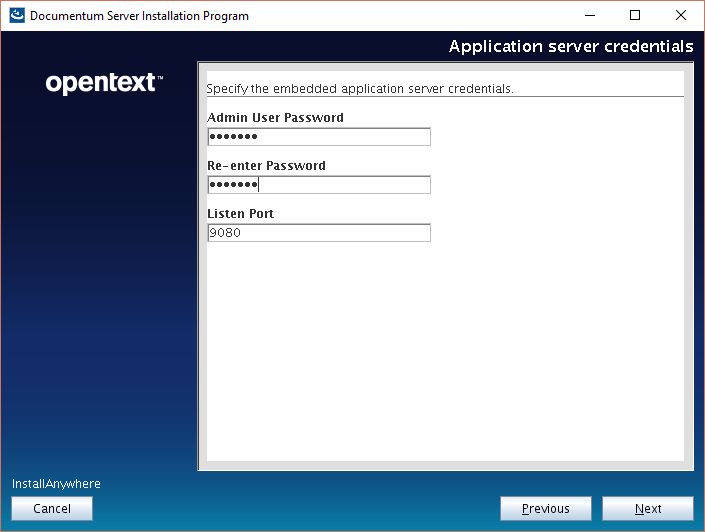
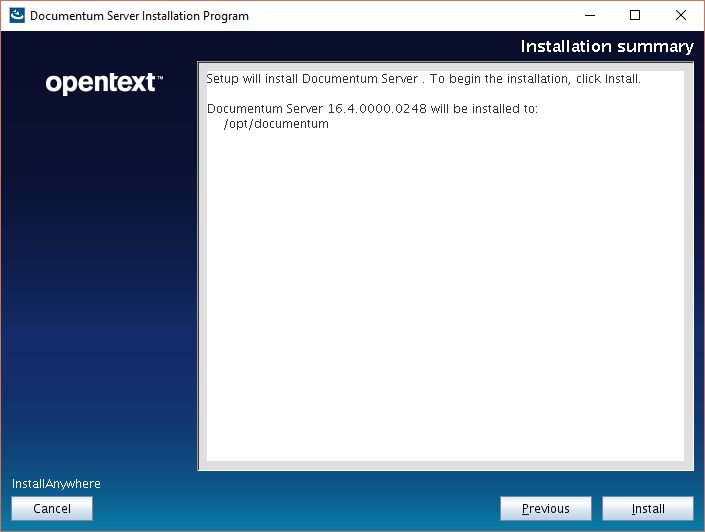
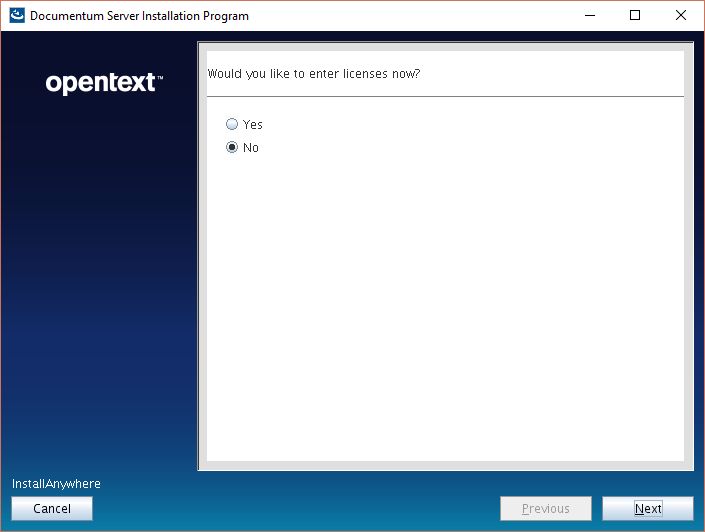
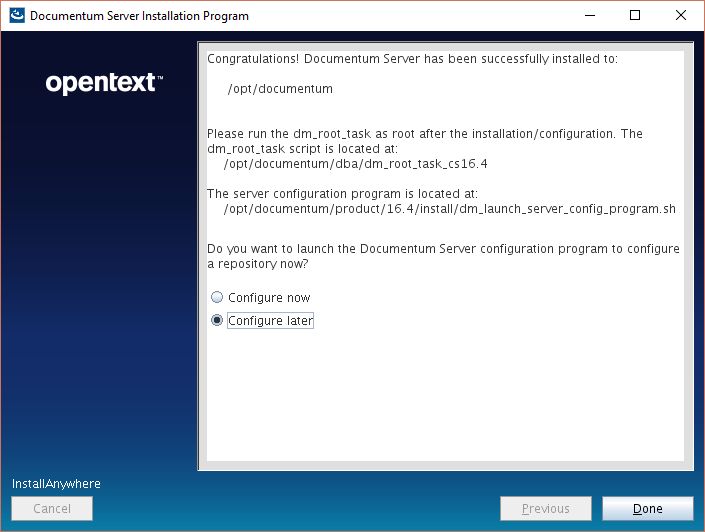
[dmadmin@vm-dctm164 cs]$ ./serverSetup.bin


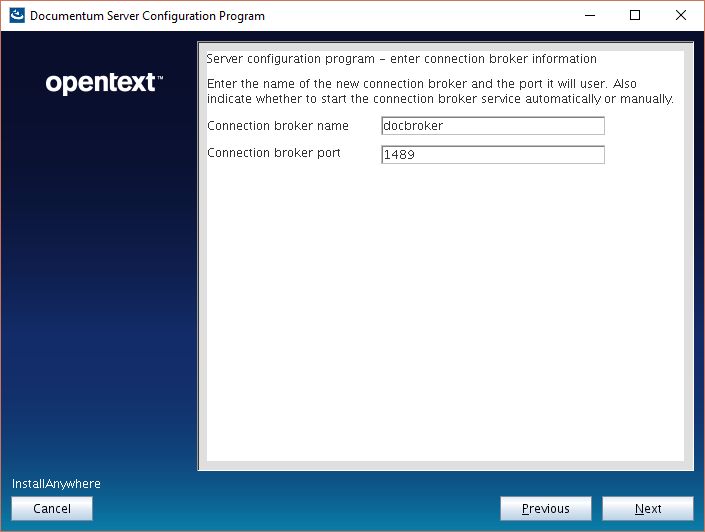
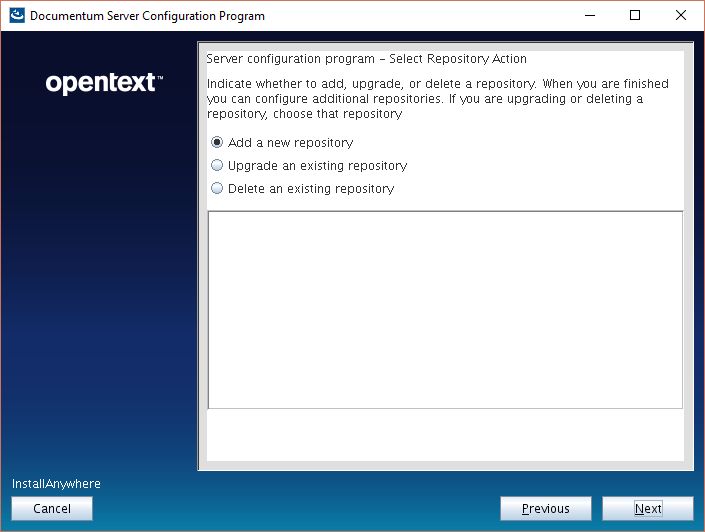
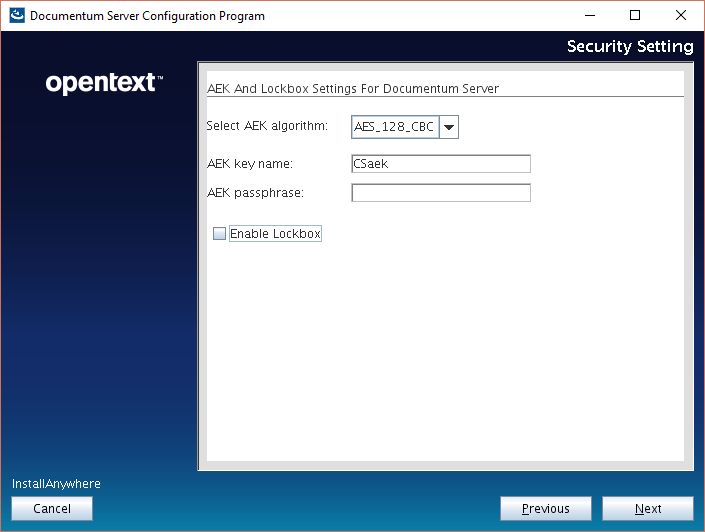
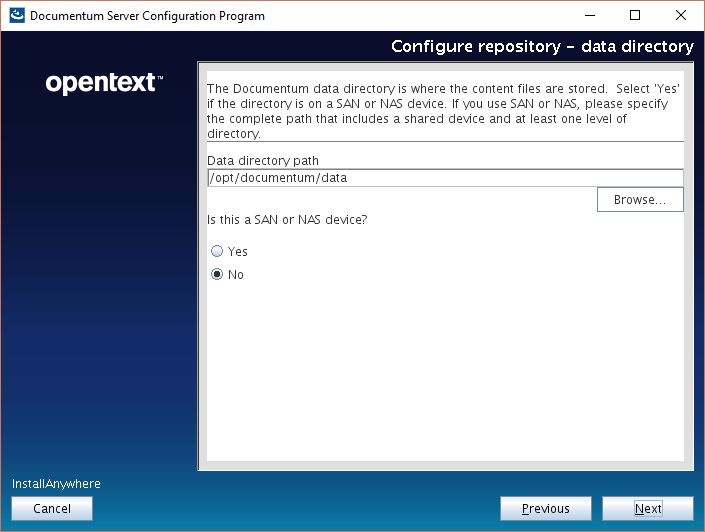
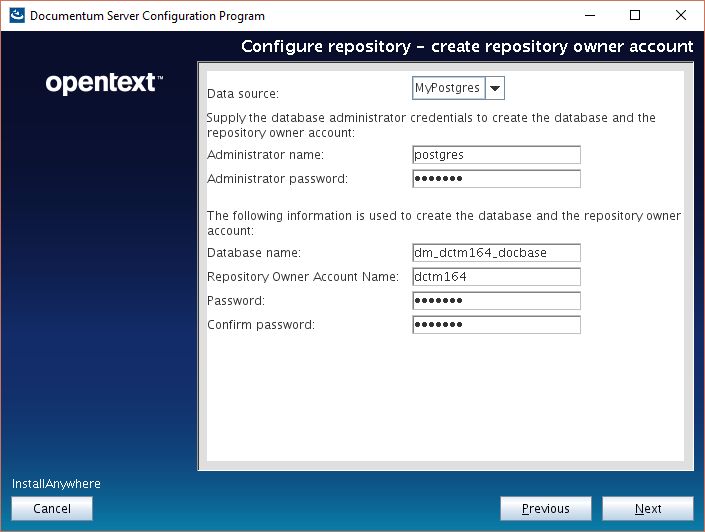
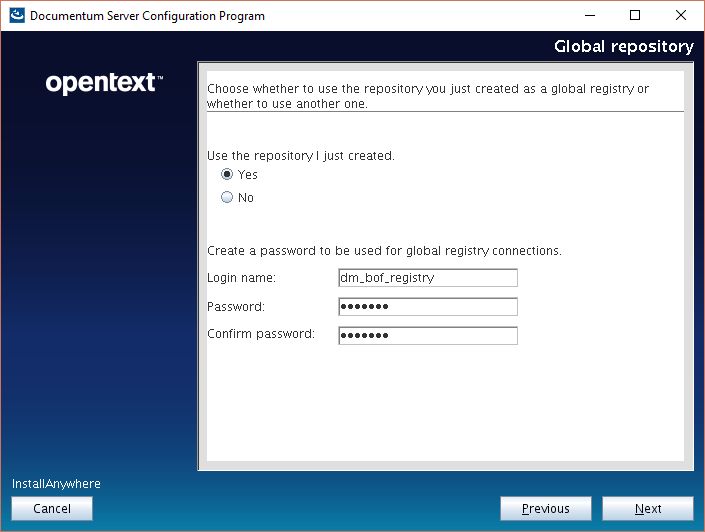
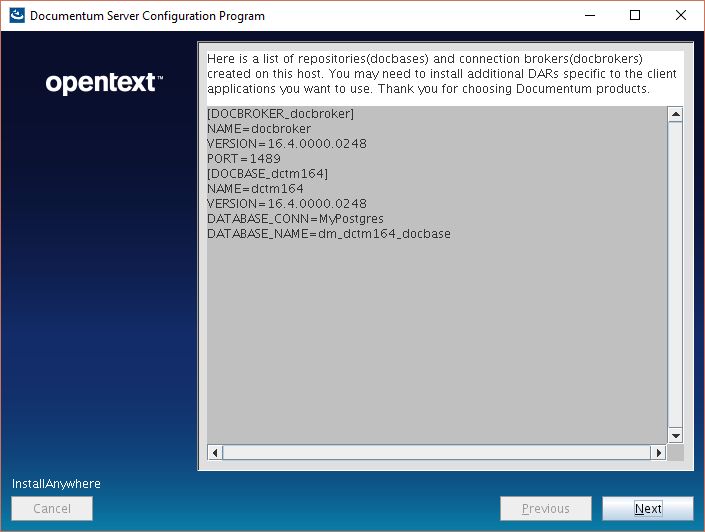
Docbroker and repository
At this point, you can choose to run dmdbtest to make sure everything works. This versions seems to work with the OOTB libs from postgres and you don’t have to get the unstripped libs from the docker release.
- Create the tablespace file for the repository (dctm164):
[dmadmin@vm-dctm164 cs]$ su –
[root@vm-dctm164 ~]# su – postgres
-bash-4.2$ mkdir /var/lib/pgsql/9.6/data/db_dctm164_dat.dat
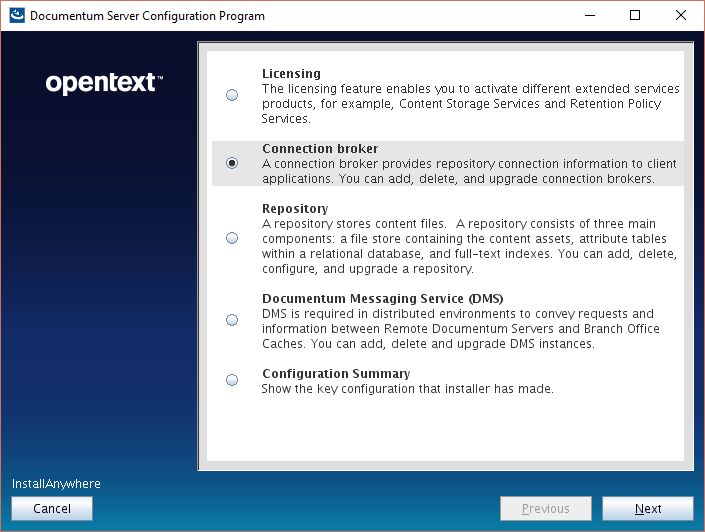
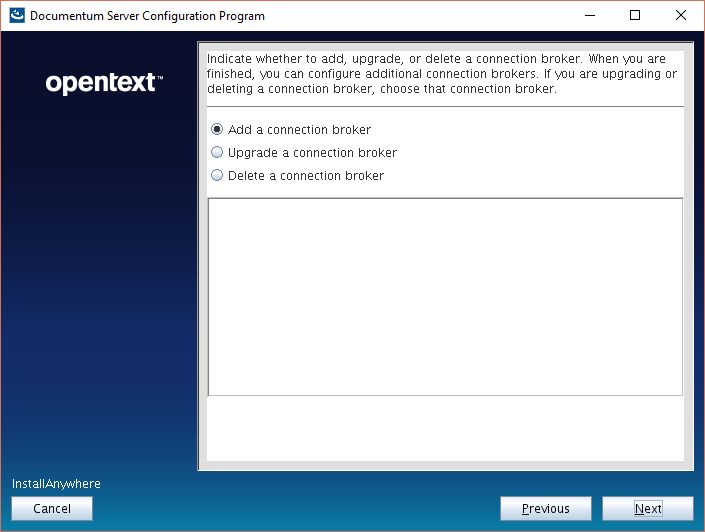
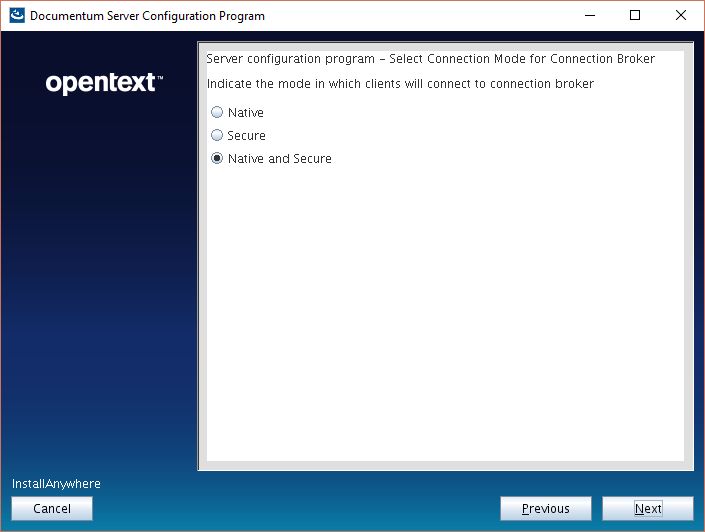
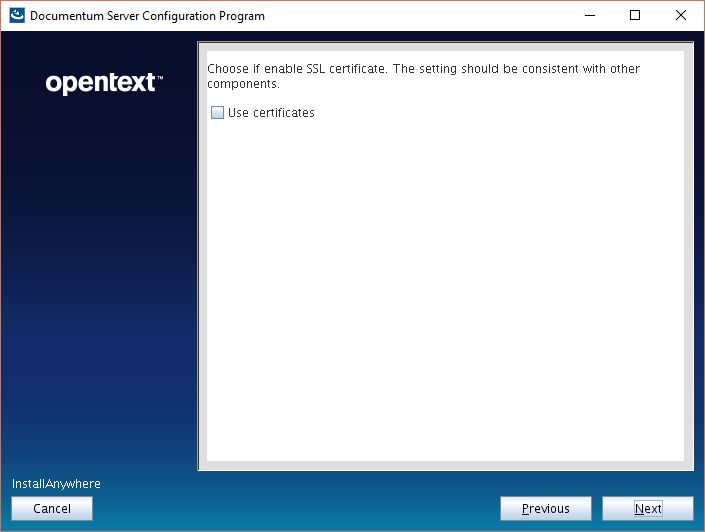


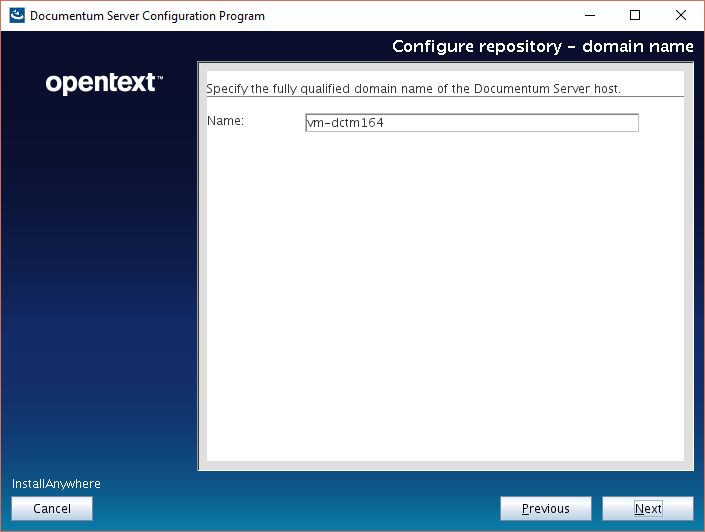
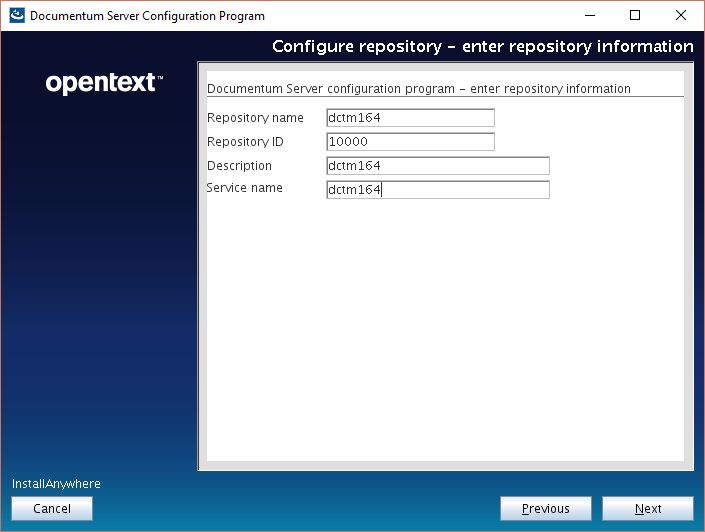

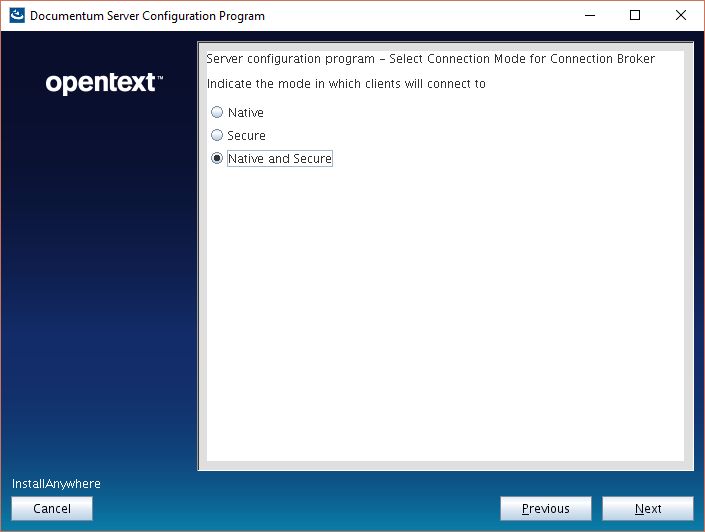
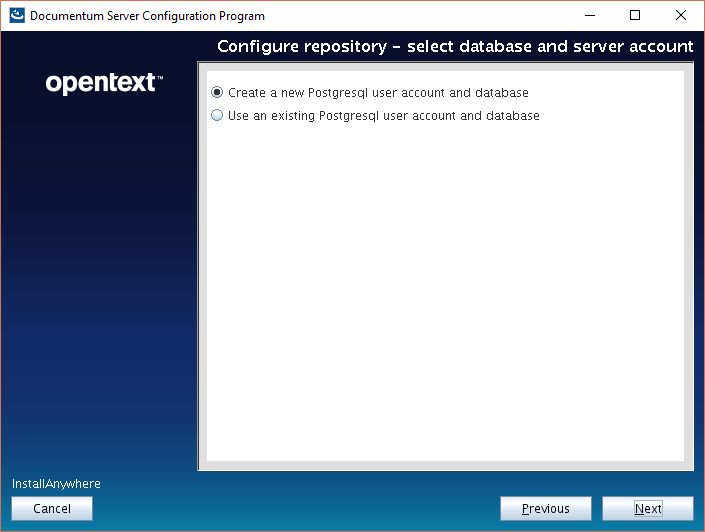

Documentum Administrator
Nothing special about this, same procedure as always. I’ve used the latest tomcat 8 to deploy, as there are no requirements/supported versions matrix:
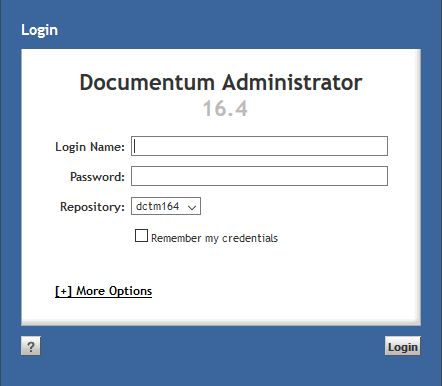
Some notes:
- Documentation seems more “precise”, specially regarding the Linux install. However, there are still copy/paste sections from previous releases.
- Only new (visible) feature in DA is the integration with iHub
- Firefox extension doesn’t work in Firefox 60
 Alvaro de Andres' Blog