Adding non-supported LDAP to DA

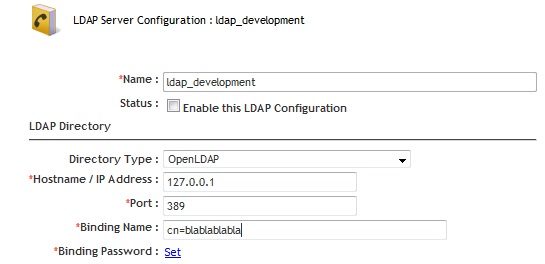
When you have to connect Documentum with a non-supported LDAP, you usually forget about the configuration UI provided by DA as you have to do most of the work by IAPI/DQL.

However, if you want to add your LDAP to the list of supported servers, you can do so quite easily:

1. Create the necessary DirectoryType class with your custom ldap type (openldap in this case):

public enum DirectoryType{
  OPENLDAP("openldap"), SUN_ONE("netscape"), ACTIVE_DIRECTORY("microsoft"),
  ORACLE_INTERNET_DIRECTORY("oracle"), IBM_TIVOLI("ibm"), NOVELL("novell"),
  MICROSOFT_ADAM("microsoftadam");
//some other stuff you can check in com.documentum.ldap.DirectoryType from the dfLdapConfig.jar
}

2. ldapList component:

ldaplist_component.xml:

<pages>  
     <start>/custom/jsp/customldap/ldaplist.jsp</start>  
</pages>  
<nlsbundle>somepackage.LdapListNlsProp</nlsbundle>  

ldaplist.jsp:

<%@ taglib uri="/WEB-INF/tlds/customldap.tld" prefix="customldap" %>"  
...  
<customldap:customldapdirtypevalueformatter>  
<dmf:label datafield='<%=LdapList.DIR_TYPE_ATTR%>'/>  
</customldap:customldapdirtypevalueformatter>

customldap.tld:

<taglib>  
     <tlibversion>1.0</tlibversion>  
     <jspversion>1.1</jspversion>  
     <shortname>customldap</shortname>  
     <tag>  
          <name>customldapdirtypevalueformatter</name>  
          <tagclass>somepackage.CustomLdapDirTypeValueFormatterTag</tagclass>  
          <bodycontent>jsp</bodycontent>  
          <attribute>  
               <name>name</name>  
               <required>false</required>  
          </attribute>  
     </tag>  
</taglib>

Formatter:

public String format(String strValue){  
     String strDirType = getForm().getString("MSG_UNKNOWN_DIR_TYPE");  
     if ((strValue != null) && (strValue.length() != 0)) {  
          if (strValue.equals("netscape")) {strDirType = getForm().getString("MSG_NETSCAPE");  
          } else if (strValue.equals("microsoft")) {strDirType = getForm().getString("MSG_MICROSOFT");  
          } else if (strValue.equals("oracle")) {strDirType = getForm().getString("MSG_ORACLE");  
          } else if (strValue.equals("microsoftadam")) {strDirType = getForm().getString("MSG_MICROSOFT_ADAM");  
          } else if (strValue.equals("ibm")) {strDirType = getForm().getString("MSG_IBM");  
          } else if (strValue.equals("novell")) {strDirType = getForm().getString("MSG_NOVELL");  
          } else if (strValue.equals("openldap")){strDirType = getForm().getString("MSG_OPENLDAP");  
        }  
     }  
return strDirType;  
}  

3. ldapInfo component

ldapInfo_component.xml:

    <pages>  
         <start>/custom/jsp/customldap/ldapinfo.jsp</start>  
    </pages>      
    <nlsbundle>somepackage.LdapInfoNlsProp</nlsbundle>  

LdapInfo.class:

    public class LdapInfo extends com.documentum.webcomponent.admin.ldap.LdapInfo {  
        public static final String LDAP_DIR_VALUE_OPENLDAP = "openldap";  
    }  

ldapinfo.jsp:

<%@ page import="somepackage.LdapInfo" %>  
    ...  
<dmf:option value='<%=LdapInfo.LDAP_DIR_VALUE_OPENLDAP%>' nlsid='MSG_OPENLDAP'/>  

4. Final result:

ldap1

ldap2

(Unofficial) D7.1 Developer Edition

This is a step-by-step guide to install D7.1 in a Linux environment with Oracle XE (while we wait for the official developer edition). I’ve used the great (Unofficial) D7 Developer Edition guide posted by Ingo Zitzmann as a reference, in fact, this is +90% the same, just with some different scripts (and OS/Documentum version).

Environment

  • Host:
    • Windows 7 x64 8GB RAM
    • VMWare Player 6.0.1
  • Guest:
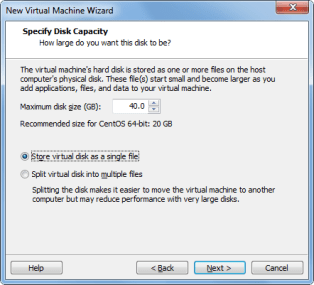
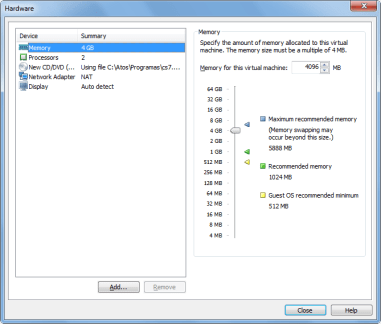
    • CentOS 6.5 x64 40GB HD 4GB RAM
    • Oracle XE 11.0.2 / InstantClient 11.0.3 (not officially supported)
    • Documentum 7.1
    • Tomcat 7.0.42
    • /mnt/hgfs/cs7.1 as a shared folder with host machine

VM Creation

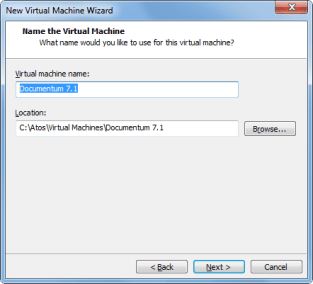
This is quite straightforward, pictures are self explanatory
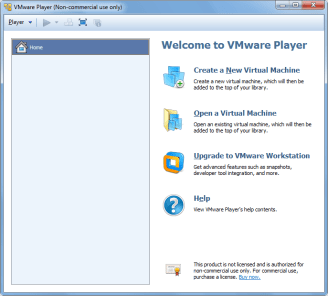
image1.pngimage2.pngimage3.pngimage4.pngimage5.pngimage6.pngimage7.png


From here, just follow the Linux Easy Install wizard. In this case, I created an user named “dmadmin”. When the OS boots for the first time, login in to check the user works and disable the firewall (System -> Administration -> Firewall)

OS Configuration

  • Let’s add dmadmin to the sudoer list
[admin@dev-vm ~]# su
Password: <admin pwd>
[root@dev-vm ~]# visudo
## Next comes the main part: which users can run what software on
## which machines (the sudoers file can be shared between multiple
## systems).
## Syntax:
##
## user MACHINE=COMMANDS
##
## The COMMANDS section may have other options added to it.
##
## Allow root to run any commands anywhere
root ALL=(ALL) ALL
dmadmin ALL=(ALL) ALL
  • Now we are going to change the vm’s name to vm-dctm71
[dmadmin@localhost ~]$ sudo vi /etc/hosts
192.168.161.128 vm-dctm71
[dmadmin@localhost ~]$ sudo vi /etc/sysconfig/network
NETWORKING=yes
#HOSTNAME=localhost.localdomain
HOSTNAME=vm-dctm71

Oracle XE setup

  • Install needed libs (just in case)
[dmadmin@vm-dctm71]# sudo yum install libaio bc
  • Run installer:
[dmadmin@vm-dctm71 Disk1]# sudo rpm -ivh oracle-xe-11.2.0-1.0.x86_64.rpm
[dmadmin@vm-dctm71 Disk1]# sudo /etc/init.d/oracle-xe configure
8008 #Defaults to 8080, change it to avoid conflicts with Tomcat
1521 #Default Oracle port
<password> #SYSTEM user password, usual restrictions apply
y  #Start when booting
  • Allow remote access to the database:
[root@vm-dctm71 admin]# . /u01/app/oracle/product/11.2.0/xe/bin/oracle_env.sh
[root@vm-dctm71 admin]# /u01/app/oracle/product/11.2.0/xe/bin/sqlplus system
EXEC DBMS_XDB.SETLISTENERLOCALACCESS(FALSE);
quit:

Oracle client setup

  • Install/update required 32bits libs:
[dmadmin@vm-dctm71~]# sudo yum install libXp.x86_64
[dmadmin@vm-dctm71~]# sudo yum update libXi.x86_64 libXtst.x86_64 libXt.x86_64
[dmadmin@vm-dctm71~]# sudo yum install libXp.i686 libXi.i686 libXtst.i686 libXt.i686
[dmadmin@vm-dctm71~]# sudo yum update glibc.x86_64 libgcc.x86_64 libstdc++.x86_64 libaio.x86_64
[dmadmin@vm-dctm71~]# sudo yum install glibc.i686 libgcc.i686 libstdc++.i686 libaio.i686
  • Make a new folder for the client’s libs
[dmadmin@vm-dctm71~]# cd /u01/app/oracle/product/11.2.0/xe/
[dmadmin@vm-dctm71 xe]# sudo mkdir lib32
[dmadmin@vm-dctm71 xe]# sudo chown oracle.dba lib32
  • Copy the client libs from the host to the new folder and create the symlinks
[dmadmin@vm-dctm71 xe]# sudo cp /mnt/hgfs/cs7.1/instantclient-basic-linux-11.2.0.3.0/instantclient_11_2/lib* lib32/
[dmadmin@vm-dctm71 xe]# cd lib32
[dmadmin@vm-dctm71 lib32]# sudo ln -s libclntsh.so.11.1 libclntsh.so
[dmadmin@vm-dctm71 lib32]# sudo ln -s libocci.so.11.1 libocci.so
[dmadmin@vm-dctm71 lib32]# sudo chown -h oracle.dba *
[dmadmin@vm-dctm71 lib32]# sudo chown -h oracle.dba libclntsh.so
[dmadmin@vm-dctm71 lib32]# sudo chown -h oracle.dba libocci.so

Content Server 7.1

Preinstall tasks

  • Reserve repository ports
[dmadmin@vm-dctm71~]# sudo vi /etc/services
# dctm services
dm_sec_test 47625/tcp # 7.1 Repository native connection
dm_sec_test_s 47626/tcp # 7.1 Repository secure connection
  • Make a new folder for Documentum
[dmadmin@vm-dctm71~]# sudo mkdir /opt/documentum;sudo chown dmadmin.dmadmin /opt/documentum
  • Update user profile script adding the environment variables required by the installation
[dmadmin@vm-dctm71 ~]$ vi .bash_profile
DOCUMENTUM=/opt/documentum
export DOCUMENTUM
DM_HOME=$DOCUMENTUM/product/7.1
export DM_HOME
ORACLE_HOME=/u01/app/oracle/product/11.2.0/xe
export ORACLE_HOME
ORACLE_SID=XE
export ORACLE_SID
NLS_LANG='$ORACLE_HOME/bin/nls_lang.sh' #be aware of the « special » quotes here
export NLS_LANG
PATH=$ORACLE_HOME/bin:$DM_HOME/bin:$PATH
export PATH
LC_ALL=C
export LC_ALL
LD_LIBRARY_PATH=$LD_LIBRARY_PATH:$ORACLE_HOME/lib32
export LD_LIBRARY_PATH
  • Make a new folder for the installers, and change the permissions
[dmadmin@vm-dctm71 documentum]$ mkdir installers
[dmadmin@vm-dctm71 installers]$ cp /mnt/hgfs/cs7.1/Content_Server_7.1_linux64_oracle/* .
[dmadmin@vm-dctm71 installers]$ chmod 777 *
[dmadmin@vm-dctm71 installers]$ chmod +x serverSetup.bin
  • I’m going to use putty so I’ll need a xserver in windows (xming/cygwin xwin) and the libs in the guest OS, I’ll just install xclock to get those and check everything is working
[dmadmin@vm-dctm71 installers]$ sudo yum install xclock
[dmadmin@vm-dctm71 installers]$ export DISPLAY=172.24.28.12:0.0

Although xclock worked fine, I couldn’t input any text in the Content Server installer when using Xming. As I was in a bit of a hurry, I simply used cygwin’s xwin and everything was fine

Content Server installation

  • Let’s go!!
[dmadmin@vm-dctm71 installers]$ ./serverSetup.bin

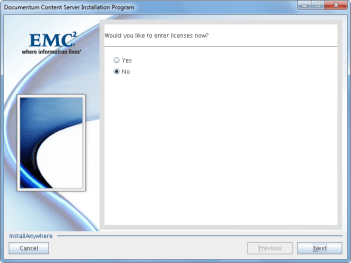
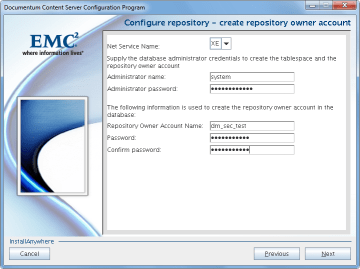
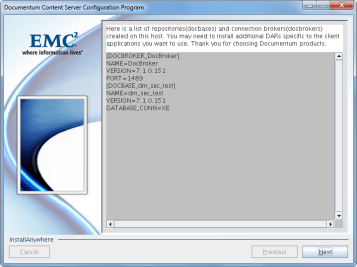
Pictures self explanatory as usual
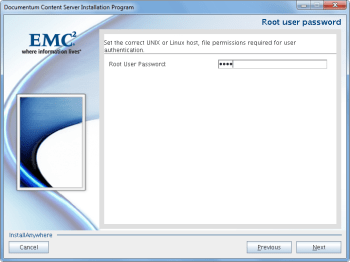
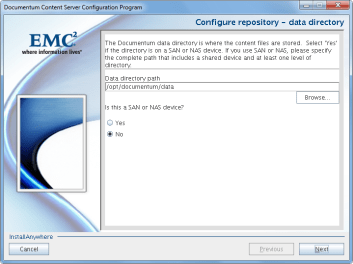
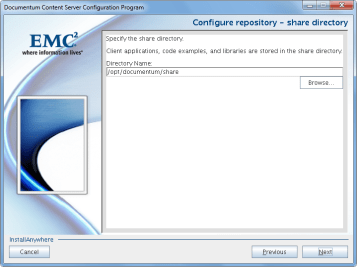
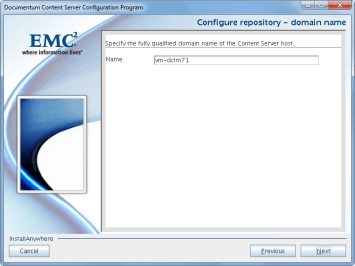
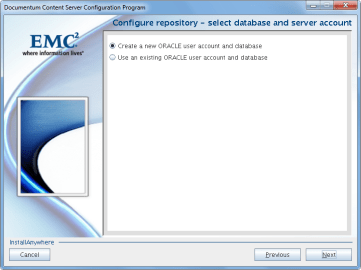
image10.pngimage11.pngimage12.pngimage14.pngimage15.pngimage16.pngimage17.pngimage18.pngimage19.pngimage20.pngimage21.pngimage22.pngimage23.pngimage24.png

Tomcat 7

  • Copy Tomcat to the guest, unzip and move to destination folder
[dmadmin@vm-dctm71 tmp]$ cp /mnt/hgfs/cs7.1/apache-tomcat-7.0.42.tar.gz .
[dmadmin@vm-dctm71 tmp]$ tar xzvf apache-tomcat-7.0.42.tar.gz
[dmadmin@vm-dctm71 tmp]$ sudo mv apache-tomcat-7.0.42 /usr/share/
[dmadmin@vm-dctm71 tmp]$ sudo chown dmadmin.dmadmin -R /usr/share/apache-tomcat-7.0.42/
  • Create a symlink for ease of access
[dmadmin@vm-dctm71 tmp]$ sudo ln -s /usr/share/apache-tomcat-7.0.42 /usr/share/tomcat7
[dmadmin@vm-dctm71 tmp]$ sudo chown -h dmadmin.dmadmin /usr/share/tomcat7
  • Configure Java version to be used by Tomcat (we’ll be reusing Documentum bundled Java)
[dmadmin@vm-dctm71 tmp]$ vi /usr/share/tomcat7/bin/setenv.sh
#!/bin/sh
JAVA_HOME=/opt/documentum/java64/1.7.0_17/
JAVA_OPTS="-server -Xms256m -Xmx512m -XX:MaxPermSize=256m"
  • Check tomcat runs fine
[dmadmin@vm-dctm71 ~]$ /usr/share/tomcat7/bin/startup.sh

DA 7.1

  • Let’s update catalina.properties
[dmadmin@vm-dctm71 ~]$ vi /usr/share/tomcat7/conf/catalina.properties
### Req'd by Documentum Webtop/DA ###
org.apache.jasper.compiler.Parser.STRICT_WHITESPACE=false
  • Now context.xml
[dmadmin@vm-dctm71 ~]$ vi /usr/share/tomcat7/conf/context.xml
<Context useHttpOnly="false">
  • And finally web.xml
[dmadmin@vm-dctm71 ~]$ vi /usr/share/tomcat7/conf/web.xml
<init-param>
<param-name>enablePooling</param-name>
<param-value>false</param-value>
</init-param>
  • Now we’ll copy da.war to the guest
[dmadmin@vm-dctm71 tmp]$ cp /mnt/hgfs/cs7.1/da.war .
  • Extract dfc.properties from da.war
[dmadmin@vm-dctm71 tmp]$ unzip da.war WEB-INF/classes/dfc.properties
  • Update dfc.properties with the path to the content’s dfc.properties
[dmadmin@vm-dctm71 tmp]$ vi WEB-INF/classes/dfc.properties
#include /opt/documentum/config/dfc.properties
  • Update dfc.properties in the da.war file
[dmadmin@vm-dctm71 tmp]$ /opt/documentum/java64/1.7.0_17/bin/jar uf da.war WEB-INF/classes/dfc.properties
  • Move da.war to the webapps folder
[dmadmin@vm-dctm71 tmp]$ mv da.war /usr/share/tomcat7/webapps/da.war

And there you go!! Enjoy a D7.1 working environment

Android app using REST services (II)

Some more info on this:

  • Environment:
    • Documentum 6.6P27/SQLServer
    • REST Services 7.0
  • App Development info:
    • App developed with AndroidStudio
    • Compatible with Android 4.x

Some tips/thoughts:

  • Stick to eclipse + android SDK instead of using AndroidStudio (unless until AndroidStudio is mature enough). You’ll save time and problems.
  • Programming in Android is a pain in the ass with so many different devices/versions. Apple and xCode wins there.
  • Mobile emulators requiere a huge amount of resources. Either find a test mobile phone or get a good development computer with at least 8gb RAM. I think the iPhone emulator runs better in iMacs than the android emulator in PC
  • The REST Services package doesn’t come with a POJO/BEAN implementation, so if you plan to use Java you’ll have to code those classes from scratch (boring) to parse the responses (maybe there’s a better/automatic way to do it)
  • The query service (used as a workaround to get the job info, as there is no job service) doesn’t allow write queries, so forget about updating objects/executing jobs on demand (unless you want to decompile some class and change some “startsWith(“select “)” to something else)
  • The REST services are quite fast, much much faster than DFS, consider this if you need to develop something new.

App updates:

  • Uses SQLite to store preferences
  • Remembers connection details
  • Added user list
  • You can choose what job / user attributes want to show in the details window

Screenshots

  • Login:

0101b02.png

  • Job options:

03.png

  • User options:

04.png

  • Job details:

05.png

  • User details:

06.png

TODO:

  • Modify user properties
  • Show/update document properties


Android app using REST services

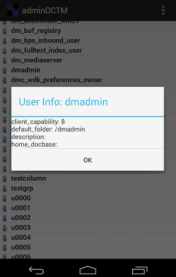
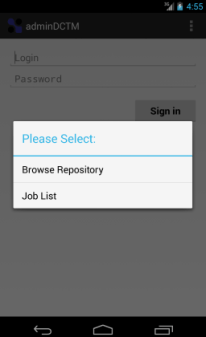
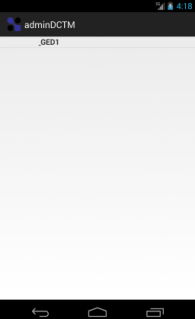
I’ve been learning Android development by developing an App using DCTM Rest services to expose as much functionality as possible from DA. Currently I have a working repository browser and job list/details app, that works via VPN (enabled in the phone by a 3rd app). This is just an example of what can be done with the Rest API released by EMC:

  • Login window:

001.png

  • Browser / Job choice:

002.png

  • Browser (Repository/cabinets/folders):

003.png004.png005.png

  • Open file:

006.png

  • Job list:

007.png

  • Job detail:

008.png

  • TODO:
    • Format Job details window
    • Use sqlite to store preferences/connection url
    • Cleanup code
    • Test new features:
      • User management
      • Job execution
      • Additional configurations


EMC Proven Professional Certifications (Documentum) – Update

A few thoughts on the certification framework, once I taken most of the tests:

  • E10-110 (Foundation): New 110 brings D7 stuff and it seems it has a higher correct answer % requirement. It’s harder than the old e20-120, unless you’ve gone through install/migration of the D7 stuff and D2.
  • E20-495 (xCP): I don’t understand why this tests only covers xCP 2 and the 110 covers both xCP 1.5 and 2. One of the thoughest test due to the range of products that are included the stack.
  • E20-465 (Administration): Read the administration guide. Easy even with the D7 stuff included in the last revision
  • E20-405 (DFC): If you’re done some DFC coding and read the DFC development guide (the are questions that are a copy/paste from the guide or viceversa). Could use a little update.
  • E20-455 (WDK): Pretty much the same as DFC test, reading the WDK guide you should be good to go.
  • E20-475 (System Architecture): No documentation available for this test. Read every single manual, have a very clear idea of the goal of each product and take a look to the HW stuff EMC sells (clariion, symmetrix, celerra, etc) if you’re not familiar with it. If you have done some kind of administration work, it will be easier. Having passed this test, I think some questions belong to the Application Architecture test and not to this one. It needs an update (and probably be merged with the 485)
  • E20-485 (Application Architecture): No documentation availble. Pretty much use case scenarios to select the best solution (from the available choices). Similar to 475.

To sum up, 405, 455, 465 can be passed without even studying, 110 and 465 require at least some degree of preparation, and 475-485 are the one that need more reading (and even with that, you’ll probably come across some WTF questions on the test)


Firefox 24 and future versions will block every Java object by default

As stated here: 914690 – In Firefox 24 and following, mark all versions of Java as unsafe every java version is going to be marked as unsafe by default, meaning you’ll have to manually enable/allow every time you use any java object (If you’re on Firefox beta channel you should realized by now that something was “wrong” when using webtop/ucf transfer with the latest versions: You have to manually allow actions like selecting a file to check-in or every UCF operation)

You probably know by now what this means to Webtop… oh God, when I though I couldn’t hate more UCF, now this… Am I the only one that *loves* having to deal with end-users/customers that take for granted that this Java-Browser compatibilities are a “Documentum problem”…

PS: go HTTP transfer mode!