D2 (and Webtop and xCP) CTF

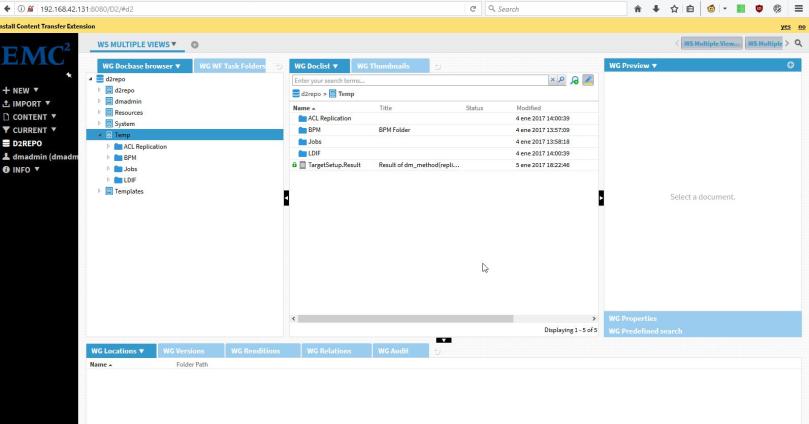
CTF (Content Transfer Framework) is how EMC Dell calls their “new UCF”. It works as a browser extension, and is the same extension you’ve used for the latest version of Webtop (new functionality getting first to Webtop? LOL). And this mode is not the default (why?) so you’ll need to change it in the settings.properties file of D2.

Also, this extension will generate some “index” files on the folder where you download files:

  • .checkout.xml
  • .d2_edit_storage.json
  • .d2_view_storage.json
  • .view.xml

That contain object names, ids, operation performed, and folder paths of the files transferred.

Tested on latest Firefox Nightly x64 and Chrome.

FYI, I’m pasting the “wonderful” ASCII compatibility matrix provided by Dell in the configuration file:

#     +——————-+——+——+——+——+
#     | Browser:OS \ Mode | Thin | Java | ctf  | Note |
#     +——————-+——+——+——+——+
#     | IE 11             | yes  | yes  | yes  |      |
#     +——————-+——+——+——+——+
#     | Edge              | yes  | NO   | NO   | (1)  |
#     +——————-+——+——+——+——+
#     | Firefox           | yes  | yes  | yes  |      |
#     +——————-+——+——+——+——+
#     | Chrome            | yes  | NO   | yes  | (1)  |
#     +——————-+——+——+——+——+
#     | Safari:Mac_OSX    | yes  | yes  | yes  |      |
#     +——————-+——+——+——+——+
#     | Safari:Mac_IOS    | yes  | NO   | NO   | (2)  |
#     +——————-+——+——+——+——+
# Notes:
#
# (1) Chrome and Edge do not support java applets, and Edge does not support the CTF plugin.
#     D2 will fallback to thin client mode appropriately when java or ctf has been
#     specified in the value of the browser.plugin.mode setting as described above.
#
# (2) If browser.plugin.mode contains java or ctf, then D2 will silently continue to run in
#     thin client mode. Safari running on Mac_IOS does not support the java or ctf plugin.

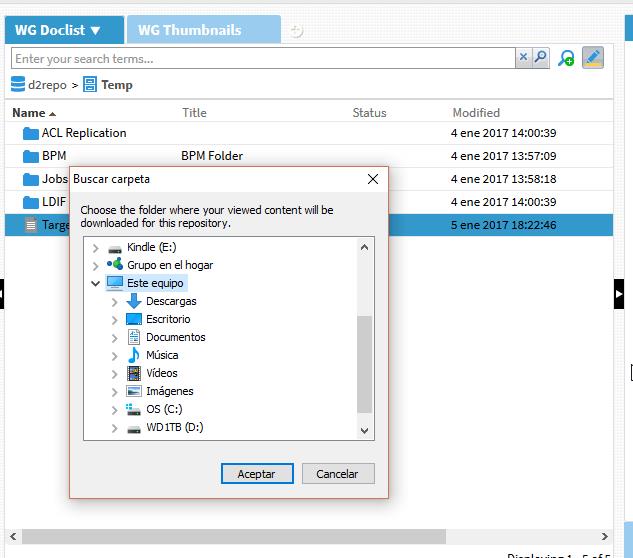
  • Prompt for installing the extension:

ctf-prompt

  • View content prompt:

ctf-save

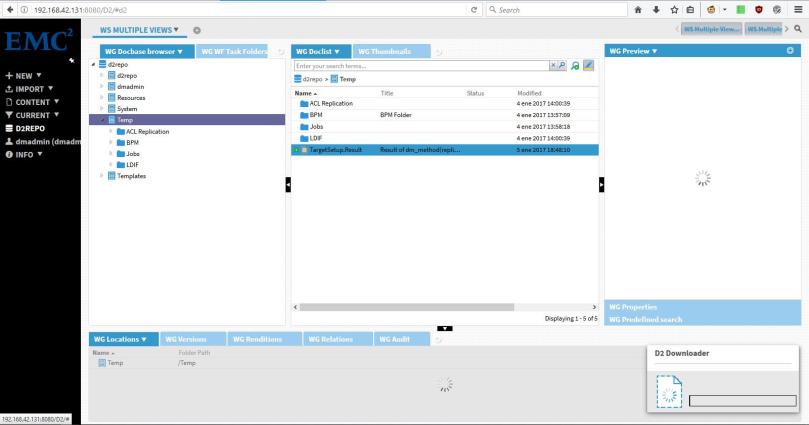
  • Edit:

ctf-downloading

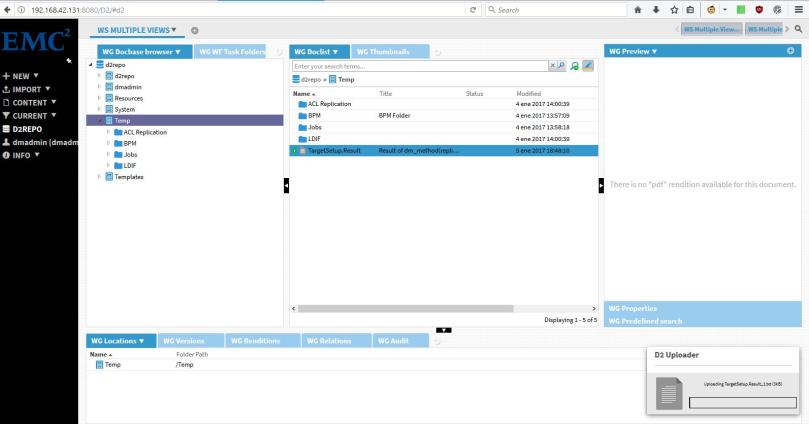
  • Check in:

ctf-uploading

Full docker CS7.3 PostgreSQL + D2 4.7 installation guide

Some thoughts on this before the guide:

  • EMC Dell keeps messing the documentation. Still there are mistakes, lack of information and some misleading procedures. Anyway, with time and by trial-error method, you can set up the environment “quickly”.
  • Oh, the consistency! Dockerized D2 uses 3 containers (plus Documentum Administrator)
    • Content Server with D2 files (on CentOS)
    • D2 Config (Ubuntu)
    • D2 Client (Ubuntu)

Why they start with a CentOS and then move to Ubuntu is beyond my understanding, but I would like to know if there’s some technical reasons for this. Also, do we really need a different content server image for using D2?

  • I’m sure there are easier methods to configure everything, but well, for the “first” dockerized version we shouldn’t ask for much more…

Let’s go!

Environment

Host:
Windows 10 x64 8GB RAM
VMware Workstation Player 12

Guest:
CentOS 7 x64 25GB HD 4GB RAM 2 cores
Docker 1.12

I’ve used the same VM I created in DCTM 7.3 PostgreSQL with Docker install guide, just remember to stop the PostgreSQL and httpd services to avoid conflics.

PostgreSQL 9.6.1

You can follow the instructions in https://hub.docker.com/_/postgres/ to configure the postgres container:

  • Download the image:

[dmdocker@vm-dctm73 installers]$ docker pull postgres

  • Start the container:

[dmdocker@vm-dctm73 installers]$ docker run –name psql -p 5432:5432 -e POSTGRES_PASSWORD=dmadmin -e POSTGRES_USER=dba -v cs_db_data:/var/lib/postgresql/data -d postgres

  • Configure the user and tablespace folder:

[dmdocker@vm-dctm73 installers]$ docker exec -it psql /bin/bash
root@35d05a7640ff:/# su postgres
$ mkdir /var/lib/postgresql/data/db_d2repo_dat.dat

If you want to check if it is running, you can connect with any client such as SquirrelSQL

Content Server 7.3 + D2 files

This is similar to the “normal” content server configuration with docker:

  • Load the image:

[dmdocker@vm-dctm73 ~]$ docker load -i D2cs_Corepack_Centos.tar

  • Update environment variables:

dmdocker@vm-dctm73 ~]$ vi .bash_profile

#app server admin password
export APP_SERVER_ADMIN_PASSWORD=dmadmin
#This is install owner password
export INSTALL_OWNER_PASSWORD=dmadmin
#This is root user password
export ROOT_USER_PASSWORD=dmadmin
#Repository password. Required only for stateless configuration
export REPOSITORY_PASSWORD=dmadmin
#External Data base Server Admin password
export EXTERNALDB_ADMIN_PASSWORD=dmadmin
#Global Registry password
export BOF_REGISTRY_USER_PASSWORD=dmadmin
#AEK passphrase
export AEK_PASSPHRASE=dmadmin
export LOCKBOX_PASSPHRASE=Documentum.73

  • Update configuration files:

[dmdocker@vm-dctm73 Scripts]$ vi statelesscs.conf

###EMC Documentum on Docker
###(c) Copyright EMC Corp., 1992 – 2016
###All rights reserved.
###Version 1.0 dated 08/Sep/2016

#Documentum Content Server Image name
#Here 10.31.4.205 is Bangalore HUB.
#For PLE hub please change the ip as 10.8.46.202
#Here 7.3.0000 pointing to the latest 7.3 CS image. If we need perticular build version then just use 7.3.0000.0xxx
#Ex :  7.3.0000.0176
#Ubuntu Image:  10.31.4.205:5000/contentserver/ubuntu/stateless/cs:7.3.0000
#CentOS Image: 10.31.4.205:5000/contentserver/centos/stateless/cs:7.3.0000
#RHEL Image : 10.31.4.205:5000/contentserver/rhelora/stateless/cs:7.3.0000
IMAGE_NAME = d2cs_corepack_centos:4.7.0000.0246

#documentum License
HIGH_VOLUME_SERVER_LICENSE =
TRUSTED_LICNESE=
STORAGEAWARE_LICENSE=
XMLSTORE_LICENSE=
SNAPLOCKSTORE_LICENSE=LDNAPJEWPXQ
RPS_LICENSE=
FED_RECD_SERVICE_LICENSE=
RECORD_MANAGER_LICENSE=
PRM_LICENSE=

#Docbase configuration details
#Base machine IP
EXTERNAL_IP = 192.168.42.131

#External Data base server IP
EXTERNALDB_IP = 192.168.42.131

#External Data base Server Admin User
EXTERNALDB_ADMIN_USER = dba

#External Data base Server Port number
#Default port for postgres is 5432. Oracle is 1521
DB_SERVER_PORT=5432

#Docbase ID
DOCBASE_ID = 45321

#Docbase name
DOCBASE_NAME = d2repo

#Container host name.
CONTAINER_HOSTNAME = d2cs

#Container name.
CONTAINER_NAME = d2cs

#Conent Server port number to map in the base machine
CONTENT_SERVER_PORT= 50000
#Docbroker port number to map in the base machine
DOCBROKER_PORT =1689
#Method Server port number to map in the base machine
METHOD_SVR_PORT=9080

#App server management port
APP_SERVER_MGMNT_PORT=9084

#lockbox and aek related info
AEK_ALGORITHM = AES_256_CBC
#aek name
AEK_NAME = CSaek
#User wants to enable lock box then make it as true and provide the name and passphrase. To disable  lockbox then make it as false
ENABLE_LOCKBOX = true
LOCKBOX_FILE_NAME = lockbox.lb

#These are default values for 7.3. IF any thing is change like Jboss version or product version the change the values here
INSTALL_OWNER_USER=dmadmin
INSTALL_HOME=/opt
JBOSS=wildfly9.0.1
PRODUCT_MAJOR_VERSION=7.3

### remote data machine and docker plugin details.
#docker plugin type local,cifs,nfs etc. By default plugin is local, means the data file system is local. If you use the file system has remote then use proper plugin type and remote host details.
DOCKER_PLUGIN_TYPE=local
#Remote data machine.
EXTERNALDATA_HOST=192.168.42.131
#Data path folder which is on remote machine.You need to create a folder and share it on remote machine
REMOTE_DATA_PATH=/opt/dctmdocker/data
#Share path which is on remote machine. You need to create a folder and share it on remote machine
REMOTE_SHARE_PATH=/opt/dctmdocker/share
#If the docker plugin type is cifs then create a dmadmin user in base machine and provide the uid here. Otherwise this filed is empty.
#While starting the nethsare plugin please use  the same uid and gid as -o parameter
INSTALL_OWNER_UID=

#THUMBNAIL SERVER Configuration parameters. To enable Thumnail server make it as YES.
CONFIGURE_THUMBNAIL_SERVER = NO
THUMBNAIL_SERVER_PORT = 8081
THUMBNAIL_SERVER_SSL_PORT = 8443

[dmdocker@vm-dctm73 Scripts]$ vi statelesscs_config_compose.yml

version: ‘2’
services:
dctm_cs:
image: d2cs_corepack_centos:4.7.0000.0246
environment:
– HIGH_VOLUME_SERVER_LICENSE=
– TRUSTED_LICNESE=
– STORAGEAWARE_LICENSE=
– XMLSTORE_LICENSE=
– SNAPLOCKSTORE_LICENSE=
– RPS_LICENSE=
– FED_RECD_SERVICE_LICENSE=
– RECORD_MANAGER_LICENSE=
– PRM_LICENSE=
– ROOT_USER_PASSWORD=${ROOT_USER_PASSWORD}
– INSTALL_OWNER_PASSWORD=${INSTALL_OWNER_PASSWORD}
– INSTALL_OWNER_USER=dmadmin
– REPOSITORY_PASSWORD=${REPOSITORY_PASSWORD}
– EXTERNAL_IP=192.168.42.131
– EXTERNALDB_IP=192.168.42.131
– EXTERNALDB_ADMIN_USER=dba
– EXTERNALDB_ADMIN_PASSWORD=${EXTERNALDB_ADMIN_PASSWORD}
– DB_SERVER_PORT=5432
– DOCBASE_ID=45321
– DOCBASE_NAME=centdb
– USE_EXISTING_DATABASE_ACCOUNT=false
– INDEXSPACE_NAME=dm_repo_docbase
– BOF_REGISTRY_USER_PASSWORD=${BOF_REGISTRY_USER_PASSWORD}
– AEK_ALGORITHM=AES_256_CBC
– AEK_PASSPHRASE=${AEK_PASSPHRASE}
– AEK_NAME=CSaek
– ENABLE_LOCKBOX=true
– LOCKBOX_FILE_NAME=lockbox.lb
– LOCKBOX_PASSPHRASE=${LOCKBOX_PASSPHRASE}
– USE_EXISTING_AEK_LOCKBOX=false
– CONFIGURE_THUMBNAIL_SERVER=NO
– EXTDOCBROKERPORT=1689
– CONTENTSERVER_PORT=50000
– APP_SERVER_ADMIN_PASSWORD=${APP_SERVER_ADMIN_PASSWORD}
– INSTALL_OWNER_UID=
hostname:
“cont-d2cs”
container_name:
“d2csdocker”
ports:
– “DOCBROKER_PORT:DOCBROKER_PORT”
– “DOCBROKER_SECURE_PORT:DOCBROKER_SECURE_PORT”
– “CONTENT_SERVER_PORT:CONTENT_SERVER_PORT”
– “CONTENT_SERVER_SECURE_PORT:CONTENT_SERVER_SECURE_PORT”
– “METHOD_SVR_PORT:9080”
– “METHOD_SVR_SECURE_PORT:9082”
– “METHOD_SVR_JMX_PORT:9081”
– “THUMBNAIL_SERVER_PORT:8081”
– “THUMBNAIL_SERVER_SSL_PORT:8443”
– “APP_SERVER_MGMNT_PORT:9084”
volumes:
– DocbaseName_odbc:INSTALL_HOME/dctm/odbc
– DocbaseName_data:INSTALL_HOME/dctm/data
– DocbaseName_dba:INSTALL_HOME/dctm/dba
– DocbaseName_share:INSTALL_HOME/dctm/share
– DocbaseName_dfc:INSTALL_HOME/dctm/config
– DocbaseName_xhive_storage:INSTALL_HOME/dctm/xhive_storage
– DocbaseName_XhiveConnector:INSTALL_HOME/dctm/JBOSS/server/DctmServer_MethodServer/deployments/XhiveConnector.ear
– DocbaseName_mdserver_conf:INSTALL_HOME/dctm/mdserver_conf
– DocbaseName_mdserver_log:INSTALL_HOME/dctm/JBOSS/server/DctmServer_MethodServer/log
– DocbaseName_mdserver_logs:INSTALL_HOME/dctm/JBOSS/server/DctmServer_MethodServer/logs
– DocbaseName_Thumbnail_Server_conf:INSTALL_HOME/dctm/product/PRODUCT_MAJOR_VERSION/thumbsrv/conf
– DocbaseName_Thumbnail_Server_webinf:INSTALL_HOME/dctm/product/PRODUCT_MAJOR_VERSION/thumbsrv/container/webapps/thumbsrv/WEB-INF
– DocbaseName_ServerApps:INSTALL_HOME/dctm/wildfly9.0.1/server/DctmServer_MethodServer/deployments/ServerApps.ear
– DocbaseName_acs:INSTALL_HOME/dctm/wildfly9.0.1/server/DctmServer_MethodServer/deployments/acs.ear
– DocbaseName_mdserver_modules_emc:INSTALL_HOME/dctm/wildfly9.0.1/modules/system/layers/base/emc
– DocbaseName_opt_emc_d2:/opt/EMC/D2
privileged: true
volumes:
DocbaseName_data:
driver: DOCKER_PLUGIN_TYPE
driver_opts:
share: EXTERNALDATA_HOST/REMOTE_DATA_PATH
DocbaseName_dba:
DocbaseName_share:
driver: DOCKER_PLUGIN_TYPE
driver_opts:
share: EXTERNALDATA_HOST/REMOTE_SHARE_PATH
DocbaseName_dfc:
DocbaseName_odbc:
DocbaseName_XhiveConnector:
DocbaseName_mdserver_conf:
DocbaseName_mdserver_log:
DocbaseName_mdserver_logs:
DocbaseName_Thumbnail_Server_conf:
DocbaseName_Thumbnail_Server_webinf:
DocbaseName_xhive_storage:
DocbaseName_ServerApps:
DocbaseName_acs:
DocbaseName_mdserver_modules_emc:
DocbaseName_opt_emc_d2:

  • Run the creation script (the container will keep running with the repository started)

[dmdocker@vm-dctm73 Scripts]$ ./stateless_config.sh

DA

  • Load the image:

[dmdocker@vm-dctm73 da]$ docker load -i Documentum_Adminstrator_Centos.tar

  • Update configuration files (I’ve mapped the port used by DA to 80, so D2 can use the default 8080 and 8181, you can change this to any port you want):

[dmdocker@vm-dctm73 Scripts]$ vi statelessda_compose.yml

version: ‘2’
services:
dastateless:
image: dastatelessimage
environment:
– DOCBROKER_IP=192.168.42.131
– DOCBROKER_PORT=1689
– GLOBAL_REGISTRY_DOCBASE_NAME=d2repo
– BOF_REGISTRY_USER_PASSWORD=dmadmin
– CRYPTO_REGISTRY_DOCBASE_NAME=d2repo
– PRESETS_PREFERENCES_USER_PASSWORD=webtop
– APPSERVER_PORT=8080
– DFC_SESSION_SECURE_CONNECT_DEFAULT=try_native_first
container_name:
“da”
ports:
– “80:8080”
volumes:
– dalogs:/opt/tomcat/logs
– dacustom:/opt/tomcat/webapps/da/custom
privileged: true
volumes:
dalogs:
dacustom:

[dmdocker@vm-dctm73 Scripts]$ vi statelessda.conf

DOCBROKER_IP = 192.168.42.131
DOCBROKER_PORT = 1689
GLOBAL_REGISTRY_DOCBASE_NAME = d2repo
BOF_REGISTRY_USER_PASSWORD = dmadmin
CRYPTO_REGISTRY_DOCBASE_NAME = d2repo
PRESETS_PREFERENCES_USER_PASSWORD = webtop
IMAGE_NAME = da_centos:7.3.0000.0074
CONTAINER_HOSTNAME = dastatelessimage
APPSERVER_PORT = 8080
DFC_SESSION_SECURE_CONNECT_DEFAULT = try_native_first

  • Run the configuration script:

[dmdocker@vm-dctm73 Scripts]$ ./statelessda_config.sh

And you should be able to access DA in http://<your_vm_ip/da

D2 Config

  • Update provided dfc.properties in Config folder:

dfc.data.dir=/home/root/dctm
dfc.tokenstorage.dir=/home/root/dctm/apptoken
dfc.tokenstorage.enable=false
dfc.docbroker.host[0]=cont-d2cs
dfc.docbroker.port[0]=1489
dfc.docbroker.host[1]=cont-d2cs
dfc.docbroker.port[1]=1689
dfc.crypto.repository=d2repo
dfc.session.secure_connect_default=try_native_first
dfc.globalregistry.repository=d2repo
dfc.globalregistry.username=dm_bof_registry
dfc.globalregistry.password=AAAAEKirNMA6wt15JG4eDkp2cZ39euSH+HZGKgH+x3j7H4dK

  • Load the image:

[dmdocker@vm-dctm73 d2-config]$ docker load -i D2config_Corepack_Ubuntu.tar

  • Create a volume to store the log files:

[dmdocker@vm-dctm73 d2-config]$ docker volume create –name=d2configlogs

  • Start a container with the following command:

[dmdocker@vm-dctm73 Configfiles]$ docker run -h d2config –name d2config -d -v /opt/dctmdocker/installers/d2-config/Configfiles:/usr/local/tomcat/CustomConf -v d2configlogs:/usr/local/tomcat/webapps/D2-Config/logs -ti –add-host cont-d2cs:192.168.42.131 -p 8181:8080 d2config_corepack_ubuntu:4.7.0000.0246

Now we need to add the D2 Config instance to the privileged clients list, so if you don’t have Java in the machine, install it:

[dmdocker@vm-dctm73 Configfiles]$ sudo yum install java-1.8.0-openjdk

  • Get the keystore info:

[dmdocker@vm-dctm73 Configfiles]$ keytool -list -keystore dfc.keystore -storepass dfc -v

The line you want is the one that starts with “Owner”:

Owner: CN=dfc_K26safmZbYRvAPA6Q2XkHBGvOZQa, O=EMC, OU=Documentum

Now, go to DA, Client Rights Management, Privileged clients, Manage Clients, add the DFC instance to the privileged client list and then approve the client.

Now you should be able to access D2-Config in http://<your_vm_ip&gt;:8181/D2-Config

D2 Client

This exactly the same procedure described for D2 Config:

  • Update provided dfc.properties in Config folder

dfc.data.dir=/home/root/dctm
dfc.tokenstorage.dir=/home/root/dctm/apptoken
dfc.tokenstorage.enable=false
dfc.docbroker.host[0]=cont-d2cs
dfc.docbroker.port[0]=1489
dfc.docbroker.host[1]=cont-d2cs
dfc.docbroker.port[1]=1689
dfc.crypto.repository=d2repo
dfc.session.secure_connect_default=try_native_first
dfc.globalregistry.repository=d2repo
dfc.globalregistry.username=dm_bof_registry
dfc.globalregistry.password=AAAAEKirNMA6wt15JG4eDkp2cZ39euSH+HZGKgH+x3j7H4dK

  • Load the image:

[dmdocker@vm-dctm73 d2-client]$ docker load -i D2client_Corepack_Ubuntu.tar

  • Create a volume to store the log files:

[dmdocker@vm-dctm73 d2-client]$ docker volume create –name=d2clientlogs

  • Start a container with the following command:

[dmdocker@vm-dctm73 Configfiles]$ docker run -h d2client –name d2client -d -v /opt/dctmdocker/installers/d2-client/Configfiles:/usr/local/tomcat/CustomConf -v d2clientlogs:/usr/local/tomcat/webapps/D2/logs -ti –add-host cont-d2cs:192.168.42.131 -p 8080:8080 d2client_corepack_ubuntu:4.7.0000.0246

  • Get the keystore info:

[dmdocker@vm-dctm73 Configfiles]$ keytool -list -keystore dfc.keystore -storepass dfc -v

Again, get the owner info:

Owner: CN=dfc_nwacq6MGbSWEGIYstBDnukYIYWUa, O=EMC, OU=Documentum

Now, go to DA, Client Rights Management, Privileged clients, Manage Clients, add the DFC instance to the privileged client list and then approve the client.

Now you should be able to access D2 in http://<your_vm_ip&gt;:8080/D2, and a full docker Documentum environtment.
What I expect for Documentum from ECD/OpenText

What I think OpenText should keep:

  • Support Community
  • ContentHub
  • EMC Support (at least the search engine with the knowledge base)
  • Download Center (After so many changes, I really don’t want to change again :P)
  • EMC GitHub
  • Webtop (It’s the only client that works OOTB)

What I think OpenText should change:

  • Sales policy (Stop pushing products that customers don’t need, and yes, that means D2 and xCP for customers that simply want a “library”)
  • Sort libraries/dependencies in the Documentum stack (if 7.x is released, make it that every product has the same version of every library). Rebrand products accordingly (yeah, Webtop 7.x if it is using DFC 7.x)
  • Detailed changelog of the products (don’t force us to go through every single customization to check if some component we’re extending has changed and broke the customizations)
  • Kill lockbox with fire (or at least, make it optional for both CS and D2). Nobody understands it, nobody knows how to set it up, so it is more a pain in the ass than a security feature
  • Oh, and remove D2 dependency on JMS

I’ve lost any hope to see dmbasic gone for good, or JBOSS replaced with something “lighter”, that’s why those didn’t make it into the list (as probably many others, that I don’t remember now)

(And yes, I’m not a huge fan of D2 :P)

(Unofficial) D2 4.6 Developer Edition

I had time to install the latest D2, and as usual, it wasn’t just “next, next, next, finish” so I took the chance to do a quick post

Environment

Required software

  • emc-dfs-sdk-7.2.zip
  • D2_4.6.0_P03.zip

D2 Installation

Installation

  • Stop Tomcat, JMS, Content Server and docbroker
  • Create the following folder structure:
    • $DOCUMENTUM/d2
    • $DOCUMENTUM/d2/install
    • $DOCUMENTUM/d2/dfs72
    • $DOCUMENTUM/d2/dar
    • $DOCUMENTUM/d2/d2-api
    • $DOCUMENTUM/d2/lockbox
  • Copy to the $DOCUMENTUM/d2/dfs72 the contents of emc-dfs-sdk-7.2.zip
  • Modify sdk’s dfc.properties to use the existing content server dfc.properties file

[dmadmin@vm-dctm72 d2]$ vi dfs72/etc/dfc.properties
#include /opt/documentum/config/dfc.properties

  • Copy to $DOCUMENTUM/d2/install the contents of D2_4.6.0_P03.zip

And let’s install D2:

[dmadmin@vm-dctm72 install]$ java -jar D2-Installer-4.6.0.jar

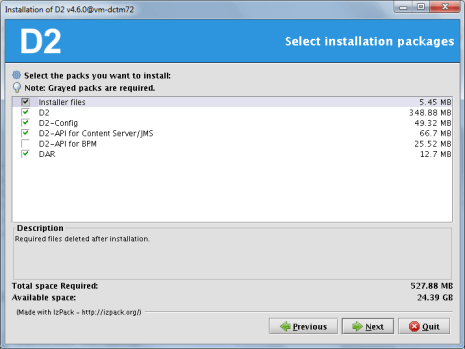
Next screens are just “next, next, next”. Despite what the screens says, the installer won’t configure Lockbox anyway, but it will install the required files.

Also, the installer will most likely fail when installing the DAR files, pointing to a non-existing log file. Just ignore it, as it looks like the installer is unable to install the dar files, so we’ll be manually installing those later.

PostInstall Configuration

  • Set environment variables:

D2=$DOCUMENTUM/d2
export D2
D2_API=$D2/d2-api
export D2_API
D2_LOCKBOX=$D2/lockbox
export D2_LOCKBOX
PATH=$HOME/.local/bin:$HOME/bin:$JAVA_HOME/bin:$ORACLE_HOME/bin:$DM_HOME/bin:$D2_LOCKBOX/linux_gcc64_ia64:$PATH
export PATH
CLASSPATH=$D2_API/C6-Common.jar:$D2_API/LB.jar:$D2_API/LBJNI.jar
export CLASSPATH
LD_LIBRARY_PATH=$ORACLE_HOME/lib32:$DM_HOME/bin/FIPS/:$JAVA_HOME/jre/lib/amd64/server:$DM_HOME/bin:$D2_LOCKBOX/linux_gcc34_x64
export LD_LIBRARY_PATH

  • Create lockbox file:

[dmadmin@vm-dctm72 d2]$ java com.emc.common.java.crypto.SetLockboxProperty $D2 D2Method.passphrase <your passphrase>

  • Copy D2.lockbox to the JMS:

[dmadmin@vm-dctm72 d2]$ cp D2.lockbox /opt/documentum/jboss7.1.1/server/DctmServer_MethodServer/deployments/ServerApps.ear/APP-INF/classes/

  • Create the following folder:

[dmadmin@vm-dctm72 d2]$ mkdir -p /opt/documentum/jboss7.1.1/modules/emc/d2/lockbox/main

  • Copy LB.jar and LBJNI.jar to that folder:

[dmadmin@vm-dctm72 d2]$ cp LB* /opt/documentum/jboss7.1.1/modules/emc/d2/lockbox/main/

  •  Create a module.xml file with the following content:

[dmadmin@vm-dctm72 d2]$ vi /opt/documentum/jboss7.1.1/modules/emc/d2/lockbox/main/module.xml
<module xmlns=”urn:jboss:module:1.1″ name=”emc.d2.lockbox”>
<resources>
<resource-root path=”LB.jar” />
<resource-root path=”LBJNI.jar” />
</resources>
</module>

  • Edit jboss-deployment-structure.xml and add the following section inside the deployments node:

[dmadmin@vm-dctm72 d2]$ vi /opt/documentum/jboss7.1.1//server/DctmServer_MethodServer/deployments/ServerApps.ear/META-INF/jboss-deployment-structure.xml
<dependencies>
<module name=”emc.d2.lockbox”/>
</dependencies>

  •  And the following to the exclusions section:

<module name=”org.slf4j” />
<module name=”org.slf4j.impl” />
<module name=”org.hibernate” />

  • Copy LB.jar and LBJNI.jar to tomcat’s lib folder:

[dmadmin@vm-dctm72 d2]$ cp LB* /opt/tomcat8/lib/

  •  Edit lockboxPath property from D2-Config/WEB-INF/classes/D2-Config.properties and D2/WEB-INF/classes/D2FS.properties to point to $D2 (use the actual path):

lockboxPath=/opt/documentum/d2

Dar Installation

  • Install the following DARs:

D2-DAR.dar

[dmadmin@vm-dctm72 dar]$ java -Ddar=$D2/dar/D2-DAR.dar -Dlogpath=$D2/dar/D2-DAR.log -Ddocbase=dctm72 -Duser=dmadmin -Ddomain= -Dpassword=dmadmin -cp $DM_HOME/install/composer/ComposerHeadless/startup.jar org.eclipse.core.launcher.Main -data $DM_HOME/install/composer/workspace -application org.eclipse.ant.core.antRunner -buildfile $DM_HOME/install/composer/deploy.xml

D2Widget-DAR.dar

[dmadmin@vm-dctm72 dar]$ java -Ddar=$D2/dar/D2Widget-DAR.dar -Dlogpath=$D2/dar/D2Widget-DAR.log -Ddocbase=dctm72 -Duser=dmadmin -Ddomain= -Dpassword=dmadmin -cp $DM_HOME/install/composer/ComposerHeadless/startup.jar org.eclipse.core.launcher.Main -data $DM_HOME/install/composer/workspace -application org.eclipse.ant.core.antRunner -buildfile $DM_HOME/install/composer/deploy.xml

Collaboration_Services.dar

[dmadmin@vm-dctm72 dar]$ java -Ddar=$D2/dar/Collaboration_Services.dar -Dlogpath=$D2/dar/Collaboration_Services.log -Ddocbase=dctm72 -Duser=dmadmin -Ddomain= -Dpassword=dmadmin -cp $DM_HOME/install/composer/ComposerHeadless/startup.jar org.eclipse.core.launcher.Main -data $DM_HOME/install/composer/workspace -application org.eclipse.ant.core.antRunner -buildfile $DM_HOME/install/composer/deploy.xml

  • Start docbroker, Content, JMS, Tomcat and (hopefully) everything should start fine (check JMS’ log as we’ve been messing with its configuration and anything out of place will cause it to fail)

(Unofficial) D2 4.2 Developer Edition

As a continuation from the (Unofficial) D7.1 Developer Edition, now let’s install D2 (hopefully 3rd part will be installing xCP 2.1, when EMC publishes it)

As I did with the first part, I’ve used Ingo Zitzmann’s (Unofficial) D2 Developer Edition *Draft* as reference to this guide.

Also, before installing, you may want to check the following threads:

D2 causing ClassCastException in Logger class in JMS
Error during executing D2LifecycleChangeStateMethod

Environment

Required software

  • emc-dfs-sdk-7.1.tar.gz
  • D2_Premium_4.2.0.zip

D2 Installation

Installation

  • Stop Tomcat, JMS, Content Server and docbroker
  • Unzip DFS package
[dmadmin@vm-dctm71 D2]$ tar xzvf emc-dfs-sdk-7.1.tar.gz</p>
  • Move DFS SDK to $DOCUMENTUM
[dmadmin@vm-dctm71 D2]$ mv emc-dfs-sdk-7.1 $DOCUMENTUM
  • Modify dfc.properties to use the existing content server dfc.properties file
[dmadmin@vm-dctm71 D2]$ vi /opt/documentum/emc-dfs-sdk-7.1/etc/dfc.properties
#include /opt/documentum/config/dfc.properties
  • Unzip sample app (just to have something to check D2 it’s working)
[dmadmin@vm-dctm71 D2]$ unzip HR\ Config\ D2\ 4.2\ -\ Export-Config.zip -d HRConfig
  • Unzip D2 installer
[dmadmin@vm-dctm71 D2]$ unzip D2_Premium_4.2.0.zip
  • And let’s install D2
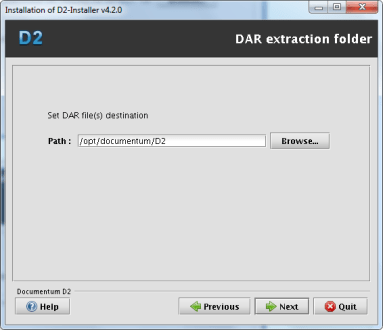
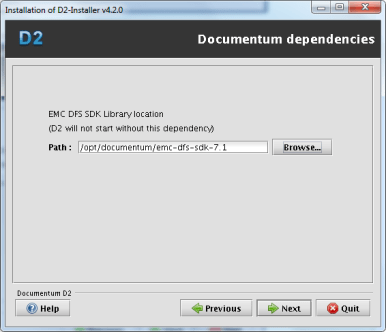
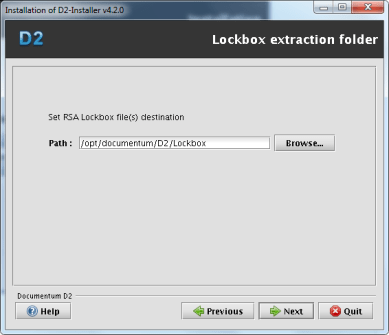
[dmadmin@vm-dctm71 D2_Premium_4.2.0]$ /opt/documentum/java64/1.7.0_17/bin/java -jar D2-Installer-4.2.0.jar

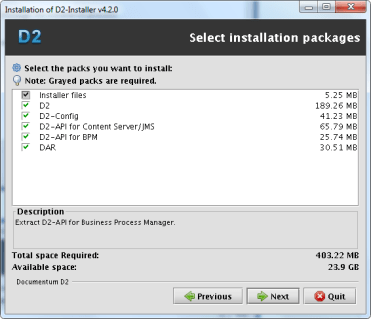
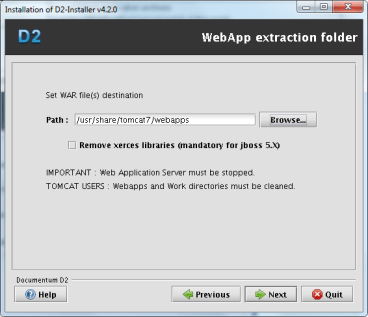
image1.png

image2.png

Although the screenshot shows I selected BPM module, I deleted it afterwards (waiting for xCP 2.1…) so I won’t be configuring that module

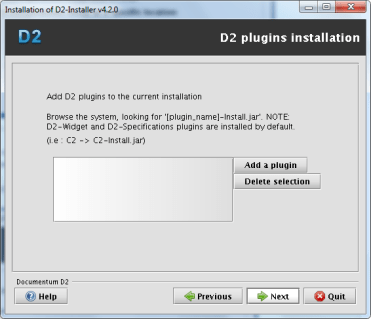
image3.png

image4.png

image5.png

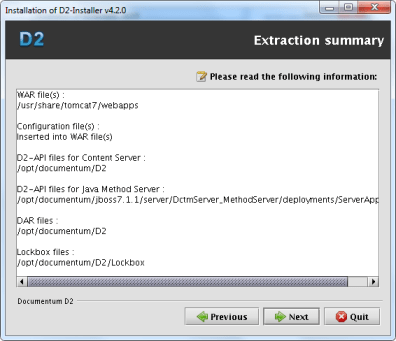
image6.png

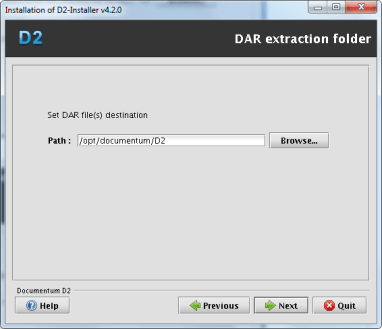
It seems they’ve fixed the JMS paths in this installer…

image7.png

image7.png

image8.png

image9.png

image10.png

PostInstall Configuration

  • Change windows paths in dfc.properties (they haven’t fixed this one):
vi /usr/share/tomcat7/webapps/D2/WEB-INF/classes/dfc.properties
   #include /opt/documentum/config/dfc.properties

Update the following log configuration files removing the windows paths (this one hasn’t been fixed either):

[dmadmin@vm-dctm71 classes]$ vi /usr/share/tomcat7/webapps/D2/WEB-INF/classes/logback.xml
  <file>/usr/share/tomcat7/logs/D2.log</file>
  <fileNamePattern>/usr/share/tomcat7/logs/D2-%d{yyyy-MM-dd}.log.zip</fileNamePattern>
[dmadmin@vm-dctm71 classes]$ vi /usr/share/tomcat7/webapps/D2-Config/WEB-INF/classes/logback.xml
   <file>/usr/share/tomcat7/logs/D2-Config.log</file>
   <fileNamePattern>/usr/share/tomcat7/logs/D2-Config-%d{yyyy-MM-dd}.log.zip</fileNamePattern>
      • Set environment variables:
D2=$DOCUMENTUM/D2
export D2
D2_LOCKBOX=$D2/Lockbox
export D2_LOCKBOX
CLASSPATH=$D2/D2.jar:$D2/LB.jar:$D2/LBJNI.jar
export CLASSPATH
LD_LIBRARY_PATH=$ORACLE_HOME/lib32:$DM_HOME/bin:$DM_HOME/bin/FIPS:/lib:$DOCUMENTUM/java64/1.7.0_17/jre/lib/amd64/server:$D2_LOCKBOX/linux_gcc34_x64
export LD_LIBRARY_PATH
PATH=$ORACLE_HOME/bin:$DM_HOME/bin:$D2_LOCKBOX/linux_gcc64_ia64:$PATH
export PATH
  • Create lockbox file:
[dmadmin@vm-dctm71 D2]$ java com.emc.common.java.crypto.SetLockboxProperty $D2 D2Method.passphrase D0c.umentum
   JVM : 1.7.0_17 (64bits)</p>
   '/opt/documentum/D2/D2.lockbox' file created
   'D2Method.passphrase' property created
  • Copy D2.lockbox to the JMS:
[dmadmin@vm-dctm71 D2]$ cp D2.lockbox /opt/documentum/jboss7.1.1/server/DctmServer_MethodServer/deployments/ServerApps.ear/APP-INF/classes/
  • Create the following path:
[dmadmin@vm-dctm71 D2]$ mkdir -p /opt/documentum/jboss7.1.1/modules/emc/d2/lockbox/main</p>
  • Copy LB.jar y LBJNI.jar to that folder:
[dmadmin@vm-dctm71 D2]$ cp LB* /opt/documentum/jboss7.1.1/modules/emc/d2/lockbox/main/
  • Create a module.xml file with the following content:
[dmadmin@vm-dctm71 D2]$ vi /opt/documentum/jboss7.1.1/modules/emc/d2/lockbox/main/module.xml
  <module xmlns="urn:jboss:module:1.1" name="emc.d2.lockbox">
  <resources>
     <resource-root path="LB.jar" />
     <resource-root path="LBJNI.jar" />
  </resources>
  </module>
  • Edit jboss-deployment-structure.xml and add the following section inside the deployments node:
[dmadmin@vm-dctm71 D2]$ vi /opt/documentum/jboss7.1.1//server/DctmServer_MethodServer/deployments/ServerApps.ear/META-INF/jboss-deployment-structure.xml
        <dependencies>
                <module name="emc.d2.lockbox"/>
        </dependencies>
  • Start docbroker, Content, JMS and (hopefully) everything should start fine (check JMS’ log as we’ve been messing with its configuration and anything out of place will cause it to fail)

Dar Installation

Install the following DARs:

  • D2-DAR.dar
[dmadmin@vm-dctm71 D2]$ java -Ddar=$D2/D2-DAR.dar -Dlogpath=$D2/D2-DAR.log -Ddocbase=dm_sec_test -Duser=dmadmin -Ddomain= -Dpassword=dmadmin -cp $DM_HOME/install/composer/ComposerHeadless/startup.jar org.eclipse.core.launcher.Main -data $DM_HOME/install/composer/workspace -application org.eclipse.ant.core.antRunner -buildfile $DM_HOME/install/composer/deploy.xml
  • D2Widget-DAR.dar
[dmadmin@vm-dctm71 D2]$ java -Ddar=$D2/D2Widget-DAR.dar -Dlogpath=$D2/D2Widget-DAR.log -Ddocbase=dm_sec_test -Duser=dmadmin -Ddomain= -Dpassword=dmadmin -cp $DM_HOME/install/composer/ComposerHeadless/startup.jar org.eclipse.core.launcher.Main -data $DM_HOME/install/composer/workspace -application org.eclipse.ant.core.antRunner -buildfile $DM_HOME/install/composer/deploy.xml
  • Collaboration_Services.dar
[dmadmin@vm-dctm71 D2]$ java -Ddar=$D2/Collaboration_services.dar -Dlogpath=$D2/Collaboration_Services.log -Ddocbase=dm_sec_test -Duser=dmadmin -Ddomain= -Dpassword=dmadmin -cp $DM_HOME/install/composer/ComposerHeadless/startup.jar org.eclipse.core.launcher.Main -data $DM_HOME/install/composer/workspace -application org.eclipse.ant.core.antRunner -buildfile $DM_HOME/install/composer/deploy.xml

Now start tomcat and everthing should be working just fine

PS: “Ideal” setup should use a different tomcat for D2 and configure it following the “Best Practices” section from the D2 Installation Guide. However, as I’ve installed D2 in the same tomcat instance where I previously deployed DA, Webtop and the web services I didn’t want to mess with the configuration.

Testing D2 development and REST services

After the summer, I’ve found myself with some spare time between projects that I’ve used to review some EMC products:

  • D2 4.1

Over the years, we’ve developed a webtop based solution that includes several custom developed components like import from external source, TBO’s/SBO’s used to name documents/folders, etc.

So after attending several D2 demos, we decided to do exactly the same with D2 (or at least get as close as possible) as a testing project.

Custom naming/default object creation was the easiest part, as the autonaming and autolink features are functional enough to cover our needs.

Import from external source looked like it was going to be tough, as we couldn’t touch the default import, and the development documentation is… lacking. So after a little investigation thorugh the available documentation and the community, we decided to go with the external widget approach and it was quite easy actually: Take our custom applet from webtop, put it on a jsp and communicate with the D2 import component sending the files… no problem at all

Some other functionality that involved modifying default D2 behavior required to developed plugins, but after reviewing the API and the available examples we decided not even trying because currently is a waste of time trying to figure which method/libs you need.

  • Good: external widgtes are extremely easy to develop, and there is enough documentation to be able to communicate those widgets with D2 without killing yourself in the process.
  • Bad: plugins are useless as there’s no reliable documentation available, and it seems the API could change in future versions, making useless old plugins.

To sum up, I think D2 4.1 is more a beta/unfinished product (which it really is, as EMC is doing everything from scratch to made it compatible with browsers other than IE, and currently is missing features that were on previous versions). I’ve heard that D2 4.2 is a more mature product and that effors have been made regarding development documentation. If EMC wants to “kill” wdk application with D2 and xCP2 they better give us enough tools to do our customizations, as by now we all should realize that the idea of “configure only” is cool, but is far from our daily work…

  • REST Services:

I’ve been developeing different solutions with DFS (extra layers to the services, custom clients both in JAVA and .NET, bulk load applications, etc) since version 6.0. Afterwards I migrated everything that could be done with the CMIS standard to CMIS with Apache Chemistry; so it was clear the next step was trying the new REST services.

Before the summer I started developing an Android application with the REST preview just as a proof of concept (and as a way to learn how android applications work), and it worked quite well. Last week I’ve been updating the application using the REST 7.0 services (finally we have a working query service!!!) and cleaning/improving the android application that has now become an administrator tool that lets you check repository status, browse the repository, open files, check job status, etc.

I hope to keep improving the application and I hope EMC keeps the REST services, as there is way easier to develop with these REST services than using the monstruosity that DFS are. However, if CMIS meets your requirements, I still go that way, as it is a standard…