OpenText OTDS Cloud(-Foundry) image

Here we go again with another success sad history of OpenText and their cloud products. This time we’ve encountered a “funny” “feature” on the OTDS cloud container image.

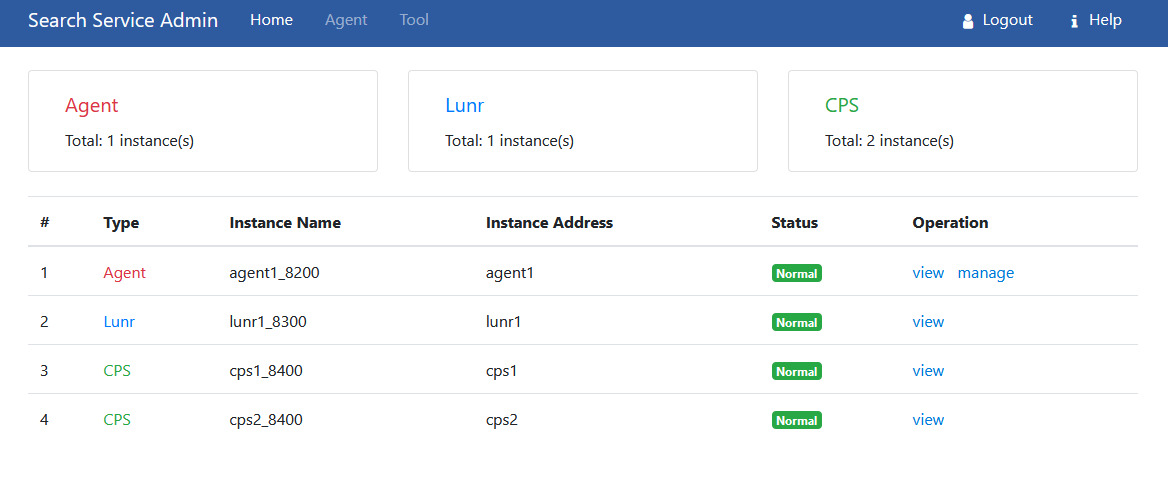
We are deploying this on the cloud as part of a migration to Documentum 23.4, where OTDS is now mandatory. For this we deployed this OTDS on Azure, and first thing we see is:

So what do we do (OTDS is now quite a “simple product”, web application connecting to a DB, so there’s not much room for errors on a brand new deployment)? Let’s check the logs… kubectl logs… empty. Strange, let’s go directly to the container and check tomcat’s logs… tomcat/logs… empty. What? So we decide to dissect the image and what do we find? Another case of unexplicable decisions by OT: So what is happening here is that someone at OT has decided that this not an “OTDS cloud image” but rather “OTDS Cloud Foundry” image. So they have configured Tomcat (via setenv.sh) with Cloud Foundry logging, and removed everything else. As a result, if you’re using any other cloud provider, don’t be expecting any logs (because nobody would need to access logs for an authentication application, security audits? Nah).

So what can you do?

Obviously, first step is to report this to OT (done), and wait until someone realizes the mistake they have done (either “mislabeling” the image, as this is clearly not generic, or by simply releasing this publicly, as my suspicion is that this is OT’s internal OTDS image used in their environment).

However, while this happens, we can be a little bit more proactive. By opening the image we can rebuild the Dockerfile used to build this image, which, more or less looks like this:

FROM redhat/ubi9-minimal:9.2 

LABEL maintainer="Red Hat, Inc."
LABEL com.redhat.component="ubi9-minimal-container" name="ubi9-minimal" version="9.2"
LABEL io.k8s.display-name="Red Hat Universal Base Image 9 Minimal"
LABEL io.openshift.expose-services=""
LABEL io.openshift.tags="minimal rhel9"

ENV PATH /usr/local/sbin:/usr/local/bin:/usr/sbin:/usr/bin:/sbin:/bin

RUN microdnf update -y && microdnf clean all
RUN microdnf install -y glibc-langpack-en tzdata fontconfig && microdnf clean all

COPY jdk-17.0.8+7-jre '/opt/jdk-17.0.8+7-jre'
RUN cd /opt; ln -s jdk-17.0.8+7-jre jre;

RUN mkdir -p /opt/newrelic;
COPY newrelic-agent-8.5.0.jar /opt/newrelic
COPY newrelic.yml /opt/newrelic
RUN cd /opt/newrelic; ln -s newrelic-agent-8.5.0.jar newrelic.jar;

RUN mkdir /opt/scripts && ln -s /opt/tomcat/bin/healthcheck.sh /opt/scripts/healthcheck.sh && chown -R otuser:0 /opt/scripts

COPY --chown=otuser:0 tomcat/ /opt/tomcat/

From here you can see OT is basically updating the base RH image, copying a JDK17, newrelic libraries (another library irrelevant to any OT product and that we’re just “pushed” to use/have there) and a “custom made” Tomcat (including the Cloud Foundry logging), so nothing too fancy.

So at this point, you can simply take your own Tomcat, and rebuild the image without Cloud Foundry, but why all these commands? why all that additional things in OTDS? Why is this image using RH minimal while CS uses Oracle Linux, and new containers are moving to Alpine? Why it is so difficult to align components to use the same technologies?

Well, here you have another approach to building the same image, and you can judge what looks simpler to build and maintain:

FROM tomcat:jre17-temurin

COPY webapps/ /usr/local/tomcat/webapps
COPY otds-install/ /usr/local/tomcat/otds-install
COPY otds.properties /usr/local/tomcat/webapps/otdsws/WEB-INF/classes/otds.properties
COPY setPassword.sh /usr/local/tomcat/bin

RUN chmod u+x /usr/local/tomcat/bin/setPassword.sh

ENV DBJDBC=jdbc
ENV DBUSER=user
ENV DBPWD=dbpwd

CMD ["/bin/bash", "-c", "setPassword.sh;catalina.sh run"]

This is from a custom container that I’m using locally. Quick explanation:

  • tomcat:jre17-temurin: Official Tomcat image. Why would you bother to build something it is already done? No need to maintain / update JDK and Tomcat when Apache is already doing that.
  • COPY fragments: Despite this is W R O N G, I copied the webapps folder (which should be mapped from a persistent volume and never be included on the image) just to mimic OT’s approach, I just needed a few lines to include the applications, and required customizations (here, setPassword.sh will encrypt the provided password (s) and update otds.properties accordingly)
  • ENV variables: Well, parameters that we can customize
  • Anything else: You add whatever you need because that would not be part of OTDS, but requirements of your own environment.

And there you go, a simpler container image in no time. Do you need to update Java or Tomcat? Just use a newer Tomcat image and it is done. Do you want to deploy on Azure or AWS? Do it, you’ll have logs (unlike right now, even on 24.1)
Documentum 23.4 PostgreSQL 15.5 on Rocky Linux 9 (WSL2) Install Guide

This is a step-by-step guide to install Documentum 23.4 in WSL2 using the Rocky Linux 9 (closest to the supported RH9) image with PostgreSQL 15.5. Unluckly we still don’t have a proper supported Alpine-based version, although this is now available for the web applications “containers” (The Documentum engineering cloud team still fails to understand that a container is not a virtual machine but a process, so D2/DA/REST/etc. should be just a docker compose file that builds the application server and then you drop your customized war file with whatever you want, and not a huge yaml file with hundreds of options that are added as customers beta test the software and realize that there are settings missing/unconfigurable in the current approach. However, at least now there’s a smaller OS easier to mantain).

Few notes:

  • JMS/Apps moved to Tomcat 10
  • JAVA_TOOL_OPTIONS requires additional parameters from previous versions
  • “dmadmin” user won’t have user_source, so if you want to log in, you’ll need to update its value from idql to “inline password” and set the password accordingly
  • OTDS is still not mandatory/required on the CS, but it is mandatory for applications 2FA (=SAML/Oauth have been removed)
  • Workflow manager can’t be installed as someone from OT has forgotten to publish xCP 23.4 (pro-tip: take a look at the yaml files for the kubernetes version, you may find something that will end up leading you to the installer :D)
  • New password policies are still annoying (we want back our dmadmin/dmadmin for local environments!)

Initial Configuration

There’s no official image on Microsoft Store so you’ll need to download the container image from the Rocky Linux page. Once this is done, you can import the image:

mkdir c:\Users\<userfolder>\rockylinux

wsl --import RockyLinux9 c:\Users\<userfolder>\rockylinux\ d:\dctm234\Rocky-9-Container-Base.latest.x86_64.tar.xz --version 2

After importing the image, we can log in (as root) and start the basic configuration of the server:

[root ~]# yum update
[root ~]# yum install sudo tcl expect libXtst

[root ~]# adduser dmadmin
[root ~]# passwd dmadmin
Changing password for user dmadmin.
New password:
BAD PASSWORD: The password is shorter than 8 characters
Retype new password:
passwd: all authentication tokens updated successfully.
[root ~]# usermod -aG wheel dmadmin
[root ~]# su - dmadmin

[dmadmin bin]$ sudo vi /etc/wsl.conf
[boot]
systemd=true

PostgreSQL Configuration

First we need to install PostgreSQL which is not available in the default packages:

[dmadmin bin]$ sudo dnf install https://download.postgresql.org/pub/repos/yum/reporpms/EL-9-x86_64/pgdg-redhat-repo-latest.noarch.rpm
[dmadmin bin]$ sudo dnf update -y
[dmadmin bin]$ sudo dnf -qy module disable postgresql
[dmadmin bin]$ sudo dnf install -y postgresql15-server

[dmadmin bin]$ sudo /usr/pgsql-15/bin/postgresql-15-setup initdb
Initializing database ... OK

[dmadmin ~]$ sudo systemctl enable postgresql-15
Created symlink /etc/systemd/system/multi-user.target.wants/postgresql-15.service → /usr/lib/systemd/system/postgresql-15.service.
[dmadmin ~]$ sudo systemctl start postgresql-15

[dmadmin ~]$ sudo su - postgres
[postgres ~]$ psql
psql (15.5)
Type "help" for help.

postgres=# \password postgres
Enter new password for user "postgres":
Enter it again:
postgres=# exit
[postgres ~]$ exit
logout
[dmadmin ~]$ sudo passwd postgres
Changing password for user postgres.
New password:
BAD PASSWORD: The password is shorter than 8 characters
Retype new password:
passwd: all authentication tokens updated successfully.

Next, we can install phpgadmin for easier administration:

[root ~]# dnf install yum-utils
[root ~]# yum-config-manager --disable pgdg-common
[root ~]# rpm -i https://ftp.postgresql.org/pub/pgadmin/pgadmin4/yum/pgadmin4-redhat-repo-2-1.noarch.rpm
warning: /var/tmp/rpm-tmp.7sMim2: Header V4 RSA/SHA256 Signature, key ID 210976f2: NOKEY
[root ~]# dnf update -y
[root ~]# dnf install pgadmin4 -y

[root ~]# systemctl enable httpd --now
Created symlink /etc/systemd/system/multi-user.target.wants/httpd.service → /usr/lib/systemd/system/httpd.service.

And finally, we can configure the odbc connection:

[dmadmin ~]$ sudo yum install postgresql15-odbc.x86_64 unixODBC.x86_64

[dmadmin ~]$ sudo vi /etc/odbc.ini
[MyPostgres]
Description=PostgreSQL
Driver=PostgreSQL
Database=postgres
Servername=localhost
UserName=postgres
Password=dmadmin
Port=5432
Protocol=15
ReadOnly=No
RowVersioning=No
ShowSystemTables=No
ShowOidColumn=No
FakeOidIndex=No
UpdateableCursors=Yes
DEBUG=Yes

[dmadmin ~]$ sudo vi /etc/odbcinst.ini
[PostgreSQL]
Description     = ODBC for PostgreSQL
#Driver         = /usr/lib/psqlodbcw.so
#Setup          = /usr/lib/libodbcpsqlS.so
#Driver64       = /usr/lib64/psqlodbcw.so
#Setup64        = /usr/lib64/libodbcpsqlS.so
Driver          = /usr/pgsql-15/lib/psqlodbcw.so
Driver64        = /usr/pgsql-15/lib/psqlodbcw.so
Setup64         = /usr/lib64/libodbcpsqlS.so.2
FileUsage       = 1

[dmadmin ~]$ isql -v MyPostgres
+---------------------------------------+
| Connected!                            |
|                                       |
| sql-statement                         |
| help [tablename]                      |
| quit                                  |
|                                       |
+---------------------------------------+
SQL> quit

Documentum Server

First, we need to create the DB folder:

[root ~]# su - postgres
[postgres ~]$ mkdir /var/lib/pgsql/15/data/db_dctm234_dat.dat

The Documentum folders and JDK (stick to the supported 17.0.8 version and remember to remove anon from the disabled algorithms to avoid issues):

[dmadmin ~]$ sudo mkdir -p /opt/documentum/sw && sudo mkdir -p /opt/documentum/product/23.4
[dmadmin ~]$ sudo chown -R dmadmin:dmadmin /opt/documentum

[dmadmin documentum]$ wget https://github.com/adoptium/temurin17-binaries/releases/download/jdk-17.0.8%2B7/OpenJDK17U-jdk_x64_linux_hotspot_17.0.8_7.tar.gz
[dmadmin documentum]$ OpenJDK17U-jdk_x64_linux_hotspot_17.0.8_7.tar.gz

Add environment variables to .bash_profile:

[dmadmin documentum]$ vi ~/.bash_profile
DDOCUMENTUM=/opt/documentum
export DOCUMENTUM

DM_HOME=$DOCUMENTUM/product/23.4
export DM_HOME

DM_JMS_HOME=$DOCUMENTUM/tomcat10.1.13
export DM_JMS_HOME

POSTGRESQL_HOME=/usr/pgsql-15
export POSTGRESQL_HOME

JAVA_HOME=/opt/documentum/jdk-17.0.8+7
export JAVA_HOME

JAVA_TOOL_OPTIONS="-Djdk.util.zip.disableZip64ExtraFieldValidation=true -Djava.locale.providers=COMPAT,SPI --add-opens=java.base/java.lang=ALL-UNNAMED --add-opens=java.base/java.lang.invoke=ALL-UNNAMED --add-exports=java.base/sun.security.provider=ALL-UNNAMED --add-exports=java.base/sun.security.pkcs=ALL-UNNAMED --add-exports=java.base/sun.security.x509=ALL-UNNAMED --add-exports=java.base/sun.security.util=ALL-UNNAMED --add-exports=java.base/sun.security.tools.keytool=ALL-UNNAMED"
export JAVA_TOOL_OPTIONS

PATH=$PATH:$DM_HOME/bin:$POSTGRESQL_HOME/bin:$HOME/.local/bin:$HOME/bin:$JAVA_HOME/bin:$DOCUMENTUM/dba
export PATH

LC_ALL=C
export LC_ALL

LD_LIBRARY_PATH=$POSTGRESQL_HOME/lib:$DM_HOME/bin:/usr/lib64:$LD_LIBRARY_PATH
export LD_LIBRARY_PATH

export DM_CRYPTO_MIN_PASSWORD_LENGTH=8

DISPLAY=:0
export DISPLAY

export PS1='[\u@\h \w]\$ '

Reserve ports and configure limits.conf:

[dmadmin ~]$ sudo vi /etc/services
dctm234 50000/tcp # dctm 23.4 repo
dctm234_s 50001/tcp # dctm 23.4 repo

[dmadmin ~]$ sudo vi /etc/security/limits.conf
dmadmin – core -1

[dmadmin ~]$ sudo ln -s /usr/lib64/libsasl2.so.3.0.0 /usr/lib64/libsasl2.so.2

And now you can simply install content server normally 🙂

OpenText Documentum vs. Linux (again)

Thanks to Fran García who found the “bug”, we have today another chapter of the talented team delivering high quality software. Have you tried (recently) to deploy the cloud image of D2 23.2? Probably not, because it simply does not work. Let’s see what’s going on:

When you try to deploy this brand new Alpine based D2, you’ll see that the container will never finish, and you’ll see a message stating that it can’t connect to the docbroker. Why is this? Well, if we take a look at the script used to test this, we found the following command:

timeout --foreground 0.5 bash -c "echo >\"/dev/tcp/$host/$port\"" >&/dev/null

In theory, there’s nothing wrong with this, right? A simple check of an open port. Well, let’s run this command directly on the command line:

d2config-0:/$ timeout --foreground 0.5 bash -c "echo >\"/dev/tcp/dbr-0.dbr.dctm.svc.cluster.local/1489\"" >&/dev/null
d2config-0:/$ echo $?
1

For some reason this returns an error code… Let’s see what happens when we remove the output redirection to null:

d2config-0:/$ timeout --foreground 0.5 bash -c "echo >\"/dev/tcp/dbr-0.dbr.dctm.svc.cluster.local/1489\""
timeout: unrecognized option: foreground

BusyBox v1.36.1 (2023-11-06 11:32:24 UTC) multi-call binary.

Usage: timeout [-s SIG] [-k KILL_SECS] SECS PROG ARGS

Well, here you go, the talented team has simply copied the command from the working Oracle Linux to an Alpine Linux where the command has a different syntax and it doesn’t work. Here you can see the output from Oracle Linux where the parameter “foreground” is listed:

[dmadmin@d2config-0 /]$ timeout --help
Usage: timeout [OPTION] DURATION COMMAND [ARG]...
  or:  timeout [OPTION]
Start COMMAND, and kill it if still running after DURATION.
Mandatory arguments to long options are mandatory for short options too.
      --preserve-status
                 exit with the same status as COMMAND, even when the
                   command times out
      --foreground
                 when not running timeout directly from a shell prompt,
                   allow COMMAND to read from the TTY and get TTY signals;
                   in this mode, children of COMMAND will not be timed out
  -k, --kill-after=DURATION
                 also send a KILL signal if COMMAND is still running
                   this long after the initial signal was sent
  -s, --signal=SIGNAL
                 specify the signal to be sent on timeout;
                   SIGNAL may be a name like 'HUP' or a number;
                   see 'kill -l' for a list of signals
  -v, --verbose  diagnose to stderr any signal sent upon timeout
      --help     display this help and exit
      --version  output version information and exit

So, another success story for the talented team delivering a container image that simply does not work. The good news is that 23.4 does actually work because they have fixed this. Question is: is really that hard to actually test the images before being released? Not that this requires an in-depth testing phase, as the image doesn’t even start…

Documentum D2 container image (or how not to build container images)

We already saw that OpenText clearly fails to understand the concept of container (TIP: a container is a process, not a VM) so it keeps providing “D2/da/webtop/rest” containers, when what they should provide is an “application server” container where end users would mount the custom war file on /webapps or whatever (by the way, this would simplify the yaml/helm charts from hell with the million options to try to configure D2/da/etc. via yaml).

Anyway, it seems that understanding that concept is a lost battle, however, you would expect that at least OpenText would know by now how to properly build a Docker image. Well, to anyone’s surprise (except to OpenText engineers I guess), latest D2 (22.2) image is 3.65GB!!!!!! (This is bigger than Content Server itself)

registry.opentext.com/dctm-d2pp-classic-ol 22.2 1eee2a974793 5 weeks ago 3.65GB

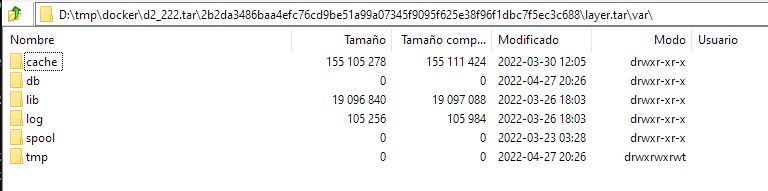
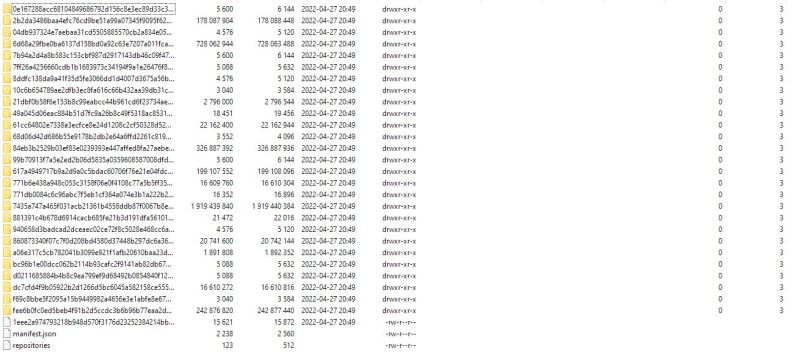
Let’s investigate this wizardry… If we open the image we can see several “big” folders:

Wonder what’s going on here… let’s check that 700mb folder:

Not only we have D2 exploded on Tomcat’s webapps folder, we also have the D2.war on the image… What else do we have on those +100mb folders?

Yum-update cache… (several times)

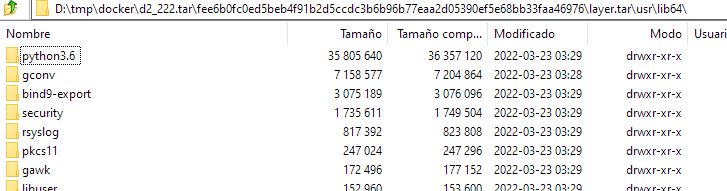
Python? on a Tomcat (D2) application server??

But, what’s going on here? Well, when you run a multi-staged container build, you need to understand that every command creates a new layer (something clearly explained in the Docker documentation) so you should be extra-careful and delete everything you copy/create in the same step if it doesn’t have to be present on the final image (as explained in the Docker best-practices documentation). So basically, when creating the image, OpenText is first copying D2.war image, then in another stage they extract the files, and then on another step the war file is deleted (or that’s what they think they are doing, but they’re just creating a new layer without the file, not really deleting it). Also, instead of running a single yum-update and deleting the cache on the same stage, the just keep running yum-updates as they need it, effectively creating multiple cache folders…

This image can be easily squashed and you’ll end up with this:

dctm-d2222 22.2 d3d968108687 13 days ago 1.83GB

Exactly the same image, but nearly 2GB smaller, and this is without even bothering to remove the cache/unnecesarry files:

We’ll see if for 22.3 OpenText learns to deliver proper containers or we still have to deal with these +3GB images…

Documentum Search 20.4 Docker install guide

Opentext has released with the 20.4 release a new search engine that will replace xPlore, and that currently is supported in “testing” mode.

Documentation for Documentum Search is better than previous documentations (parameters are finally “properly” explained), and you can also find a full .yaml file to use as template. However, as we could have expected, that didn’t work, so some changes are required.

Environment

Host:
Windows 10 x64 8GB RAM
VMware Workstation Player 15

Guest:
CentOS 7.7 x64 25GB HD 4GB RAM 2 cores
PostgreSQL 11
Documentum 20.4

VM Creation

Just follow the Documentum 20.4 PostgreSQL post as I’ve used that VM.

Install Docker

Refer to Documentum 20.2 Docker install guide if you need help

Documentum Search 20.4

  • Get the images from the Opentext registry:

[dmadmin@dctm204 opt]$ docker login registry.opentext.com
[dmadmin@dctm204 opt]$ docker pull registry.opentext.com/dctm-search-agent:20.4.0
[dmadmin@dctm204 opt]$ docker pull registry.opentext.com/dctm-search-admin:20.4.0
[dmadmin@dctm204 opt]$ docker pull registry.opentext.com/dctm-search-cps:20.4.0
[dmadmin@dctm204 opt]$ docker pull registry.opentext.com/dctm-search-lunr:20.4.0
[dmadmin@dctm204 opt]$ docker pull registry.opentext.com/dctm-search-solr:20.4.0

  • Create folder structure. This is the one I’ve used:

[dmadmin@dctm204 opt]$ tree search
search/
|– admin
| `– logs
|– agent
| `– logs
|– cps
| `– logs
|– cps2
| `– logs
|– dfc.properties
|– lunr
| `– logs
|– search.yaml
|– solr
| |– base
| | |– log4j2.xml
| | `– logs
| |– logs
|– solr2
| |– base
| | |– log4j2.xml
| | `– logs
| |– logs
|– zoo
| |– data
| |– datalog
| `– logs
`– zoo.cfg

  • Create configuration files:

[dmadmin@dctm204 search]$ cp ../documentum/config/dfc.properties .
[dmadmin@dctm204 search] vi zoo.cfg
dataDir=/data
dataLogDir=/datalog
clientPort=2181
tickTime=2000
initLimit=5
syncLimit=2
autopurge.snapRetainCount=3
autopurge.purgeInterval=0
maxClientCnxns=60
standaloneEnabled=true
admin.enableServer=true
4lw.commands.whitelist=mntr,conf,ruok
[dmadmin@dctm204 search] vi solr/base/log4j2.xml
<extract this file from the solr container>

  • Create search.yaml:

[dmadmin@dctm204 search]$ sudo vi search.yaml
<copy the template from the documentation>

At this point, I had several issues with the solr image. First, the container could not write into the mounted folder. In order to fix this, I had to force the uid in the yaml file by adding the following:

user: ‘1000:1000’

After this, Java could not allocate memory for large memory pages. In the end I create a custom image based on the the one from OT (follow the steps detailed on the Reducing Opentext Documentum 20.2 Docker image size post:

[dmadmin@dctm204 search]$ docker run -u 0 –privileged -it –entrypoint /bin/bash registry.opentext.com/dctm-search-solr:20.4.0
echo 22960 &gt; /proc/sys/vm/nr_hugepages
echo 1000 &gt; /proc/sys/vm/hugetlb_shm_group
echo “* soft memlock 626688” &gt;&gt; /etc/security/limits.conf
echo “* hard memlock 626688” &gt;&gt; /etc/security/limits.conf

  • Now if you’ve adjusted the values correctly on the yaml file (stick to 2 “replicas” or the container will also fail) you should be able to run

[dmadmin@dctm204 search]$ docker-compose -f search.yaml up

After a while, you should be able to login into the Documentum Search admin page (http://your-host:8800/):

search_consoleAnd if you log in Documentum Administrator:

index_agent

However, if you run a search, you’ll see that there’s an error and the search is not perfomed. If you watched the Opentext World breakout session for Documentum Search, you’ll probably notice the extra settings used on server.ini to configure the fulltext engine. I’ve tried those without luck, so I just took another approach, to $DOCUMENTUM/product/20.4/bin and do the following:

[dmadmin@dctm204 bin]$ mv libDsearchQueryPlugin.so libDsearchQueryPlugin.bak
[dmadmin@dctm204 bin]$ cp libsolrplugin.so libDsearchQueryPlugin.so

UPDATE: The “nice way” is doing this by editing the dmfulltext.ini file located in $DOCUMENTUM/fulltext.

Then restart the repository and searches should be working on the new search engine:

Improving Opentext’s Documentum Administrator 20.2 Docker container

If you go looking for Documentum’s DA 20.2 Docker file you’ll find the following:

documentum_adminstrator_20.2_docker_centos.tar (1.4 GB)

What’s wrong with this? Well, in a container world (specially when using application servers) why is there the word “centos” and why a tomcat is 1.4 GB?

The answer is simple: Whoever built this image didn’t know what a container is, and it seems that nobody knows yet at Opentext.

What is a container? Well you can google it, but a container IS NOT A VM, it is a process. The idea behind containers is to have an isolated process that can be easily scalable (ie: deploy multiple similar tomcat instances quickly). So what’s the point of running a Docker environment when what we are doing is simply deploying VM’s? None at all.

So let’s assume we can use an actual container, that can be scaled up quickly, and won’t force us to “redeploy” a Centos OS on each container (for Tomcat, as DA is not a process and should not be “a container”), what should we do? Here we go (Note that I’ve used the same VM used for Opentext Documentum 20.2 Docker with PostgreSQL install guide):

  • Pull Tomcat 9 + openJDK 11 image from DockerHub:
[dmadmin@dctm202 ~]$ docker pull tomcat:9-jdk11
9-jdk11: Pulling from library/tomcat
f15005b0235f: Pull complete
41ebfd3d2fd0: Pull complete
b998346ba308: Pull complete
f01ec562c947: Pull complete
74c11ae3efe8: Pull complete
c65829cc6c71: Pull complete
b98eacc09bf1: Pull complete
b12b9c976670: Pull complete
62a47f54db4c: Pull complete
8c872760f50c: Pull complete
Digest: sha256:2254679f4958efe7c9810d6a66d449f58b58-p 8888:80808ecd253e83e9d3afb68c51637cf4
Status: Downloaded newer image for tomcat:9-jdk11
docker.io/library/tomcat:9-jdk11

[dmadmin@dctm202 ~]$ docker images
REPOSITORY TAG IMAGE ID CREATED SIZE
tomcat 9-jdk11 54877c1fa80a 40 hours ago 647MB
  • Create the following folder structure and copy there these files:
/opt/docker/tomcat/conf/web.xml (just for Tag Pooling)
/opt/docker/tomcat/webapps/da.war (Da to deploy)
/opt/docker/tomcat/java.security (with anon whitelisted)
  • Run container (I’ve used 8888 as external port as the VM has another Tomcat running on 8080):
[dmadmin@dctm202 tomcat]$ docker run -it --rm -p 8888:8080 --name tomcatda -v /opt/docker/tomcat/java.security:/usr/local/openjdk-11/conf/security/java.security -v /opt/docker/tomcat/conf/web.xml:/usr/local/tomcat/conf/web.xml -v /opt/docker/tomcat/webapps:/usr/local/tomcat/webapps tomcat:9-jdk11

And that’s it, you now have a 650MB real container for DA.

Reducing Opentext Documentum 20.2 Docker image size

The Docker image size provided by Opentext for the Content Server is a ~3.5GB tar file:

[dmadmin@dctm202 ~]$ docker images
REPOSITORY TAG IMAGE ID CREATED SIZE
contentserver/centos/stateless/cs 20.2.0000.0110 f83cfb099daf 3 weeks ago 3.48GB

But if you run the image, you’ll see that the actual size of the container is ~2.6GB.

This difference comes from the intermediate layers stored on the original image. If you want to have a smaller image, you could export the container to a .tar file, but if you do this, you will lose all the default configurations required for running the container (ports exposed, entry point, etc.). But there’s a workaround to get a working trimmed image:

docker run -it --entrypoint /bin/bash contentserver/centos/stateless/cs:20.2.0000.0110
  • You can be as “aggressive” as you want removing unused stuff. You can skip this point, but I would at least delete all .dll files and aix/hpux/sol/win folders from com.emc.ide.external.dfc_1.0.0/dmbasic on Composer’s plugin folder, as those don’t make sense on a Linux image.
  • Run the docker rebase script:
./docker-rebase <CONTAINER_ID> contentserver/centos/stateless/cs:20.2.4
  • Export the generated image:
docker save contentserver/centos/stateless/cs:20.2.4 > cs202clean.tar

Now, you’ll have the following:

[dmadmin@dctm202 Scripts]$ docker images
REPOSITORY TAG IMAGE ID CREATED SIZE
contentserver/centos/stateless/cs 20.2.4 5336da9204b0 34 minutes ago 2.49GB

Opentext Documentum 20.2 Docker with PostgreSQL install guide

This is a step-by-step guide to install Documentum 20.2 in a Linux environment with PostgreSQL 11 and Docker.

Some notes before starting:

  • Bundled scripts are from 16.7 (be careful with the paths)
  • Container image still has a lot of “wasted” space:
    • +0.5GB on /tmp
    • +0.5GB on files for windows/hpux/aix on a Linux image
  • Provided yml scripts are for an outdated docker composer version and don’t work OOTB

Environment

Host:
Windows 10 x64 8GB RAM
VMware Workstation Player 15

Guest:
CentOS 7.7 x64 25GB HD 4GB RAM 2 cores
PostgreSQL 11
Docker 19.03.4

VM Creation + PostgreSQL 11 configuration

You can just follow the procedure described in Opentext Documentum 20.2 PostgreSQL Developer Edition, as I’ve used the same VM for this one.

Docker configuration

  • Install docker:
[dmadmin@dctm202 ~]$ sudo yum install -y yum-utils && device-mapper-persistent-data && lvm2
[dmadmin@dctm202 ~]$ sudo yum-config-manager --add-repo https://download.docker.com/linux/centos/docker-ce.repo
[dmadmin@dctm202 ~]$ sudo yum install -y docker-ce docker-ce-cli containerd.io
[dmadmin@dctm202 ~]$ sudo systemctl start docker
  • Install docker compose and check it is correctly installed:
[dmadmin@dctm202 docker]$ sudo yum install -y epel-release
[dmadmin@dctm202 docker]$ sudo yum install -y python-pip
[dmadmin@dctm202 docker]$ sudo pip install docker-compose
[dmadmin@dctm202 docker]$ sudo yum upgrade python*
[dmadmin@dctm202 docker]$ docker-compose version
docker-compose version 1.25.4, build unknown
docker-py version: 4.2.0
CPython version: 2.7.5
OpenSSL version: OpenSSL 1.0.2k-fips  26 Jan 2017

Docker configuration

  • Import image:
[dmadmin@dctm202 docker]$ docker load -i Contentserver_Centos.tar
9e607bb861a7: Loading layer [==================================================>]  227.4MB/227.4MB
0b8351dad8f5: Loading layer [==================================================>]    156MB/156MB
0bdffe493043: Loading layer [==================================================>]  331.9MB/331.9MB
4477c4933872: Loading layer [==================================================>]  3.072kB/3.072kB
2cb92160ff08: Loading layer [==================================================>]  83.45MB/83.45MB
3791acd2392f: Loading layer [==================================================>]  11.92MB/11.92MB
9edf87e7e96b: Loading layer [==================================================>]  267.3kB/267.3kB
f823733197a1: Loading layer [==================================================>]  3.297MB/3.297MB
8175917577fb: Loading layer [==================================================>]  46.08kB/46.08kB
66c808159e56: Loading layer [==================================================>]  15.53MB/15.53MB
c60aa2091bd5: Loading layer [==================================================>]   98.3kB/98.3kB
b148e43b1fc1: Loading layer [==================================================>]  2.667GB/2.667GB
2cd48c26512d: Loading layer [==================================================>]  7.168kB/7.168kB
03eb108f7247: Loading layer [==================================================>]   12.6MB/12.6MB
ba3de33f6548: Loading layer [==================================================>]   2.56kB/2.56kB
Loaded image: contentserver/centos/stateless/cs:20.2.0000.0110
  • Create PostgreSQL tablespace file (Remember that you also need to add the container’s IP to the pg_hba file in order to be able to connect from the contanier)
[dmadmin@dctm202 dctmdocker]$ su - postgres
Password:
Last login: Sat Oct 19 19:39:49 CEST 2019 on pts/0
-bash-4.2$ mkdir /var/lib/pgsql/11/data/db_dockerdctm167_dat.dat
-bash-4.2$ exit
logout
  • Set required environment variables:
[dmadmin@dctm202 Scripts]$ vi ~/.bash_profile
export APP_SERVER_PASSWORD=dmadmin
export INSTALL_OWNER_PASSWORD=dmadmin
export ROOT_PASSWORD=dmadmin
export DOCBASE_PASSWORD=dmadmin
export DATABASE_PASSWORD=dmadmin
export GLOBAL_REGISTRY_PASSWORD=dmadmin
export AEK_PASSPHRASE=dmadmin
  • Configure file CS-Docker-Compose_Stateless.yml:
version: '3.7'
services:
  rcs:
    image: contentserver/centos/stateless/cs:20.2.0000.0110
    environment:
      - DOCKER_HOST=192.168.94.130
      - DATABASE_HOST=192.168.94.130
      - DATABASE_USER=postgres
      - DATABASE_PASSWORD=${DATABASE_PASSWORD}
      - DATABASE_SERVER_PORT=5432
      - SERVICE_NAME=MyPostgres
      - ROOT_PASSWORD=${ROOT_PASSWORD}
      - INSTALL_OWNER=dmadmin
      - INSTALL_OWNER_PASSWORD=${INSTALL_OWNER_PASSWORD}
      - DOCBASE_NAME=dctmdocker202
      - GLOBAL_REGISTRY_PASSWORD=${GLOBAL_REGISTRY_PASSWORD}
      - AEK_ALGORITHM=AES_256_CBC
      - AEK_PASSPHRASE=${AEK_PASSPHRASE}
      - AEK_NAME=CSaek
      - CONFIGURE_THUMBNAIL_SERVER=NO
      - THUMBNAIL_SERVER_PORT=8081
      - THUMBNAIL_SERVER_SSL_PORT=8443
      - EXTERNAL_DOCBROKER_PORT=1689
      - CONTENTSERVER_PORT=50000
      - APP_SERVER_PASSWORD=${APP_SERVER_PASSWORD}
      - INSTALL_OWNER_UID=1000
      - HIGH_VOLUME_SERVER_LICENSE=
      - TRUSTED_LICENSE=
      - STORAGEAWARE_LICENSE=
      - XMLSTORE_LICENSE=
      - SNAPLOCKSTORE_LICENSE=
      - RPS_LICENSE=
      - FED_RECD_SERVICE_LICENSE=
      - RECORD_MANAGER_LICENSE=
      - PRM_LICENSE=
      - DOCBASE_PASSWORD=${DOCBASE_PASSWORD}
      - INSTALLER_UI=silent
      - KEEP_TEMP_FILE=true
      - INSTALLER_DEBUG_LOG=true
      - DOCBASE_ID=453216
      - USE_EXISTING_DATABASE_ACCOUNT=
      - INDEXSPACE_NAME=DM_XCHIVE_DOCBASE
      - USE_EXISTING_AEK=false
    hostname:
      "dctmdocker202"
    container_name:
      "dctmdocker202"
    ports:
      - "1689:1689"
      - "1690:1690"
      - "50000:50000"
      - "50001:50001"
      - "9080:9080"
      - "9082:9082"
      - "9081:9081"
      - "9084:9084"
      - "8081:8081"
      - "8443:8443"
    volumes:
      - DocbaseName_odbc:/opt/dctm/odbc
      - DocbaseName_data:/opt/dctm/data
      - DocbaseName_dba:/opt/dctm/dba
      - DocbaseName_share:/opt/dctm/share
      - DocbaseName_dfc:/opt/dctm/config
      - DocbaseName_mdserver_conf:/opt/dctm/mdserver_conf
      - DocbaseName_mdserver_log:/opt/dctm/wildfly17.0.1/server/DctmServer_MethodServer/log
      - DocbaseName_mdserver_logs:/opt/dctm/wildfly17.0.1/server/DctmServer_MethodServer/logs
      - DocbaseName_Thumbnail_Server_conf:/opt/dctm/product/20.2/thumbsrv/conf
      - DocbaseName_Thumbnail_Server_webinf:/opt/dctm/product/20.2/thumbsrv/container/webapps/thumbsrv/WEB-INF
      - DocbaseName_xhive_storage:/opt/dctm/xhive_storage
      - DocbaseName_XhiveConnector:/opt/dctm/wildfly17.0.1/server/DctmServer_MethodServer/deployments/XhiveConnector.ear
      - DocbaseName_MigrationUtility:/opt/dctm/product/20.2/install/external_apps/MigrationUtil
    privileged: true
#'volumes' service definition:
volumes:
 DocbaseName_data:
    driver: local
    driver_opts:
      type: none
      o: bind
      device: /opt/docker/data
 DocbaseName_share:
    driver: local
    driver_opts:
      type: none
      o: bind
      device: /opt/docker/share
 DocbaseName_dba:
 DocbaseName_dfc:
 DocbaseName_odbc:
 DocbaseName_mdserver_conf:
 DocbaseName_mdserver_log:
 DocbaseName_mdserver_logs:
 DocbaseName_Thumbnail_Server_conf:
 DocbaseName_Thumbnail_Server_webinf:
 DocbaseName_XhiveConnector:
    driver: local
    driver_opts:
      type: none
      o: bind
      device: /opt/docker/xhive
 DocbaseName_xhive_storage:
    driver: local
    driver_opts:
      type: none
      o: bind
      device: /opt/docker/xhive_storage
 DocbaseName_MigrationUtility:

Note: As usual, documentation is lacking/wrong and the scripts don’t work at all. This is the list of parameters that I had to change in CS-Docker-Compose_Stateless.yml file in order for docker compose to work:

    image: contentserver/centos/stateless/cs:16.7.0000.0810
    environment:
      - DOCKER_HOST=192.168.94.130
      - DATABASE_HOST=192.168.94.130
      - DOCBASE_NAME=dctmdocker202
    hostname:
      "dctmdocker202"
    container_name:
      "dctmdocker202"
    ports:
      - "1689:1689"
      - "1690:1690"
      - "50000:50000"
      - "50001:50001"
      - "9080:9080"
      - "9082:9082"
      - "9081:9081"
      - "9084:9084"
      - "8081:8081"
      - "8443:8443"
volumes:
 DocbaseName_data:
    driver: local
    driver_opts:
      type: none
      o: bind
      device: /opt/docker/data
 DocbaseName_share:
    driver: local
    driver_opts:
      type: none
      o: bind
      device: /opt/docker/share
 DocbaseName_XhiveConnector:
    driver: local
    driver_opts:
      type: none
      o: bind
      device: /opt/docker/xhive
 DocbaseName_xhive_storage:
    driver: local
    driver_opts:
      type: none
      o: bind
      device: /opt/docker/xhive_storage
  • Run the docker compose file:
[dmadmin@dctm202 Scripts]$ docker-compose -f CS-Docker-Compose_Stateless.yml up -d
Creating volume "scripts_DocbaseName_mdserver_logs" with default driver
Creating volume "scripts_DocbaseName_dfc" with default driver
Creating volume "scripts_DocbaseName_XhiveConnector" with local driver
Creating volume "scripts_DocbaseName_Thumbnail_Server_conf" with default driver
Creating volume "scripts_DocbaseName_Thumbnail_Server_webinf" with default driver
Creating volume "scripts_DocbaseName_data" with local driver
Creating volume "scripts_DocbaseName_dba" with default driver
Creating volume "scripts_DocbaseName_mdserver_conf" with default driver
Creating volume "scripts_DocbaseName_mdserver_log" with default driver
Creating volume "scripts_DocbaseName_odbc" with default driver
Creating volume "scripts_DocbaseName_share" with local driver
Creating volume "scripts_DocbaseName_xhive_storage" with local driver
Creating volume "scripts_DocbaseName_MigrationUtility" with default driver
Creating dctmdocker202 ... done


Remember that if something goes wrong you’ll have to:

  • Stop the container
  • Delete the container
  • Delete the volumes created

Once the process finishes, you should be able to idql from the container:

[dmadmin@dctm202 ~]$ docker exec -i -t dctmdocker202 /bin/basht dctmdocker202 /bin/bash
[root@dctmdocker202 /]# su - dmadmin

[dmadmin@dctmdocker202 ~]$ idql dctmdocker202
Please enter a user (dmadmin):
Please enter password for dmadmin:
OpenText Documentum idql - Interactive document query interface
Copyright (c) 2020. OpenText Corporation
All rights reserved.
Client Library Release 20.2.0000.0082
Connecting to Server using docbase dctmdocker202
[DM_SESSION_I_SESSION_START]info: "Session 0106ea608000016c started for user dmadmin."
Connected to OpenText Documentum Server running Release 20.2.0000.0110 Linux64.Postgres
1>

DCTM 16.7 Docker with PostgreSQL install guide

This is a step-by-step guide to install Documentum 16.7 in a Linux environment with PostgreSQL 11 and Docker.

Environment

Host:
Windows 10 x64 8GB RAM
VMware Workstation Player 15

Guest:
CentOS 7.7 x64 25GB HD 4GB RAM 2 cores
PostgreSQL 11
Docker 19.03.4

VM Creation + PostgreSQL 11 configuration

You can just follow the procedure described in Opentext Documentum 16.7 PostgreSQL Developer Edition

Docker configuration

  • Install docker:
[dmadmin@dctm167docker ~]$ sudo yum install -y yum-utils && device-mapper-persistent-data && lvm2
[dmadmin@dctm167docker ~]$ sudo yum-config-manager --add-repo https://download.docker.com/linux/centos/docker-ce.repo
[dmadmin@dctm167docker ~]$ sudo yum install -y docker-ce docker-ce-cli containerd.io
[dmadmin@dctm167docker ~]$ sudo systemctl start docker
  • Install docker compose and check it is correctly installed:
[dmadmin@dctm167docker dctmdocker]$ sudo yum install -y epel-release
[dmadmin@dctm167docker dctmdocker]$ sudo yum install -y python-pip
[dmadmin@dctm167docker dctmdocker]$ sudo pip install docker-compose
[dmadmin@dctm167docker dctmdocker]$ sudo yum upgrade python*
[dmadmin@dctm167docker dctmdocker]$ docker-compose version
docker-compose version 1.24.1, build 4667896
docker-py version: 3.7.3
CPython version: 2.7.5
OpenSSL version: OpenSSL 1.0.2k-fips  26 Jan 2017

Docker configuration

  • Import image:
[dmadmin@dctm167docker dockerimage]$ docker load -i Contentserver_Centos.tar
d69483a6face: Loading layer [==================================================>]  209.5MB/209.5MB
72dea7bec644: Loading layer [==================================================>]  217.2MB/217.2MB
d3468dffaa29: Loading layer [==================================================>]  315.1MB/315.1MB
1f70936ed489: Loading layer [==================================================>]  3.072kB/3.072kB
6a28c1188813: Loading layer [==================================================>]  239.6MB/239.6MB
07cf201dbdc0: Loading layer [==================================================>]  225.8kB/225.8kB
abe3ca337db9: Loading layer [==================================================>]  3.297MB/3.297MB
628e629128da: Loading layer [==================================================>]  46.08kB/46.08kB
4893b60dc3f1: Loading layer [==================================================>]  3.568MB/3.568MB
46d106ddfac4: Loading layer [==================================================>]  94.21kB/94.21kB
49adcbc15f60: Loading layer [==================================================>]  4.121GB/4.121GB
e5fd2930e234: Loading layer [==================================================>]  508.5MB/508.5MB
be7e1221aecc: Loading layer [==================================================>]  679.4kB/679.4kB
6a0c0059135d: Loading layer [==================================================>]  7.168kB/7.168kB
4151aa90b006: Loading layer [==================================================>]   2.56kB/2.56kB
Loaded image: contentserver/centos/stateless/cs:16.7.0000.0810
[dmadmin@dctm167docker dockerimage]$ docker images
REPOSITORY                          TAG                 IMAGE ID            CREATED             SIZE
contentserver/centos/stateless/cs   16.7.0000.0810      589b5cf8dbc7        8 weeks ago         5.59GB
  • Create PostgreSQL tablespace file:
[dmadmin@dctm167docker dctmdocker]$ su - postgres
Password:
Last login: Sat Oct 19 19:39:49 CEST 2019 on pts/0
-bash-4.2$ mkdir /var/lib/pgsql/11/data/db_dockerdctm167_dat.dat
-bash-4.2$ exit
logout
  • Set required environment variables:
[dmadmin@dctm167docker Scripts]$ vi ~/.bash_profile
export APP_SERVER_PASSWORD=dmadmin
export INSTALL_OWNER_PASSWORD=dmadmin
export ROOT_PASSWORD=dmadmin
export DOCBASE_PASSWORD=dmadmin
export DATABASE_PASSWORD=dmadmin
export GLOBAL_REGISTRY_PASSWORD=dmadmin
export AEK_PASSPHRASE=dmadmin
  • Configure file CS-Docker-Compose_Stateless.yml:
#For description of parameter please do refer to Readme.txt
version: '3.7'
services:
  rcs:
    image: contentserver/centos/stateless/cs:16.7.0000.0810
    environment:
      - DOCKER_HOST=192.168.94.129
      - DATABASE_HOST=192.168.94.129
      - DATABASE_USER=postgres
      - DATABASE_PASSWORD=${DATABASE_PASSWORD}
      - DATABASE_SERVER_PORT=5432
      - SERVICE_NAME=MyPostgres
      - ROOT_PASSWORD=${ROOT_PASSWORD}
      - INSTALL_OWNER=dmadmin
      - INSTALL_OWNER_PASSWORD=${INSTALL_OWNER_PASSWORD}
      - DOCBASE_NAME=dockerdctm167
      - GLOBAL_REGISTRY_PASSWORD=${GLOBAL_REGISTRY_PASSWORD}
      - AEK_ALGORITHM=AES_256_CBC
      - AEK_PASSPHRASE=${AEK_PASSPHRASE}
      - AEK_NAME=CSaek
      - CONFIGURE_THUMBNAIL_SERVER=NO
      - THUMBNAIL_SERVER_PORT=8081
      - THUMBNAIL_SERVER_SSL_PORT=8443
      - EXTERNAL_DOCBROKER_PORT=1689
      - CONTENTSERVER_PORT=50000
      - APP_SERVER_PASSWORD=${APP_SERVER_PASSWORD}
      - INSTALL_OWNER_UID=1000
      - HIGH_VOLUME_SERVER_LICENSE=
      - TRUSTED_LICENSE=
      - STORAGEAWARE_LICENSE=
      - XMLSTORE_LICENSE=
      - SNAPLOCKSTORE_LICENSE=
      - RPS_LICENSE=
      - FED_RECD_SERVICE_LICENSE=
      - RECORD_MANAGER_LICENSE=
      - PRM_LICENSE=
      - DOCBASE_PASSWORD=${DOCBASE_PASSWORD}
      - INSTALLER_UI=silent
      - KEEP_TEMP_FILE=false
      - INSTALLER_DEBUG_LOG=true
      - DOCBASE_ID=453216
      - USE_EXISTING_DATABASE_ACCOUNT=
      - INDEXSPACE_NAME=DM_XCHIVE_DOCBASE
      - USE_EXISTING_AEK=false
    hostname:
      "dockerdctm167"
    container_name:
      "dockerdctm167"
    ports:
      - "1689:1689"
      - "1690:1690"
      - "50000:50000"
      - "50001:50001"
      - "9080:9080"
      - "9082:9082"
      - "9081:9081"
      - "9084:9084"
      - "8081:8081"
      - "8443:8443"
    volumes:
      - DocbaseName_odbc:/opt/dctm/odbc
      - DocbaseName_data:/opt/dctm/data
      - DocbaseName_dba:/opt/dctm/dba
      - DocbaseName_share:/opt/dctm/share
      - DocbaseName_dfc:/opt/dctm/config
      - DocbaseName_mdserver_conf:/opt/dctm/mdserver_conf
      - DocbaseName_mdserver_log:/opt/dctm/wildfly11.0.0/server/DctmServer_MethodServer/log
      - DocbaseName_mdserver_logs:/opt/dctm/wildfly11.0.0/server/DctmServer_MethodServer/logs
      - DocbaseName_Thumbnail_Server_conf:/opt/dctm/product/16.7/thumbsrv/conf
      - DocbaseName_Thumbnail_Server_webinf:/opt/dctm/product/16.7/thumbsrv/container/webapps/thumbsrv/WEB-INF
      - DocbaseName_xhive_storage:/opt/dctm/xhive_storage
      - DocbaseName_XhiveConnector:/opt/dctm/wildfly11.0.0/server/DctmServer_MethodServer/deployments/XhiveConnector.ear
      - DocbaseName_MigrationUtility:/opt/dctm/product/16.7/install/external_apps/MigrationUtil
    privileged: true
#'volumes' service definition:
volumes:
 DocbaseName_data:
    driver: local
    driver_opts:
      type: none
      o: bind
      device: /opt/dctmdocker/data
 DocbaseName_share:
    driver: local
    driver_opts:
      type: none
      o: bind
      device: /opt/dctmdocker/share
 DocbaseName_dba:
 DocbaseName_dfc:
 DocbaseName_odbc:
 DocbaseName_mdserver_conf:
 DocbaseName_mdserver_log:
 DocbaseName_mdserver_logs:
 DocbaseName_Thumbnail_Server_conf:
 DocbaseName_Thumbnail_Server_webinf:
 DocbaseName_XhiveConnector:
    driver: local
    driver_opts:
      type: none
      o: bind
      device: /opt/dctmdocker/xhive
 DocbaseName_xhive_storage:
    driver: local
    driver_opts:
      type: none
      o: bind
      device: /opt/dctmdocker/xhive_storage
DocbaseName_MigrationUtility:

Note: As usual, documentation is lacking/wrong and the scripts don’t work at all. This is the list of parameters that I had to change in CS-Docker-Compose_Stateless.yml file in order for docker compose to work:

    image: contentserver/centos/stateless/cs:16.7.0000.0810
    environment:
      - DOCKER_HOST=192.168.94.129
      - DATABASE_HOST=192.168.94.129
      - DOCBASE_NAME=dockerdctm167
    hostname:
      "dockerdctm167"
    container_name:
      "dockerdctm167"
    ports:
      - "1689:1689"
      - "1690:1690"
      - "50000:50000"
      - "50001:50001"
      - "9080:9080"
      - "9082:9082"
      - "9081:9081"
      - "9084:9084"
      - "8081:8081"
      - "8443:8443"
volumes:
 DocbaseName_data:
    driver: local
    driver_opts:
      type: none
      o: bind
      device: /opt/dctmdocker/data
 DocbaseName_share:
    driver: local
    driver_opts:
      type: none
      o: bind
      device: /opt/dctmdocker/share
 DocbaseName_XhiveConnector:
    driver: local
    driver_opts:
      type: none
      o: bind
      device: /opt/dctmdocker/xhive
 DocbaseName_xhive_storage:
    driver: local
    driver_opts:
      type: none
      o: bind
      device: /opt/dctmdocker/xhive_storage

Remember that if something goes wrong you’ll have to:

  • Stop the container
  • Delete the container
  • Delete the volumes created

Once the process finishes, you should be able to idql from the container:

[dmadmin@dockerdctm167 ~]$ idql dockerdctm167
Please enter a user (dmadmin):
Please enter password for dmadmin:

        OpenText Documentum idql - Interactive document query interface
        Copyright (c) 2018. OpenText Corporation
        All rights reserved.
        Client Library Release 16.7.0000.0322

Connecting to Server using docbase dockerdctm167
[DM_SESSION_I_SESSION_START]info:  "Session 0106ea608000050f started for user dmadmin."

Connected to OpenText Documentum Server running Release 16.7.0000.0810  Linux64.Postgres
1>

DCTM 16.4 Docker+Oracle installation guide

Since v16.4, Opentext doesn’t provide a “preconfigured” Docker image for Documentum running on Oracle. If you want to use a docker image running PostgreSQL you can use the same procedure as described for Full docker CS7.3 PostgreSQL + D2 4.7 installation guide or DCTM 7.3 PostgreSQL with Docker install guide, and you should not have too many issues 😀

This guide will help you setup a VM running CentOS 7 where we will install Oracle (Express) and docker, and will be building a Documentum image. We will split the build in several images to avoid having to do a full rebuild if something goes wrong 😀

Environment

Host:
Windows 10 x64 8GB RAM
VMware Workstation Player 12

Guest:
CentOS 7 x64 25GB HD 4GB RAM 2 cores
Docker 1.13.1

VM Creation

Mount the CentOS 7 DVD image, boot the machine and follow the steps. You can choose to let EasyInstall do the work for you. I used minimal package install to save resources, named the machine vm-dctmdocker, configure the network and set the root password.

Oracle XE setup

  • I copied every installer in $DOCUMENTUM/installers, so:

[dmadmin@vm-dctmdocker opt]$ sudo mkdir documentum
[dmadmin@vm-dctmdocker opt]$ sudo chown dmadmin.dmadmin documentum
[dmadmin@vm-dctmdocker documentum]$ mkdir installers
[dmadmin@dctmdocker installers]$ cp /mnt/hgfs/dctm72/oracle-xe-11.2.0-1.0.x86_64.rpm/Disk1/oracle-xe-11.2.0-1.0.x86_64.rpm .

  • Install needed libraries, run installer, run configuration tool (remember to change the default 8080 port to something else to avoid conflicts with tomcat if you want to use an application server):

[dmadmin@vm-dctmdocker installers]$ sudo yum install libaio bc
[dmadmin@vm-dctmdocker installers]$ sudo rpm -ivh oracle-xe-11.2.0-1.0.x86_64.rpm
[dmadmin@vm-dctmdocker installers]$ sudo /etc/init.d/oracle-xe configure

  • Launch sqlplus to enable remote access and remove the password expiration:

[dmadmin@vm-dctmdocker installers]$ . /u01/app/oracle/product/11.2.0/xe/bin/oracle_env.sh

[dmadmin@vm-dctmdocker installers]$ /u01/app/oracle/product/11.2.0/xe/bin/sqlplus system
EXEC DBMS_XDB.SETLISTENERLOCALACCESS(FALSE);
ALTER PROFILE DEFAULT LIMIT PASSWORD_LIFE_TIME UNLIMITED;
quit

Docker setup

We’ll just install docker, adding dmadmin user to the docker group so we don’t need to use sudo every time we want to run the “docker” command

[dmadmin@vm-dctmdocker installers]$ sudo yum install docker
[dmadmin@vm-dctmdocker installers]$ sudo usermod -a -G docker dmadmin
[dmadmin@vm-dctmdocker installers]$ systemctl restart docker.service

Centos docker image setup

This base image will just add required packages and minor configurations:

[dmadmin@vm-dctmdocker installers]$ docker pull centos
[dmadmin@vm-dctmdocker installers]$ docker build –no-cache -f ./customCentosDockerfile -t custom_centos .

customCentosDockerfile:

FROM centos

MAINTAINER aldago

RUN echo root:root | chpasswd

RUN yum install -y rng-tools.x86_64 unzip libaio sudo tail vi openssh-server; \
yum clean all; \
sed -i ‘s/PermitRootLogin without-password/PermitRootLogin yes/’ /etc/ssh/sshd_config; \
sed ‘s@session\s*required\s*pam_loginuid.so@session optional pam_loginuid.so@g’ -i /etc/pam.d/sshd

RUN /sbin/rngd -b -r /dev/urandom -p /dev/random

Documentum base image setup

This image will install Documentum binaries and Oracle client:

[dmadmin@vm-dctmdocker installers]$ docker build –no-cache -f ./dctmcentosDockerfile -t centos_dctm .

Dockerfile:

FROM custom_centos

MAINTAINER aldago

RUN echo root:root | chpasswd

ADD db/install/oracle-instantclient11.2-sqlplus-11.2.0.3.0-1.x86_64.rpm /tmp/oracle-instantclient11.2-sqlplus-11.2.0.3.0-1.x86_64.rpm
ADD db/install/oracle-instantclient11.2-basic-11.2.0.3.0-1.x86_64.rpm /tmp/oracle-instantclient11.2-basic-11.2.0.3.0-1.x86_64.rpm

RUN rpm -ivh /tmp/oracle-instantclient11.2-sqlplus-11.2.0.3.0-1.x86_64.rpm /tmp/oracle-instantclient11.2-basic-11.2.0.3.0-1.x86_64.rpm; \
rm /tmp/oracle-instantclient11.2-sqlplus-11.2.0.3.0-1.x86_64.rpm; \
rm /tmp/oracle-instantclient11.2-basic-11.2.0.3.0-1.x86_64.rpm

## create dmadmin user
RUN useradd dmadmin; \
passwd -f -u dmadmin; \
mkdir -p /home/dmadmin/.ssh; chown dmadmin /home/dmadmin/.ssh; chmod 700 /home/dmadmin/.ssh; \
echo “dmadmin ALL=(ALL) ALL” >> /etc/sudoers.d/dmadmin; \
sed -i -e ‘s/Defaults requiretty.*/ #Defaults requiretty/g’ /etc/sudoers

# Create folder structure
RUN mkdir /opt/documentum; \
mkdir /opt/documentum/product; \
mkdir /opt/documentum/product/16.4; \
mkdir /opt/documentum/install; \
mkdir /opt/documentum/db; \
chown -R dmadmin:dmadmin /opt/documentum

ADD cs/install/* /opt/documentum/install/
ADD cs/config/installProperties.properties /opt/documentum/install/
ADD cs/config/configProperties.properties /opt/documentum/install/
ADD cs/config/configPropertiesDoc.properties /opt/documentum/install/

ADD db/config/tnsnames.ora /opt/documentum/db/
ADD db/config/fix_tnsnames.sh /opt/documentum/
RUN chown dmadmin.dmadmin /opt/documentum/fix_tnsnames.sh; \
chown dmadmin.dmadmin /opt/documentum/db/tnsnames.ora; \
chmod u+x /opt/documentum/fix_tnsnames.sh; \
chmod u+g /opt/documentum/db/tnsnames.ora

RUN echo “#dctm services” >> /etc/services ; \
echo “dctm164 49001/tcp # 16.4 Repository native connection” >> /etc/services ; \
echo “dctm164_s 49002/tcp # 16.4 Repository secure connection” >> /etc/services ; \
ln /usr/lib64/libsasl2.so.3 /usr/lib64/libsasl2.so.2; \
ln -s /usr/lib/oracle/11.2/client64/lib/libclntsh.so.11.1 /usr/lib/oracle/11.2/client64/lib/libclntsh.so; \
ln -s /usr/lib/oracle/11.2/client64/lib/libocci.so.11.1 /usr/lib/oracle/11.2/client64/lib/libocci.so; \
chown -R dmadmin:dmadmin /opt/documentum/install; \
chmod u+x /opt/documentum/install/serverSetup.bin

USER dmadmin

ENV DOCUMENTUM /opt/documentum
ENV DM_HOME $DOCUMENTUM/product/16.4
ENV LC_ALL C
ENV JAVA_HOME /opt/documentum/java64/1.8.0_152
ENV ORACLE_HOME /usr/lib/oracle/11.2/client64
ENV ORACLE_SID XE
ENV PATH $ORACLE_HOME/bin:$DM_HOME/bin:$PATH
ENV NLS_LANG AMERICAN_AMERICA.AL32UTF8
ENV LD_LIBRARY_PATH=/usr/lib/oracle/11.2/client64/lib:$DM_HOME/bin/FIPS/:$JAVA_HOME/jre/lib/amd64/server:$DM_HOME/bin:$LD_LIBRARY_PATH
ENV R_SHLIB_LD_LIBRARY_PATH=$DM_HOME/bin/FIPS
ENV PATH=/usr/lib/oracle/11.2/client64/bin:$PATH
ENV TNS_ADMIN=/opt/documentum/db

RUN $DOCUMENTUM/install/serverSetup.bin -f installProperties.properties

ENV DBHOST 192.168.231.135

RUN /opt/documentum/fix_tnsnames.sh; \
mv $DM_HOME/bin/dmdbtest $DM_HOME/bin/dmdbtest.bak; \
echo “exit 0” >> $DM_HOME/bin/dmdbtest; \
chmod u+x $DM_HOME/bin/dmdbtest

EXPOSE 22

Documentum repository:

This image will run the repository configuration:

[dmadmin@vm-dctmdocker installers]$ docker build –no-cache -t dctm164 .

Dockerfile:

FROM centos_dctm

MAINTAINER aldago

USER dmadmin

ENV DBHOST 192.168.231.135

RUN sed -i “/SERVER.PROJECTED_DOCBROKER_HOST/cSERVER.PROJECTED_DOCBROKER_HOST=$HOSTNAME” /opt/documentum/install/configProperties.properties; \
sed -i “/SERVER.SMTP_SERVER_NAME/cSERVER.SMTP_SERVER_NAME=$HOSTNAME” /opt/documentum/install/configProperties.properties; \
sed -i “/SERVER.FQDN/cSERVER.FQDN=$HOSTNAME” /opt/documentum/install/configProperties.properties; \
/opt/documentum/product/16.4/install/dm_launch_server_config_program.sh -f /opt/documentum/install/configProperties.properties

RUN sed -i “/dfc.session.secure_connect_default/cdfc.session.secure_connect_default=try_native_first” /opt/documentum/config/dfc.properties

EXPOSE 22 1489 1492 49001 49002

ADD cs/config/startup-dctm.sh /opt/documentum/startup-dctm.sh

USER root
RUN chown dmadmin.dmadmin /opt/documentum/startup-dctm.sh; \
chmod u+x /opt/documentum/startup-dctm.sh

USER dmadmin
CMD /opt/documentum/fix_tnsnames.sh; /opt/documentum/startup-dctm.sh ; bash

Additional information

Custom scripts created for the install:

  • startup-dctm.sh: updates hostname, dfc.properties, runs dm_crypto_boot and starts the repository services.
  • fix_tnsnames.sh: updates tnsnames with Oracle server public IP (which in this example is hardcoded)
  • configProperties.properties: Standard silent install script

If something goes wrong at some point, remember you’ll need to:

  • Delete docker dangling containers
  • Delete user created on database by the installer
  • Delete tablespaces created on database by the installer