After I don’t know how many years, we’ve finally got composer to upgrade its eclipse version:

Maybe one of these days Documentum will surprise us with D2-Config without ActiveX, or removing dmbasic for good… 😀
After I don’t know how many years, we’ve finally got composer to upgrade its eclipse version:

Maybe one of these days Documentum will surprise us with D2-Config without ActiveX, or removing dmbasic for good… 😀
As it seems that people are still struggling with configuring fme group‘s dqMan after dmcl support was removed in Documentum 16.4, maybe this will be helpul. I’m doing this with Documentum 20.2, but this works for every other version.
Let’s start
That’s it 🙂
If you come from previous versions of dqman, remove any dmcl40.dll / dmcl.ini from dqman’s folder or the PATH/CLASSPATH entries.
Usual Error:

This means you are running dqman with x64 Java (which does not work)
If you have multiple Java’s installed, you can force dqman to use a specific one by creating a java.ini file in dqman’s folder including the following:
java_library_path=”c:\java18\bin\client\jvm.dll” -> path to jre’s jvm.dll
#java_classpath = “dfc\lib\dctm.jar;dfc\config” -> this entry is optional (commented with #). If defined, it has to include the folder containing dctm.jar file and a folder with dfc.properties file
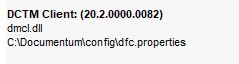
If you did everything correctly you should see the following on the about window:

If you go looking for Documentum’s DA 20.2 Docker file you’ll find the following:
documentum_adminstrator_20.2_docker_centos.tar (1.4 GB)
What’s wrong with this? Well, in a container world (specially when using application servers) why is there the word “centos” and why a tomcat is 1.4 GB?
The answer is simple: Whoever built this image didn’t know what a container is, and it seems that nobody knows yet at Opentext.
What is a container? Well you can google it, but a container IS NOT A VM, it is a process. The idea behind containers is to have an isolated process that can be easily scalable (ie: deploy multiple similar tomcat instances quickly). So what’s the point of running a Docker environment when what we are doing is simply deploying VM’s? None at all.
So let’s assume we can use an actual container, that can be scaled up quickly, and won’t force us to “redeploy” a Centos OS on each container (for Tomcat, as DA is not a process and should not be “a container”), what should we do? Here we go (Note that I’ve used the same VM used for Opentext Documentum 20.2 Docker with PostgreSQL install guide):
[dmadmin@dctm202 ~]$ docker pull tomcat:9-jdk11 9-jdk11: Pulling from library/tomcat f15005b0235f: Pull complete 41ebfd3d2fd0: Pull complete b998346ba308: Pull complete f01ec562c947: Pull complete 74c11ae3efe8: Pull complete c65829cc6c71: Pull complete b98eacc09bf1: Pull complete b12b9c976670: Pull complete 62a47f54db4c: Pull complete 8c872760f50c: Pull complete Digest: sha256:2254679f4958efe7c9810d6a66d449f58b58-p 8888:80808ecd253e83e9d3afb68c51637cf4 Status: Downloaded newer image for tomcat:9-jdk11 docker.io/library/tomcat:9-jdk11 [dmadmin@dctm202 ~]$ docker images REPOSITORY TAG IMAGE ID CREATED SIZE tomcat 9-jdk11 54877c1fa80a 40 hours ago 647MB
/opt/docker/tomcat/conf/web.xml (just for Tag Pooling) /opt/docker/tomcat/webapps/da.war (Da to deploy) /opt/docker/tomcat/java.security (with anon whitelisted)
[dmadmin@dctm202 tomcat]$ docker run -it --rm -p 8888:8080 --name tomcatda -v /opt/docker/tomcat/java.security:/usr/local/openjdk-11/conf/security/java.security -v /opt/docker/tomcat/conf/web.xml:/usr/local/tomcat/conf/web.xml -v /opt/docker/tomcat/webapps:/usr/local/tomcat/webapps tomcat:9-jdk11
And that’s it, you now have a 650MB real container for DA.
The Docker image size provided by Opentext for the Content Server is a ~3.5GB tar file:
[dmadmin@dctm202 ~]$ docker images REPOSITORY TAG IMAGE ID CREATED SIZE contentserver/centos/stateless/cs 20.2.0000.0110 f83cfb099daf 3 weeks ago 3.48GB
But if you run the image, you’ll see that the actual size of the container is ~2.6GB.
This difference comes from the intermediate layers stored on the original image. If you want to have a smaller image, you could export the container to a .tar file, but if you do this, you will lose all the default configurations required for running the container (ports exposed, entry point, etc.). But there’s a workaround to get a working trimmed image:
docker run -it --entrypoint /bin/bash contentserver/centos/stateless/cs:20.2.0000.0110
./docker-rebase <CONTAINER_ID> contentserver/centos/stateless/cs:20.2.4
docker save contentserver/centos/stateless/cs:20.2.4 > cs202clean.tar
Now, you’ll have the following:
[dmadmin@dctm202 Scripts]$ docker images REPOSITORY TAG IMAGE ID CREATED SIZE contentserver/centos/stateless/cs 20.2.4 5336da9204b0 34 minutes ago 2.49GB
This is a step-by-step guide to install Documentum 20.2 in a Linux environment with PostgreSQL 11 and Docker.
Some notes before starting:
Host:
Windows 10 x64 8GB RAM
VMware Workstation Player 15
Guest:
CentOS 7.7 x64 25GB HD 4GB RAM 2 cores
PostgreSQL 11
Docker 19.03.4
You can just follow the procedure described in Opentext Documentum 20.2 PostgreSQL Developer Edition, as I’ve used the same VM for this one.
[dmadmin@dctm202 ~]$ sudo yum install -y yum-utils && device-mapper-persistent-data && lvm2 [dmadmin@dctm202 ~]$ sudo yum-config-manager --add-repo https://download.docker.com/linux/centos/docker-ce.repo [dmadmin@dctm202 ~]$ sudo yum install -y docker-ce docker-ce-cli containerd.io [dmadmin@dctm202 ~]$ sudo systemctl start docker
[dmadmin@dctm202 docker]$ sudo yum install -y epel-release [dmadmin@dctm202 docker]$ sudo yum install -y python-pip [dmadmin@dctm202 docker]$ sudo pip install docker-compose [dmadmin@dctm202 docker]$ sudo yum upgrade python* [dmadmin@dctm202 docker]$ docker-compose version docker-compose version 1.25.4, build unknown docker-py version: 4.2.0 CPython version: 2.7.5 OpenSSL version: OpenSSL 1.0.2k-fips 26 Jan 2017
[dmadmin@dctm202 docker]$ docker load -i Contentserver_Centos.tar 9e607bb861a7: Loading layer [==================================================>] 227.4MB/227.4MB 0b8351dad8f5: Loading layer [==================================================>] 156MB/156MB 0bdffe493043: Loading layer [==================================================>] 331.9MB/331.9MB 4477c4933872: Loading layer [==================================================>] 3.072kB/3.072kB 2cb92160ff08: Loading layer [==================================================>] 83.45MB/83.45MB 3791acd2392f: Loading layer [==================================================>] 11.92MB/11.92MB 9edf87e7e96b: Loading layer [==================================================>] 267.3kB/267.3kB f823733197a1: Loading layer [==================================================>] 3.297MB/3.297MB 8175917577fb: Loading layer [==================================================>] 46.08kB/46.08kB 66c808159e56: Loading layer [==================================================>] 15.53MB/15.53MB c60aa2091bd5: Loading layer [==================================================>] 98.3kB/98.3kB b148e43b1fc1: Loading layer [==================================================>] 2.667GB/2.667GB 2cd48c26512d: Loading layer [==================================================>] 7.168kB/7.168kB 03eb108f7247: Loading layer [==================================================>] 12.6MB/12.6MB ba3de33f6548: Loading layer [==================================================>] 2.56kB/2.56kB Loaded image: contentserver/centos/stateless/cs:20.2.0000.0110
[dmadmin@dctm202 dctmdocker]$ su - postgres Password: Last login: Sat Oct 19 19:39:49 CEST 2019 on pts/0 -bash-4.2$ mkdir /var/lib/pgsql/11/data/db_dockerdctm167_dat.dat -bash-4.2$ exit logout
[dmadmin@dctm202 Scripts]$ vi ~/.bash_profile export APP_SERVER_PASSWORD=dmadmin export INSTALL_OWNER_PASSWORD=dmadmin export ROOT_PASSWORD=dmadmin export DOCBASE_PASSWORD=dmadmin export DATABASE_PASSWORD=dmadmin export GLOBAL_REGISTRY_PASSWORD=dmadmin export AEK_PASSPHRASE=dmadmin
version: '3.7'
services:
rcs:
image: contentserver/centos/stateless/cs:20.2.0000.0110
environment:
- DOCKER_HOST=192.168.94.130
- DATABASE_HOST=192.168.94.130
- DATABASE_USER=postgres
- DATABASE_PASSWORD=${DATABASE_PASSWORD}
- DATABASE_SERVER_PORT=5432
- SERVICE_NAME=MyPostgres
- ROOT_PASSWORD=${ROOT_PASSWORD}
- INSTALL_OWNER=dmadmin
- INSTALL_OWNER_PASSWORD=${INSTALL_OWNER_PASSWORD}
- DOCBASE_NAME=dctmdocker202
- GLOBAL_REGISTRY_PASSWORD=${GLOBAL_REGISTRY_PASSWORD}
- AEK_ALGORITHM=AES_256_CBC
- AEK_PASSPHRASE=${AEK_PASSPHRASE}
- AEK_NAME=CSaek
- CONFIGURE_THUMBNAIL_SERVER=NO
- THUMBNAIL_SERVER_PORT=8081
- THUMBNAIL_SERVER_SSL_PORT=8443
- EXTERNAL_DOCBROKER_PORT=1689
- CONTENTSERVER_PORT=50000
- APP_SERVER_PASSWORD=${APP_SERVER_PASSWORD}
- INSTALL_OWNER_UID=1000
- HIGH_VOLUME_SERVER_LICENSE=
- TRUSTED_LICENSE=
- STORAGEAWARE_LICENSE=
- XMLSTORE_LICENSE=
- SNAPLOCKSTORE_LICENSE=
- RPS_LICENSE=
- FED_RECD_SERVICE_LICENSE=
- RECORD_MANAGER_LICENSE=
- PRM_LICENSE=
- DOCBASE_PASSWORD=${DOCBASE_PASSWORD}
- INSTALLER_UI=silent
- KEEP_TEMP_FILE=true
- INSTALLER_DEBUG_LOG=true
- DOCBASE_ID=453216
- USE_EXISTING_DATABASE_ACCOUNT=
- INDEXSPACE_NAME=DM_XCHIVE_DOCBASE
- USE_EXISTING_AEK=false
hostname:
"dctmdocker202"
container_name:
"dctmdocker202"
ports:
- "1689:1689"
- "1690:1690"
- "50000:50000"
- "50001:50001"
- "9080:9080"
- "9082:9082"
- "9081:9081"
- "9084:9084"
- "8081:8081"
- "8443:8443"
volumes:
- DocbaseName_odbc:/opt/dctm/odbc
- DocbaseName_data:/opt/dctm/data
- DocbaseName_dba:/opt/dctm/dba
- DocbaseName_share:/opt/dctm/share
- DocbaseName_dfc:/opt/dctm/config
- DocbaseName_mdserver_conf:/opt/dctm/mdserver_conf
- DocbaseName_mdserver_log:/opt/dctm/wildfly17.0.1/server/DctmServer_MethodServer/log
- DocbaseName_mdserver_logs:/opt/dctm/wildfly17.0.1/server/DctmServer_MethodServer/logs
- DocbaseName_Thumbnail_Server_conf:/opt/dctm/product/20.2/thumbsrv/conf
- DocbaseName_Thumbnail_Server_webinf:/opt/dctm/product/20.2/thumbsrv/container/webapps/thumbsrv/WEB-INF
- DocbaseName_xhive_storage:/opt/dctm/xhive_storage
- DocbaseName_XhiveConnector:/opt/dctm/wildfly17.0.1/server/DctmServer_MethodServer/deployments/XhiveConnector.ear
- DocbaseName_MigrationUtility:/opt/dctm/product/20.2/install/external_apps/MigrationUtil
privileged: true
#'volumes' service definition:
volumes:
DocbaseName_data:
driver: local
driver_opts:
type: none
o: bind
device: /opt/docker/data
DocbaseName_share:
driver: local
driver_opts:
type: none
o: bind
device: /opt/docker/share
DocbaseName_dba:
DocbaseName_dfc:
DocbaseName_odbc:
DocbaseName_mdserver_conf:
DocbaseName_mdserver_log:
DocbaseName_mdserver_logs:
DocbaseName_Thumbnail_Server_conf:
DocbaseName_Thumbnail_Server_webinf:
DocbaseName_XhiveConnector:
driver: local
driver_opts:
type: none
o: bind
device: /opt/docker/xhive
DocbaseName_xhive_storage:
driver: local
driver_opts:
type: none
o: bind
device: /opt/docker/xhive_storage
DocbaseName_MigrationUtility:
Note: As usual, documentation is lacking/wrong and the scripts don’t work at all. This is the list of parameters that I had to change in CS-Docker-Compose_Stateless.yml file in order for docker compose to work:
image: contentserver/centos/stateless/cs:16.7.0000.0810
environment:
- DOCKER_HOST=192.168.94.130
- DATABASE_HOST=192.168.94.130
- DOCBASE_NAME=dctmdocker202
hostname:
"dctmdocker202"
container_name:
"dctmdocker202"
ports:
- "1689:1689"
- "1690:1690"
- "50000:50000"
- "50001:50001"
- "9080:9080"
- "9082:9082"
- "9081:9081"
- "9084:9084"
- "8081:8081"
- "8443:8443"
volumes:
DocbaseName_data:
driver: local
driver_opts:
type: none
o: bind
device: /opt/docker/data
DocbaseName_share:
driver: local
driver_opts:
type: none
o: bind
device: /opt/docker/share
DocbaseName_XhiveConnector:
driver: local
driver_opts:
type: none
o: bind
device: /opt/docker/xhive
DocbaseName_xhive_storage:
driver: local
driver_opts:
type: none
o: bind
device: /opt/docker/xhive_storage
[dmadmin@dctm202 Scripts]$ docker-compose -f CS-Docker-Compose_Stateless.yml up -d Creating volume "scripts_DocbaseName_mdserver_logs" with default driver Creating volume "scripts_DocbaseName_dfc" with default driver Creating volume "scripts_DocbaseName_XhiveConnector" with local driver Creating volume "scripts_DocbaseName_Thumbnail_Server_conf" with default driver Creating volume "scripts_DocbaseName_Thumbnail_Server_webinf" with default driver Creating volume "scripts_DocbaseName_data" with local driver Creating volume "scripts_DocbaseName_dba" with default driver Creating volume "scripts_DocbaseName_mdserver_conf" with default driver Creating volume "scripts_DocbaseName_mdserver_log" with default driver Creating volume "scripts_DocbaseName_odbc" with default driver Creating volume "scripts_DocbaseName_share" with local driver Creating volume "scripts_DocbaseName_xhive_storage" with local driver Creating volume "scripts_DocbaseName_MigrationUtility" with default driver Creating dctmdocker202 ... done
Remember that if something goes wrong you’ll have to:
Once the process finishes, you should be able to idql from the container:
[dmadmin@dctm202 ~]$ docker exec -i -t dctmdocker202 /bin/basht dctmdocker202 /bin/bash [root@dctmdocker202 /]# su - dmadmin [dmadmin@dctmdocker202 ~]$ idql dctmdocker202 Please enter a user (dmadmin): Please enter password for dmadmin: OpenText Documentum idql - Interactive document query interface Copyright (c) 2020. OpenText Corporation All rights reserved. Client Library Release 20.2.0000.0082 Connecting to Server using docbase dctmdocker202 [DM_SESSION_I_SESSION_START]info: "Session 0106ea608000016c started for user dmadmin." Connected to OpenText Documentum Server running Release 20.2.0000.0110 Linux64.Postgres 1>
This is a step-by-step guide to install Documentum 20.2 in a Linux environment with PostgreSQL 11.
Host:
Windows 10 x64 8GB RAM
VMware Workstation Player 15
Guest:
CentOS 7.7 x64 25GB HD 4GB RAM 2 cores
PostgreSQL 11
Documentum 20.2
Mount the CentOS 7 DVD image, boot the machine and follow the steps. You can choose to let EasyInstall do the work for you. I used minimal package install to save resources, named the machine dctm202, configured the network and set the root password as well as a “dmadmin” user.
[dmadmin@dctm202 ~]$ sudo yum -y install bash-completion kernel-devel rng-tools.x86_64
[dmadmin@dctm202 ~]$ sudo yum -y install bash-completion kernel-devel rng-tools.x86_64 policycoreutils policycoreutils-python selinux-policy selinux-policy-targeted libselinux-utils setroubleshoot-server setools setools-console mcstrans expect tcl
[dmadmin@dctm202 ~]$ sudo yum -y group install X\ Window\ System “Development Tools”
[dmadmin@dctm202 ~]$ sudo yum -y install open-vm-tools.x86_64
[dmadmin@dctm202 ~]$ sudo systemctl disable firewalld
Removed symlink /etc/systemd/system/multi-user.target.wants/firewalld.service.
Removed symlink /etc/systemd/system/dbus-org.fedoraproject.FirewallD1.service.
[dmadmin@dctm202 ~]$ sudo systemctl stop firewalld
[dmadmin@dctm202 ~]$ sudo /sbin/rngd -b -r /dev/urandom -p /dev/random
[dmadmin@dctm202 ~]$ sudo setsebool -P httpd_can_network_connect_db 1
[dmadmin@dctm202 ~]$ sudo chkconfig rngd on
[dmadmin@dctm202 ~]$ sudo yum -y install https://download.postgresql.org/pub/repos/yum/reporpms/EL-7-x86_64/pgdg-redhat-repo-latest.noarch.rpm
[dmadmin@dctm202 ~]$ sudo yum -y install postgresql11 postgresql11-server
[dmadmin@dctm202 ~]$ sudo /usr/pgsql-11/bin/postgresql-11-setup initdb
[dmadmin@dctm202 ~]$ sudo systemctl enable postgresql-11
Created symlink from /etc/systemd/system/multi-user.target.wants/postgresql-11.service to /usr/lib/systemd/system/postgresql-11.service.
[dmadmin@dctm202 ~]$ sudo systemctl start postgresql-11
[dmadmin@dctm202 ~]$ sudo passwd postgres
Changing password for user postgres.
New password:
BAD PASSWORD: The password is shorter than 8 characters
Retype new password:
passwd: all authentication tokens updated successfully.[dmadmin@dctm202 ~]$ su – postgres
-bash-4.2$ psql
psql (11.5)
Type “help” for help.postgres=#
postgres=# \password postgres
Enter new password:
Enter it again:
postgres=# \q
-bash-4.2$ exit
[root@dctm202 ~]# vi /var/lib/pgsql/11/data/postgresql.conf
listen_addresses = ‘*’
port = 5432[root@dctm202 ~]# vi /var/lib/pgsql/11/data/pg_hba.conf
host all all 127.0.0.1/32 md5
host all all ::/128 md5
host all all dctm202 md5
[dmadmin@dctm202 ~]$ sudo systemctl restart postgresql-11
[dmadmin@dctm202 ~]$ sudo yum install -y php php-cli php-common php-pdo php-pgsql httpd apr apr-util httpd-tools libzip mailcap
[dmadmin@dctm202 ~]$ wget https://github.com/phppgadmin/phppgadmin/archive/REL_5-6-0.tar.gz
[dmadmin@dctm202 ~]$ tar -zxvf REL_5-6-0.tar.gz
[dmadmin@dctm202 ~]$ mv phppgadmin-REL_5-6-0/ /usr/share/phppgadmin
[dmadmin@dctm202 ~]$ mv /usr/share/phppgadmin/conf/config.inc.php-dist /usr/share/phppgadmin/conf/config.inc.php
[dmadmin@dctm202 ~]$ sudo vi /etc/httpd/conf.d/phpPgAdmin.conf
Alias /phppgadmin /usr/share/phppgadmin
<Location /phppgadmin>
<IfModule mod_authz_core.c>
# Apache 2.4
Require all granted
#Require host example.com
</IfModule>
<IfModule !mod_authz_core.c>
# Apache 2.2
Order deny,allow
Allow from all
Allow from 127.0.0.1
Allow from ::1
# Allow from .example.com
</IfModule>
</Location>[dmadmin@dctm202 ~]$ sudo vi /etc/phpPgAdmin/config.inc.php-dist
$conf[‘servers’][0][‘host’] = ‘dctm202’;
$conf[‘extra_login_security’] = false;
$conf[‘owned_only’] = true;[dmadmin@dctm202 ~]$ sudo cp /etc/phpPgAdmin/config.inc.php-dist /etc/phpPgAdmin/config.inc.php
[dmadmin@dctm202 ~]$ sudo systemctl restart httpd
Now you should be able to login to the console from http://dctm202/phppgadmin/.
[dmadmin@dctm202 ~]$ sudo yum -y install postgresql11-odbc.x86_64 unixODBC.x86_64
[dmadmin@dctm202 ~]$ sudo vi /etc/odbcinst.ini
[PostgreSQL]
Description = ODBC for PostgreSQL
#Driver = /usr/lib/psqlodbcw.so
#Setup = /usr/lib/libodbcpsqlS.so
#Driver64 = /usr/lib64/psqlodbcw.so
#Setup64 = /usr/lib64/libodbcpsqlS.so
Driver = /usr/pgsql-11/lib/psqlodbcw.so
Driver64 = /usr/pgsql-11/lib/psqlodbcw.so
Setup64 = /usr/lib64/libodbcpsqlS.so
FileUsage = 1
[dmadmin@dctm202 ~]$ sudo vi /etc/odbc.ini
[MyPostgres]
Description=PostgreSQL
Driver=PostgreSQL
Database=postgres
Servername=dctm202
UserName=postgres
Password=dmadmin
Port=5432
Protocol=11
ReadOnly=No
RowVersioning=No
ShowSystemTables=No
ShowOidColumn=No
FakeOidIndex=No
UpdateableCursors=Yes
DEBUG=Yes
[dmadmin@dctm202 ~]$ isql -v MyPostgres
+—————————————+
| Connected! |
| |
| sql-statement |
| help [tablename] |
| quit |
| |
+—————————————+
SQL> quit
[dmadmin@dctm202 ~]$ sudo mkdir -p /opt/documentum && sudo chown dmadmin.dmadmin /opt/documentum && mkdir /opt/documentum/product && mkdir /opt/documentum/product/20.2 && mkdir -p /opt/documentum/sw/cs
[dmadmin@dctm202 cs]$ sudo yum -y install java-11-openjdk java-11-openjdk-devel
[dmadmin@dctm202 cs]$ echo $(dirname $(dirname $(readlink $(readlink $(which javac)))))
/usr/lib/jvm/java-11-openjdk-11.0.4.11-1.el7_7.x86_64
[dmadmin@dctm202 ~]$ vi ~/.bash_profile
DOCUMENTUM=/opt/documentum
export DOCUMENTUMDM_HOME=$DOCUMENTUM/product/20.2
export DM_HOMEPOSTGRESQL_HOME=/usr/pgsql-11
export POSTGRESQL_HOMEJAVA_HOME=/usr/lib/jvm/java-11-openjdk-11.0.6.10-1.el7_7.x86_64/
export JAVA_HOMEPATH=$PATH:$DM_HOME/bin:$POSTGRESQL_HOME/bin:$HOME/.local/bin:$HOME/bin:$JAVA_HOME/bin
export PATHLC_ALL=C
export LC_ALLLD_LIBRARY_PATH=$POSTGRESQL_HOME/lib:$DM_HOME/bin:$DOCUMENTUM/java64/JAVA_LINK/jre/lib/amd64/server:$LD_LIBRARY_PATH
export LD_LIBRARY_PATH
[dmadmin@dctm202 ~]$ sudo vi /etc/services
dctm202 50000/tcp # dctm 20.2 repo
dctm202_s 50001/tcp # dctm 20.2 repo
[dmadmin@dctm202 ~]$ sudo ln -s /usr/lib64/libsasl2.so.3.0.0 /usr/lib64/libsasl2.so.2
[dmadmin@dctm202 ~]$ sudo vi /etc/security/limits.conf
dmadmin – core -1
[dmadmin@dctm202 cs]$ tar -xvf content_server_20.2_linux64_postgres.tar
[dmadmin@dctm202 cs]$ chmod 777 serverSetup.bin
[dmadmin@dctm202 cs]$ ./serverSetup.bin
[dmadmin@dctm202 cs]$ su –
[root@dctm202 ~]# su – postgres
-bash-4.2$ mkdir /var/lib/pgsql/11/data/db_dctm202_dat.dat
-bash-4.2$ exit
[root@dctm167 ~]# exit
[dmadmin@dctm202 install]$ ./dm_launch_server_config_program.s
And you should know the rest 🙂
I should add: for Documentum newbies in OpenText products 🙂
I’ve recently had to test/evaluate OpenText AppWorks as a suitable solution for development purposes.
If you’re not familiar with OpenText portfolio, AppWorks is OpenText equivalent to Documentum’s xCP. A “framework” that allows you to build “process oriented” applications. Also, somewhat like D2, as there’s no coding in AppWorks.
For those of you that are wondering, installing this wasn’t really that easy, and it seems Documentum documentation is not the only “lacking” documentation 🙂
So, let’s start:
Host:
Windows 10 x64 8GB RAM
VMware Workstation Player 12
Guest:
CentOS 7 x64 25GB HD 4GB RAM 2 cores
PostgreSQL 9.6
Documentum 16.4
I’ve used the VM created on the Opentext Documentum 16.4 PostgreSQL Developer Edition, but you can use any VM with PostgreSQL.
Follow the instructions on any of the previous guides (Opentext Documentum 16.4 PostgreSQL Developer Edition, Opentext Documentum 16.7 PostgreSQL Developer Edition) to get PostgreSQL running, then create a new database. I’ve used phpPgAdmin to create a user (appworks), tablespace (appworks, remember to create the folder on the filesystem before creating the tablespace) and a database (appworks).
Additionally, you also need to download PostgreSQL’s JDBC driver from this page.
Be aware that this is not Tomcat 🙂 You’ll need to download the TomEE (I’ve used the Plume 8.0.0 version) from TomEE download page. As with Tomcat, just unzip and you’ll have a familiar structure. Also, set this TomEE to run under openJDK (I used openJDK 11, as this is required later by AppWorks).
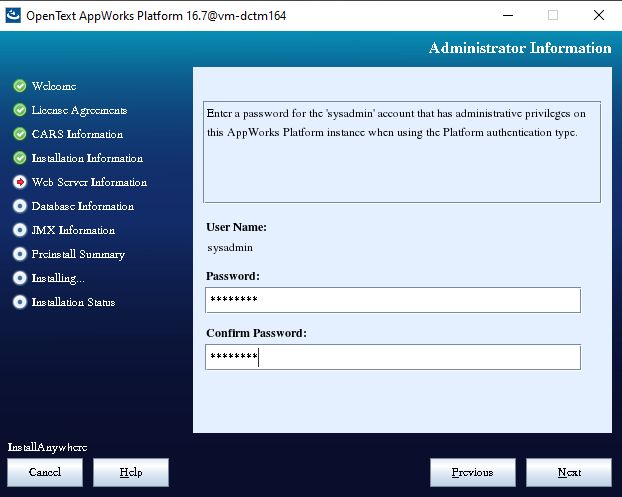
Additional configuration to do:
<role rolename=”tomee-admin” />
<role rolename=”manager-gui”/>
<role rolename=”manager-script”/>
<role rolename=”manager-jmx”/>
<role rolename=”manager-status”/>
<role rolename=”admin-gui”/>
<role rolename=”admin-script”/><user username=”tomee” password=”tomee” roles=”admin-gui,manager-gui,tomee-admin”/>
<user username=”opentext” password=”opentext” roles=”admin-gui,admin-script,manager-gui,manager-script,manager-jms,manager-status,tomee-admin”/>
<user username=”rpc” password=”rpc” roles=”admin-script,manager-script,manager-jmx”/>
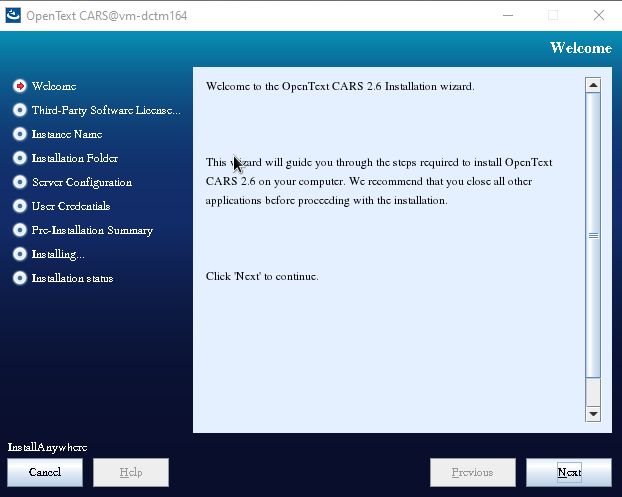
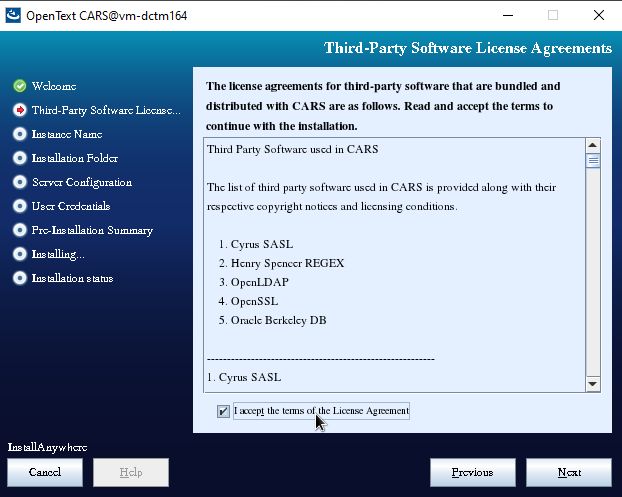
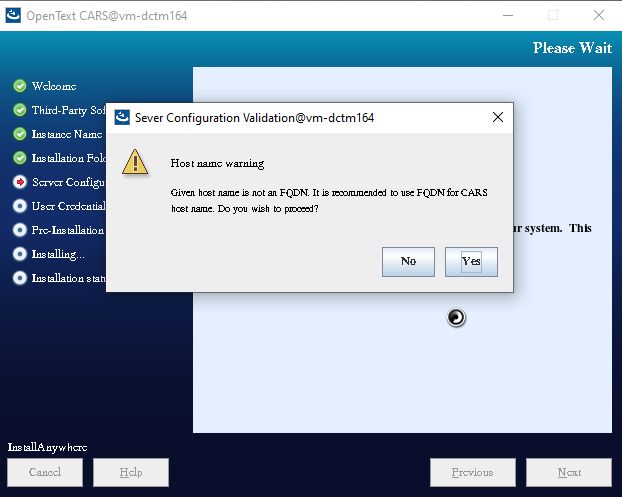
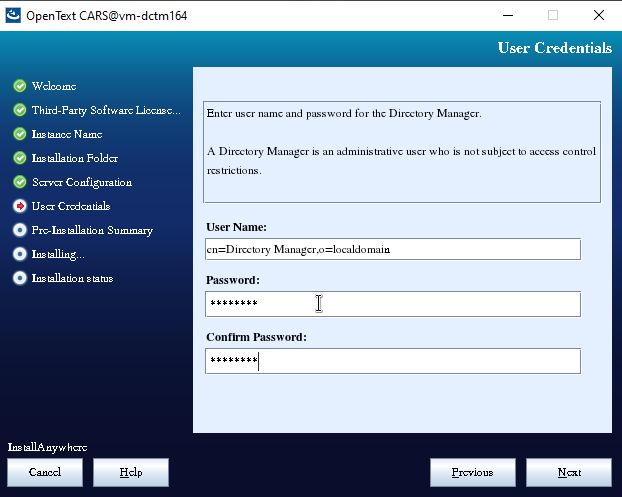
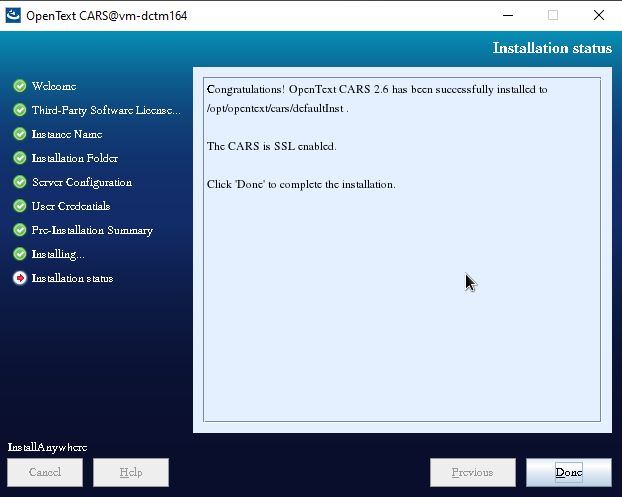
sudo JAVA_HOME=/opt/opentext/jdk-11 CLASSPATH=/opt/opentext/postgresql-42.2.9.jar PATH=/opt/opentext/jdk-11/bin:$PATH ./OpenText_CARS_2.6.bin


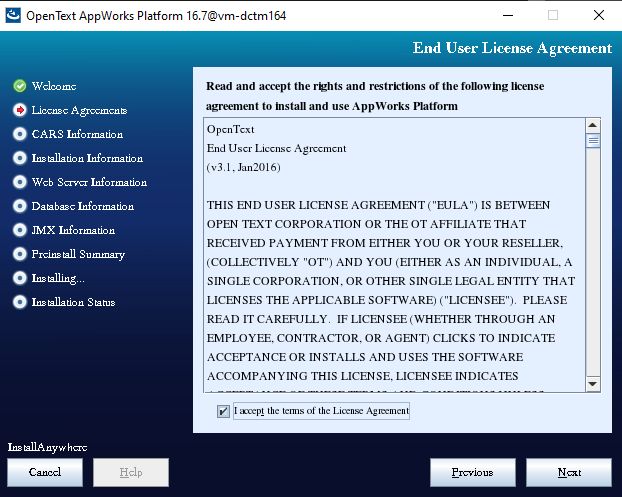
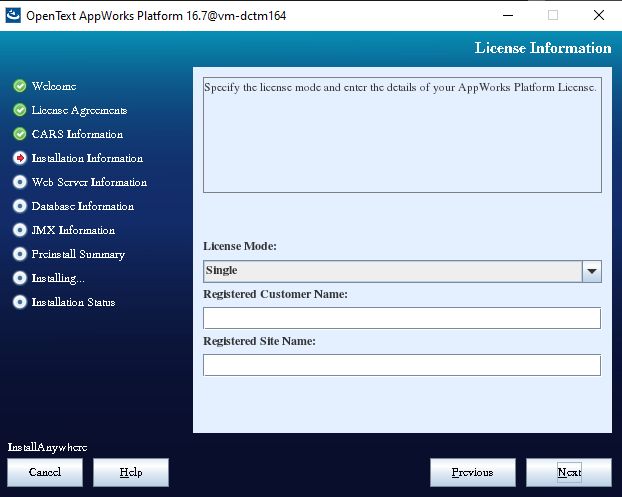
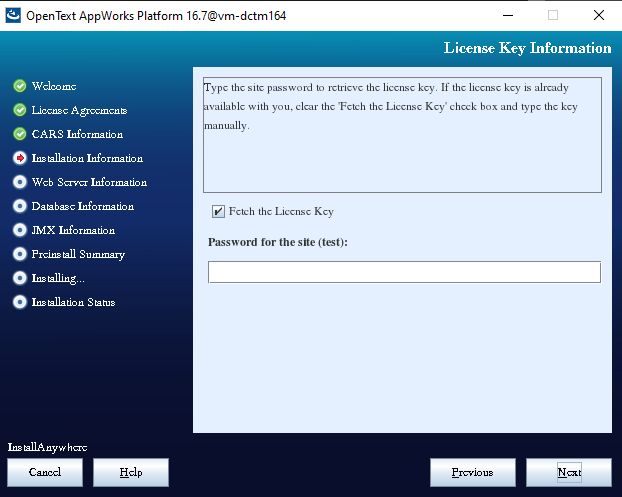
You’ll need a license to install AppWorks. This trial license can be requested from the support site.
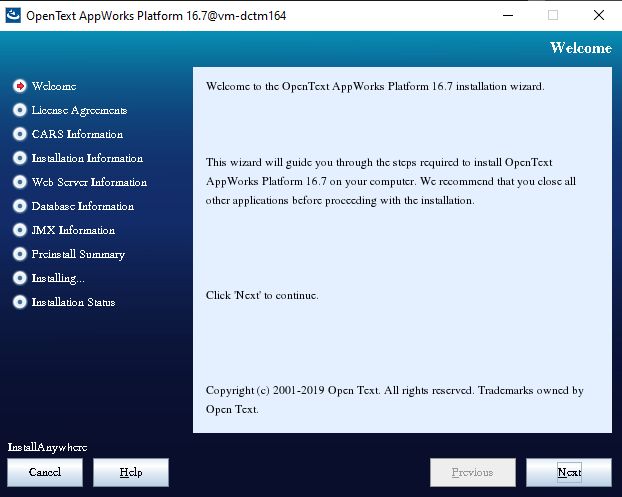
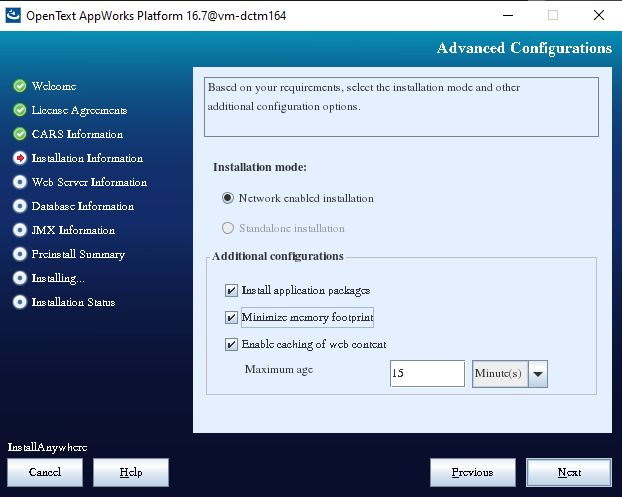
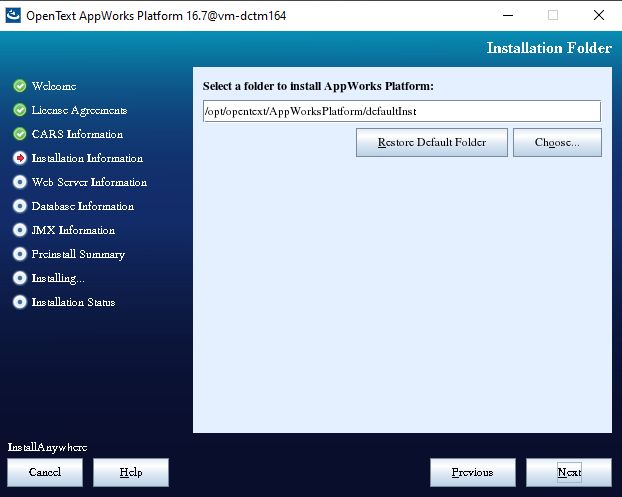
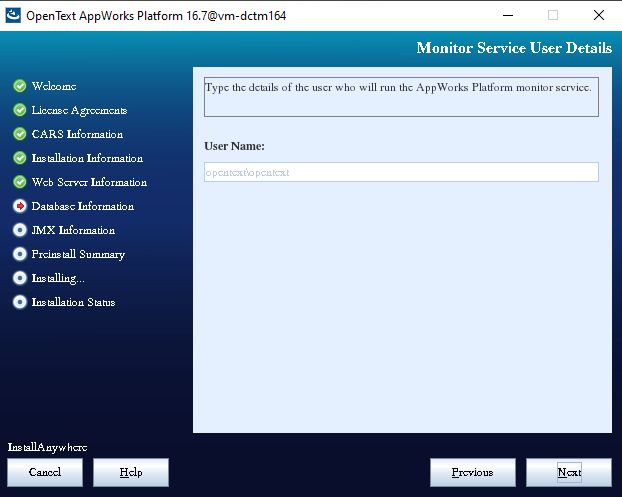
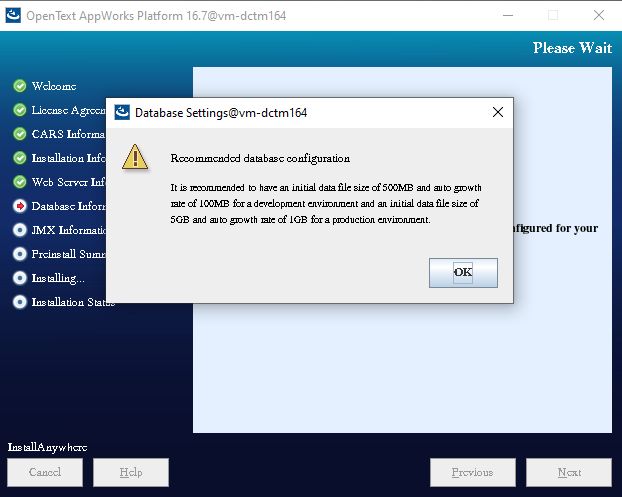
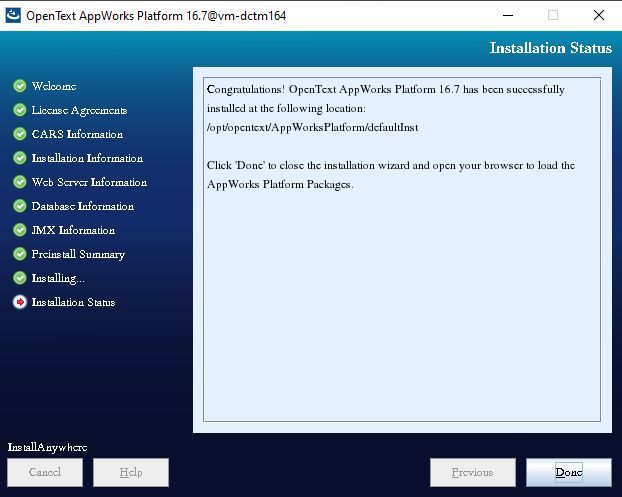
sudo JAVA_HOME=/opt/opentext/jdk-11 CLASSPATH=/opt/opentext/postgresql-42.2.9.jar PATH=/opt/opentext/jdk-11/bin:$PATH ./OpenText_AppWorks_Platform_16.7.bin


Last, but not least, some sources of information related to AppWorks:
This is a step-by-step guide to install Documentum 16.7 in a Linux environment with PostgreSQL 11 and Docker.
Host:
Windows 10 x64 8GB RAM
VMware Workstation Player 15
Guest:
CentOS 7.7 x64 25GB HD 4GB RAM 2 cores
PostgreSQL 11
Docker 19.03.4
You can just follow the procedure described in Opentext Documentum 16.7 PostgreSQL Developer Edition
[dmadmin@dctm167docker ~]$ sudo yum install -y yum-utils && device-mapper-persistent-data && lvm2 [dmadmin@dctm167docker ~]$ sudo yum-config-manager --add-repo https://download.docker.com/linux/centos/docker-ce.repo [dmadmin@dctm167docker ~]$ sudo yum install -y docker-ce docker-ce-cli containerd.io [dmadmin@dctm167docker ~]$ sudo systemctl start docker
[dmadmin@dctm167docker dctmdocker]$ sudo yum install -y epel-release [dmadmin@dctm167docker dctmdocker]$ sudo yum install -y python-pip [dmadmin@dctm167docker dctmdocker]$ sudo pip install docker-compose [dmadmin@dctm167docker dctmdocker]$ sudo yum upgrade python* [dmadmin@dctm167docker dctmdocker]$ docker-compose version docker-compose version 1.24.1, build 4667896 docker-py version: 3.7.3 CPython version: 2.7.5 OpenSSL version: OpenSSL 1.0.2k-fips 26 Jan 2017
[dmadmin@dctm167docker dockerimage]$ docker load -i Contentserver_Centos.tar d69483a6face: Loading layer [==================================================>] 209.5MB/209.5MB 72dea7bec644: Loading layer [==================================================>] 217.2MB/217.2MB d3468dffaa29: Loading layer [==================================================>] 315.1MB/315.1MB 1f70936ed489: Loading layer [==================================================>] 3.072kB/3.072kB 6a28c1188813: Loading layer [==================================================>] 239.6MB/239.6MB 07cf201dbdc0: Loading layer [==================================================>] 225.8kB/225.8kB abe3ca337db9: Loading layer [==================================================>] 3.297MB/3.297MB 628e629128da: Loading layer [==================================================>] 46.08kB/46.08kB 4893b60dc3f1: Loading layer [==================================================>] 3.568MB/3.568MB 46d106ddfac4: Loading layer [==================================================>] 94.21kB/94.21kB 49adcbc15f60: Loading layer [==================================================>] 4.121GB/4.121GB e5fd2930e234: Loading layer [==================================================>] 508.5MB/508.5MB be7e1221aecc: Loading layer [==================================================>] 679.4kB/679.4kB 6a0c0059135d: Loading layer [==================================================>] 7.168kB/7.168kB 4151aa90b006: Loading layer [==================================================>] 2.56kB/2.56kB Loaded image: contentserver/centos/stateless/cs:16.7.0000.0810 [dmadmin@dctm167docker dockerimage]$ docker images REPOSITORY TAG IMAGE ID CREATED SIZE contentserver/centos/stateless/cs 16.7.0000.0810 589b5cf8dbc7 8 weeks ago 5.59GB
[dmadmin@dctm167docker dctmdocker]$ su - postgres Password: Last login: Sat Oct 19 19:39:49 CEST 2019 on pts/0 -bash-4.2$ mkdir /var/lib/pgsql/11/data/db_dockerdctm167_dat.dat -bash-4.2$ exit logout
[dmadmin@dctm167docker Scripts]$ vi ~/.bash_profile export APP_SERVER_PASSWORD=dmadmin export INSTALL_OWNER_PASSWORD=dmadmin export ROOT_PASSWORD=dmadmin export DOCBASE_PASSWORD=dmadmin export DATABASE_PASSWORD=dmadmin export GLOBAL_REGISTRY_PASSWORD=dmadmin export AEK_PASSPHRASE=dmadmin
#For description of parameter please do refer to Readme.txt
version: '3.7'
services:
rcs:
image: contentserver/centos/stateless/cs:16.7.0000.0810
environment:
- DOCKER_HOST=192.168.94.129
- DATABASE_HOST=192.168.94.129
- DATABASE_USER=postgres
- DATABASE_PASSWORD=${DATABASE_PASSWORD}
- DATABASE_SERVER_PORT=5432
- SERVICE_NAME=MyPostgres
- ROOT_PASSWORD=${ROOT_PASSWORD}
- INSTALL_OWNER=dmadmin
- INSTALL_OWNER_PASSWORD=${INSTALL_OWNER_PASSWORD}
- DOCBASE_NAME=dockerdctm167
- GLOBAL_REGISTRY_PASSWORD=${GLOBAL_REGISTRY_PASSWORD}
- AEK_ALGORITHM=AES_256_CBC
- AEK_PASSPHRASE=${AEK_PASSPHRASE}
- AEK_NAME=CSaek
- CONFIGURE_THUMBNAIL_SERVER=NO
- THUMBNAIL_SERVER_PORT=8081
- THUMBNAIL_SERVER_SSL_PORT=8443
- EXTERNAL_DOCBROKER_PORT=1689
- CONTENTSERVER_PORT=50000
- APP_SERVER_PASSWORD=${APP_SERVER_PASSWORD}
- INSTALL_OWNER_UID=1000
- HIGH_VOLUME_SERVER_LICENSE=
- TRUSTED_LICENSE=
- STORAGEAWARE_LICENSE=
- XMLSTORE_LICENSE=
- SNAPLOCKSTORE_LICENSE=
- RPS_LICENSE=
- FED_RECD_SERVICE_LICENSE=
- RECORD_MANAGER_LICENSE=
- PRM_LICENSE=
- DOCBASE_PASSWORD=${DOCBASE_PASSWORD}
- INSTALLER_UI=silent
- KEEP_TEMP_FILE=false
- INSTALLER_DEBUG_LOG=true
- DOCBASE_ID=453216
- USE_EXISTING_DATABASE_ACCOUNT=
- INDEXSPACE_NAME=DM_XCHIVE_DOCBASE
- USE_EXISTING_AEK=false
hostname:
"dockerdctm167"
container_name:
"dockerdctm167"
ports:
- "1689:1689"
- "1690:1690"
- "50000:50000"
- "50001:50001"
- "9080:9080"
- "9082:9082"
- "9081:9081"
- "9084:9084"
- "8081:8081"
- "8443:8443"
volumes:
- DocbaseName_odbc:/opt/dctm/odbc
- DocbaseName_data:/opt/dctm/data
- DocbaseName_dba:/opt/dctm/dba
- DocbaseName_share:/opt/dctm/share
- DocbaseName_dfc:/opt/dctm/config
- DocbaseName_mdserver_conf:/opt/dctm/mdserver_conf
- DocbaseName_mdserver_log:/opt/dctm/wildfly11.0.0/server/DctmServer_MethodServer/log
- DocbaseName_mdserver_logs:/opt/dctm/wildfly11.0.0/server/DctmServer_MethodServer/logs
- DocbaseName_Thumbnail_Server_conf:/opt/dctm/product/16.7/thumbsrv/conf
- DocbaseName_Thumbnail_Server_webinf:/opt/dctm/product/16.7/thumbsrv/container/webapps/thumbsrv/WEB-INF
- DocbaseName_xhive_storage:/opt/dctm/xhive_storage
- DocbaseName_XhiveConnector:/opt/dctm/wildfly11.0.0/server/DctmServer_MethodServer/deployments/XhiveConnector.ear
- DocbaseName_MigrationUtility:/opt/dctm/product/16.7/install/external_apps/MigrationUtil
privileged: true
#'volumes' service definition:
volumes:
DocbaseName_data:
driver: local
driver_opts:
type: none
o: bind
device: /opt/dctmdocker/data
DocbaseName_share:
driver: local
driver_opts:
type: none
o: bind
device: /opt/dctmdocker/share
DocbaseName_dba:
DocbaseName_dfc:
DocbaseName_odbc:
DocbaseName_mdserver_conf:
DocbaseName_mdserver_log:
DocbaseName_mdserver_logs:
DocbaseName_Thumbnail_Server_conf:
DocbaseName_Thumbnail_Server_webinf:
DocbaseName_XhiveConnector:
driver: local
driver_opts:
type: none
o: bind
device: /opt/dctmdocker/xhive
DocbaseName_xhive_storage:
driver: local
driver_opts:
type: none
o: bind
device: /opt/dctmdocker/xhive_storage
DocbaseName_MigrationUtility:
Note: As usual, documentation is lacking/wrong and the scripts don’t work at all. This is the list of parameters that I had to change in CS-Docker-Compose_Stateless.yml file in order for docker compose to work:
image: contentserver/centos/stateless/cs:16.7.0000.0810
environment:
- DOCKER_HOST=192.168.94.129
- DATABASE_HOST=192.168.94.129
- DOCBASE_NAME=dockerdctm167
hostname:
"dockerdctm167"
container_name:
"dockerdctm167"
ports:
- "1689:1689"
- "1690:1690"
- "50000:50000"
- "50001:50001"
- "9080:9080"
- "9082:9082"
- "9081:9081"
- "9084:9084"
- "8081:8081"
- "8443:8443"
volumes:
DocbaseName_data:
driver: local
driver_opts:
type: none
o: bind
device: /opt/dctmdocker/data
DocbaseName_share:
driver: local
driver_opts:
type: none
o: bind
device: /opt/dctmdocker/share
DocbaseName_XhiveConnector:
driver: local
driver_opts:
type: none
o: bind
device: /opt/dctmdocker/xhive
DocbaseName_xhive_storage:
driver: local
driver_opts:
type: none
o: bind
device: /opt/dctmdocker/xhive_storage
Remember that if something goes wrong you’ll have to:
Once the process finishes, you should be able to idql from the container:
[dmadmin@dockerdctm167 ~]$ idql dockerdctm167
Please enter a user (dmadmin):
Please enter password for dmadmin:
OpenText Documentum idql - Interactive document query interface
Copyright (c) 2018. OpenText Corporation
All rights reserved.
Client Library Release 16.7.0000.0322
Connecting to Server using docbase dockerdctm167
[DM_SESSION_I_SESSION_START]info: "Session 0106ea608000050f started for user dmadmin."
Connected to OpenText Documentum Server running Release 16.7.0000.0810 Linux64.Postgres
1>
This is a step-by-step guide to install Documentum 16.7 in a Linux environment with PostgreSQL 11.
Host:
Windows 10 x64 8GB RAM
VMware Workstation Player 15
Guest:
CentOS 7.7 x64 25GB HD 4GB RAM 2 cores
PostgreSQL 11
Documentum 16.7
Mount the CentOS 7 DVD image, boot the machine and follow the steps. You can choose to let EasyInstall do the work for you. I used minimal package install to save resources, named the machine dctm167, configured the network and set the root password as well as a “dmadmin” user.
[dmadmin@dctm167 ~]$ sudo yum -y install bash-completion kernel-devel rng-tools.x86_64
[dmadmin@dctm167 ~]$ sudo yum -y install bash-completion kernel-devel rng-tools.x86_64 policycoreutils policycoreutils-python selinux-policy selinux-policy-targeted libselinux-utils setroubleshoot-server setools setools-console mcstrans expect tcl
[dmadmin@dctm167 ~]$ sudo yum -y group install X\ Window\ System “Development Tools”
[dmadmin@dctm167 ~]$ sudo yum -y install open-vm-tools.x86_64
[dmadmin@dctm167 ~]$ sudo systemctl disable firewalld
Removed symlink /etc/systemd/system/multi-user.target.wants/firewalld.service.
Removed symlink /etc/systemd/system/dbus-org.fedoraproject.FirewallD1.service.
[dmadmin@dctm167 ~]$ sudo systemctl stop firewalld
[dmadmin@dctm167 ~]$ sudo /sbin/rngd -b -r /dev/urandom -p /dev/random
[dmadmin@dctm167 ~]$ sudo setsebool -P httpd_can_network_connect_db 1
[dmadmin@dctm167 ~]$ sudo chkconfig rngd on
[dmadmin@dctm167 ~]$ sudo yum -y install https://download.postgresql.org/pub/repos/yum/11/redhat/rhel-7-x86_64/pgdg-centos11-11-2.noarch.rpm
[dmadmin@dctm167 ~]$ sudo yum -y install postgresql11 postgresql11-server
[dmadmin@dctm167 ~]$ sudo /usr/pgsql-11/bin/postgresql-11-setup initdb
[dmadmin@dctm167 ~]$ sudo systemctl enable postgresql-11
Created symlink from /etc/systemd/system/multi-user.target.wants/postgresql-11.service to /usr/lib/systemd/system/postgresql-11.service.
[dmadmin@dctm167 ~]$ sudo systemctl start postgresql-11
[dmadmin@dctm167 ~]$ sudo passwd postgres
Changing password for user postgres.
New password:
BAD PASSWORD: The password is shorter than 8 characters
Retype new password:
passwd: all authentication tokens updated successfully.[dmadmin@dctm167 ~]$ su – postgres
-bash-4.2$ psql
psql (11.5)
Type “help” for help.postgres=#
postgres=# \password postgres
Enter new password:
Enter it again:
postgres=# \q
-bash-4.2$ exit
[root@dctm167 ~]# vi /var/lib/pgsql/11/data/postgresql.conf
listen_addresses = ‘*’
port = 5432[root@dctm167 ~]# vi /var/lib/pgsql/11/data/pg_hba.conf
host all all 127.0.0.1/32 md5
host all all ::/128 md5
host all all dctm167 md5
[dmadmin@dctm167 ~]$ sudo systemctl restart postgresql-11
[dmadmin@dctm167 ~]$ sudo yum -y install phpPgAdmin httpd
[dmadmin@dctm167 ~]$ sudo vi /etc/httpd/conf.d/phpPgAdmin.conf
Alias /phpPgAdmin /usr/share/phpPgAdmin
# Apache 2.4
Require all granted
#Require host example.com# Apache 2.2
Order deny,allow
Allow from all
#Allow from 127.0.0.1
#Allow from ::1
# Allow from .example.com[dmadmin@dctm167 ~]$ sudo vi /etc/phpPgAdmin/config.inc.php-dist
$conf[‘servers’][0][‘host’] = ‘dctm167’;
$conf[‘extra_login_security’] = false;
$conf[‘owned_only’] = true;[dmadmin@dctm167 ~]$ sudo cp /etc/phpPgAdmin/config.inc.php-dist /etc/phpPgAdmin/config.inc.php
[dmadmin@dctm167 ~]$ sudo systemctl restart httpd
Now you should be able to login to the console from http://dctm167/phpPgAdmin/
[dmadmin@dctm167 ~]$ sudo yum -y install postgresql11-odbc.x86_64 unixODBC.x86_64
[dmadmin@dctm167 ~]$ sudo vi /etc/odbcinst.ini
[PostgreSQL]
Description = ODBC for PostgreSQL
#Driver = /usr/lib/psqlodbcw.so
#Setup = /usr/lib/libodbcpsqlS.so
#Driver64 = /usr/lib64/psqlodbcw.so
#Setup64 = /usr/lib64/libodbcpsqlS.so
Driver = /usr/pgsql-11/lib/psqlodbcw.so
Driver64 = /usr/pgsql-11/lib/psqlodbcw.so
Setup64 = /usr/lib64/libodbcpsqlS.so
FileUsage = 1
[dmadmin@dctm167 ~]$ sudo vi /etc/odbc.ini
[MyPostgres]
Description=PostgreSQL
Driver=PostgreSQL
Database=postgres
Servername=dctm167
UserName=postgres
Password=dmadmin
Port=5432
Protocol=11
ReadOnly=No
RowVersioning=No
ShowSystemTables=No
ShowOidColumn=No
FakeOidIndex=No
UpdateableCursors=Yes
DEBUG=Yes
[dmadmin@dctm167 ~]$ isql -v MyPostgres
+—————————————+
| Connected! |
| |
| sql-statement |
| help [tablename] |
| quit |
| |
+—————————————+
SQL> quit
[dmadmin@dctm167 ~]$ sudo mkdir -p /opt/documentum && sudo chown dmadmin.dmadmin /opt/documentum && mkdir /opt/documentum/product && mkdir /opt/documentum/product/16.7 && mkdir -p /opt/documentum/sw/cs
[dmadmin@dctm167 cs]$ sudo yum -y install java-11-openjdk java-11-openjdk-devel
[dmadmin@dctm167 cs]$ echo $(dirname $(dirname $(readlink $(readlink $(which javac)))))
/usr/lib/jvm/java-11-openjdk-11.0.4.11-1.el7_7.x86_64
[dmadmin@dctm167 ~]$ vi ~/.bash_profile
DOCUMENTUM=/opt/documentum
export DOCUMENTUMDM_HOME=$DOCUMENTUM/product/16.7
export DM_HOMEPOSTGRESQL_HOME=/usr/pgsql-11
export POSTGRESQL_HOMEJAVA_HOME=/usr/lib/jvm/java-11-openjdk-11.0.4.11-1.el7_7.x86_64
export JAVA_HOMEPATH=$PATH:$DM_HOME/bin:$POSTGRESQL_HOME/bin:$HOME/.local/bin:$HOME/bin:$JAVA_HOME/bin
export PATHLC_ALL=C
export LC_ALLLD_LIBRARY_PATH=$POSTGRESQL_HOME/lib:$DM_HOME/bin:$DOCUMENTUM/java64/JAVA_LINK/jre/lib/amd64/server:$LD_LIBRARY_PATH
export LD_LIBRARY_PATH
[dmadmin@dctm167 ~]$ sudo vi /etc/services
dctm167 50000/tcp # dctm 16.7 repo
dctm167_s 50001/tcp # dctm 16.7 repo
[dmadmin@dctm167 ~]$ sudo ln -s /usr/lib64/libsasl2.so.3.0.0 /usr/lib64/libsasl2.so.2
[dmadmin@dctm167 ~]$ sudo vi /etc/security/limits.conf
dmadmin – core -1
[dmadmin@dctm167 cs]$ tar -xvf content_server_16.7_linux64_postgres.tar
[dmadmin@dctm167 cs]$ chmod 777 serverSetup.bin
[dmadmin@dctm167 cs]$ ./serverSetup.bin


[dmadmin@dctm167 cs]$ su –
[root@dctm167 ~]# su – postgres
-bash-4.2$ mkdir /var/lib/pgsql/11/data/db_dctm167_dat.dat
-bash-4.2$ exit
[root@dctm167 ~]# exit
[dmadmin@dctm167 install]$ ./dm_launch_server_config_program.sh


Nothing special about this, same procedure as always. I’ve used the latest tomcat 9 to deploy running on the same openJDK 11 used for the repository:

Some notes: