Documentum 24.2 released

It looks like OpenText has released Documentum 24.2, and I say “looks like” because current access in (our “beloved”) support page is a mess. I guess there’s still confusion even on OT regarding the new X plans, which are supposed to be in place for accessing 24.2 release.

Currently I have:

  • No access to on premise downloads other than xCP 24.2 (?)
  • Access to cloud images
    • Can’t download cmis (not entitled)
    • Can download everything else 😀

I guess this will be sorted out in the coming weeks (or months…). However, as I have access to the cloud images, I’ve been able to install 24.2 locally. I won’t explain the whole process, but as it is quite simple, you can do something like:

  • Extract content server binaries from the cs image
  • Copy those to an image similar to the one described on the 23.4 install guide, using Java 17.0.10
  • Remove not needed folders
  • Replace /opt/dctm locations with your own $DOCUMENTUM path
  • Install normally 🙂

With these done, some impressions (as I don’t have access to release notes, I have no idea what’s new). On the positive side:

  • Cloud images now support both PostgreSQL and Oracle
  • Most of the (web) applications are supported in the “decoupled” mode (which is still non-sense, as a war file is not a container and it should not be anything else that an artifact outside of the image mapped in /webapps or wherever…)
  • No more breaking changes added to what we had on 23.4 (Tomcat 10, OTDS)

On the negative side:

  • The Oracle / PostgreSQL configuration is implemented very poorly. The image contains both “documentum_postgresql” and “documentum_oracle” binaries and these are configured from a script with an if statement and a “mv documentum_xxx documentum”. Maybe a symbolic link to the binaries being configured on startup would have look more… professional.
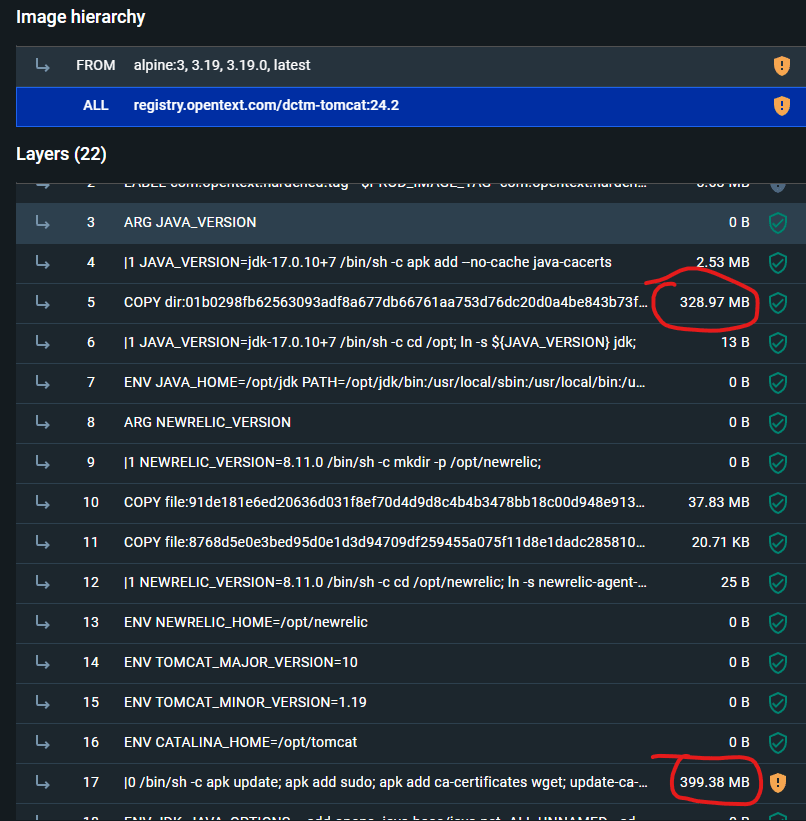
  • In an absurd move only understood because I’m sure OT has different people building the images and some of them are juniors, we’re back at the stupid-size containers (OT engineering, please check again the post on how to build a container image). Why I say this?
    • dctm-tomcat image is 800mb. Why? Because it contains TWICE the JDK (+300mb that could be saved), so this image should be around 500mb on size
    • dctm-admin image is 900mb (bigger than Tomcat… without Tomcat!!). Why? Because it contains THREE TIMES da.war plus TWICE the OS packages cache, so this image should be around 200-300 mb on size
    • dctm-rest is properly build, and dctm-rest.war is only present once in the container’s layers (good job whoever did this).

Here you can see the dctm-server image layers:

And here the (disaster) of dctm-admin:

I guess we can expect for 24.4 again the “decrase on containers image size” that was presented as a brand new feature in earlier versions…

OpenText OTDS Cloud(-Foundry) image

Here we go again with another success sad history of OpenText and their cloud products. This time we’ve encountered a “funny” “feature” on the OTDS cloud container image.

We are deploying this on the cloud as part of a migration to Documentum 23.4, where OTDS is now mandatory. For this we deployed this OTDS on Azure, and first thing we see is:

So what do we do (OTDS is now quite a “simple product”, web application connecting to a DB, so there’s not much room for errors on a brand new deployment)? Let’s check the logs… kubectl logs… empty. Strange, let’s go directly to the container and check tomcat’s logs… tomcat/logs… empty. What? So we decide to dissect the image and what do we find? Another case of unexplicable decisions by OT: So what is happening here is that someone at OT has decided that this not an “OTDS cloud image” but rather “OTDS Cloud Foundry” image. So they have configured Tomcat (via setenv.sh) with Cloud Foundry logging, and removed everything else. As a result, if you’re using any other cloud provider, don’t be expecting any logs (because nobody would need to access logs for an authentication application, security audits? Nah).

So what can you do?

Obviously, first step is to report this to OT (done), and wait until someone realizes the mistake they have done (either “mislabeling” the image, as this is clearly not generic, or by simply releasing this publicly, as my suspicion is that this is OT’s internal OTDS image used in their environment).

However, while this happens, we can be a little bit more proactive. By opening the image we can rebuild the Dockerfile used to build this image, which, more or less looks like this:

FROM redhat/ubi9-minimal:9.2 

LABEL maintainer="Red Hat, Inc."
LABEL com.redhat.component="ubi9-minimal-container" name="ubi9-minimal" version="9.2"
LABEL io.k8s.display-name="Red Hat Universal Base Image 9 Minimal"
LABEL io.openshift.expose-services=""
LABEL io.openshift.tags="minimal rhel9"

ENV PATH /usr/local/sbin:/usr/local/bin:/usr/sbin:/usr/bin:/sbin:/bin

RUN microdnf update -y && microdnf clean all
RUN microdnf install -y glibc-langpack-en tzdata fontconfig && microdnf clean all

COPY jdk-17.0.8+7-jre '/opt/jdk-17.0.8+7-jre'
RUN cd /opt; ln -s jdk-17.0.8+7-jre jre;

RUN mkdir -p /opt/newrelic;
COPY newrelic-agent-8.5.0.jar /opt/newrelic
COPY newrelic.yml /opt/newrelic
RUN cd /opt/newrelic; ln -s newrelic-agent-8.5.0.jar newrelic.jar;

RUN mkdir /opt/scripts && ln -s /opt/tomcat/bin/healthcheck.sh /opt/scripts/healthcheck.sh && chown -R otuser:0 /opt/scripts

COPY --chown=otuser:0 tomcat/ /opt/tomcat/

From here you can see OT is basically updating the base RH image, copying a JDK17, newrelic libraries (another library irrelevant to any OT product and that we’re just “pushed” to use/have there) and a “custom made” Tomcat (including the Cloud Foundry logging), so nothing too fancy.

So at this point, you can simply take your own Tomcat, and rebuild the image without Cloud Foundry, but why all these commands? why all that additional things in OTDS? Why is this image using RH minimal while CS uses Oracle Linux, and new containers are moving to Alpine? Why it is so difficult to align components to use the same technologies?

Well, here you have another approach to building the same image, and you can judge what looks simpler to build and maintain:

FROM tomcat:jre17-temurin

COPY webapps/ /usr/local/tomcat/webapps
COPY otds-install/ /usr/local/tomcat/otds-install
COPY otds.properties /usr/local/tomcat/webapps/otdsws/WEB-INF/classes/otds.properties
COPY setPassword.sh /usr/local/tomcat/bin

RUN chmod u+x /usr/local/tomcat/bin/setPassword.sh

ENV DBJDBC=jdbc
ENV DBUSER=user
ENV DBPWD=dbpwd

CMD ["/bin/bash", "-c", "setPassword.sh;catalina.sh run"]

This is from a custom container that I’m using locally. Quick explanation:

  • tomcat:jre17-temurin: Official Tomcat image. Why would you bother to build something it is already done? No need to maintain / update JDK and Tomcat when Apache is already doing that.
  • COPY fragments: Despite this is W R O N G, I copied the webapps folder (which should be mapped from a persistent volume and never be included on the image) just to mimic OT’s approach, I just needed a few lines to include the applications, and required customizations (here, setPassword.sh will encrypt the provided password (s) and update otds.properties accordingly)
  • ENV variables: Well, parameters that we can customize
  • Anything else: You add whatever you need because that would not be part of OTDS, but requirements of your own environment.

And there you go, a simpler container image in no time. Do you need to update Java or Tomcat? Just use a newer Tomcat image and it is done. Do you want to deploy on Azure or AWS? Do it, you’ll have logs (unlike right now, even on 24.1)

D2-Config 2FA/OTDS integration

Last week on the February Documentum User Group I asked about D2-Config and its lack of integration with OTDS (Is this the only Documentum web application not supporting OTDS?) and as I didn’t get an answer, I decided to take this as a nice exercise (Although most of the work was done by José Ramón Marcos). So, let’s go 😀

First step is quite simple, grab the OTDS authentication class from DA / Webtop and move it to a filter, what you basically need is the buildAuthenticationRequestAndRedirect method (by checking the code you should be able to understand the logic behind this).

Add the filter to D2-Config (I suggest to filter /*), then you’ll need some workarounds to make this work properly. In our case, by using morlex programming, we created an index.jsp page that would be the landing page from OTDS and that will handle the “advanced features” explained later. This JSP just receives the token from OTDS as an anchor and process it to send it to the ConnectDialog.html static page.

Finally, we need to modify ConnectDialog (as you wish) to not load the username/password fields / hide them or whatever, and some JS to pass the user (‘null’, as this will be extracted from the token on server side) and the token (dm_otds_ticket=<token value>). And:

This works fantastically well, however, someone might ask for being able to login as another user (dmadmin). We’ve already seen some bizarre and unsecure attempts to provide this functionality, but can we do something better? Let’s see:

We will take a look at JMS’ OTDS Authentication class, and grab the getUserNameFromToken method. You’ll need the OTDS’ certificate used to configure JMS OTDS authenticator servlet, which we can add to a custom properties file that we can use as well to add a preconfigured list of “premium” users that will be able to login as other user… after going through OTDS authentication (so not open to anyone passing by, unlike other “solutions”). Once this is done, we will call this method from our JSP to retrieve the user logged in OTDS and check if it is a “premium” member:

Aaand magic, there you have a quite secure approach to allow users (previously authenticated) to use an alternative login. Wasn’t that hard OT, was it?

D2 23.4 new skip_sso feature

Today we have another case of a “difficult to understand” approach from OT regarding security. You probably know that basic security sugesstions include moving from user/password authentication to 2FA/SSO as these are more secure.

If you have experienced/used this approach before (and specially if you’re a “power user”) you might have missed the possibility to login as a different user (=dmadmin) for very specific, not common tasks. Well, OT seems to have found a solution for this: skip_sso (or skip_security) parameter:

What’s wrong with this approach? Let’s see:

  1. You offer the possibility of a more secure authentication mechanism (2FA/SSO) and you destroy that by providing a way to override it.
  2. skip_sso can’t be disabled (or better said, this should be a disabled by default feature that could be enabled for certain user cases, as the documentation states “in some cases”, not for every single user!)
  3. skip_sso can’t be limited to specific users (so everyone can access via user/password regardless of the configuration)
  4. Not only you’re not simply falling back to D2 login screen (which could be “adapted” via CSS to hide the user/password field), you’re directly allowing to login into D2 blocking any option to stop this.
  5. In the cloud, you’re opening you repository to anyone that knows the default password for certain users that are not changed automatically and that are present in every repository
  6. Man in the middle attacks are celebrating this skip_sso parameter, as well as anyone running a network sniffer (I’m quite sure cybersec departments will be “happy” to see urls with “username” and “password” paremeter flying through the network)

So, with this clear security failure on mind, what can we do to improve the situation (on an on-premise environment, as we will be losing any change done to D2 container on restart)?

  1. Create your own filter, dropping this parameter if detected (As the original filter is converted to JS due to GWT, we can’t simply “override” it). You’ll need to drop you custom class and modify web.xml to include the filter
  2. Do not drop the parameter, but put some more effort on the code, adding some parameter to D2FS/settings.properties where you indicate exactly the users that can use this feature, effectively blocking any other user from using this. Still you need to code this. And modify the original D2.war :/

Documentum 23.4 PostgreSQL 15.5 on Rocky Linux 9 (WSL2) Install Guide

This is a step-by-step guide to install Documentum 23.4 in WSL2 using the Rocky Linux 9 (closest to the supported RH9) image with PostgreSQL 15.5. Unluckly we still don’t have a proper supported Alpine-based version, although this is now available for the web applications “containers” (The Documentum engineering cloud team still fails to understand that a container is not a virtual machine but a process, so D2/DA/REST/etc. should be just a docker compose file that builds the application server and then you drop your customized war file with whatever you want, and not a huge yaml file with hundreds of options that are added as customers beta test the software and realize that there are settings missing/unconfigurable in the current approach. However, at least now there’s a smaller OS easier to mantain).

Few notes:

  • JMS/Apps moved to Tomcat 10
  • JAVA_TOOL_OPTIONS requires additional parameters from previous versions
  • “dmadmin” user won’t have user_source, so if you want to log in, you’ll need to update its value from idql to “inline password” and set the password accordingly
  • OTDS is still not mandatory/required on the CS, but it is mandatory for applications 2FA (=SAML/Oauth have been removed)
  • Workflow manager can’t be installed as someone from OT has forgotten to publish xCP 23.4 (pro-tip: take a look at the yaml files for the kubernetes version, you may find something that will end up leading you to the installer :D)
  • New password policies are still annoying (we want back our dmadmin/dmadmin for local environments!)

Initial Configuration

There’s no official image on Microsoft Store so you’ll need to download the container image from the Rocky Linux page. Once this is done, you can import the image:

mkdir c:\Users\<userfolder>\rockylinux

wsl --import RockyLinux9 c:\Users\<userfolder>\rockylinux\ d:\dctm234\Rocky-9-Container-Base.latest.x86_64.tar.xz --version 2

After importing the image, we can log in (as root) and start the basic configuration of the server:

[root ~]# yum update
[root ~]# yum install sudo tcl expect libXtst

[root ~]# adduser dmadmin
[root ~]# passwd dmadmin
Changing password for user dmadmin.
New password:
BAD PASSWORD: The password is shorter than 8 characters
Retype new password:
passwd: all authentication tokens updated successfully.
[root ~]# usermod -aG wheel dmadmin
[root ~]# su - dmadmin

[dmadmin bin]$ sudo vi /etc/wsl.conf
[boot]
systemd=true

PostgreSQL Configuration

First we need to install PostgreSQL which is not available in the default packages:

[dmadmin bin]$ sudo dnf install https://download.postgresql.org/pub/repos/yum/reporpms/EL-9-x86_64/pgdg-redhat-repo-latest.noarch.rpm
[dmadmin bin]$ sudo dnf update -y
[dmadmin bin]$ sudo dnf -qy module disable postgresql
[dmadmin bin]$ sudo dnf install -y postgresql15-server

[dmadmin bin]$ sudo /usr/pgsql-15/bin/postgresql-15-setup initdb
Initializing database ... OK

[dmadmin ~]$ sudo systemctl enable postgresql-15
Created symlink /etc/systemd/system/multi-user.target.wants/postgresql-15.service → /usr/lib/systemd/system/postgresql-15.service.
[dmadmin ~]$ sudo systemctl start postgresql-15

[dmadmin ~]$ sudo su - postgres
[postgres ~]$ psql
psql (15.5)
Type "help" for help.

postgres=# \password postgres
Enter new password for user "postgres":
Enter it again:
postgres=# exit
[postgres ~]$ exit
logout
[dmadmin ~]$ sudo passwd postgres
Changing password for user postgres.
New password:
BAD PASSWORD: The password is shorter than 8 characters
Retype new password:
passwd: all authentication tokens updated successfully.

Next, we can install phpgadmin for easier administration:

[root ~]# dnf install yum-utils
[root ~]# yum-config-manager --disable pgdg-common
[root ~]# rpm -i https://ftp.postgresql.org/pub/pgadmin/pgadmin4/yum/pgadmin4-redhat-repo-2-1.noarch.rpm
warning: /var/tmp/rpm-tmp.7sMim2: Header V4 RSA/SHA256 Signature, key ID 210976f2: NOKEY
[root ~]# dnf update -y
[root ~]# dnf install pgadmin4 -y

[root ~]# systemctl enable httpd --now
Created symlink /etc/systemd/system/multi-user.target.wants/httpd.service → /usr/lib/systemd/system/httpd.service.

And finally, we can configure the odbc connection:

[dmadmin ~]$ sudo yum install postgresql15-odbc.x86_64 unixODBC.x86_64

[dmadmin ~]$ sudo vi /etc/odbc.ini
[MyPostgres]
Description=PostgreSQL
Driver=PostgreSQL
Database=postgres
Servername=localhost
UserName=postgres
Password=dmadmin
Port=5432
Protocol=15
ReadOnly=No
RowVersioning=No
ShowSystemTables=No
ShowOidColumn=No
FakeOidIndex=No
UpdateableCursors=Yes
DEBUG=Yes

[dmadmin ~]$ sudo vi /etc/odbcinst.ini
[PostgreSQL]
Description     = ODBC for PostgreSQL
#Driver         = /usr/lib/psqlodbcw.so
#Setup          = /usr/lib/libodbcpsqlS.so
#Driver64       = /usr/lib64/psqlodbcw.so
#Setup64        = /usr/lib64/libodbcpsqlS.so
Driver          = /usr/pgsql-15/lib/psqlodbcw.so
Driver64        = /usr/pgsql-15/lib/psqlodbcw.so
Setup64         = /usr/lib64/libodbcpsqlS.so.2
FileUsage       = 1

[dmadmin ~]$ isql -v MyPostgres
+---------------------------------------+
| Connected!                            |
|                                       |
| sql-statement                         |
| help [tablename]                      |
| quit                                  |
|                                       |
+---------------------------------------+
SQL> quit

Documentum Server

First, we need to create the DB folder:

[root ~]# su - postgres
[postgres ~]$ mkdir /var/lib/pgsql/15/data/db_dctm234_dat.dat

The Documentum folders and JDK (stick to the supported 17.0.8 version and remember to remove anon from the disabled algorithms to avoid issues):

[dmadmin ~]$ sudo mkdir -p /opt/documentum/sw && sudo mkdir -p /opt/documentum/product/23.4
[dmadmin ~]$ sudo chown -R dmadmin:dmadmin /opt/documentum

[dmadmin documentum]$ wget https://github.com/adoptium/temurin17-binaries/releases/download/jdk-17.0.8%2B7/OpenJDK17U-jdk_x64_linux_hotspot_17.0.8_7.tar.gz
[dmadmin documentum]$ OpenJDK17U-jdk_x64_linux_hotspot_17.0.8_7.tar.gz

Add environment variables to .bash_profile:

[dmadmin documentum]$ vi ~/.bash_profile
DDOCUMENTUM=/opt/documentum
export DOCUMENTUM

DM_HOME=$DOCUMENTUM/product/23.4
export DM_HOME

DM_JMS_HOME=$DOCUMENTUM/tomcat10.1.13
export DM_JMS_HOME

POSTGRESQL_HOME=/usr/pgsql-15
export POSTGRESQL_HOME

JAVA_HOME=/opt/documentum/jdk-17.0.8+7
export JAVA_HOME

JAVA_TOOL_OPTIONS="-Djdk.util.zip.disableZip64ExtraFieldValidation=true -Djava.locale.providers=COMPAT,SPI --add-opens=java.base/java.lang=ALL-UNNAMED --add-opens=java.base/java.lang.invoke=ALL-UNNAMED --add-exports=java.base/sun.security.provider=ALL-UNNAMED --add-exports=java.base/sun.security.pkcs=ALL-UNNAMED --add-exports=java.base/sun.security.x509=ALL-UNNAMED --add-exports=java.base/sun.security.util=ALL-UNNAMED --add-exports=java.base/sun.security.tools.keytool=ALL-UNNAMED"
export JAVA_TOOL_OPTIONS

PATH=$PATH:$DM_HOME/bin:$POSTGRESQL_HOME/bin:$HOME/.local/bin:$HOME/bin:$JAVA_HOME/bin:$DOCUMENTUM/dba
export PATH

LC_ALL=C
export LC_ALL

LD_LIBRARY_PATH=$POSTGRESQL_HOME/lib:$DM_HOME/bin:/usr/lib64:$LD_LIBRARY_PATH
export LD_LIBRARY_PATH

export DM_CRYPTO_MIN_PASSWORD_LENGTH=8

DISPLAY=:0
export DISPLAY

export PS1='[\u@\h \w]\$ '

Reserve ports and configure limits.conf:

[dmadmin ~]$ sudo vi /etc/services
dctm234 50000/tcp # dctm 23.4 repo
dctm234_s 50001/tcp # dctm 23.4 repo

[dmadmin ~]$ sudo vi /etc/security/limits.conf
dmadmin – core -1

[dmadmin ~]$ sudo ln -s /usr/lib64/libsasl2.so.3.0.0 /usr/lib64/libsasl2.so.2

And now you can simply install content server normally 🙂

Documentum REST documentation

So today someone asked us if it was possible to link/unlink folders via REST api. We were somehow surprised because this is a quite straightforward API, so we took a look at the swagger documentation where we found (surprise!) a “parentLink” resource:

This seems simple enough, right? Well, while trying this on postman first question popped up: How do we specify the target? Umm… weird enough… anyway let’s try the example… great, it doesn’t work because the body is wrong… Let’s check the documentation… great, it doesn’t even mention the controllers because these are obviously “documented” on swagger… So what do we do? Well, let’s decompile the controller:

@RequestMapping(method = {RequestMethod.POST}, produces = {"application/vnd.emc.documentum+json", "application/vnd.emc.documentum+xml", "application/json", "application/xml"})
  @ResponseBody
  @ResponseStatus(HttpStatus.CREATED)
  @ResourceViewBinding({FolderLinkView.class})
  public FolderLink link(@PathVariable("repositoryName") String repositoryName, @PathVariable("objectId") String childId, @RequestBody FolderLink folderLink, @RequestUri UriInfo uriInfo) throws DfException {
    validateTargetControllerAccessible(ParentFolderLinkController.class);
    String parentId = folderLink.getObjectId();
    if (parentId == null)
      throw new RestClientErrorException("E_OBJECT_ID_NOT_FOUND", null, HttpStatus.BAD_REQUEST, null); 
    ResourceReferenceValidator.validate(folderLink.getHref(), parentId, RESOURCE_NAMES_TO_VALIDATE);
    this.folderLinksManager.link(childId, parentId);
    FolderLink newFolderLink = new FolderLink(parentId, childId, false);
    Map<String, Object> otherParams = new HashMap<>();
    otherParams.put("link_to_parent", Boolean.valueOf(true));
    otherParams.put("post_from_collection", Boolean.valueOf(true));
    return (FolderLink)getRenderedObject(repositoryName, (Linkable)newFolderLink, true, uriInfo, otherParams);
  }

The code seems simple enough, as the POST expects a FolderLink object, but this fails with the example. Why? Let’s check the FolderLink class:

@SerializableType(value = "folder-link", jsonWriteRootAsField = false, fieldVisibility = SerializableType.FieldVisibility.NONE, fieldOrder = {"href", "child-id", "parent-id", "links"}, xmlNS = "http://identifiers.emc.com/vocab/documentum", xmlNSPrefix = "dm")
public class FolderLink extends AbstractLinkable {
  @SerializableField(xmlAsAttribute = true)
  private String href;
  
  @SerializableField(value = "child-id", xmlAsAttribute = true)
  private String childId;
  
  @SerializableField(value = "parent-id", xmlAsAttribute = true)
  private String parentId;
  
  private String objectId;
  
  public FolderLink() {
    this.href = null;
    this.childId = null;
    this.parentId = null;
    this.objectId = null;
  }

Great, no properties element. So that’s why the example miserably fails. So let’s add a child-id and a parent-id attributes and this will work, right? Wrong. Another error stating that the source id can’t be null. What the heck? Let’s take a look at the controller’s line where it calls “getObjectId”:

public String getObjectId() {
    if (Strings.isNullOrEmpty(this.objectId) && 
      !Strings.isNullOrEmpty(this.href))
      this.objectId = IdExtracter.extract(this.href); 
    return this.objectId;
  }

So… The swagger example prompts you to use “properties” as an element in the POST body, while, if you remotely want this to work, you have to provide a href element with the object you want to use as parent:

<?xml version="1.0" encoding="UTF-8"?>
<folder-link>
    <href>https://server/dctm-rest/repositories/test_repo/folders/0c0180aa80001107</href>
</folder-link>

As you can see, almost exactly as the swagger example (and very logical approach too, because providing parentid was too complex I guess…)

Opentext (Documentum) vs. Logging configuration (ActiveMQ)

I was going to name this Documentum vs Logging configuration, but this seems to be a recurrent error on Opentext where their engineers fail to understand how logging works (exactly this same issue can be seen in Appworks, for example).

If you check the catalina.out file from latest DCTM 22.4 you’ll see a recurrent trace, which is extremely annoying and it will fill up the log as it writes constantly the same lines:

20:13:28.071 [ActiveMQ Journal Checkpoint Worker] DEBUG org.apache.activemq.store.kahadb.MessageDatabase - Checkpoint started.
20:13:28.071 [ActiveMQ Journal Checkpoint Worker] DEBUG org.apache.activemq.store.kahadb.MessageDatabase - Checkpoint done.
20:13:31.639 [ActiveMQ InactivityMonitor WriteCheckTimer] DEBUG org.apache.activemq.transport.AbstractInactivityMonitor - WriteChecker: 10000ms elapsed since last write check.
20:13:31.639 [ActiveMQ InactivityMonitor Worker] DEBUG org.apache.activemq.transport.AbstractInactivityMonitor - Running WriteCheck[tcp://127.0.0.1:9084]

This comes from ACS using ActiveMQ, which is deployed under tomcat/shared/dc_lib. You can try modifying log4j.properties under ACS application or logging.properties in Tomcat, nothing will work. Why? Because in the dc_lib folder OT also added the logback libraries, without any configuration whatsoever. So by doing this, besides having a nice mix of every single logging library known to men and women, we’ll get a ton of crap on catalina.out.

So how do we solve this?

Brute force approach: Remove the logback jars 😀

Common sense developer approach: Add the following parameter to JMS startup: -Dlogback.configurationFile=file:/opt/documentum/tomcat9.0.65/bin/logback.xml

And the file should have the following contents:

<?xml version="1.0" encoding="UTF-8"?>
<configuration scan="true" debug="true">
  <appender name="stdout" class="ch.qos.logback.core.ConsoleAppender">
    <encoder>
      <pattern>[%t] [%4p] [%d{ISO8601}] %c{1}: %m%n</pattern>
    </encoder>
  </appender>
  <appender name="R" class="ch.qos.logback.core.rolling.RollingFileAppender">
    <File>/opt/documentum/tomcat9.0.65/logs/activemq.log</File>
    <encoder>
      <pattern>[%t] [%4p] [%d{ISO8601}] %c{1}: %m%n</pattern>
    </encoder>
    <rollingPolicy class="ch.qos.logback.core.rolling.TimeBasedRollingPolicy">
      <fileNamePattern>/opt/documentum/tomcat9.0.65/logs/activemq.log.%d{yyyy-MM-dd-HH}</fileNamePattern>
    </rollingPolicy>
  </appender>

  <logger name="org.apache.activemq.spring" additivity="false">
    <level value="WARN"/>
    <appender-ref ref="R" />
    <appender-ref ref="stdout" />
  </logger>

  <logger name="org.apache.activemq.web.handler" additivity="false">
    <level value="WARN"/>
    <appender-ref ref="R" />
    <appender-ref ref="stdout" />
  </logger>

  <logger name="org.apache.activemq.xbean" additivity="false">
    <level value="WARN"/>
    <appender-ref ref="R" />
    <appender-ref ref="stdout" />
  </logger>
  
  <logger name="org.apache.activemq" additivity="false">
    <level value="INFO"/>
    <appender-ref ref="R" />
    <appender-ref ref="stdout" />
  </logger>

  <root level="INFO">
    <appender-ref ref="stdout"/>
    <appender-ref ref="R"/>
  </root>
</configuration>

Now you’ve removed useless logging from catalina.out, configured it properly, and placed it on its own file. Not so difficult, right?

Documentum 22.4 PostgreSQL WSL2 Install Guide

This is a step-by-step guide to install Documentum 22.4 in WSL2 using the Ubuntu 20.04 image with PostgreSQL 14.

Environment

  • Host:
    Windows 11 x64 8GB RAM
  • WSL2:
    Ubuntu 20.04 LTS

WSL2 Configuration

  • Make sure you’re using the Ubuntu 20.04 image with WSL2:

wsl -l -v
NAME STATE VERSION
* Legacy Stopped 1
* Ubuntu-20.04 Running 2

  • Create dmadmin user and add it to the sudoers group:

aldago@laptop:/$ sudo adduser dmadmin
Adding user `dmadmin’ …
Adding new group `dmadmin’ (1001) …
Adding new user `dmadmin’ (1001) with group `dmadmin’ …
Creating home directory `/home/dmadmin’ …
Copying files from `/etc/skel’ …
New password:
Retype new password:
passwd: password updated successfully
Changing the user information for dmadmin
Enter the new value, or press ENTER for the default
Full Name []: dmadmin
Room Number []:
Work Phone []:
Home Phone []:
Other []:
Is the information correct? [Y/n] y

aldago@dctm:/$ sudo usermod -aG sudo dmadmin

  • Configure nameserver to access Internet:

dmadmin@dctm:~$ sudo vi /etc/resolv.conf
nameserver 8.8.8.8

  • Install pacakges:

dmadmin@dctm:~$ sudo apt-get update
dmadmin@dctm:~$ sudo apt -y install tcl expect

PostgreSQL Configuration

  • Install required packages:

 dmadmin@dctm:~$ sudo sh -c ‘echo “deb http://apt.postgresql.org/pub/repos/apt $(lsb_release -cs)-pgdg main” > /etc/apt/sources.list.d/pgdg.list’
dmadmin@dctm:~$ wget –quiet -O – https://www.postgresql.org/media/keys/ACCC4CF8.asc | sudo apt-key add –
dmadmin@dctm:~$ sudo apt -y update
dmadmin@dctm:~$ sudo apt -y install postgresql-14

  • Start the PostgreSQL service:

dmadmin@laptop:~$ sudo service postgresql start
* Starting PostgreSQL 14 database server [ OK ]

  • Configure the postgres user:

dmadmin@dctm:~$ sudo passwd postgres
New password:
Retype new password:
passwd: password updated successfully

dmadmin@laptop:~$ sudo -u postgres psql postgres
psql (14.5 (Ubuntu 14.5-2.pgdg20.04+2))
Type “help” for help.

postgres=# password postgres
Enter new password:
Enter it again:
postgres=# exit

  • Restart PostgreSQL service to apply the changes:

dmadmin@dctm:~$ sudo service postgresql restart
* Starting PostgreSQL 14 database server [ OK ]

phpPgAdmin Configuration

  • Install required packages (we need to manually update to 7.13 if we’re using PostgreSQL 14):

dmadmin@dctm:~$ sudo apt install -y phppgadmin

dmadmin@dctm:~$ wget https://github.com/phppgadmin/phppgadmin/releases/download/REL_7-13-0/phpPgAdmin-7.13.0.tar.gz
dmadmin@dctm:~$ tar -xvf phpPgAdmin-7.13.0.tar.gz
dmadmin@dctm:~$ sudo mv /tmp/phpPgAdmin-7.13.0 /usr/share/phppgadmin

  • Configure phpPgAdmin:

dmadmin@dctm:~$ sudo vi /usr/share/phppgadmin/config.inc.php
$conf[‘extra_login_security’] = false;

  • Restart httpd service to apply the changes:

dmadmin@dctm:~$ sudo /etc/init.d/apache2 restart
* Restarting Apache httpd web server apache2

Now you should be able to login to the console from http://localhost/phppgadmin/.

ODBC Configuration

  • Install required packages:

dmadmin@dctm:~$ sudo apt -y install unixodbc unixodbc-dev odbc-postgresql

  • Configure .ini files:

dmadmin@dctm:~$ sudo vi /etc/odbc.ini
[MyPostgres]
Description=PostgreSQL
Driver=PostgreSQL
Database=postgres
Servername=localhost
UserName=postgres
Password=dmadmin
Port=5432
Protocol=14
ReadOnly=No
RowVersioning=No
ShowSystemTables=No
ShowOidColumn=No
FakeOidIndex=No
UpdateableCursors=Yes
DEBUG=Yes

dmadmin@dctm:~$ sudo vi /etc/odbcinst.ini
[PostgreSQL]
Driver = /usr/lib/x86_64-linux-gnu/odbc/psqlodbcw.so
Driver64 = /usr/lib/x86_64-linux-gnu/odbc/psqlodbcw.so
Setup64 = /usr/lib/x86_64-linux-gnu/odbc/libodbcpsqlS.so
FileUsage = 1

  • Test the connection:

dmadmin@dctm:~$ isql -v MyPostgres
+—————————————+
| Connected!                                  
|                                                     
| sql-statement                               
| help [tablename]                         
| quit                                             
|                                                     
+—————————————+
SQL>

Documentum server

  • Create folders:

dmadmin@dctm:~$ sudo mkdir -p /opt/documentum/sw && sudo mkdir -p /opt/documentum/product/22.4
dmadmin@dctm:~$ sudo chown -R dmadmin.dmadmin /opt/documentum

  • Install openJDK 11.0.16 (remember to remove “anon” from the list of disabled algorithms or the installer will fail to connect to the repository)

dmadmin@dctm:/opt/documentum$ tar -xvf ./sw/OpenJDK11U-jdk_x64_linux_hotspot_11.0.16_8.tar.gz -C .

  • Set up environment variables:

dmadmin@dctm:~$ vi .bash_profile
#Required for X11 forwarding
export DISPLAY=$(ip route | awk ‘/default via / {print $3; exit}’ 2>/dev/null):0
export LIBGL_ALWAYS_INDIRECT=1

DOCUMENTUM=/opt/documentum
export DOCUMENTUM

DM_HOME=$DOCUMENTUM/product/22.4
export DM_HOME

DM_JMS_HOME=$DOCUMENTUM/tomcat9.0.65
export DM_JMS_HOME

POSTGRESQL_HOME=/usr/lib/postgresql/14
export POSTGRESQL_HOME

JAVA_HOME=$DOCUMENTUM/openjdk-11.0.16_8
export JAVA_HOME

JAVA_TOOL_OPTIONS=”-Djava.locale.providers=COMPAT,SPI”
export JAVA_TOOL_OPTIONS

PATH=$PATH:$DM_HOME/bin:$POSTGRESQL_HOME/bin:$HOME/.local/bin:$HOME/bin:$JAVA_HOME/bin
export PATH

LC_ALL=C
export LC_ALL

LD_LIBRARY_PATH=$POSTGRESQL_HOME/lib:$DM_HOME/bin:$LD_LIBRARY_PATH
export LD_LIBRARY_PATH

  • Reserve ports for services:

dmadmin@dctm:~$ sudo vi /etc/services
dctm224 50000/tcp # dctm 22.4 repo
dctm224_s 50001/tcp # dctm 22.4 repo

  • Configure limits.conf:

dmadmin@dctm:~$ sudo vi /etc/security/limits.conf
dmadmin – core -1

  • Run the installer:

dmadmin@dctm:/opt/documentum/sw/cs$ tar -xvf documentum_server_22.4_linux64_postgres.tar
dmadmin@dctm:/opt/documentum/sw/cs$ chmod 777 serverSetup.bin
dmadmin@dctm:/opt/documentum/sw/cs$ ./serverSetup.bin

By default, Documentum now requires “strong” passwords, this means with minimum length of 16 characters. You can reduce this to 8 by defining the following environment variable:

export DM_CRYPTO_MIN_PASSWORD_LENGTH=8

Docbroker and repository

  • Create the tablespace file for the repository (dctm224):

dmadmin@dctm:/$ su – postgres
postgres@dctm:~$ mkdir /var/lib/postgresql/14/main/db_dctm224_dat.dat
postgres@dctm:~$ exit

  • Run the configurator:

dmadmin@dctm:/opt/documentum/product/22.4/install$ ./dm_launch_server_config_program.sh

And you’re good to go 🙂

Experimental D2-SmartView SDK

The experimental preview of the D2 SmartView SDK is finally available to download. This comes packaged as a zip file containing the SDK, which is a combination of Maven, NPM and NodeJS (not the most attractive combination for Documentum old-timers :D)

So, once we get the zip file, we can do the following to install the SDK:

mkdir sviewsdk
cd sviewsdk/
mv ../d2/smartviewsdk.zip .
unzip smartviewsdk.zip

chmod u+x *.sh
sudo apt-get update
sudo apt install maven
mvn -version

sudo apt install nodejs
node -v

sudo apt install npm
curl -sL https://deb.nodesource.com/setup_14.x | sudo bash -
sudo apt-get install -y nodejs
node -v

sudo npm install -g npm@latest
sudo npm install -g grunt-cli

./ws-init.sh

As the “supported” NPM versions are 12-14, we should manually install 14. You should now run “npm update” to make sure everything is, well, up to date. Then you can launch the documentation by running “npm run documentation”

d2sv-sdk@22.4.0 documentation
node ./utils/doc-server.js

Starting documentation server at http://0.0.0.0:7777

And if you open localhost:7777/sdk:

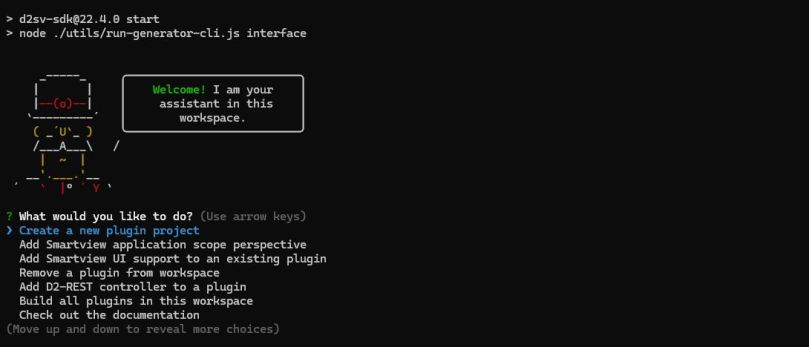
After reading through the documentation, we should try to run the “workspace assistant”. For this, I had to manually run the following command as the ws-init script didn’t work properly: “sudo npm run postinstall”. After this, you can run the start command “npm start”

d2sv-sdk@22.4.0 start
node ./utils/run-generator-cli.js interface

And you’ll see the “assistant”:

You can browse through the options to see what’s available. For this first test I opted for using the included examples and then compiling them:

After this, I copied the resulting jar file artifact (on the “target” folder, and not the “dist” folder, as the documentation wrongly states) to Smartview and… Smartview no longer starts 😀 So I guess I’ll have to keep investigating… good luck

Remote DAR install

A usual challenge when trying to automate Documentum operations is how to streamline the installation of dar files. These are done via a huge application (composer, basically a customized eclipse) that teams usually mount into some container / server to run these intalls.

However, there’s a simpler way to get this to work: by using a REST endpoint.

1. Create a method to run the dar intall from the content server by running a command line script:

java -Ddfc.keystore.file=$DOCUMENTUM/config/dfc.keystore -Ddar=$1.dar -Dlogpath=/tmp/darinstaller.log -Ddocbase=$2 -Duser=dmadmin -Ddomain= -Dpassword=dmadmin -cp $DM_HOME/install/composer/ComposerHeadless/startup.jar org.eclipse.core.launcher.Main -data $DM_HOME/install/composer/workspace -application org.eclipse.ant.core.antRunner -buildfile $DM_HOME/install/composer/deploy.xml

Note that this is an example where we’re willingly ignoring the user/password authentication as this will be delegated to the REST call.

2. Create a REST extention point to run this. This a simple example of the controller class:

public ContentfulObject createObject(@PathVariable("repositoryName") final String repositoryName,  @RequestBody final InstallDarInfo createObject,  @TypedParam final SingleParam param,  @RequestUri final UriInfo uriInfo)
        throws Exception {

    createObject.addAttribute(new Attribute("object_name",createObject.getDar()));
    createObject.setType("dm_document");

    ContentfulObject result = sysObjectManager.createSysObjectUnderParentFolder(createObject, "/Temp/installDAR", true, param.getAttributeView());

    Map<String, Object> params = Collections.singletonMap(ViewParams.POST_FROM_COLLECTION, (Object) true);  

    runInstallDARMethod(repositoryName, result.getId(), (String)result.getAttributeByName("object_name"),"/Temp/installDAR") ;
    return (ContentfulObject) getRenderedObject(repositoryName, (ContentfulObject)result, param.isLinks(), uriInfo, params);
}

private void runInstallDARMethod(String repository, String objectId, String fileName, String folderPath) throws DfException {

    String dqlMethod="execute do_method with method='m_InstallDAR', arguments='"+ objectId + " " + fileName + " " + repository + " " + folderPath + "', launch_async=true, run_as_server=true";
    this.queryEngine.execute(QueryResultItem.class, dqlMethod+";", QueryType.QUERY, 0, 100);
}

As you can see, this simply takes the file attached to the REST call, stores it on a temporary folder on the repository, and then calls the method to run this.

With this, you can also handle something that, if you’ve played with Documentum cloud images, you might have already realized that OT engineers do not know: The additional artifacts that come with DAR files (install parameters, locales, referenced dar files, etc. The usual stuff “nobody” uses in the real world). Also, you can process several files (ie: zip file containing everything needed to install), you can store the output log, return the log, use different build files depending on your needs, etc.

However, this still presents a challenge: you need to deploy this on DCTM-REST and create a method to run the script that needs to be placed on the CS.

So, is there anything else we can do? Yes 😀

From a couple versions back (20.x?) Documentum has included a JMS servlet to run DAR installs (InstallDarServlet). This is a rather “simple” class that basically receives a couple of parameters (repository, user, login ticket and an object_id from a dar file existing in the repository) and it will run a simple dar install. This servlets presents “great room for improvement”, so you can create a class with the same name and package, copy the code (so you don’t break whatever OT is using this for) and then add a handler for a multipart REST message which does everything we’ve discussed before and then replace this class on the CS. By doing this you will get:

  1. Simplest deployment for deploying DAR files automatically (just replacing one class and restarting JMS, as the servlet is already present on web.xml)
  2. You really don’t need to store anything on the repository, this can be run synchronously (be aware of long running DAR installations) and return the whole log, or you can store everything in the repository as audit trail.
  3. You can handle install parameters, locales, referenced dar files, etc. (which again, seems something that OT engineering have never heard of, who really uses locales? everyone loves systems on English :D)
  4. You can control the access to this servlet via user/password, by allowing only certaing IPs to call it and using trusted login to install DAR files, etc