One of the new features from Documentum 25.4 is that OTDSAuthenticator runs now outside JMS. This brings a clear advantage: authentication doesn’t depend on JMS.
However, this is something we can easily achieve on earlier versions of Documentum and get some benefits as well:
As mentioned before, if JMS crashes or runs out of memory or whatever, your users will still be able to authenticate
If you’re running a cluster, you can use a DNS load balancer and actually have a balanced OTDSAuthenticator service (as how it works now is defining OTDSAuthenticator url as “localhost” which binds each node to its local OTDSAuthenticator, but this is not fault-tolerant, as losing one JMS will render that node useless as it won’t be able to authenticate users)
This process is actually quite simple:
Get an application server (Tomcat, Jetty, etc.)
Drop it on whatever folder on the server (I would use $DOCUMENTUM/otdsauth)
Modify the app server configuration to use an unused port instead of the default 8080
Copy $DM_JMS_HOME/webapps/OTDSAuthenticator to your app server webapps’ folder and start the server
Once the database is installed, we can start installing the first required applications and required packages such as nodeJS, npm, etc (Java is already present from Documentum Content Server installation)
[root@localhost ~]# rabbitmq-plugins enable rabbitmq_management
Enabling plugins on node rabbit@localhost:
rabbitmq_management
The following plugins have been configured:
rabbitmq_management
rabbitmq_management_agent
rabbitmq_web_dispatch
Applying plugin configuration to rabbit@localhost…
The following plugins have been enabled:
rabbitmq_management
rabbitmq_management_agent
rabbitmq_web_dispatch

started 3 plugins.

[root@localhost ~]# rabbitmqctl add_user mqadmin admin
[root@localhost ~]# rabbitmqctl set_user_tags mqadmin administrator
[root@localhost ~]# rabbitmqctl set_permissions -p / mqadmin ".*" ".*" ".*"

[root@localhost ~]# systemctl enable rabbitmq-server
Created symlink /etc/systemd/system/multi-user.target.wants/rabbitmq-server.service → /usr/lib/systemd/system/rabbitmq-server.service.
[root@localhost ~]# systemctl start rabbitmq-server
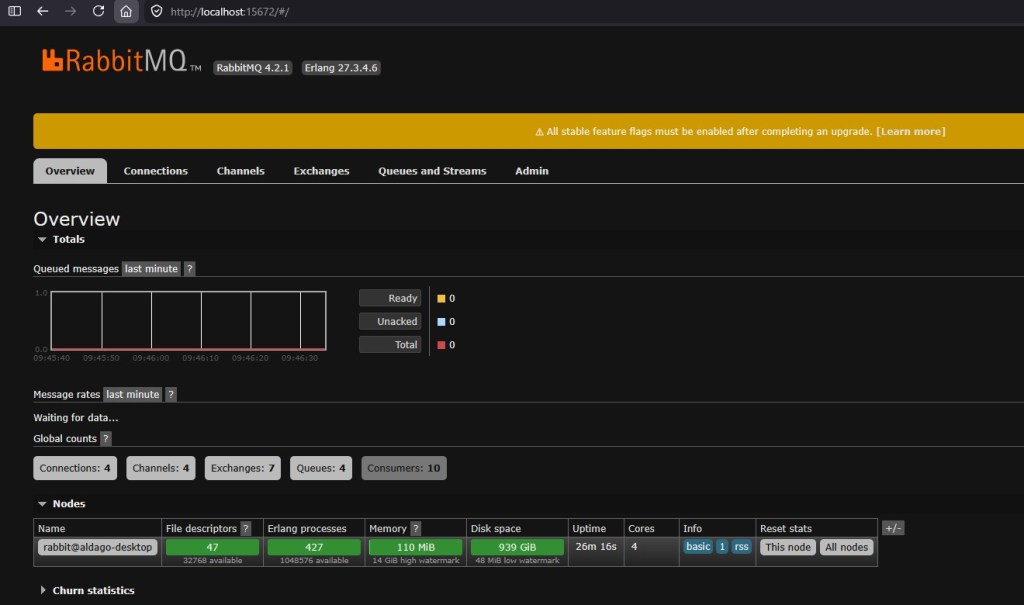
Now, you should be able to login into RabbitMQ’s console from http://localhost:15672 with the user just created:
Now, you need to copy the OT IV license replacing the existing INTELLIGENT_VIEWING.lic file on the installer folder. Once you have the license, you can run the OTDSConfig program that will upload the license and create the required configuration on OTDS:
Take note of the values generated for the client ids as well as the value for the license resource. Now we have to edit the IntelligentViewing_Linux.properties file. Important values to modify here are the following:
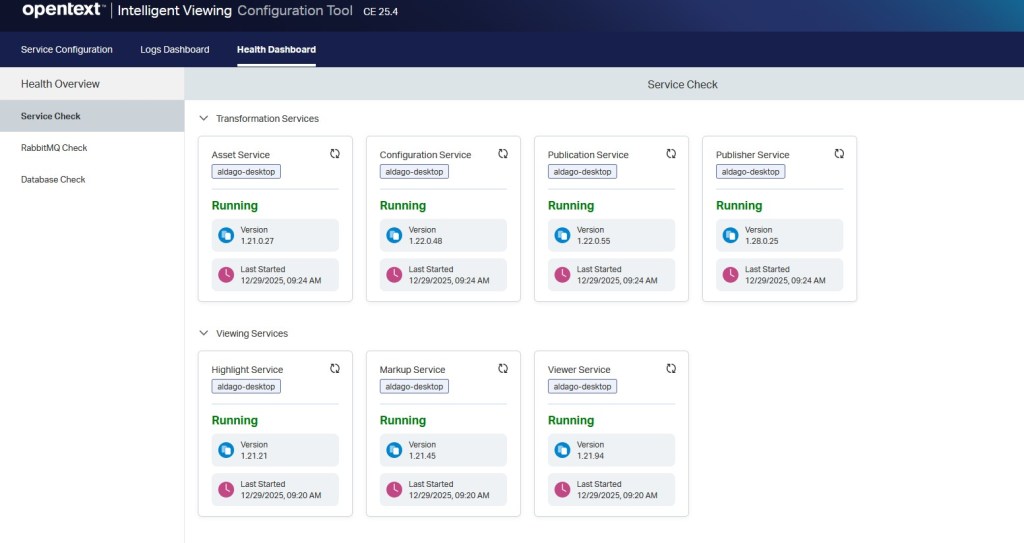
Hopefully the installer will finish correctly and IV will be installed. Logs can be checked on /var/log/opentext but we can also use the console application to check the status/adjust configuration:
Now, we should try checking if this works or not. In the past, IV included a demo application (metis) but that is no longer the case. However, there’s a publicly available sample application on github: https://github.com/opentext/ivsa
Download the code, and create a .env file on the root of the project with the following values:
This configuration will allow to test a file provided by url. For doing this I just copied the sample documents provided with this application to one of the tomcat’s ROOT webapp, so it can be accessed via browser.
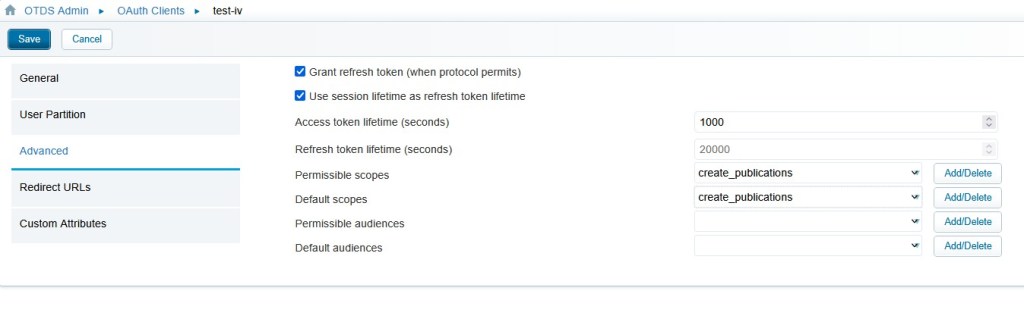
Now we need to create an OTDS Oauth client named “test-iv” and add the following values to permisible scopes and default scopes:
view_publications
create_publications
Now we can build the application:
npm install
npm run build
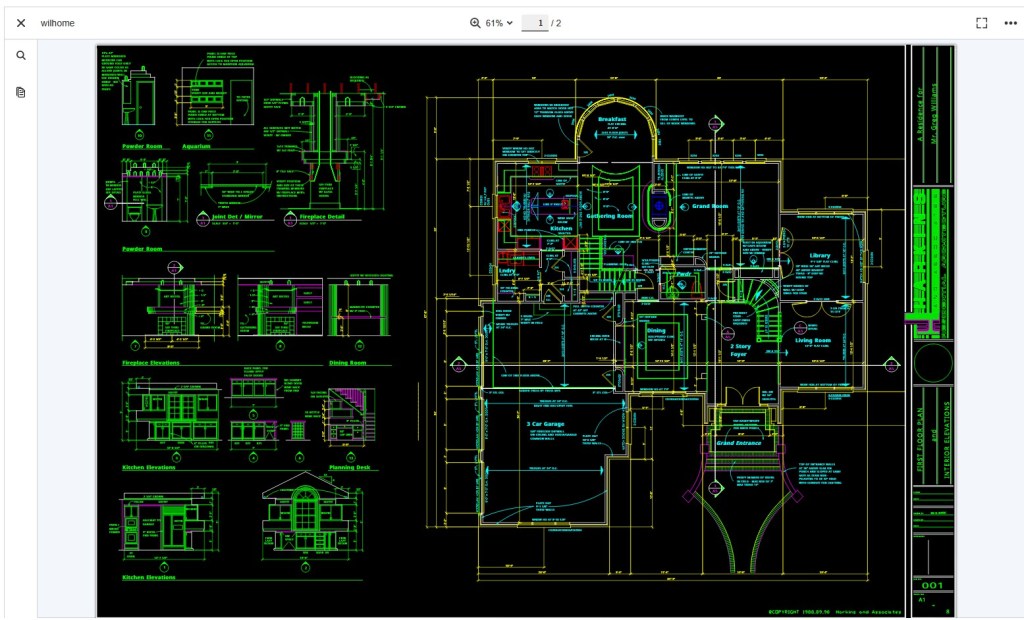
As usual, the scripts are windows encoded, so before running the ivsa command make sure to run the dos2unix command on all files on the project, otherwise it won’t run. Finally, try to execute the ivsa application on one of the copied files to tomcat providing and user/pass existing in OTDS allocated to the IV license:
This is a step-by-step guide to install Documentum 25.4 in WSL2 using the Rocky Linux 9 (closest to the supported RH9) image with PostgreSQL 17. This version comes with some changes:
OT has repackaged (and rebranded for the 100000th time again the products) the installer into zip files
Documentum CM runstack:
Content Server PostgreSQL and Oracle
Documentum Administrator
Process Engine
Workflow Designer
Thumbnail Server
iJMS
Documentum CM experience:
Documentum Clients
D2 (now called “Classic”) and SDK
D2-Config
D2-Smartview and SDK
Administration Console
D2-REST and SDK
D2 Mobile
D2 Plugins (C2, O2, etc.)
Documentum CM API and Dev tools:
Composer
DFC
DFS and SDK
DCTM-REST and SDK
CMIS
Connector for Core
Documentum Search is no longer available (until at least 2027) because of performance and result inconsistency issues
Tomcat supported version is now 11 (will OT ever update xPlore’s Tomcat?)
JMS tomcat no longer has the version on the folder path (now is $DOCUMENTUM/tomcat)
OTDSAuthenticator is no longer part of the JMS, but it runs as an http service listening on port 8400. The binaries/configuration are located on $DM_HOME/OTDSAuthLicenseHttpServerBin and the otdsauth.log is now located on $DOCUMENTUM/dba/log
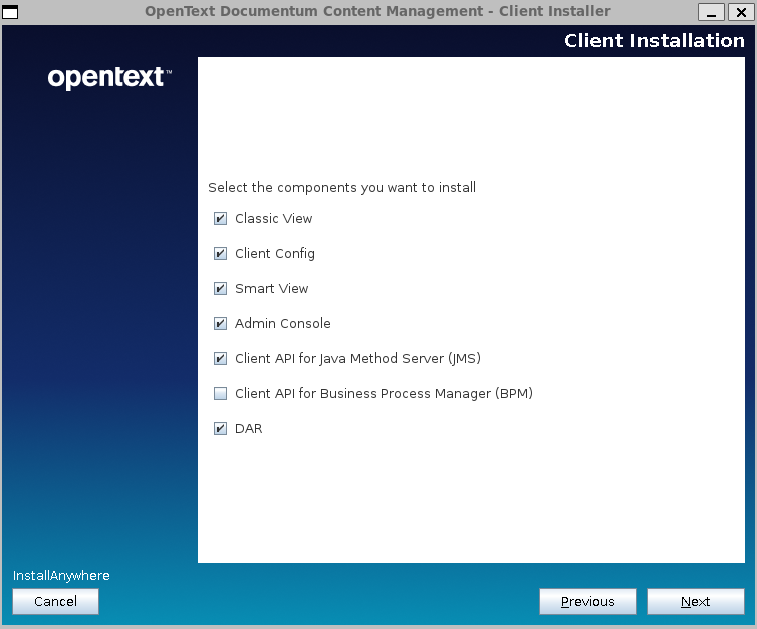
We have the new admin console which in theory should replace (one of this years :D) DA. As we have seen for many years with D2, everything comes “preconfigured” for windows (dfc.properties points to “C:\Documentum\config\dfc.properties” on Linux packages). In a “default” installation you can skip deploying this as it has no use:
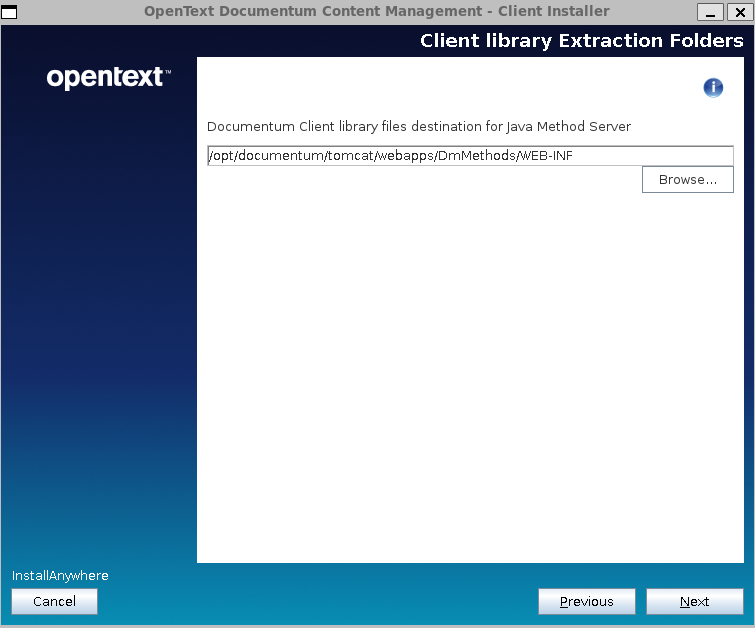
Clients (D2) now have a similar installer as the CS, but OT still can’t properly configure log paths (Engineering must have never heard of catalina.base/home variables. Will they ever stop making all log files on Linux point to C:\Logs\xxx.log?)
Initial Configuration
I will not go through the basic configuration, as you can follow the steps detailed for Documentum 25.2. You just need to use proper Java version and modify the environment variables that change ($DM_HOME, $DM_JMS_HOME, $JAVA_HOME).
Also remember to start the OTDS authentication HTTP service if you want to use licenses, otherwise you could only login into DA. In case you want to setup licensing you can follow the steps from theOTDS licensing configuration post.
Client installation
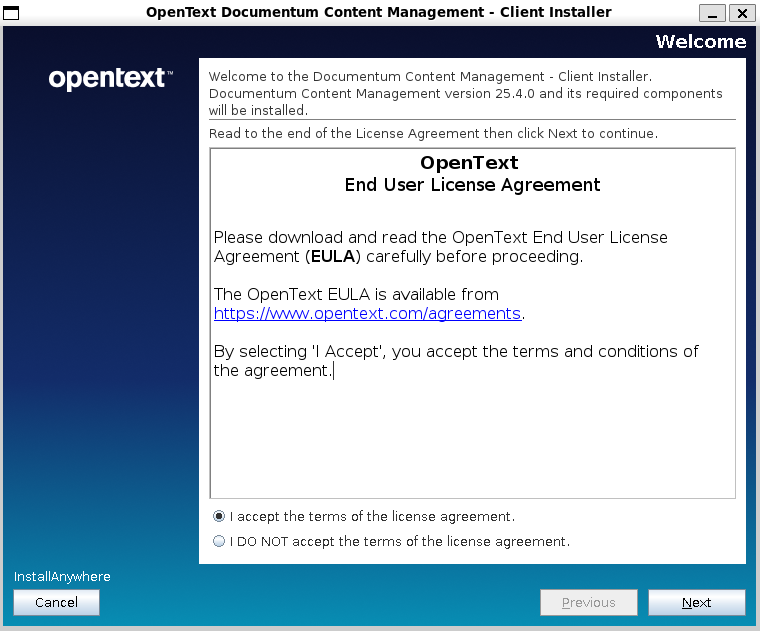
You’ll need to unzip the clients package zip and run ./Documentum-Client-Installer.bin:
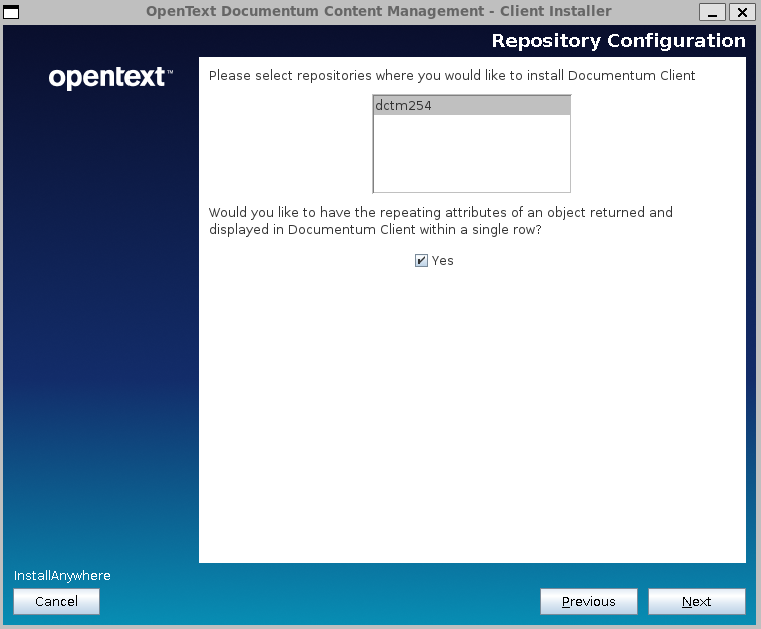
It looks like we finally have support for multiple repositories configuration:
After the installation is done you’ll have the war files ready to be deployed:
Drop the files to your Tomcat 11 installation
Update dfc.properties and log4j2 and logback configuration (as everything will be writing to C:\xxx)
If you are registered on the OpenText site you’ve probably received this week the notification about the status of xPlore:
xPlore 22.1 will be the last version of xPlore, with Patch 12 being the supported version
Documentum search is now officially listed as the replacement of xPlore
Support for xPlore will finish on 2027 (+ extended)
If you have checked “recently” xPlore 22.1 patches, you’ll have realized that OpenText moved from Wildfly to Tomcat 9 during these patches (on Patch 04 or 05, if I remember correctly) as well as moving to JDK 17. However, despite P12 supporting JDK 21, xPlore still uses Tomcat 9 (remember that latest branch is Tomcat 11, with Tomcat 10 being the version considered “standard” as of today). This situation is strange because all the Documentum stack is running in Tomcat 10… except this. And despite having KBs on how to upgrade Tomcat with minor versions (KB0833958 and KB0833423) is still weird that this is not done yet.
It happens that I had opened a case just a few days before getting the notification mail asking about the status of xPlore and Tomcat 10 (due to Tomcat 9 vulnerability topics) and got this answer:
"Moving to Tomcat 10.x would need upgrading code compilation to Java17.
This is a larger effort which is not planned."
So… not believing this statement (as we have recently upgraded everything to Java 17 and it has been basically replacing javax.* packages with jakarta.* packages, and it hasn’t been that much of a “larger effort”) for 3 web applications (dsearch, dsearchadmin and indexagent) I decided to check how difficult this would really be.
First thing, I had to install locally xPlore 22.1, then upgrade it to 22.1 P12 and finally create the PrimaryDsearch and IndexAgent instances. So far, so good.
So let’s try this:
Download latest Tomcat 10.1 (currently 10.1.47)
Unpack twice the Tomcat 10.1 package (PrimaryDsearch_tomcat10.1.47 and Indexagent_tomcat10.1.47)
Copy Indexagent_tomcat9.0.100/bin scripts (start/stopPrimarySearch and dctmServerStatus.sh)
Update Indexagent_tomcat10.1.47/webapps/IndexAgent/WEB-INF/classes/indexagent.xml with Tomcat 10.1 path
Update Indexagent_tomcat10.1.47/conf/server.xml to use port 9200
Update copied scripts to bin folder with Tomcat 10.1 path
Update loggging configuration with Tomcat 10.1 path
Then we start both Tomcat 10 and… nothing 😀 As expected the javax.* references make this unable to work with Tomcat 10. So what can we do? “Normal” approach would be taking the original source code and replacing javax.* with jakarta.* and dependenies on libraries but a) I do not have the original source code and b) I do not want to be decompiling all the jars. So it is really a large effort? I do not think so.
Apache provides a migration tool that can modify all the references to javax in all the files of your application. So… what if we give it a try? We just need to download the tool and execute it:
And after few seconds the tool will finish converting the applications and we just have to delete the javax_xxx folders and start PrimaryDsearch and IndexAgent. And what happens now?
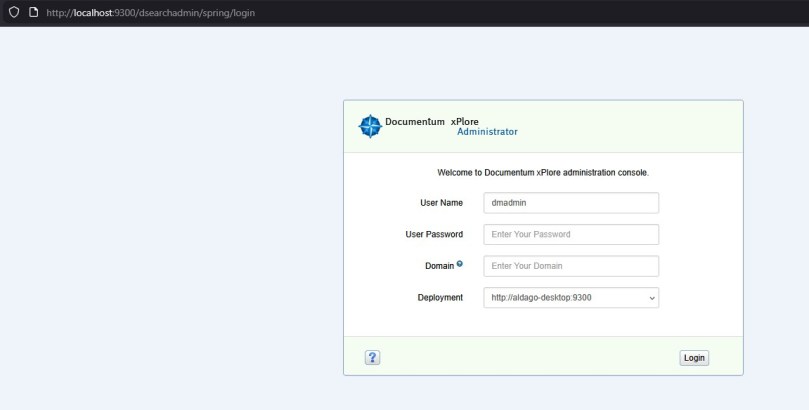
Dsearchadmin:
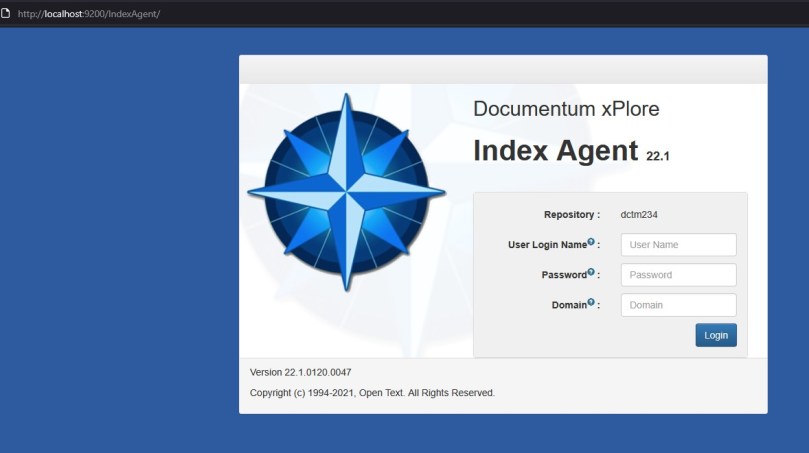
IndexAgent:
IndexAgent status from DA:
Search results:
Total time for this: ~20 min give or take. Considering that probably writing this post has taken me longer that this, not sure if we can qualify this as a “large effort” 😀
If you’re using D2 (or Smartview) you probably have realized that the LoadOnStartup parameter which is required for certain features (ie: application list) also makes D2 startup slower.
Depending on the number of repositories/applications this startup time can be very long or extremely long (we’re talking about a web application). As an example, our servers take ~5-7 minutes to complete the startup of D2, but even “funnier” is the situation with our laptops, where (thanks to all the security AV, inventory tools and such) the same war file from dev/qs/prod can take ~20 minutes to start.
How is this possible? Well, I asked myself the same question when I accidentally had to check some code on some classes related to this topic. What I found was that what LoadOnStartup does is basically this:
Populates the type cache
Populates the labels for the types
Caches the configuration objects (so if you have a lot, this will take some “seconds”)
Populates the labels for every attribute and language (and this will take even minutes depending on how many languages/attributes you have, as it happens for everything, not discriminating even internal attributes not used)
You can see these in the following excerpt from D2.log in full debug mode:
Refresh cache for type : dm_document
Refresh cache for type : d2_pdfrender_config
...
Refresh format label cache
...
Refresh xml cache for object d2_portalmenu_config with object_name MenuContext
...
Refresh en attribute label cache
..
Is this really a problem? Well, not “by default”, but if you have 5-6 repositories with many types and many languages, this becomes… slow.
So, taking a look at the code, we saw that most of the time (or the most significant situation) was happening with the attribute label cache, which would stop for 30-40 seconds for each language. This code is located in com.emc.common.dctm.bundles.DfAbstractBundle.loadProperties method:
query.setDQL(dql);
col = query.execute(newSession, 0);

while(col.next()) {
	String name = col.getString("name");
	String label = col.getString("label");
        if (col.hasAttr("prefix")) {
		String prefix = col.getString("prefix");
                StringBuffer tmpName = new StringBuffer(prefix);
                tmpName.append('.');
                tmpName.append(name);
                name = tmpName.toString();
        }
This dql is “select type_name as name, label_text as label from dmi_dd_type_info where nls_key = ‘en’” which can return tens of thousands of results, and this is executed for each language configured in the repository. And this code is called from the com.emc.d2fs.dctm.servlets.init.LoadOnStartup class:
int count = docbaseConfig.getValueCount("dd_locales");
for (int i = 0; i < count; i++) {
      String strLocale = docbaseConfig.getRepeatingString("dd_locales", i);
      DfSessionUtil.setLocale(session, LocaleUtil.getLocale(strLocale));
      LOG.debug("Refresh {} type label cache", strLocale);
      DfTypeBundle.clearCache(session);
      DfTypeBundle.getBundle(session);
      LOG.debug("Refresh {} attribute label cache", strLocale);
      DfAttributeBundle.clearCache(session);
      DfAttributeBundle.getBundle(session);
}
The getBundle method is running at the end that query for the labels… So improvement possibilities? Clear one: multithreading. We modified this block of code to run with multiple threads (one per language), and what happened? We cut down the startup time by 2-3 minutes, fantastic, right? Yes 🙂 but then we thought: The log clearly shows that LoadOnStartup is a sequential process that repeats the same stuff for each repository… so could we run the “repository initialization” in parallel? Let’s see:
Iterator<IDfSession> iterator = (Iterator<IDfSession>)object;
        while (iterator.hasNext()) {
          IDfSession session = iterator.next();
          try {
            if (session != null) {
              refreshCache(session);
              if (cacheBocsUrl)
                loadBocsCache(session);
            }
          } finally {
            try {
              if (session != null)
                session.getSessionManager().release(session);
            } catch (Exception exception) {}
          }
        }
This block of code is what initiates the LoadOnStartup process for each repository with the “refreshCache” method. So what happens if we also add multithreading to this block of code? Well, that it works:
[pool-5-thread-2] - c.e.d.d.s.i.LoadOnStartup[   ] : Refresh cache for type : d2_subscription_config
[pool-5-thread-1] - c.e.d.d.s.i.LoadOnStartup[   ] : Refresh cache for type : d2_toolbar_config
[pool-5-thread-3] - c.e.d.d.s.i.LoadOnStartup[   ] : Refresh cache for type : d2_attribute_mapping_config
[pool-5-thread-2] - c.e.d.d.s.i.LoadOnStartup[   ] : Refresh cache for type : d2_sysobject_config
You can see how the type cache is populated in parallel by using a different thread for each repository. And what about times? Well, these are the times for the “normal” startup, parallel loading of labels, and parallel loading of the repository configuration and labels taken on my laptop:
This is a step-by-step guide to install Documentum 25.2 in WSL2 using the Rocky Linux 9 (closest to the supported RH9) image with PostgreSQL 17. This versions comes with some changes:
Due to the deprecation of MS SMTP basic authentication, installer now allows using a M365/MSGraph account for setting mail:
Initial Configuration
There’s no official image on Microsoft Store so you’ll need to download the container image from the Rocky Linux page. Once this is done, you can import the image:
After importing the image, we can log in (as root) and start the basic configuration of the server:
[root@desktop ~]# yum -y update
[root@desktop ~]# yum -y install sudo procps tcl expect libXtst xterm libxcrypt-compat

[root@desktop ~]# adduser dmadmin
[root@desktop ~]# passwd dmadmin
Changing password for user dmadmin.
New password:
BAD PASSWORD: The password is shorter than 8 characters
Retype new password:
passwd: all authentication tokens updated successfully.

[root@desktop ~]# usermod -aG wheel dmadmin
[root@desktop ~]# su - dmadmin
[dmadmin@aldago-desktop ~]$ sudo vi /etc/wsl.conf
[boot]
systemd=true
PostgreSQL Configuration
First we need to install PostgreSQL:
[root@desktop ~]# dnf install -y https://download.postgresql.org/pub/repos/yum/reporpms/EL-9-x86_64/pgdg-redhat-repo-latest.noarch.rpm
[root@desktop ~]# dnf -qy module disable PostgreSQL

[root@desktop ~]# dnf install -y postgresql17-server

[root@desktop ~]# /usr/pgsql-17/bin/postgresql-17-setup initdb
Initializing database ... OK

[root@desktop ~]# systemctl start postgresql-17
[root@desktop ~]# systemctl enable postgresql-17
Created symlink /etc/systemd/system/multi-user.target.wants/postgresql-17.service → /usr/lib/systemd/system/postgresql-17.service.
[root@desktop ~]# systemctl status postgresql-17

[root@desktop ~]# su - dmadmin
[dmadmin@desktop ~]$ sudo su - postgres
[sudo] password for dmadmin:
[postgres@desktop ~]$ psql
psql (17.5)
Type "help" for help.

postgres=# \password postgres
Enter new password for user "postgres":
Enter it again:
postgres=# exit
[postgres@desktop ~]$ exit
logout

[dmadmin@desktop ~]$ sudo passwd postgres
Changing password for user postgres.
New password:
BAD PASSWORD: The password is shorter than 8 characters
Retype new password:
passwd: all authentication tokens updated successfully.
Next, we can install phpgadmin for easier administration:
[root@desktop ~]# dnf -y install yum-utils
[root@desktop ~]# rpm -i https://ftp.postgresql.org/pub/pgadmin/pgadmin4/yum/pgadmin4-redhat-repo-2-1.noarch.rpm
warning: /var/tmp/rpm-tmp.CQz9dX: Header V4 RSA/SHA256 Signature, key ID 210976f2: NOKEY
[root@desktop ~]# yum-config-manager --disable pgdg-common
Error: No matching repo to modify: pgdg-common.
[root@desktop ~]# dnf update -y
[root@desktop ~]# dnf install pgadmin4 -y

[root@desktop ~]# systemctl enable --now httpd
Created symlink /etc/systemd/system/multi-user.target.wants/httpd.service → /usr/lib/systemd/system/httpd.service.
[root@desktop ~]# systemctl status httpd

[root@desktop ~]# /usr/pgadmin4/bin/setup-web.sh
Setting up pgAdmin 4 in web mode on a Redhat based platform...
Creating configuration database...
NOTE: Configuring authentication for SERVER mode.
Enter the email address and password to use for the initial pgAdmin user account:
Email address: dmadmin@dmadmin.dmadmin
Password:
Retype password:
You can now start using pgAdmin 4 in web mode at http://127.0.0.1/pgadmin4
And finally, we can configure the odbc connection:
Starting with Documentum 24.4, OTDS is now mandatory for managing licenses, meaning that you won’t be able to use any client without license (not even with dmadmin). OpenText has a white paper on the support page called “OpenText™ Documentum 24.4 – OTDS Configuration” that you can check (as it has had several iterations with several updates).
This post will cover the minimal steps required to set-up a development environment (after you request a developing license), as these are… some steps (wonder how is this supposed to work on a cloud environment… you deploy your wonderful kubernetes cluster and… nothing works until you manually perform all these steps?).
Following the white paper, the first step is creating a new non-synchronized partition, that later will be populated with the repository inline users (I do not even want to ask what happens when you have more than one repository and these users have different passwords!):
After this, you can ignore the creation of the resource, as it is not required to create the users via OTDS (if you’re going to use dmadmin or a few users, you probably already have these on the repository and will be “imported” to OTDS, so the resource is not needed).
Then, you need to import the license provided by OT support.
Now that we’re done with the “prerequisites”, we need to create what OT calls “business admin user” which is basically the user DCTM will use to connect to OTDS and check the license. This user needs to be created first on OTDS and then added to the “otdsbusinessadmins” groups.
After this, we need to create the user again in Documentum. For this, the guide suggests to use the following API script:
Once this is created we need to allocate the existing license to an OTDS partition. With this step the “initial setup” is done and you should see something like this on DA:
Now we need to create the inline users (dmadmin) in the OTDS partition so these are “licensed” to use application. For some reason (lack of knowledge I guess), OT complicates things too much as, not only you have to run a command-line Java command, but the documentation forces you to create a copy of dfc.properties in the dfc folder (??!!??!!) and to explicitly declare the environment variables for Java… that should be already present on the system (otherwise Documentum won’t be working properly… which I could expect happens to the talented team :D).
So instead of following the instructions on the white paper, just run the following command:
Finally (yes, we’re almost done), you need to update otdsauth.properties file under JMS with the proper information, restart everything and hopefully, you’ll have now a licensed development environment.
If you work with Documentum, sooner or later you’ll have to face that moment were you’re going to have to use OTDS in your system (as this is mandatory since Documentum 23.4). I will try to provide some insights and tips about OTDS and Documentum in this post.
OTDS is basically an IDP (an authentication/access control system) that OpenText created (having in mind “other” solutions more limited than Documentum) and that they have been pushing to many of the products of their portfolio.
What are the positive things that OTDS brings to the table when we are talking about Documentum?
Centralized authentication management (as in: configure you authentication in 1 place, and reuse for all components, removing the need of having different libraries/configurations in webtop, d2, rest, etc.)
Centralized user/groups management: I just don’t buy this, because it relies on companies having a “perfectly organized LDAP/AD” which I’ve never ever seen. Even worse if we include here application-level group/roles, where in Documentum you can have group structures defined that are years away for any existing configuration in any AD/LDAP (and I do not see anyone manually creating thousand of existing Documentum groups in OTDS).
Centralized licensing management (another push from other products, we will see how this really works, as I already expressed my concerns in a previous post)
Obviously, not everything is fantastic, and the are several topics you should be aware of:
An authentication system is totally outside the scope of ECM departments, meaning that no ECM expert is capable of properly evaluating, configuring or maintaining a system of this kind (have a talk with your cybersecurity/authentication team before doing anything!). Not only that, this can conflict with existing policies in your company regarding authentication policies.
OTDS is not a product (check OT’s product page) but it is considered a “component” of other products. What does this mean?
You’re using a critical (as it is what it is supposed to handle access to your data) product which is not “recognized” even by their own vendor
OT has a leader solution in this field, NetIQ, which came with MicroFocus, so it is not clear what their roadmap is regarding IDPs.
There’s no “product support” for OTDS, but this is delegated to other product teams (ie: Documentum support). Obviously, they have no idea about OTDS itself, and OT bureaucracy makes highly complicated to get an answer when you have an issue.
OTDS is a single point of failure: OTDS doesn’t work -> No user can work, even if everything else is up and running.
OTDS was conceived for other, much simpler, OT’s products. As Documentum is kind of a Swiss army knife, OTDS greatly limits existing DCTM configurations (which makes this integration a challenge in certain environments)
So, given these topics, what scenarios can we found when integrating OTDS?. Well, it depends on your existing system. I think most systems can be grouped in three different categories:
Highly regulated / complex systems: You have your own IDP (EntraID, NetIQ, etc.), you also have your own system to handle access to Documentum (ie: automatic creation of users on repositories). This also includes multiple repositories in the organization, and many applications with many groups.
Small installations: Single repository approach, not many users, not many groups, still using user/password login
New systems / upgrades to a “clean” system
Based on this, what is the best (or only) approach to integrate OTDS in these scenarios?
Highly regulated / complex systems: Forget about documentation. You do not need resources, access roles or anything. Just use a synchronized partition with the required oauth clients and delegate authentication to your existing IDP. Minimal configuration, minimal maintenance (other than getting this to work). OTDS here acts just a proxy for getting the OTDS token that will be used by DCTM applications.
Small installations: Ideal scenario as you’re using Documentum as some of the other, more limited products from OT, so this is what OTDS was originally intended for. Probably you’ll only effort will be manually configuring groups.
New systems / upgrades: You “should” try to use OTDS in the “expected” way. Be aware of several limitations coming from the lack of support for existing solutions in Documentum:
Multirepository configurations are a nightmare. Nobody seem/wants to understand that you can have different users, in different repositories, and this can be a challenge.
Mix of functional/inline accounts and users accounts can be a challenge as well.
Finally, some tips that you should consider when using OTDS:
As soon as it is configured, add you organization users responsible for OTDS to the admin group, disable the otds.admin account and force 2FA authentication (and manually remove the user/pass login from otds-admin). You do not want to expose the admin page to anybody (even less if you have this running on a public cloud) as this is a huge security risk.
Token TTL is a topic when dealing with timeouts. Until now you only had to worry about web application timeout, but now also the OTDS token can expire, so the TTL should be something like TTL=timeout+buffer of time, so if a user stops using an application after 1 hour, and you have defined a 4 hours timeout on the application, your token needs to be valid for at least 5 hours.
When configuring D2, completely ignore the documentation. By no means mess with the tickets (who thought of this approach? who allowed this to be done??) or perform the configuration part that tells you to enable the “Global Registry encryption in other repositories”. This is no longer required since 23.4 P09 (you’re welcome) as it is a huge security risk (and I’m quoting the talented engineering team here: “a design flaw”, but they still seem to have forgotten to remove that section from documentation).
Make sure you test all scenarios before going live or you’ll be in trouble, as fixing these “live” will be challenging:
Web interface authentication
DFC interface authentication
Token authentication
OTDS token generation from external authenticator token
Any existing user configuration authentication (LDAP, inline, functional accounts, direct url access to components, etc.)
This is a step-by-step guide to install Documentum Search 24.4 in WSL2 using the Rocky Linux 9 (closest to the supported RH9) image created in the previous post (or you can use a clean one for this). Documentum Search 24.4 requires:
Java being available on the system (this should be already done from the previous post)
It is recomended to modify WSL2 configuration to use at least 16GB RAM for the Linux subsystem
Initial Configuration
We will start with configuring the environment for root (using root is not the best approach, but it is “the easiest” way to deal with the provided installation scripts, as these require some root operations):
Copy the zip file with the installer to the Linux image, and unzip the zip file and all the included zip files. After everything is unzipped (and all .sh scripts have execution permission) we can start installing Zoekeeper, ActiveMQ and Solr using the provided scripts (that will download automatically the installers)
[root@desktop /opt/search/3rdParty/nix]# ./dwl-zk.sh
[root@desktop /opt/search/3rdParty/nix]# ./dwl-activemq.sh
[root@desktop /opt/search/3rdParty/nix]# ./dwl-solr.sh

[root@desktop /opt/search/3rdParty/nix]# ./cfg-zk.sh
Configuration Complete

[root@desktop /opt/search/3rdParty/nix]# ./cfg-activemq.sh
Creating ActiveMQ Artemis instance at: /opt/3rdParty/activemq/bin/mybroker

Auto tuning journal ...
done! Your system can make 1.29 writes per millisecond, your journal-buffer-timeout will be 776000

You can now start the broker by executing:

   "/opt/3rdParty/activemq/bin/mybroker/bin/artemis" run

Or you can run the broker in the background using:

   "/opt/3rdParty/activemq/bin/mybroker/bin/artemis-service" start

Activemq: Default message broker created!!
Done
Configuration Complete

[root@desktop /opt/search/3rdParty/nix]# ./cfg-solr.sh
Configuration Complete
And we need to start these components before installing Documentum Search:
For Documentum Search, we need to run the installer providing the server’s dns/ip:
[root@desktop search]# ./documentumsearch-nix-install.sh localhost
/opt/search/silent_install.log
Installation started
This installation will delete/overwrite all data in /SSVC. Continue?
1) Yes
2) No
Select 1 or 2 :: 1
We have to configure dfc.properties:
[root@desktop search]# cd /SSVC/config/dfc
[root@desktop dfc]# vi dfc.properties
dfc.docbroker.host[0]=desktop
dfc.docbroker.port[0]=1489
And the connection to the repository (be aware that documentation ignores to note that the password needs to be encrypted):
[root@desktop dfc]# cd .. && cd config
[root@desktop config]# java -cp /opt/search/shared/dfc.jar com.documentum.fc.tools.RegistryPasswordUtils <password dmadmin>

[root@desktop config]# vi docbase-details.properties
docbasename=dctm244
docbaseuser=dmadmin
docbasepwd=<encrypted password>
And finally run the repository configurator before starting all the services:
[root@desktop config]# ./configure-docbase.sh
User dmadmin successfully configured for docbase dctm244
Now is the moment to start all the components and check the provided urls to see if everything is working:
[root@desktop config]# cd .. && cd bin
[root@desktop bin]# ./start-cps.sh
Starting PARSER on port 9300. Check http://localhost:9300/actuator/info for details.

[root@desktop bin]# ./start-indexer.sh
Starting INDEXER on port 9200. Check http://localhost:9200/actuator/info for details.

[root@desktop bin]# ./start-coressvc.sh
Starting CORESSVC on port 9100. Check http://localhost:9100/actuator/info for details.

[root@desktop bin]# ./start-fetcher.sh
Starting FETCHER on port 8900. Check http://localhost:8900/actuator/info for details.

[root@desktop bin]# ./start-index-agent.sh
Starting INDEX_AGENT on port 8300. Check http://localhost:8300/actuator/info for details.

[root@desktop bin]# ./start-search-agent.sh
Starting SEARCH_AGENT on port 8200. Check http://localhost:8200/actuator/info for details.

[root@desktop bin]# ./start-admin.sh
Starting ADMIN on port 8820. Check http://localhost:8820/actuator/info for details.
You can check the admin page (only index agent, it doesn’t seem to have something like dsearch) on http://localhost:8820 and login with the default credentials (admin/password):
This is a step-by-step guide to install OTDS 24.4 in WSL2 using the Rocky Linux 9 (closest to the supported RH9) image created in the previous post. OTDS requires:
Java being available on the system (this should be already done from the previous post)
An existing PostgreSQL database (we already have this as well from the previous post)
An existing/dedicated Tomcat server in the server
Initial Configuration
First we need to create the tablespace as user postgres:














 Alvaro de Andres' Blog